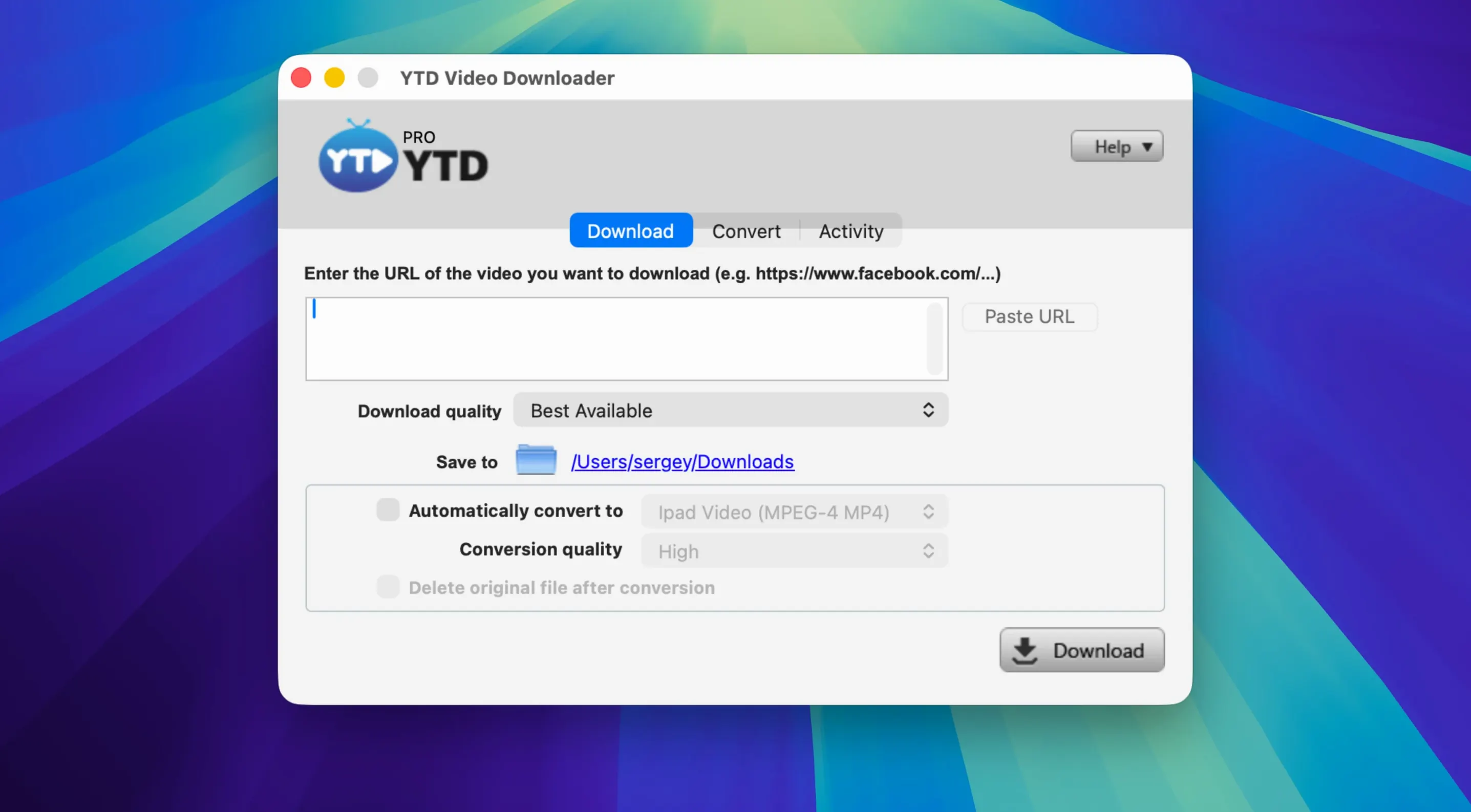
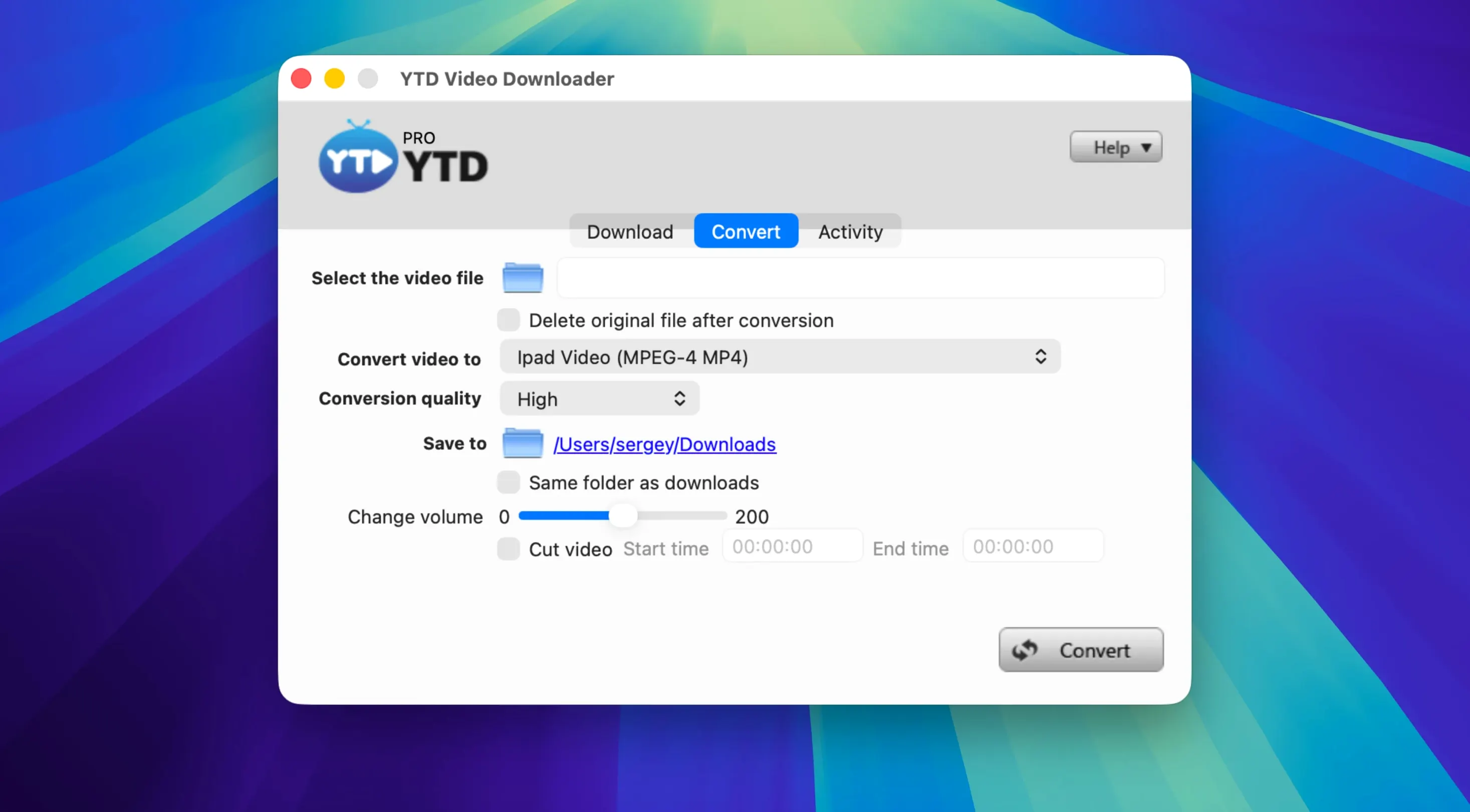
YTD Video Downloader PRO 7.8.0 handles more than 50 platforms and converts downloads to seven formats, including .mp4, .mov, .wmv, .avi, .mp3, .3gp, and .flv. Before you install it, a few practical questions tend to come up. Here are the short answers.
- Does it work on Apple Silicon? No. The listed architecture is x86 (64-bit), so it runs on Intel Macs. On M-series Macs, you would need Rosetta or a virtualized Intel environment.
- Can I pause and resume? Yes. Downloads support pause and resume, which helps with large files or unstable connections.
- What about playlists? You can convert entire playlists to MP3 or AAC, not just single videos.
- Does it grab links automatically? It detects a copied video link from the clipboard, so you can copy a URL and start the download without pasting it manually.
- Which sites are supported? The list includes YouTube, Vimeo, Dailymotion, Youku, and Yahoo Video, among the 50+ platforms.
- What macOS version do I need? OS X 10.10 or later. The current version is 7.8.0, and the developer lists compatibility back to Yosemite.
After you have the app installed and running, there are a few things worth adjusting early that new users tend to miss. The default settings work, but a couple of changes make the workflow smoother from the start.
Change the output folder before starting
Before you start downloading, open the Preferences panel and check the output folder. By default, YTD Video Downloader PRO saves files to a location that might not be convenient if you keep a structured media library. Changing it early avoids hunting for files later.
The converter format defaults to .mp4, which is fine for most cases, but if you primarily extract audio, set the default output to .mp3 or .aac. This saves a step every time you paste a music link. The playlist conversion option is also in the settings, so you can tell the app to always convert playlist content to your preferred audio format instead of asking each time.
The clipboard detection toggle is on by default, and it is worth keeping enabled. It removes one click from the routine: copy a video URL from your browser, and the app picks it up automatically.
Download only publicly accessible videos
YTD Video Downloader PRO works on publicly accessible videos. If the page requires you to be signed in, the app cannot fetch the stream. Save yourself the retry attempts and check the video is playable without authentication first.
Another frequent mistake is pasting a playlist URL and expecting a single file. The app treats playlists as collections, so it will queue the entire set. If you only want one video from a playlist, copy that video's individual URL instead.
Some users also confuse the download quality options. The app pulls whatever resolution the source serves, so if you see a low-resolution output, check the source video's original quality first. There is no upscaling involved. For audio-only conversions, the bitrate is determined by the source stream, not by the converter. Setting a higher bitrate in the preferences will not improve a low-bitrate source.
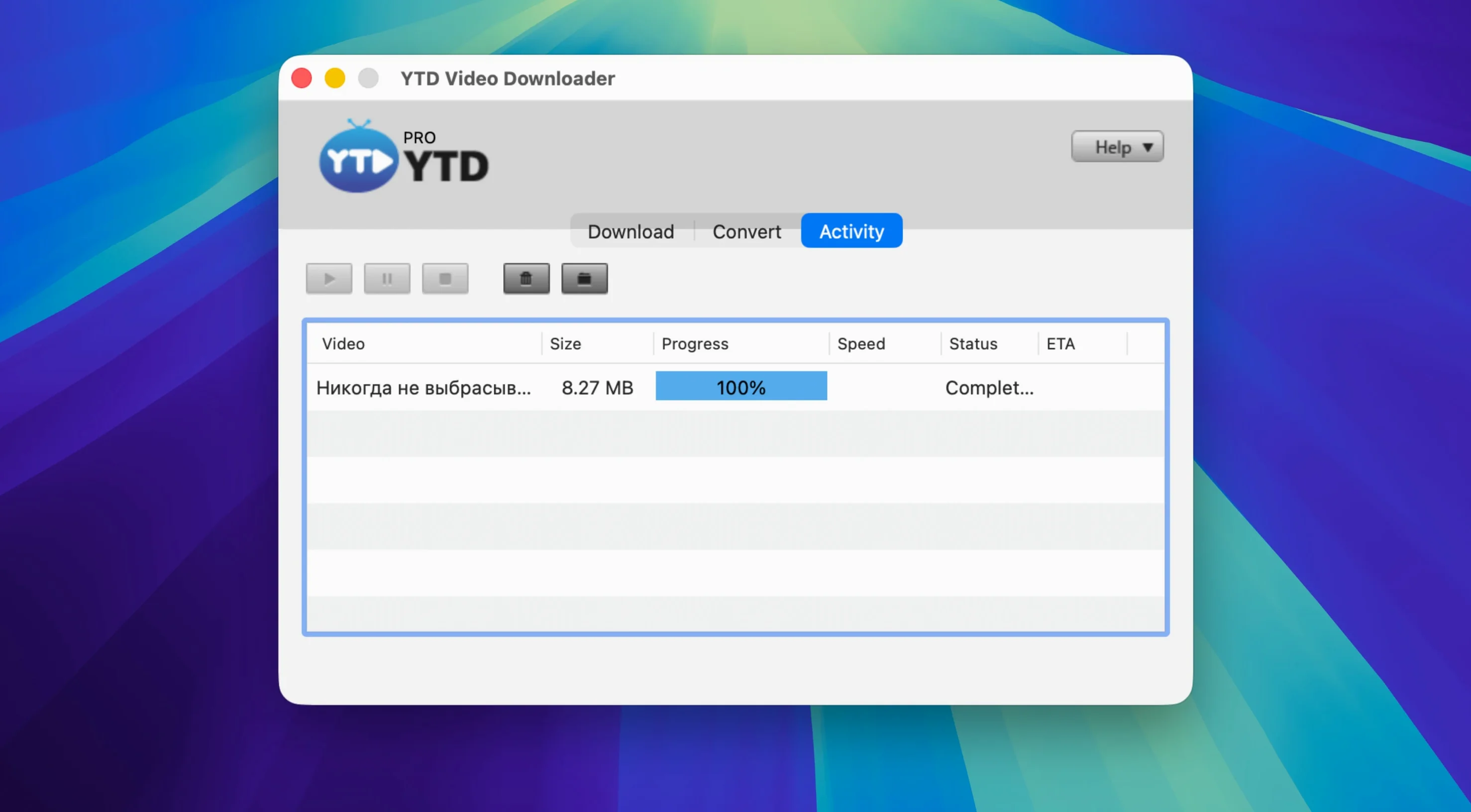
Beginners also tend to interrupt the conversion process mid-way, thinking it is stuck. The conversion step can take longer than the download step, especially on older Intel Macs. Let it finish. The progress bar does update, just at a different pace.
Pause-and-resume reliability improved in latest builds
Version 7.8.0 itself did not introduce a visual overhaul or new site support according to the developer notes, but it refined the core download and conversion pipeline. The most noticeable improvement in daily use is the pause-and-resume reliability. Earlier builds would sometimes lose progress on a resume after a long pause. That behavior is addressed in this version, making it viable for overnight queues on slower connections.
The clipboard detection also became more responsive. Earlier versions occasionally needed a manual refresh after copying a link. Version 7.8.0 picks up the URL without the extra step, which reduces friction when you are grabbing several videos in a row.
Automatic retry after a connection drop
One feature that does not get enough attention is the automatic retry after a connection drop. If your internet blips during a download, the app tries again on its own. You do not need to restart the queue manually. This is useful when downloading playlists over Wi-Fi that is not perfectly stable.
Another detail is the no-logging policy. YTD Video Downloader PRO does not keep a history of what you downloaded. If you share your computer or just prefer not to leave a trail, that is a clean way to work. There is no list to clear because nothing is stored.
The interface itself stays in English only, which is consistent across versions. If you need localization, this is not in the scope, but the labeling is straightforward enough that the dozen or so controls are easy to memorize after a few uses.
For anyone grabbing content regularly from one of the supported platforms, the combination of clipboard detection, automatic retry, and playlist conversion makes the process more of a set-and-forget task than a manual one. The app does not need babysitting once you queue your links. That is the kind of convenience that saves time over repeated sessions.
That covers the basics. The app remains part of the YTD line from GreenTree Applications SRL, and it does what it advertises: download and convert.
- macOS OS X 10.10 or later
- Intel (x86 64-bit)
- Interface: English
Questions from the notes
Can YTD Video Downloader PRO convert videos to MP3?
Yes, the built-in converter outputs MP3 among other formats, and you can convert full playlists to MP3 or AAC.
Install procedure
- Mount the disk image and launch Open Gatekeeper friendly.
- Press Enter in the Terminal window to bypass Gatekeeper.
- Drag the app to the Applications folder.
- Open the app when installation is complete.
Reports from players
Sign in or create a tester account to file a report.
No reports filed yet.