
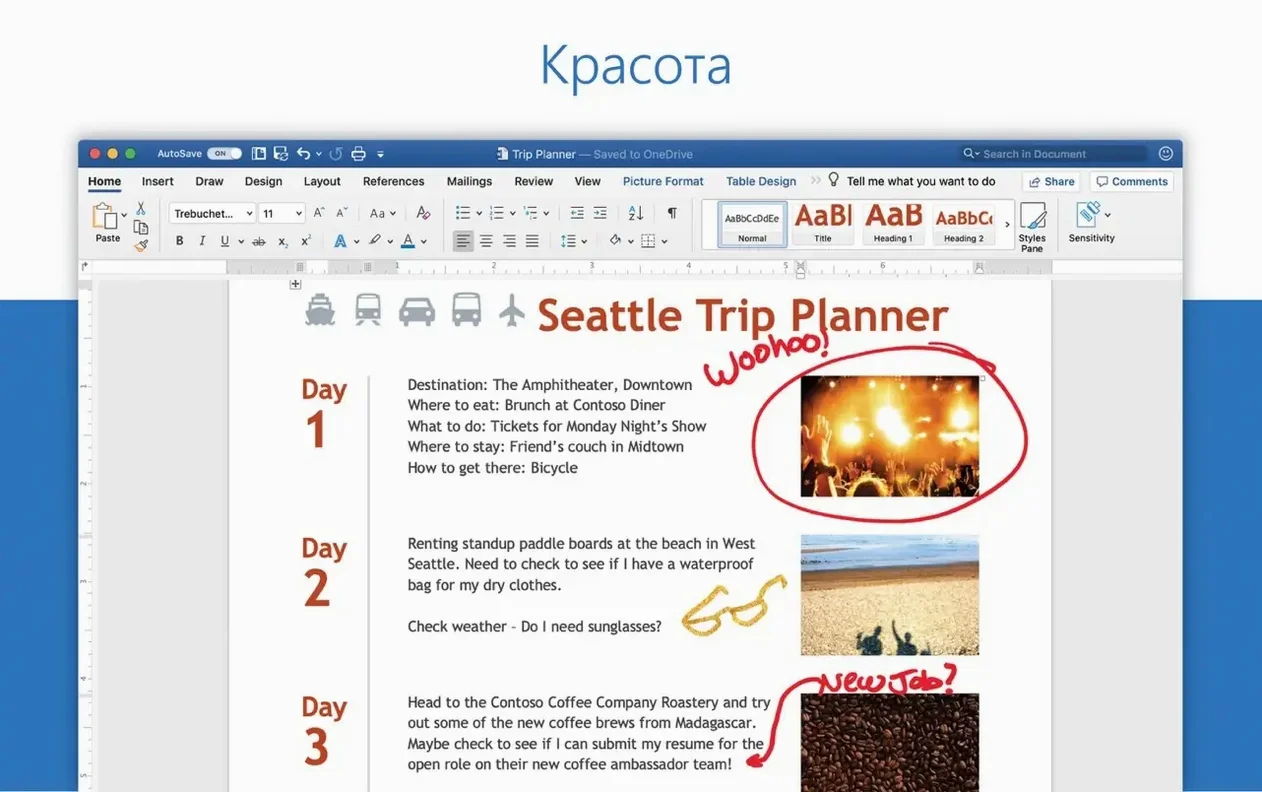
Word for Mac handles documents of nearly any size, from a one-page memo to a 500-page manuscript. The current version, 16.93, is part of the Office 2024 package for Mac and keeps the core tools that people who work with documents expect: formatting, styles, track changes, and collaboration.
Create a document
Start with a blank page or a template, then write. The interface stays familiar, with the ribbon at the top and the ruler where you left it. You can also open documents attached to email messages directly from Mail.
Edit and review
Editing in 16.93 fixed an issue where equations might not respond as expected.
Share and collaborate
Word for Mac includes sharing and co-authoring tools, so you can invite others to view or edit the same document. Changes sync as you work, and comments stay attached to the relevant text.
Missing fonts and unexpected document layouts
A few things tend to trip people up when they first get Word 16.93 running on a Mac. The most frequent is a missing font or a document that looks different from what the sender intended. Word ships with its own set of fonts, but if you open a file created on Windows or in an older version, substitute fonts may shift the layout. The fix is to install the full Office font pack, which is included with the main package, and to check the document compatibility report under the Review tab. If spacing still breaks, switching to "Print Layout" view and toggling "Show/Hide" to reveal hidden formatting marks often shows the culprit.
Another snag: the ribbon disappears or collapses unexpectedly. That happens when you double-click a tab. A single click on any tab brings it back temporarily, or you can double-click a tab again to pin it. People also report that the AutoRecovery feature occasionally saves over their own edits. Word 16.93 saves a recovery copy every ten minutes by default. If you close a document and see a version you did not expect, check the "Document Versions" panel under the File menu; your last manual save is still there.
Activation can cause confusion too. The installer requires the Office LTSC 2024 VL Serializer. If Word launches into reduced-functionality mode, the serializer was not applied or was applied after the first launch. Re-run the serializer, then launch Word. AutoUpdate (MAU) must be installed separately, and it will prompt for updates, not activation.
Quick Look preview and Spotlight indexing
Word 16.93 works well with a handful of built-in macOS tools. The most practical is Quick Look: select a .docx or .doc file in Finder and press Space to see its contents without opening Word. For longer documents, Spotlight indexes the text inside Word files, so you can search by a phrase and jump straight to the result.
Drag and drop works both ways. You can drop images from Photos or a Finder folder directly into a document, or drag selected text out of Word into Notes, Mail, or a text editor. The Automator integration is limited but not broken: you can create a Quick Action that opens a selected file in Word, or one that converts a folder of .rtf files to .docx using a short AppleScript. AppleScript support in Word 16.93 is still present, though it has not been expanded recently.
For collaborative workflows, Word shares the same co-authoring engine as the rest of Office for Mac. That means a document stored on OneDrive or SharePoint can be edited by someone in Excel or PowerPoint at the same time—not directly, but the version history is unified if you use the same document from different apps. The "Save to iCloud" option in the File menu lets you store a copy in iCloud Drive, but real-time co-authoring through iCloud is not supported; it reverts to simple file syncing.
Workflow: drafting a press release from start to finish
Here is a full workflow for a common task: writing a press release that will be reviewed by two people before distribution.
- Open Word and choose a blank document. Set the document language to English (US) via Tools → Language, which also sets the proofing tools.
- Write the headline, dateline, body, and boilerplate. Use Heading 1 for the headline and Normal for the body. Insert a page break after the first page if you want the release to fit on one side of a page.
- Add a table for the "At a Glance" section at the bottom: one column for details, one for values. Select the table, then remove border lines from the table style if the design calls for a clean look.
- Save the file to a shared OneDrive folder with a name like "PR-Draft-v1.docx". Word 16.93 sets the AutoSave toggle on by default for OneDrive files—do not turn it off if you want changes to sync.
- Share the document via the Share button in the top-right corner. Enter the reviewers' email addresses and set them to "Can edit." They will receive a link by email.
- Reviewers open the same file in Word for Mac or Word for the web. Comments and tracked changes appear in real time. Their edits appear under your cursor after a few seconds.
- When both reviewers are done, open the document and accept or reject each change using the Review tab. Check the document for any stray comments by switching to "All Markup" view.
- Export a clean copy: File → Export → PDF. The PDF preserves fonts and layout for distribution.
Manual formatting that breaks when margins change
The most common mistake is ignoring styles and formatting manually. Beginners select text and change the font size, color, and spacing one paragraph at a time. That works until a colleague sends the document back with different margins, and every paragraph has to be re-done. Using Word's built-in styles (Normal, Heading 1, etc.) means you can change the entire document's look by modifying a style once. The Style Inspector panel shows you what formatting is applied to the current selection—use it before you start clicking font menus.
Another error: forgetting to turn on Track Changes before editing someone else's document. Word 16.93 does not auto-enable it for documents you open. If you make changes and save without tracking, the original author cannot see what you altered. Enable Track Changes from the Review tab before you type a single character. If you already edited without tracking, the only way to recover is to compare versions: File → Compare Documents, provided you have an earlier saved copy.
Beginners also tend to use spaces for indentation and alignment. That breaks layout when the document is opened on another machine with a different font width. Use the ruler or the Paragraph settings instead. The ruler snap feature in Word 16.93 is accurate enough that you set indent and tab stops once and never touch the space bar for alignment.
Over-reliance on the default Normal template is another. Word uses Normal.dotm as the base for every new document. If you change the default font or margins in one document, it does not carry over unless you modify and save the template. A quick way to set your own defaults: open a blank document, set everything the way you want it, then save it as Normal.dotm to the Templates folder.
Writers and project managers who rely on stable long documents
Writers, students, journalists, and project managers are the audience listed for Word, and that holds up in practice. Writers appreciate the stable rendering of long documents with cross-references, footnotes, and a table of contents that updates automatically. The outline view is still one of the fastest ways to restructure a chapter-heavy manuscript without cutting and pasting.
Students who work with citation-heavy papers benefit from the built-in reference tools: Word includes a citation manager that can insert footnotes, endnotes, and bibliography entries in MLA, APA, or Chicago style. It does not sync with Zotero or Mendeley directly, but you can copy-paste formatted references from those apps into Word without losing the structure.
Journalists who share drafts with editors or subject-matter experts rely on Track Changes and comments. The co-authoring in Word 16.93 is responsive enough that two people can edit the same paragraph without conflicts appearing as garbled text. Project managers produce status reports, meeting notes, and project charters, where tables, bullet lists, and embedded spreadsheets from Excel are common. Word handles embedded tables without formatting drift, and you can paste a range from Excel and have it keep column widths.
Users on macOS 13 or later, whether running on Intel or Apple Silicon, get the same feature set. The app runs natively on both architectures. For anyone who regularly receives or sends .docx files, Word is still the closest you get to full compatibility with what the other person sees.
- Fixed an issue where editing equations may not work as expected.
- Quality and performance improvements.
- macOS 13 or later
- Both Intel and Apple Silicon supported
Questions from the notes
Does Word for Mac run on Apple Silicon?
Yes, the current version supports both Intel and Apple Silicon Macs.
What macOS version do I need for Word 16.93?
Word 16.93 requires macOS 13 or later.
Install procedure
- Install the standard Office 2024 package.
- Alternatively, download the needed package for Word, Excel, PowerPoint, Outlook, or OneNote using the provided links.
- Packages are downloaded from Microsoft servers.
- Install Microsoft Office LTSC 2024 VL Serializer for activation.
- Install Microsoft AutoUpdate (MAU) to receive updates.
Reports from players
Sign in or create a tester account to file a report.
No reports filed yet.