Version 2.17.0 of ViWizard Spotify Music Converter arrived without a changelog. No new features, no bug fixes listed — same app as before, with the same workflow for pulling Spotify audio into local files.
Converts Spotify content to six DRM-free formats
- Converting Spotify songs, playlists, albums, artists, podcasts, and audiobooks to playable audio files.
- Exporting to MP3, FLAC, WAV, AIFF, M4A, or M4B — six formats, no DRM.
- Automatic file sorting by artist or album after conversion.
- Running on older Macs: OS X 10.10 and up, Intel only.
Runs on Rosetta, supports four languages and web player login
- It uses Spotify’s Web Player, not the desktop app — no offline Spotify playlists needed.
- Interface supports English, German, French, and Japanese.
- No Apple Silicon native version — runs under Rosetta on M-series Macs.
- Install requires a Gatekeeper bypass step (Terminal command) after mounting the disk image.
Log in via the built-in Web Player and select your playlist or album
You open ViWizard Spotify Music Converter and log into Spotify through the built-in Web Player. It’s the same login window you get in a browser — no extra account setup. From there, you find a playlist or an album you want to convert.
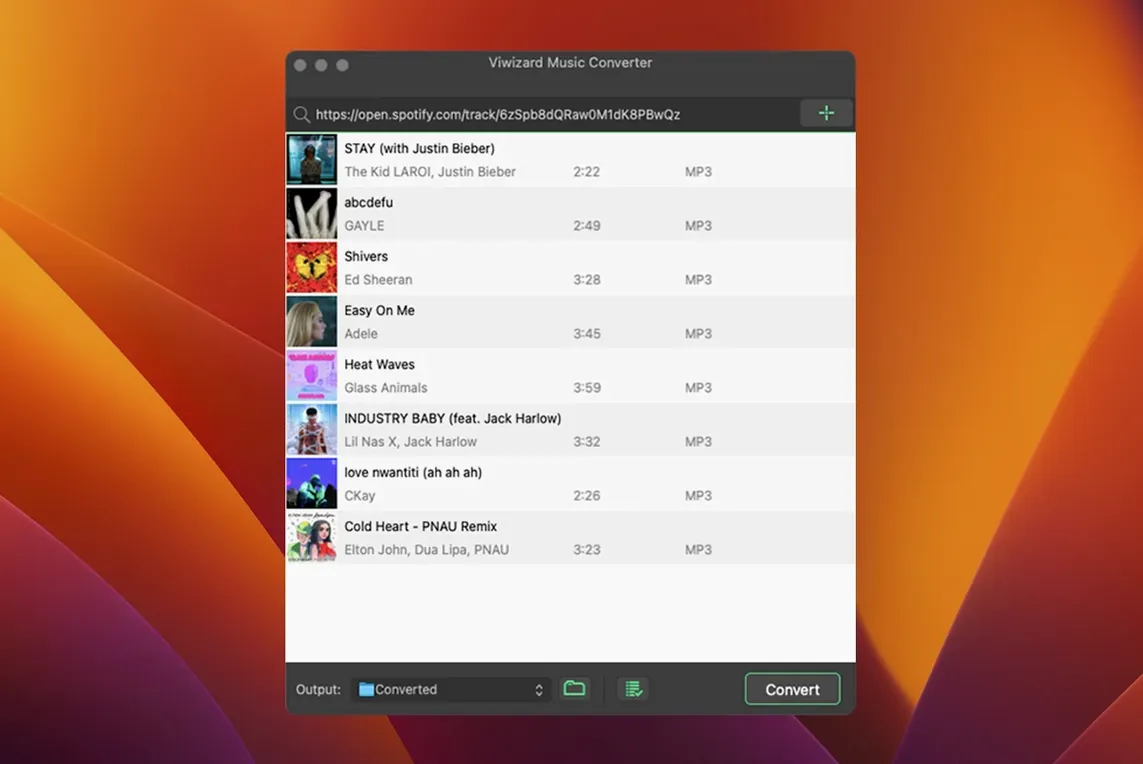
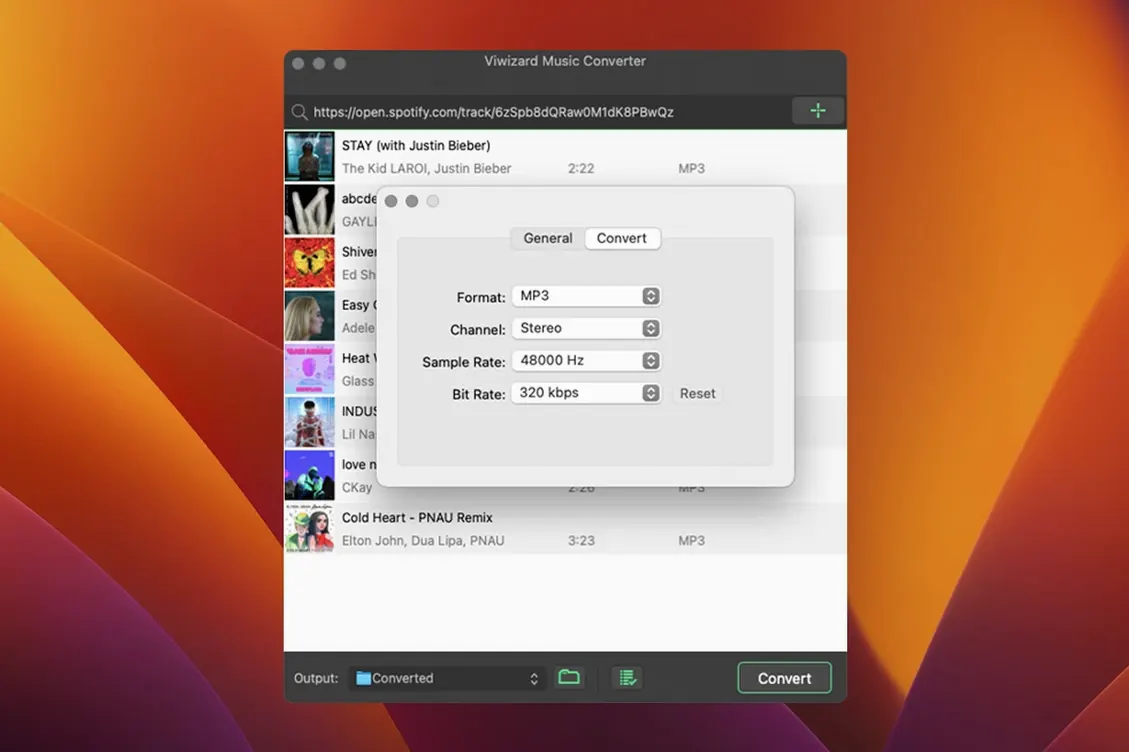
The workflow goes like this: you paste a playlist link, or search for an artist directly inside the app’s search bar. It loads the track list. You check the output format and bitrate in the settings panel — MP3 at 320 kbps is the usual pick for general listening, FLAC if you want a lossless copy. Then you hit convert.
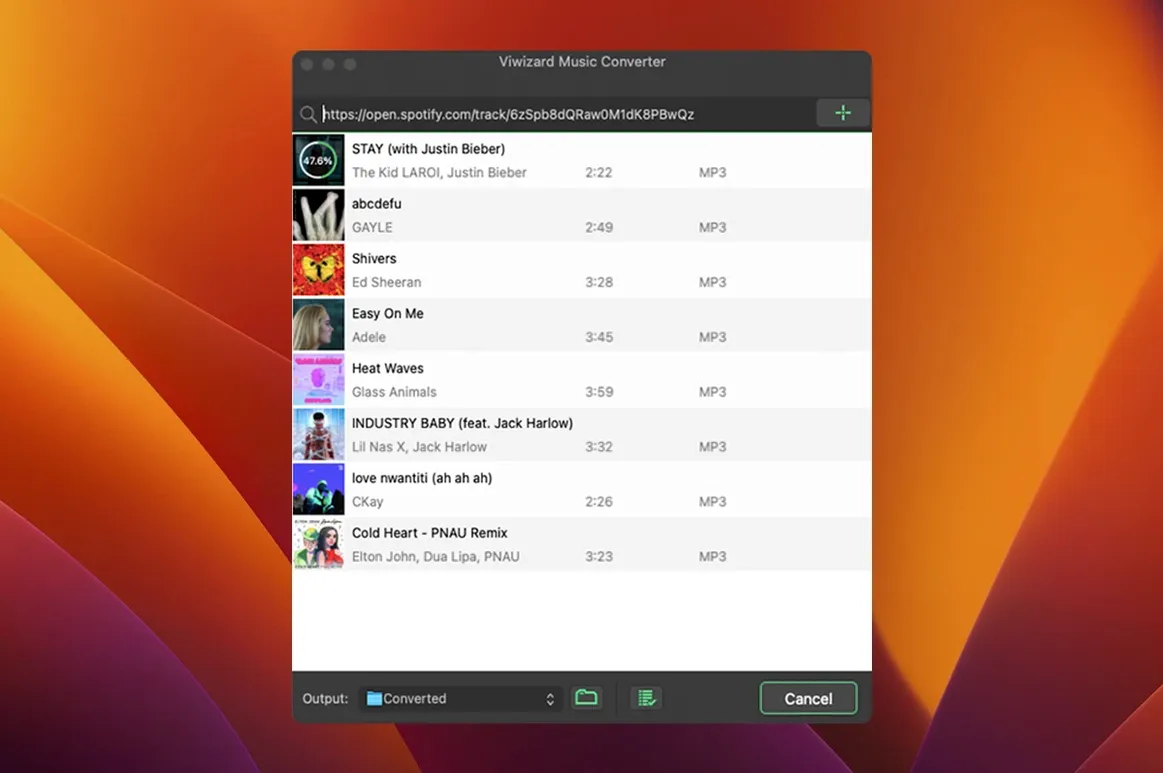
The batch queue fills quickly. The app processes each track in order, pulling audio from Spotify’s stream and writing it as a local file. Metadata tags — artist, album, track number — carry over automatically. Once the batch finishes, you find the files in the output folder, sorted into subfolders by artist or album depending on your preference.
A typical session for a single playlist of 40 tracks takes maybe ten minutes of setup and a while for the conversion to run. You can leave it in the background and do other work. The app doesn’t need Spotify’s desktop client open — it keeps its own Web Player session active.
Set an output folder and enable artist or album sorting before the first batch
- Set the output folder before the first batch. The default location works, but pointing it to a dedicated “Spotify archive” folder saves digging through Finder later.
- Turn on the “save by artist or album” option right away. It makes the output folder usable instead of a flat list of files.
- Test a single track first with your chosen format and bitrate. If the metadata looks correct and the file opens in your music player, run the full batch.
- Keep the app window visible during the first few conversions. Occasionally, a track may fail to load — you can retry it from the queue without restarting the whole batch.
- If you’re using an M-series Mac under Rosetta, expect the conversion to take a bit longer than on a native app. It’s not a problem for personal archives, but don’t plan to convert a 500-track library in one sitting.
Exported files work in iTunes, VLC, and Ableton Live for sampling
ViWizard works as a bridge between Spotify and your local music ecosystem. Once files are on disk, they behave like any other audio file — you can drag them into iTunes, VLC, or a DAW like Ableton Live for sampling or editing. The metadata tags mean they appear correctly in your library, not as “Unknown Artist” entries.
On macOS, the output files respect the standard Finder preview system. A FLAC file will show its cover art in column view if the metadata includes it. You can use Apple’s built-in Quick Look (select a file and press Space) to hear a preview before importing it into a playlist.
The app itself is self-contained — it doesn’t modify any system files or add background processes. The only macOS interaction is during installation, where you bypass Gatekeeper once. After that, it launches like any other app in the Applications folder.
If you use smart folders or Hazel-like scripts, the consistent naming pattern in the output directory makes automation easy. You could set a Hazel rule to move newly converted MP3 files to a shared music folder automatically.
Compared with similar Mac apps
vs. Allavsoft Video Downloader. Allavsoft handles Spotify tracks but focuses on video downloads from streaming sites. Its Spotify conversion works, but the interface is cluttered with non-music features. ViWizard stays focused on audio — no video tabs, no extra clutter. For pure music conversion, ViWizard is cleaner.
vs. Audacity with loopback recording. Audacity can record Spotify audio via system audio capture, but it’s manual: start recording, play the track, stop, trim, export, tag. No batch processing, no metadata, and no per-track separation. ViWizard automates all of that. If you only need one or two tracks, Audacity works in a pinch. For a whole playlist, the converter saves hours.
vs. Sidify Music Converter. Sidify follows a similar model — Spotify Web Player, batch conversion, metadata retention. The main difference is format support: Sidify targets MP3 and AAC, while ViWizard adds FLAC, WAV, and AIFF for users who want lossless archives. Both apps have similar interfaces and workflows. The choice depends on whether you need lossless output.
None of these are native Apple Silicon apps — they all run under Rosetta on M-series Macs. That’s the current state of the macOS Spotify converter scene.
- macOS OS X 10.10 or later
- Intel processor
Install procedure
- Mount the disk image and run Open Gatekeeper friendly.
- Press Enter in Terminal to bypass Gatekeeper.
- Drag the app to the Applications folder.
- Launch the app when installation is complete.
Reports from players
Sign in or create a tester account to file a report.
No reports filed yet.