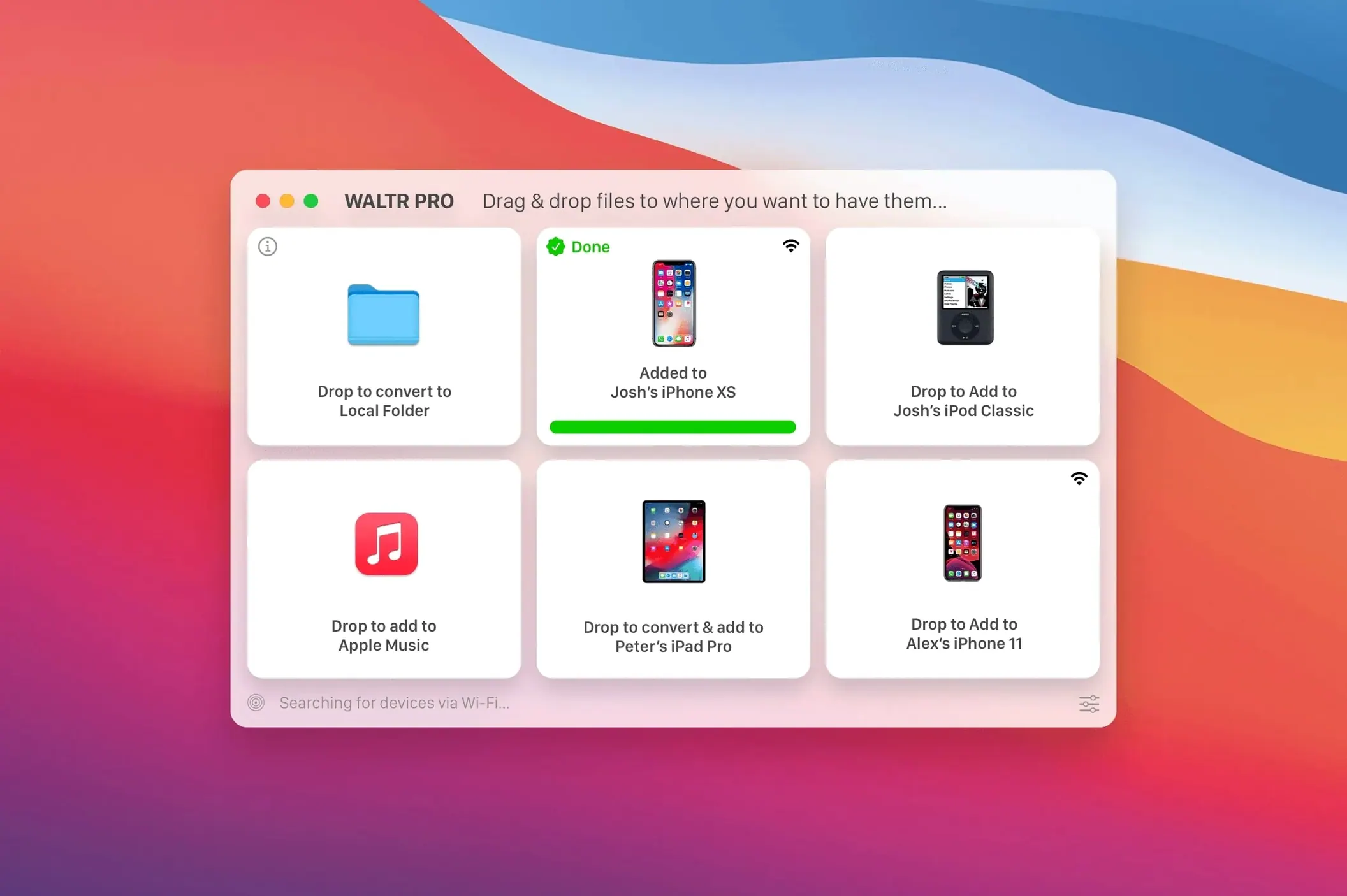
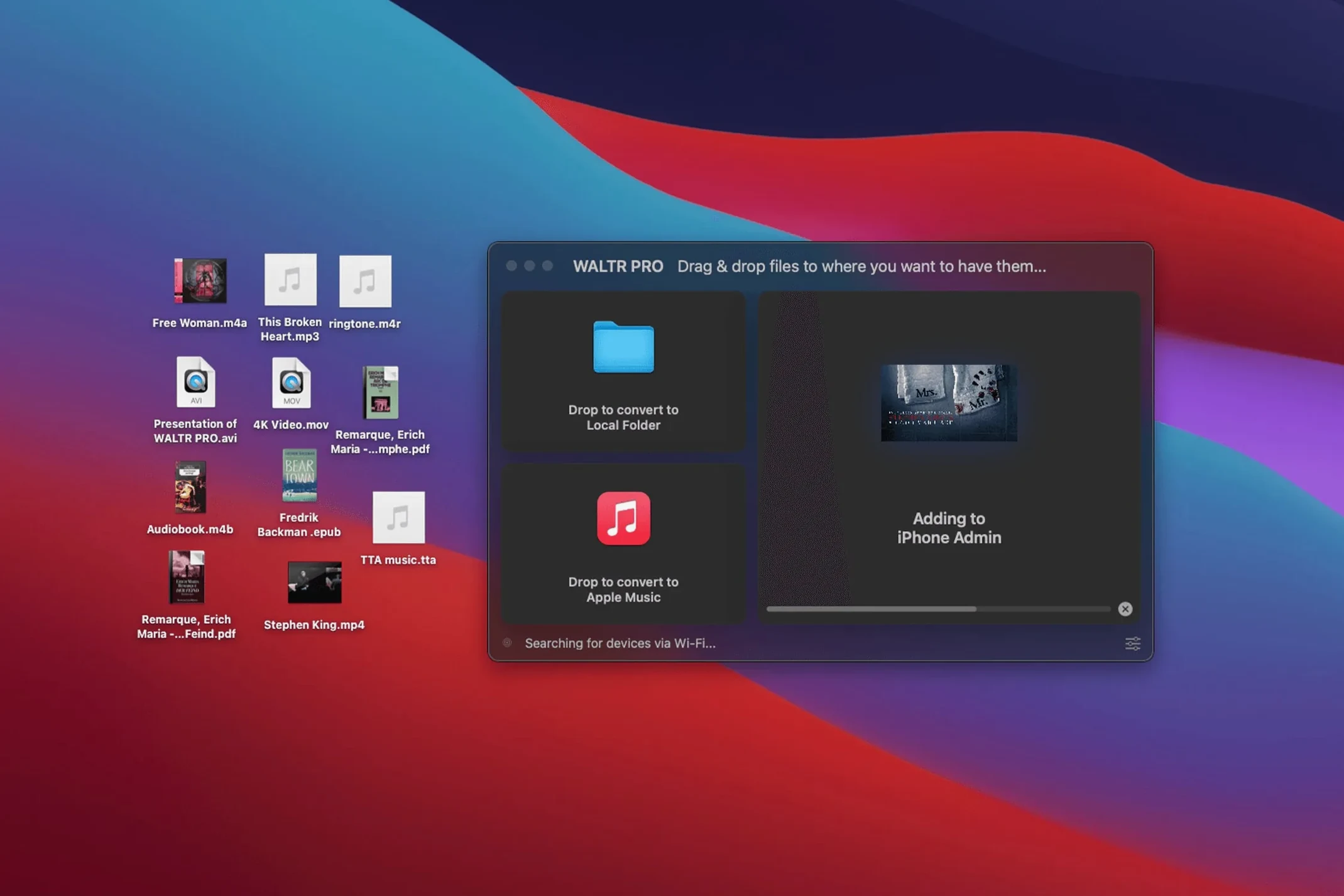
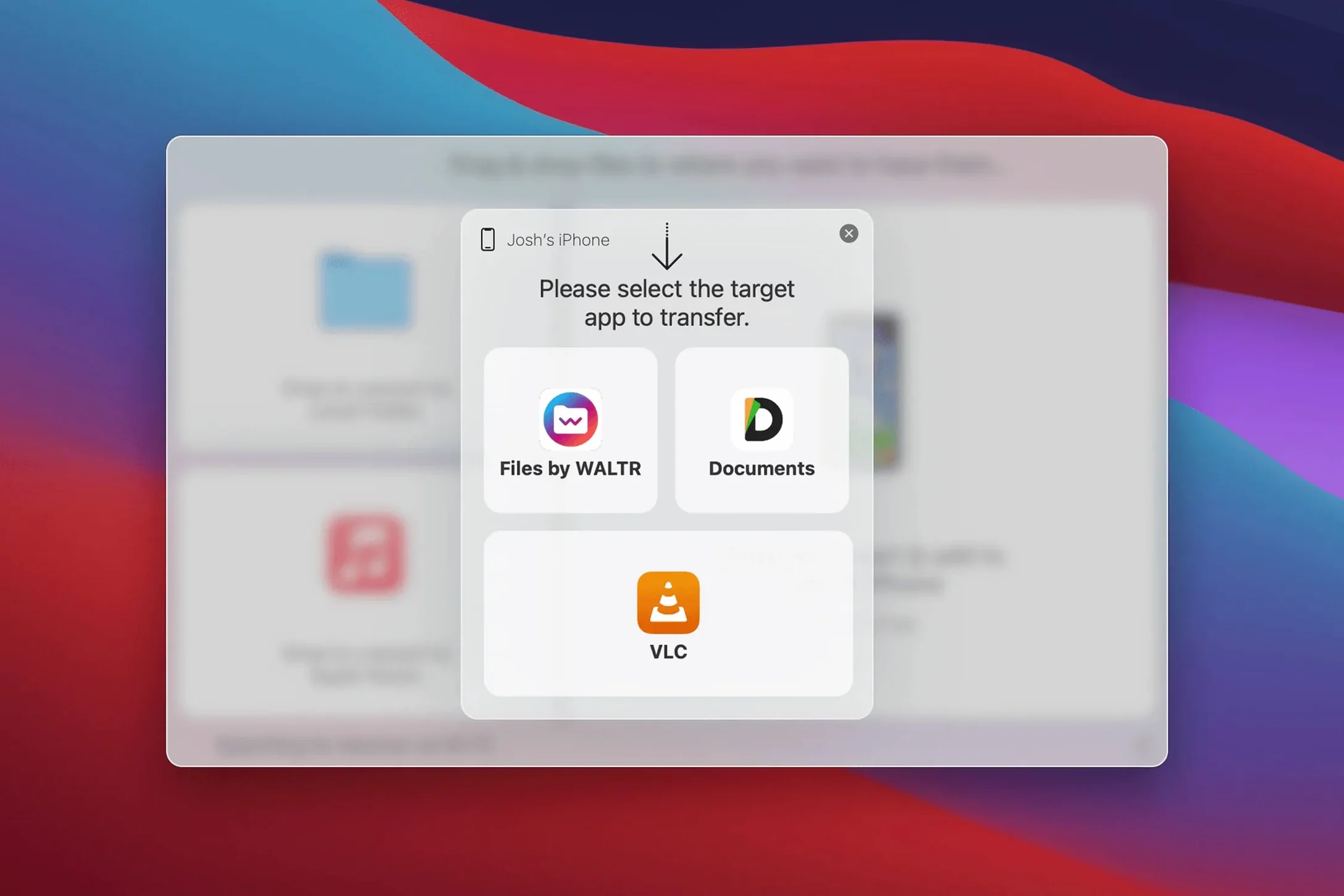
The conversion step is the part most transfer tools get wrong. WALTR PRO handles it in the background, so dropping a file onto the app window is the whole workflow. It converts and transfers music or video files for playback on iPhone or iPad, and the results land in the iOS Music and Movies apps, ready to play without a second app.
Send music without format checks
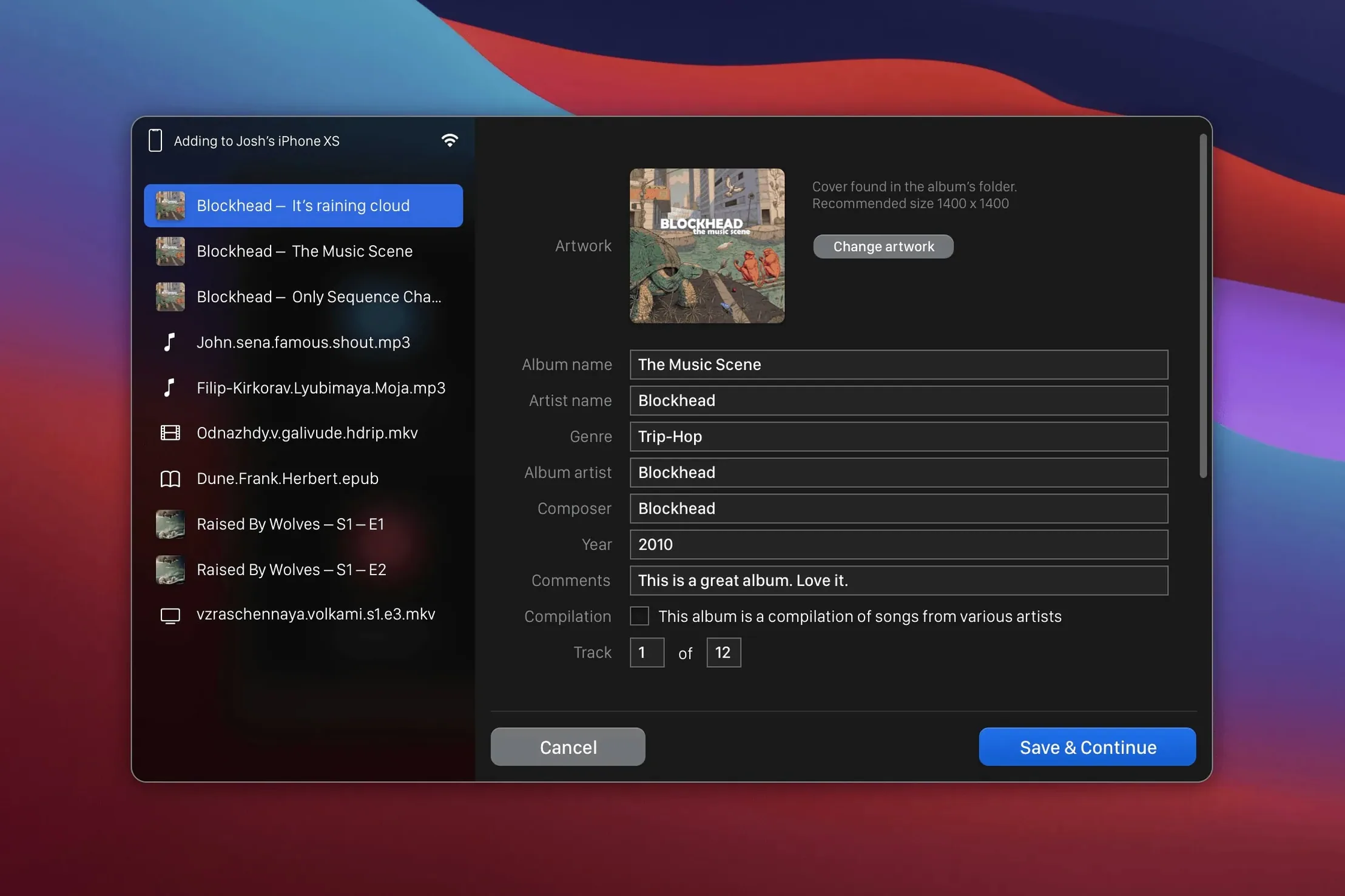
FLAC, MKV, or whatever else the source happens to be, WALTR PRO converts it on the way to the device. The file appears in the Music app with its metadata intact.
Move video files for the Movies app
Video conversion targets the Movies app, so TV shows and home footage play back in the native player instead of a third-party video app.
Run it on Apple silicon
WALTR PRO supports Apple silicon chips and 64-bit Intel architecture, requiring macOS 10.13 or later. Installation is a disk image mount and a drag to Applications.
WALTR PRO lands between hands‑on and hands‑off transfer apps
There are a handful of apps that move media to iOS devices, but they each take a different approach. WALTR PRO sits somewhere between them in how much it leaves to the system and how much it decides for you.
iTunes (now the Music app on Mac)
iTunes handles sync, but it only accepts formats it already knows. Drop an MKV or FLAC file into iTunes and it either skips it or tells you to convert it first. WALTR PRO accepts those files directly and does the conversion mid-transfer. iTunes also requires a cable or Wi‑Fi sync setup that needs a library scan. WALTR PRO skips the library part, so you can send a single file without importing it into the macOS media database.
Xilisoft Video Converter for Mac
Xilisoft converts video to iOS-friendly formats, but the output has to be transferred separately by dragging it into iTunes or using AirDrop. That adds a step. WALTR PRO combines conversion and transfer into one operation. On the other hand, Xilisoft supports batch conversion with custom resolution and bitrate settings, while WALTR PRO keeps the conversion invisible and uses default targets for iOS playback.
iMazing
iMazing is a file manager for iOS devices that can convert some formats but requires the user to choose the output format for each file. WALTR PRO handles the selection automatically and sends the result straight to the correct app (Music or Movies). iMazing gives more control over file organization on the device, but WALTR PRO is faster when the goal is just to get one file playing.
Drag a concert FLAC and an unlabeled MKV to an iPhone over Wi‑Fi
Say you have a concert recording in FLAC format and an episode of a show that came as an MKV with no metadata. The iPhone is already on the same Wi‑Fi network.
- Open the mounted WALTR PRO app. The main window shows one large drop area and a device list on the left. The iPhone appears on the list after a few seconds.
- Drag the FLAC file onto the drop area. A progress bar appears with no extra dialogs. The file converts to AAC in the background and lands in the iOS Music app. The album art and track number come through because the FLAC metadata is preserved.
- Drag the MKV file onto the drop area next. This one takes longer because the video needs re-encoding. The file arrives in the Movies app with the episode title from the filename.
- Open the Music app on the iPhone. The concert album is there, sorted by artist name, even though the file was never inside iTunes. The Movies app shows the episode as a separate video entry.
The whole session is about four drags and three taps on the phone. No file management after the transfer, no format error messages.
How to fix the most common WALTR PRO snags
Device does not appear in the device list
WALTR PRO uses Wi‑Fi to find iPhones, iPads, and iPods. If the device is not showing up, check that both the Mac and the iOS device are on the same wireless network. iOS devices in airplane mode or with Wi‑Fi disabled will not appear. Restarting the WALTR PRO app or the iOS device sometimes helps if the network is otherwise fine.
Transfer starts but stops partway
Large video files can cause the Wi‑Fi buffer to fill up on older routers. If the transfer still fails, try sending the file in smaller chunks, for example by splitting the video with a separate tool first.
Music metadata is missing or scrambled
WALTR PRO reads metadata from the source file before conversion. Some uncommon tags or embedded artwork are not carried over. If the track shows as "Unknown Artist" in the Music app, open the file in a metadata editor like Kid3 or MusicBrainz Picard, add the standard ID3 tags, and re-drag the file into WALTR PRO. The second transfer preserves the cleaned tags.
Video plays but has no sound
This happens when the source audio codec is not supported by the iOS Movies app. WALTR PRO converts the video stream but may keep the original audio codec if it is one of the supported formats. Check the source file's audio codec with MediaInfo. If it is something like AC-3 or DTS, the audio will not play on iOS. You can use a dedicated video converter to re-encode the audio to AAC before sending it through WALTR PRO.
Auto‑detects new iOS devices and accepts folder drags
These are not documented in the app's few dialogs, but they save a click or two.
- The device list updates automatically when an iOS device connects or disconnects from the network. No manual refresh button.
- Dragging a folder full of music files into the drop area sends each file as a separate track, preserving the folder structure as album grouping in the Music app.
- Multiple files can be dragged at once. The app queues them and processes one after another without asking for confirmation.
- If the iOS device runs out of storage during a transfer, WALTR PRO stops and shows a message on the Mac screen. The partially transferred file is not left on the device.
- macOS 10.13 or later
- 64-bit Intel architecture or Apple silicon
- English interface
Questions from the notes
Does WALTR PRO work on Apple silicon Macs?
Yes. WALTR PRO supports Apple silicon chips and also runs on 64-bit Intel Macs.
Where do transferred files appear on the iPhone or iPad?
Music files show up in the iOS Music app, and video files appear in the Movies app, ready for playback.
Install procedure
- Mount the disk image.
- Run Open Gatekeeper friendly.
- Press Enter in Terminal to bypass Gatekeeper.
- Drag the app to Applications.
- Launch the app.
Reports from players
Sign in or create a tester account to file a report.
No reports filed yet.