Wirecast Pro 16.5.4 runs on any 64-bit Mac with macOS 11 or later, Intel or Apple Silicon. That covers most machines from the last decade, which makes it a practical choice for studios that don't upgrade hardware on a fixed schedule.
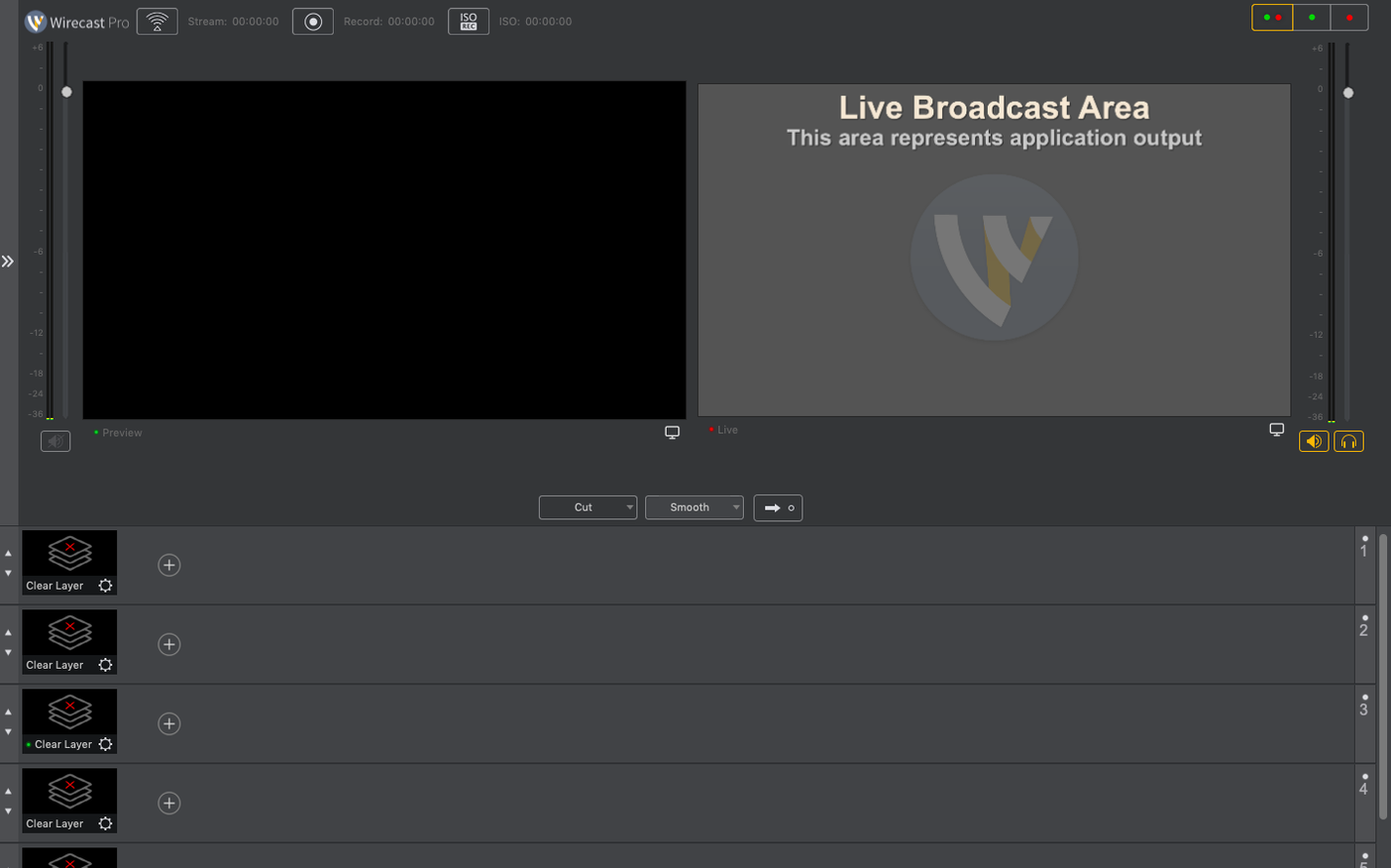
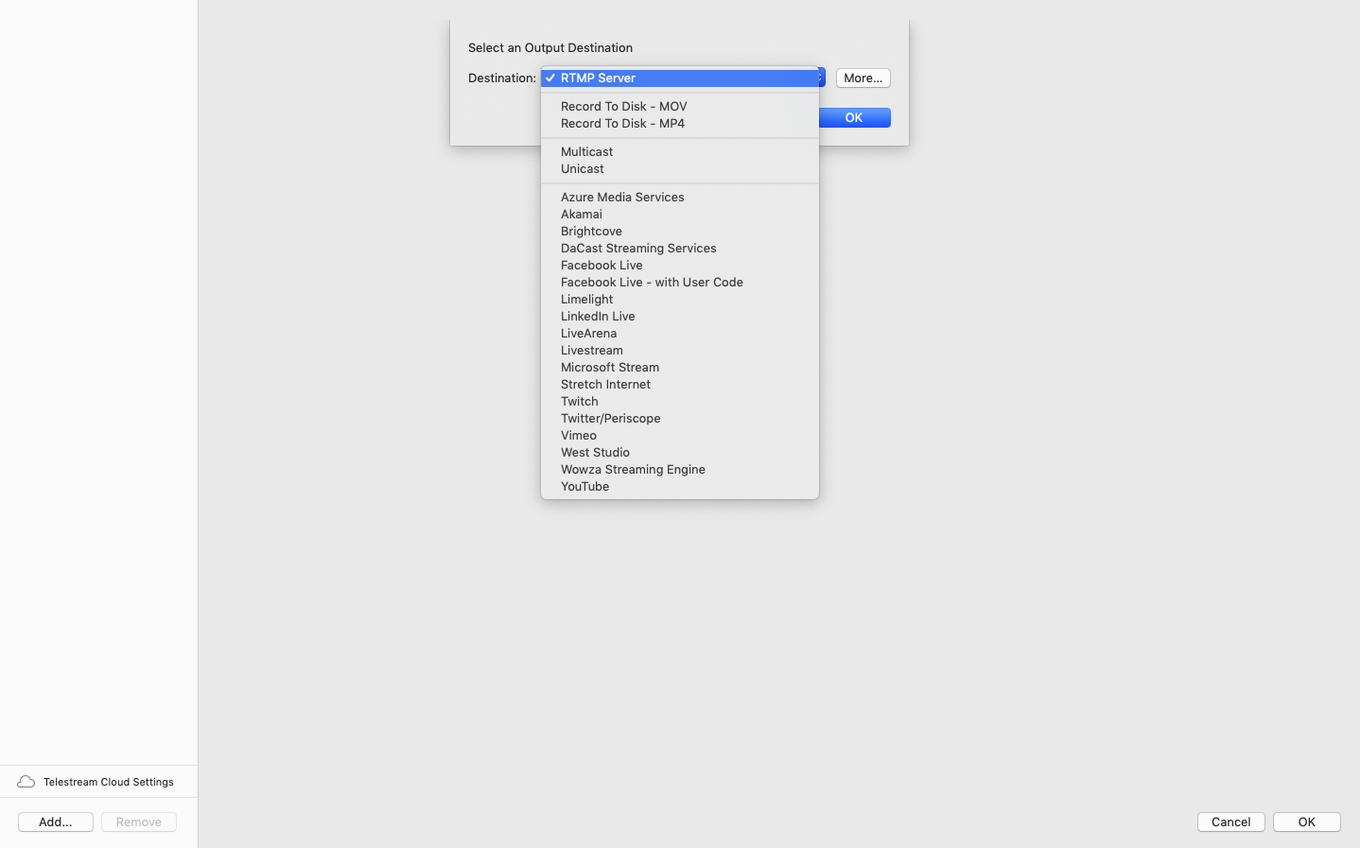
It is a live video production tool, not a simple capture utility. You bring in multiple camera feeds, switch between them, and send the result to a streaming destination or record it locally. The current version ships with graphic elements built in:
- Titles and lower thirds for naming speakers or segments
- Overlays for logos, watermarks, or bugs
- Sports score templates that update during a broadcast
- Support for interviews, music videos, TV programs, and shows
- Setup for sports events, ceremonies, conferences, and concerts
- NDI source handling with a new discontinuous-frame flag in 16.5.4
Small TV and production studios use it because it replaces a hardware switcher and a character generator with one application. If you need to mix cameras and graphics without a dedicated video crew, it fits that gap.
The Gatekeeper bypass step during installation
People installing Wirecast Pro for the first time on macOS hit a few recurring issues. The Gatekeeper bypass step in the install sequence is the most frequent one. When you press Enter in Terminal after mounting the disk image, the command tells macOS to allow the app to run despite not being notarized. If the system still refuses to launch, check that you ran the command from the correct Terminal window — the one that opened automatically after mounting. Some users accidentally close that window and run the command elsewhere, which doesn't work.
Another snag involves the virtual camera output. If you use Wirecast to feed a processed signal into Zoom, Skype, or another conferencing app and the virtual camera doesn't show up, the 16.5.4 release addressed a specific case: when corporate IT blocks the virtual microphone driver, the virtual camera stops working too. The fix in this version separates the two, so even with a blocked microphone driver the camera feed should appear. If it still doesn't, check your organization's endpoint security settings for anything that restricts kernel extensions or system extensions.
PTZ NDI cameras not being detected on macOS was a known problem before 16.5.4. If you run an earlier version and a Pan-Tilt-Zoom camera using NDI isn't visible in the source list, the 16.5.4 update specifically fixes that. Also note that NDI sources now include a discontinuous-frame flag. If you see occasional stutter or repeated frames in an NDI stream, the flag helps downstream decoders handle the stream correctly — not a Wirecast issue, but something to be aware of when troubleshooting NDI performance.
A few users report that audio routing feels confusing at first. Wirecast treats each audio source independently, so your microphone, desktop audio, and camera audio each need a separate input assignment. If you hear nothing in the preview, check the audio mixer panel — each source has a mute button and a volume slider. The most common fix for missing audio is simply unmuting the source or adjusting the input device selection in the preferences.
PTZ NDI camera detection fix in daily operation
Three items matter for daily operation. The PTZ NDI camera detection fix means that if your workflow uses remote-controlled cameras over NDI, the setup step no longer requires restarting the app or re-scanning sources repeatedly. It just finds them. The virtual camera fix is relevant for anyone streaming to a platform that relies on a virtual webcam output — if your IT department has policies that block drivers, the video feed now works independently of the microphone driver. And the discontinuous-frame flag for NDI sources is a plumbing-level improvement: it tells the receiving software that a frame was intentionally skipped, which reduces artifacts in the stream. You won't see a button for it; it happens inside the network protocol.
No new features were added beyond these fixes. Wirecast 16.5.4 is a maintenance release. The title templates, scoreboards, overlay system, and encoding presets remain unchanged from 16.5.3.
Requires macOS 11 or later from 2015 Intel or Apple Silicon
From the system requirements alone you can set reasonable expectations. It needs macOS 11 or later, which means any Mac that shipped with Big Sur or newer, including Intel models from 2015 onward and all Apple Silicon models. It runs on both architectures natively — no Rosetta translation needed on M-series Macs. The 64-bit requirement rules out any Mac still on a 32-bit kernel, but that is effectively every machine sold in the last fifteen years.
Because the app handles multiple video inputs, graphics overlays, encoding, and network output simultaneously, it benefits from more RAM and a faster GPU. The requirements don't specify a minimum core count or GPU model, so expect that a Mac with 8 GB of RAM and integrated graphics can handle a two-camera setup with basic titles, while a studio running four or more camera sources, score overlays, and simultaneous recording and streaming would want 16 GB or more and a discrete GPU. These are standard considerations for any live production tool, not Wirecast-specific limitations.
Disk space needs depend on recording settings. If you record locally, compressed formats like H.264 or HEVC use less space than uncompressed ProRes. An hour of 1080p H.264 at a moderate bitrate takes roughly 4-8 GB. Plan storage accordingly, especially for events that run several hours.
Works on Intel iMacs from 2017 with macOS 11 or later
Will Wirecast work on my Intel iMac from 2017?
Yes, as long as it runs macOS 11 or later. The 2017 iMac shipped with High Sierra and can be updated to Big Sur or newer. Wirecast sees the CPU cores and GPU it finds and uses what is available.
Can I use it without an internet connection?
For local recording, yes. You set up your sources, compose the shot, and record to disk. No network is needed. Streaming obviously requires an internet connection, and some features like NDI sources rely on a local network even if you are not streaming to the public.
Does it work with OBS?
Not as a plugin. Wirecast and OBS are separate applications. Some people use the virtual camera output from Wirecast as a source in OBS if they prefer OBS for the encoding or streaming part. That is a valid workflow, though it adds a hop in the video chain.
Can I use it for a single-camera podcast?
Yes. It is overkill for a single camera, but the built-in titles, transitions, and audio mixing make it a capable tool if you want to produce a polished show without a second computer. You would use one camera input, a microphone, and the title overlay for your episode number and guest name.
Does it support capture cards like Blackmagic or Elgato?
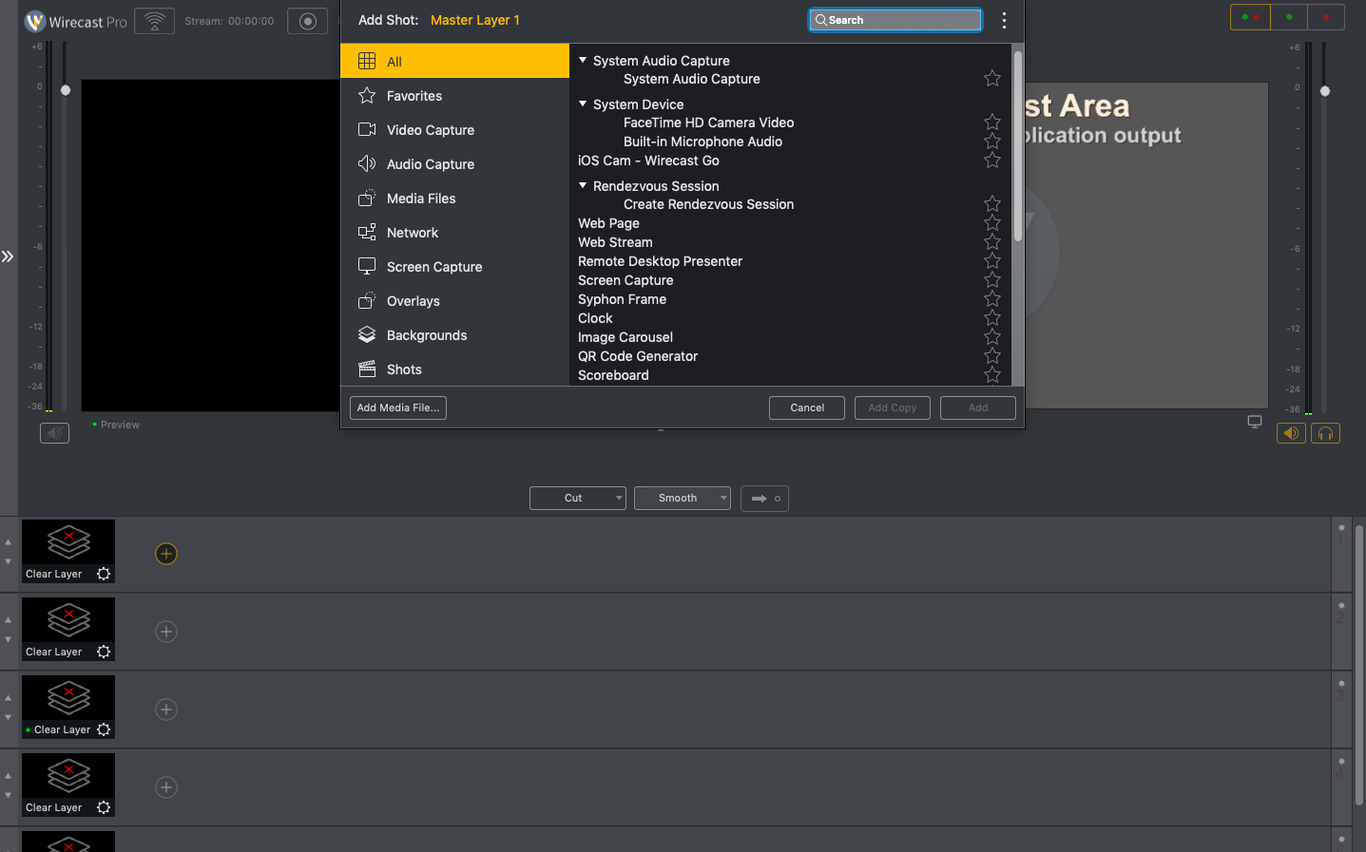
Wirecast sees any video device that macOS recognizes as a camera input. USB capture cards from Elgato and Blackmagic's DeckLink series appear as available sources. For DeckLink cards that use their own driver, check that the driver version is compatible with your macOS version — Telestream's support site lists tested configurations.
Virtual camera and microphone outputs for other apps
Wirecast works alongside other software through its virtual camera and virtual microphone outputs. The virtual camera sends whatever is currently on the program output to any app that can receive a webcam feed. That means you can switch to a Wirecast-produced stream inside a Zoom meeting, a Safari WebRTC call, or Discord. The virtual microphone works the same way for audio: Wirecast mixes your audio sources and presents them as a single input device to the system.
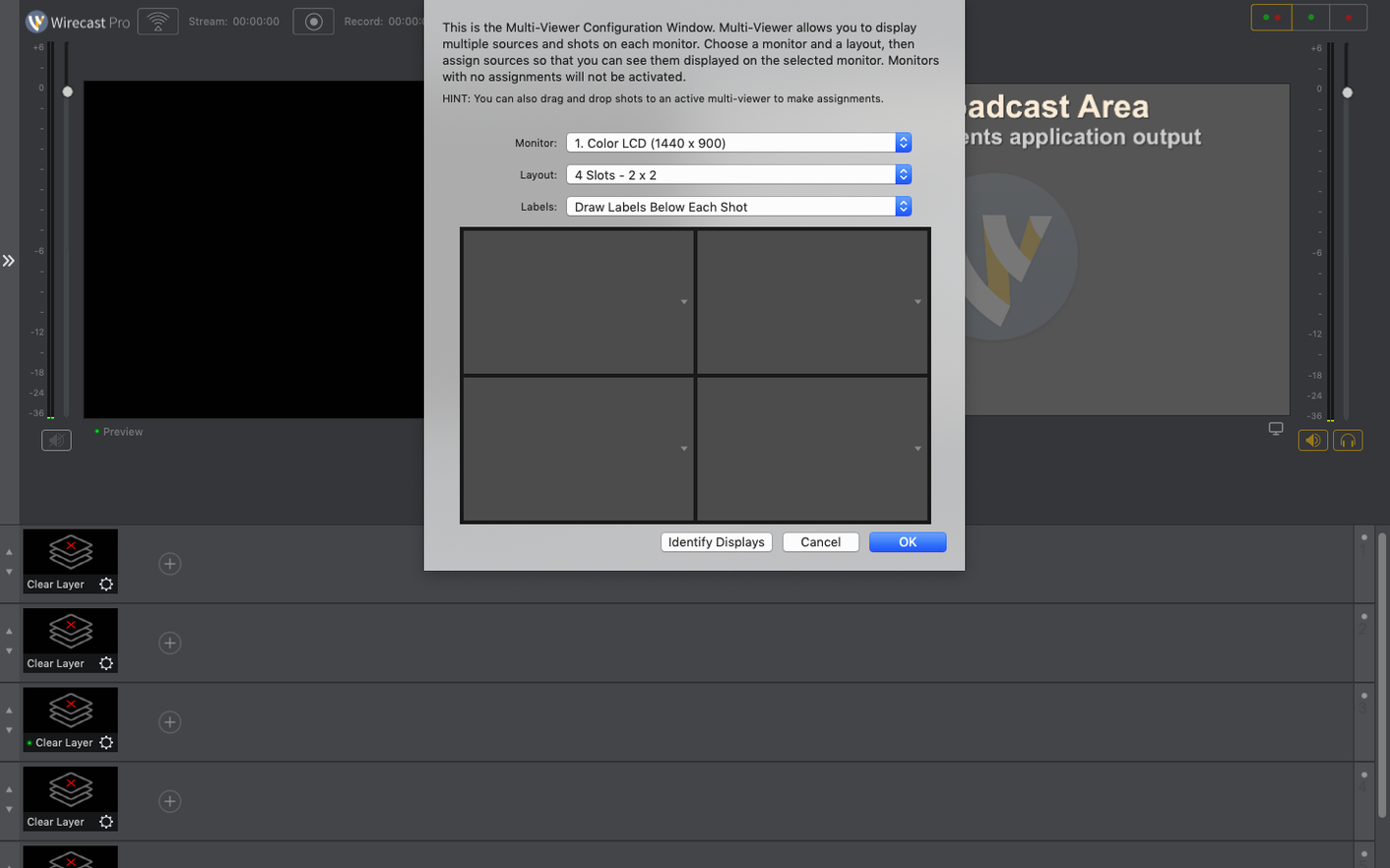
macOS screen recording is handled natively. If you want to include your desktop as a source, Wirecast can capture a region or a window without needing a separate screen capture app. The system-wide audio output can also be routed into Wirecast using a loopback utility or macOS's built-in aggregate device feature, though that takes some configuration in Audio MIDI Setup.
For storage and file management, Wirecast writes standard video files that QuickTime Player, Final Cut Pro, and DaVinci Resolve can open. The recorded files use container and codec combinations typical of professional video: MOV or MP4 with H.264, HEVC, or ProRes. That reduces the need to transcode before editing.
If you use NDI extensively, the discontinuous-frame flag added in 16.5.4 improves compatibility with video processing software that interprets NDI streams. It is not a Wirecast-only benefit — any NDI receiver on the network handles the flag as part of the specification.
- Fixed detection of certain PTZ NDI cameras on macOS.
- Fixed virtual camera use when the virtual microphone driver is blocked by corporate IT policy.
- Added a discontinuous-frame flag for NDI sources.
- macOS 11 or later
- Intel or Apple Silicon
- 64-bit processor
Questions from the notes
What Macs does Wirecast Pro 16.5.4 support?
It requires macOS 11 or later on a 64-bit Mac, and runs on both Intel and Apple Silicon processors.
Does Wirecast Pro include graphics or do I need separate software?
It includes titles, overlays, and sports score templates, so you can add graphics without leaving the application.
What was fixed in version 16.5.4?
The update fixes detection of certain PTZ NDI cameras on macOS and resolves virtual camera issues when the virtual microphone driver is blocked by corporate IT policy.
Install procedure
- Mount the disk image and run Open Gatekeeper friendly.
- Press Enter in Terminal to bypass Gatekeeper.
- Drag the app to the Applications folder.
- Launch the app when installation is complete.
Reports from players
Sign in or create a tester account to file a report.
No reports filed yet.