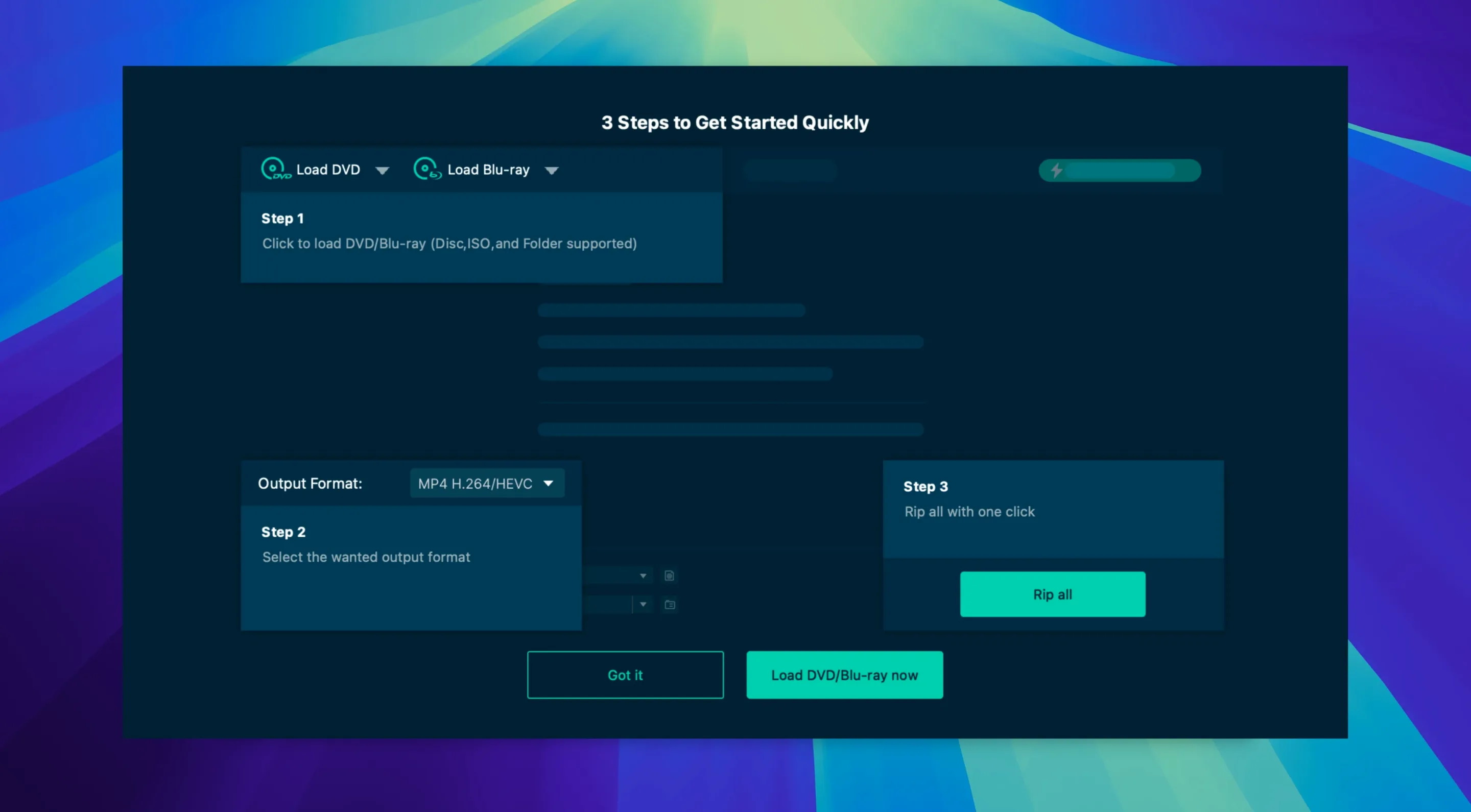
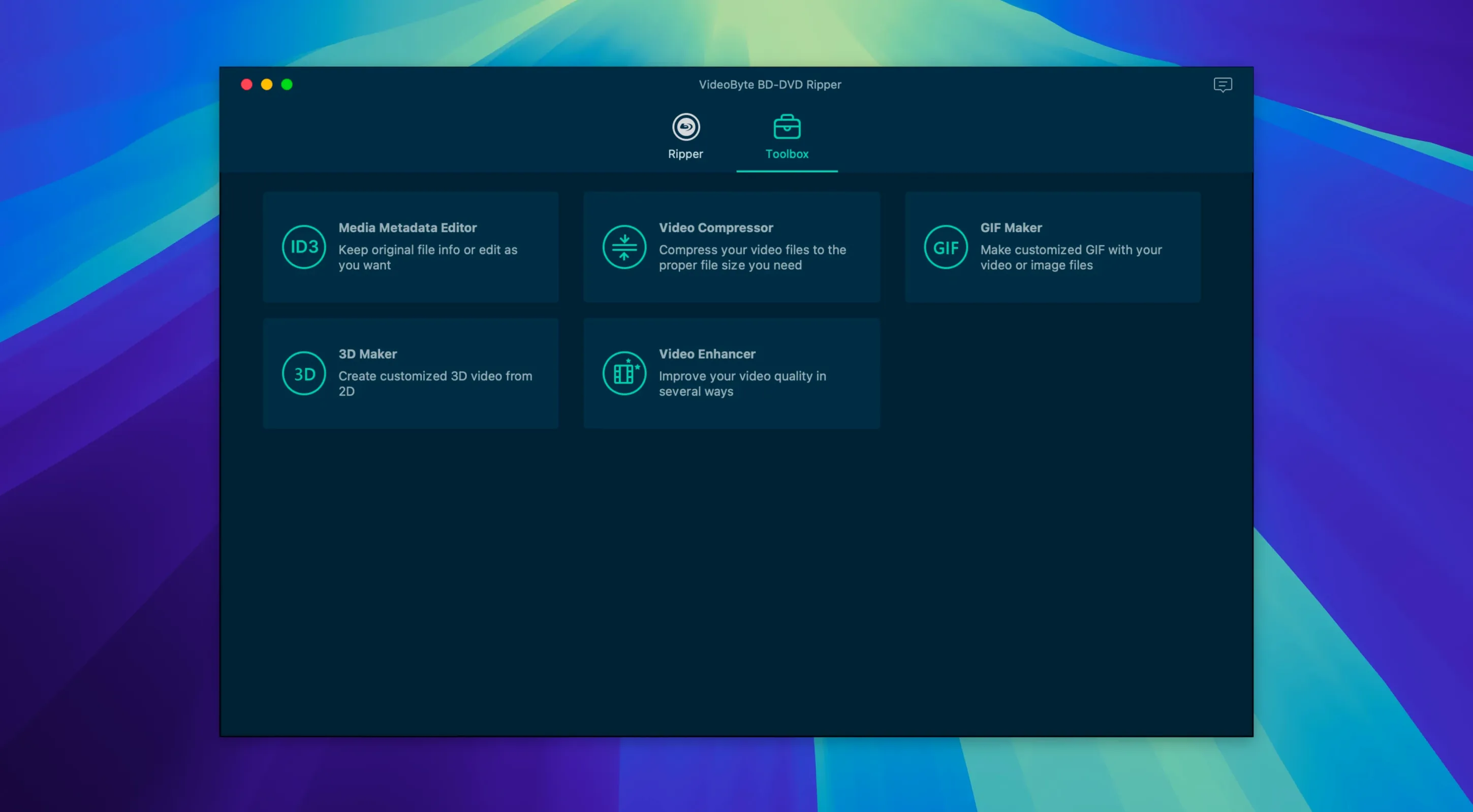
Anyone who still buys physical movies or has a shelf of old discs needs a way to get that content onto a hard drive. VideoByte BD-DVD Ripper is the tool for that job: it takes Blu-ray and DVD discs, BDMV or VIDEO_TS folders, and ISO files and converts them to standard digital video and audio formats. On a Mac running OS X 10.10 or later, the app uses hardware acceleration from NVIDIA, Intel, or AMD GPUs to keep the process reasonable.
| Detail | Value |
|---|---|
| Version | 2.1.6 |
| Developer | VideoByte |
| Architecture | Intel, Apple Silicon |
| Interface languages | English, German, French, Japanese |
Beyond straight ripping, the app includes trimming, rotating, cropping, watermark, filter, and effect tools. It can also preserve original audio tracks and subtitles, which matters if you are archiving a foreign-language film or a special edition. It fits alongside other disc utilities you might already have: VideoByte makes a full line of ripping, copying, playing, and creating tools, so this one slots in as the converter.
Profile presets for Apple, Samsung, and Sony devices
The profile presets are one of those features you might overlook until you actually need them. VideoByte BD-DVD Ripper includes ready-made profiles for Apple, Samsung, and Sony devices. Instead of fiddling with resolution and codec settings for a specific tablet or TV, you can pick the device preset and let the app set the output parameters to something the hardware will play without complaint.
The format list is another detail that does not get much attention until you need a less common container. The app advertises support for more than 300 output formats, but the core set people actually use is MP4, MKV, MOV, WMV, MP3, and AAC. If you are converting a DVD audio track to an MP3 for a podcast or a music library, the app handles that without needing a separate audio ripper.
The interface itself is available in four languages: English, German, French, and Japanese. If your Mac is set to a language the app supports, the installer picks it up automatically. No digging through a preferences menu on first launch.
Real-world scenario: batch-ripping a TV series on DVD
Someone with a box set of a TV show on DVD faces a tedious evening if they rip each episode one at a time with default settings. The flow works like this: load a disc, pick the episodes from the title list, select an MKV profile to keep chapter markers intact, and let the app handle the rest. The trimming tool lets you cut out the opening credits once and apply the same trim points across multiple titles if they share the same runtime structure. You end up with a folder of numbered episode files instead of a single giant VOB.
For someone archiving a foreign-language series, the subtitle preservation feature saves a second pass. The app pulls the subtitle stream from the disc and muxes it into the output file, so you do not have to hunt down separate SRT files or re-sync a downloaded subtitle track.
Apple Silicon support in the current macOS build
The current build is version 2.1.6. The changelog highlights that it runs on macOS 10.12 through 15.x and now includes support for Apple Silicon processors in addition to the original Intel x86 support. For someone on an M-series Mac, that means the app launches and converts natively without Rosetta overhead. The developer page lists both Intel and Apple Silicon as supported architectures, so the same installer works on either platform.
The Gatekeeper bypass step during installation is still there. You mount the disk image, run the launcher, press Enter in Terminal to get past the macOS security block, then drag the app to Applications. It is a one-time step, but anyone coming from a previous version will see the same process as before.
Gatekeeper blocks the app after mounting the disk image
Gatekeeper blocks the app after mounting. This is the most common hurdle. After mounting the disk image, the launcher will not open because macOS quarantines unsigned software. The fix is to run the launcher from Terminal and press Enter when prompted. After that, drag the app to the Applications folder. The app launches normally from there afterward.
Disc not detected in the drive. The app needs the disc to be readable by the system first. If macOS does not mount the Blu-ray or DVD on the desktop, the app will not see it either. Eject and reinsert the disc, or try a different drive if you have one. Some older external USB drives have trouble with Blu-ray discs; a powered USB hub sometimes resolves the issue.
Output file has no audio or subtitles. The disc may have multiple audio tracks (e.g., commentary tracks, alternate languages) and subtitle streams. In the title selection screen, check which audio and subtitle streams are marked for inclusion. The app preserves original tracks, but only the ones you check. If you skip them, the output file will be silent or missing subtitles.
Hardware acceleration does not appear to be working. The app supports NVIDIA, Intel, and AMD acceleration. If you have an older Mac with an Intel GPU, make sure Quick Sync is enabled in the system BIOS or UEFI (if applicable). For Apple Silicon Macs, acceleration is handled through the native architecture support, not a separate toggle. If encoding seems slow, check that the output format and codec combination actually supports hardware encoding — some older profiles fall back to software rendering.
- macOS OS X 10.10 or later
- Intel or Apple Silicon processor
Questions from the notes
Does VideoByte BD-DVD Ripper work on Apple Silicon Macs?
Yes, the developer states support for both Intel and Apple Silicon processors on Mac.
Install procedure
- Mount the disk image and run the Gatekeeper-friendly launcher.
- Press Enter in Terminal to bypass Gatekeeper.
- Drag the app to the Applications folder.
- Open the app from Applications after installation.
Reports from players
Sign in or create a tester account to file a report.
No reports filed yet.