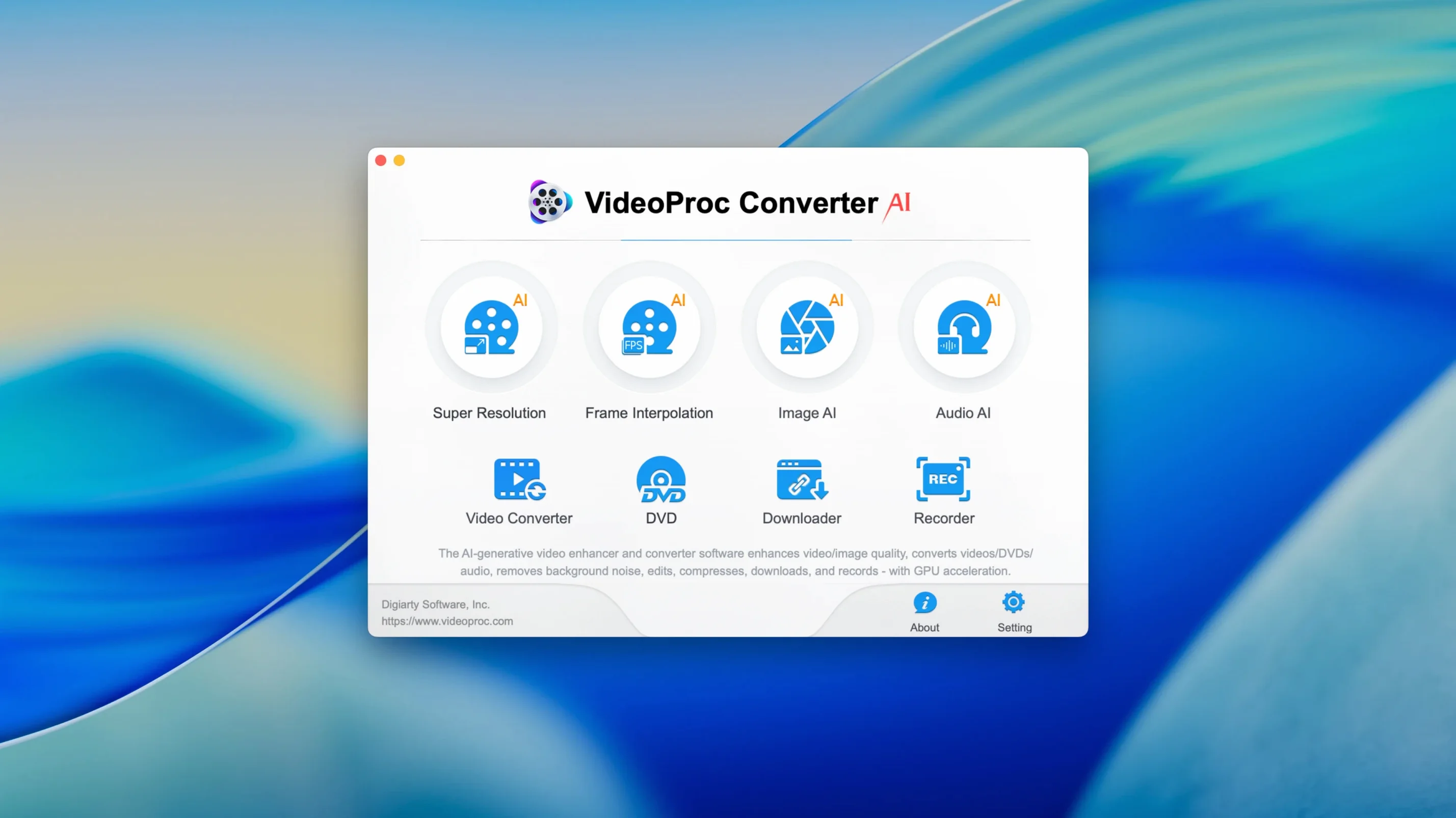
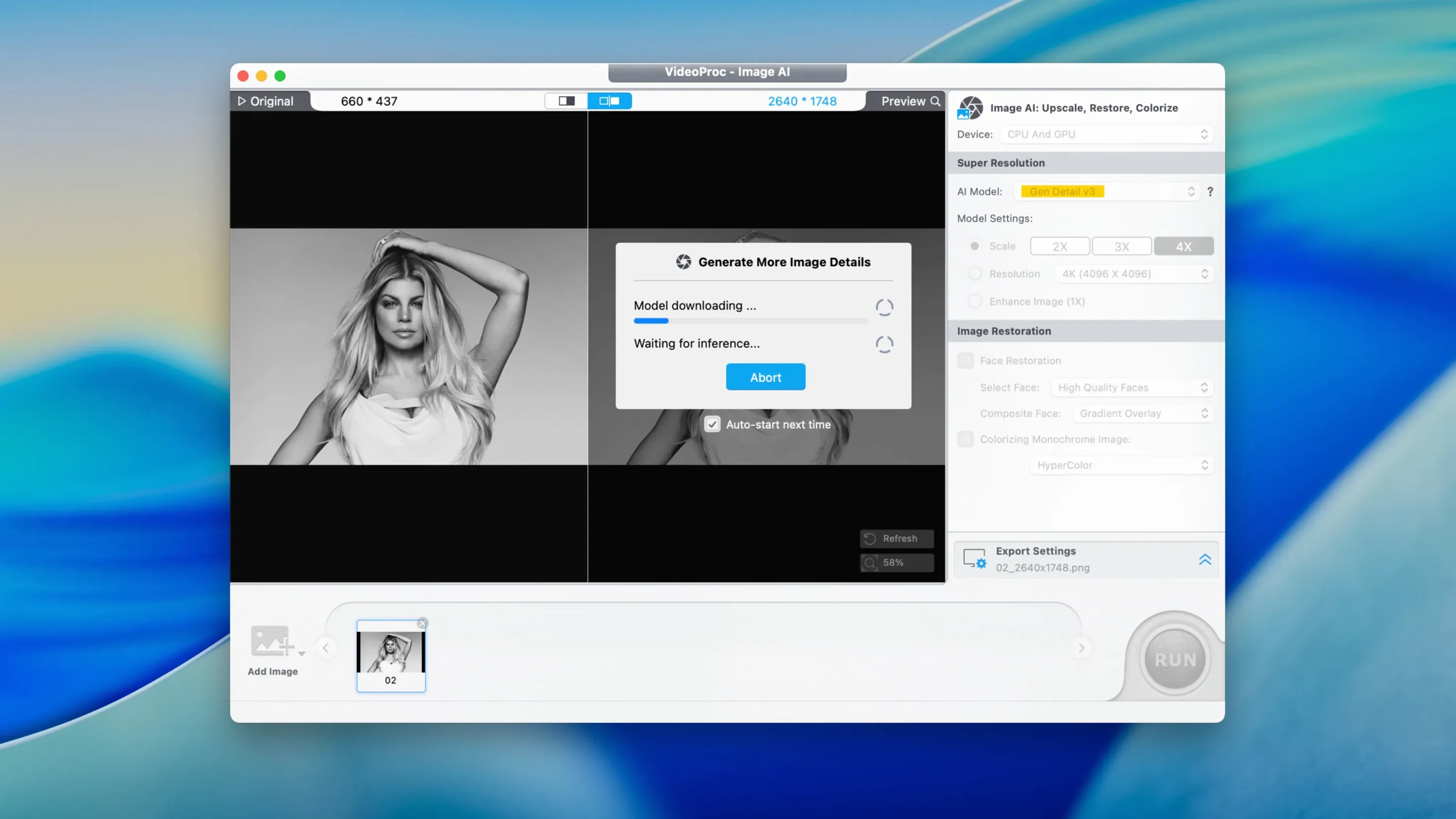
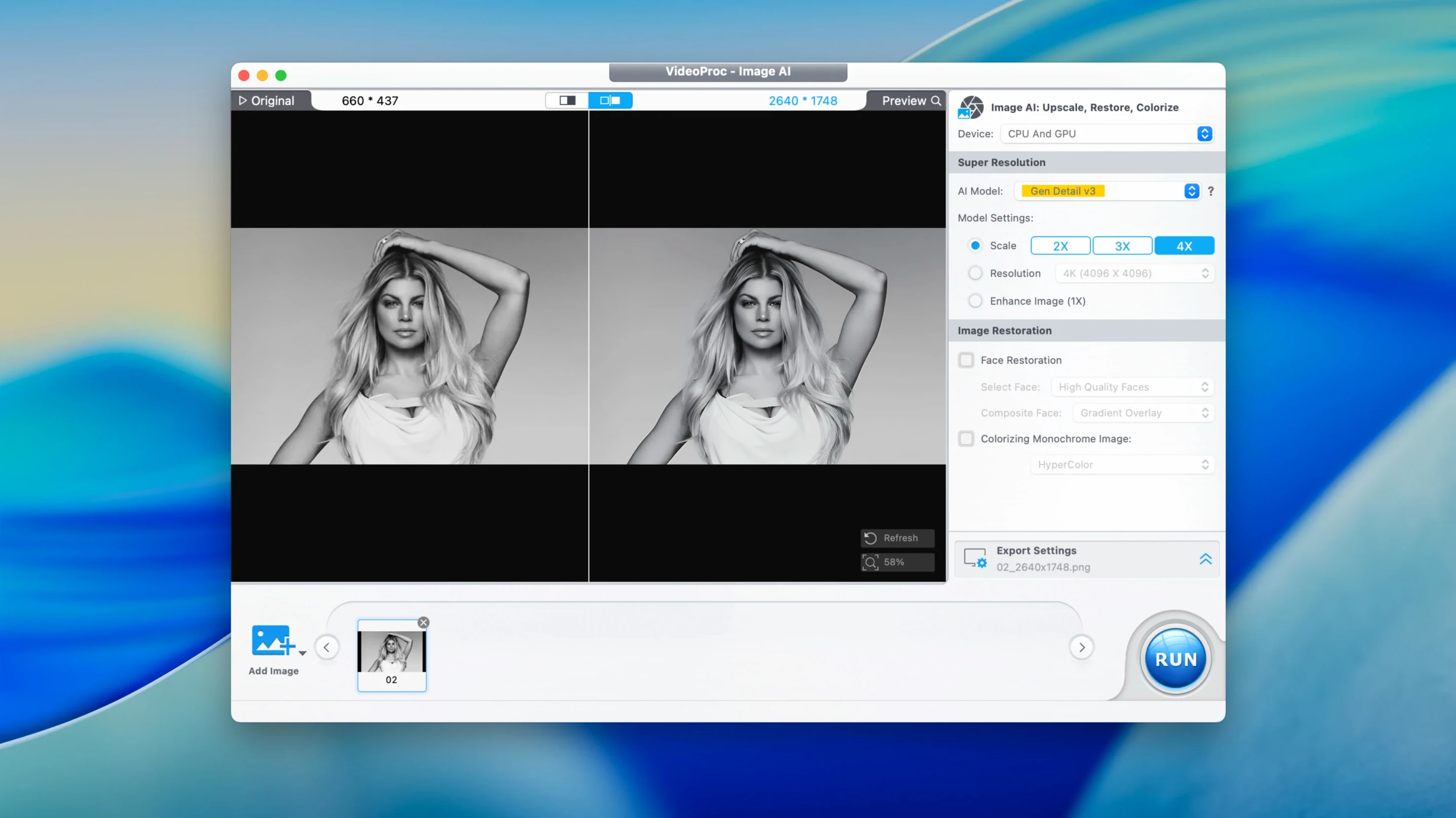
Version 8.12 of VideoProc Converter AI for Mac ships with a smaller installer, added iPhone 18 support, and improved Downloader performance. It also supports macOS 27. For anyone tracking the app from 7.5 onward, the core set of tools is unchanged: video conversion, compression, screen recording with voice commentary, camera recording, and AI upscaling. The interface language list remains English, German, Spanish, Italian, Traditional Chinese, Simplified Chinese, Korean, French, and Japanese.
What video and audio formats can it handle?
The app converts video files and supports subtitles, watermarks, and effects. Audio adjustments include volume, bitrate, and sampling rate. It also compresses video files and lets you tweak color, brightness, and contrast.
Can I record my screen and webcam?
Yes. Screen recording captures the Mac display with voice commentary. Camera recording works with the built-in webcam and external webcams. Both features are part of the same toolkit.
What changed between 7.5 and 8.12?
The biggest changes in 8.12 are the smaller installer, iPhone 18 support, and a faster Downloader. The Downloader handles online media downloads. Everything else — conversion, editing, recording, AI enhancement — works the same as it did in 7.5.
macOS 10.15 or later required, installer now downloads faster
The system requirements are straightforward: macOS 10.15 or later, with support for both ARM and x86 64-bit Macs. If you are on Catalina or newer, the app launches. The installer grew smaller in 8.12, so the download finishes faster and the disk image takes up less space before you move the app. Gatekeeper blocks the unsigned app by default — mounting the disk image and running the "Open Gatekeeper friendly" step, then pressing Enter in Terminal, clears that. After that, drag the app to Applications and launch it.
The app uses hardware acceleration through Metal, Intel Quick Sync, and Apple M1/M2 chips. On Intel Macs, acceleration relies on the integrated or discrete GPU. On Apple Silicon, it uses the built-in media engine. Both architectures handle 4K and 8K material, though the app does not report real-time playback speed or export times — it processes the file and returns the result.
The installer is a 64-bit app, so older Macs running High Sierra or Mojave will not work. The minimum is 10.15, and there is no 32-bit version. If your Mac meets the OS requirement, the app runs. No additional codecs or plugins are needed — the app ships with its own format support.
Gatekeeper bypass fixes the 'damaged' or 'unidentified developer' warning
The Gatekeeper bypass is the first hurdle. Users who skip the Terminal step often see a "damaged" or "unidentified developer" warning. Solution: after mounting the disk image, run the Open Gatekeeper friendly script, then press Enter in Terminal. If the warning persists, check that you are running the script from the mounted volume, not from the Downloads folder.
Another frequent issue: the app crashes on launch or fails to recognize a video file. This is usually a permissions problem. The app needs access to the files you are converting, so make sure the source file is in a folder the app can read — the Downloads or Documents folder works. For screen recording, macOS will ask for screen recording permission in System Settings. Grant it, then restart the app.
Downloader performance improved in 8.12, but some users still see stalled downloads. This is not a bug — it is usually a network or URL issue. Make sure the video URL is valid and the video is not region-locked. If the download starts and stops, try a different format or resolution. The Downloader handles YouTube, Vimeo, TikTok, and Facebook, but some platforms change their stream structure. If one format fails, another often works.
AI upscaling to 4K or 8K is resource-intensive. On older Intel Macs, the process can take longer. This is expected — the app queues the job and processes it in the background. Do not interrupt the process. If the Mac runs low on disk space, the export may fail. Keep at least 10 GB free for large 8K conversions.
Default MP4 output isn't optimal for every device
New users often skip the format selection and rely on the default. The default output is typically MP4 with H.264 encoding, which is fine for most use, but not optimal for every device. If you are converting for an iPhone 18, Apple TV, or Sony camera, use the device presets in the output format list. The app includes presets for iPhone, iPad, Apple TV, Sony, and GoPro. Picking the right preset avoids playback issues on the target device.
Another common mistake: compressing a video without checking the quality. The app can reduce file size by up to 90 percent without strong quality loss, but "without strong quality loss" depends on the source. If the source is already compressed, aggressive compression introduces artifacts. Start with a moderate compression level and preview the result. Same goes for denoising and stabilization — applying both to a clean source can soften the image. Use them only on old recordings like VHS or DV material, where noise and shake are actually present.
Beginners also tend to ignore the audio settings. The app supports volume, bitrate, and sampling rate adjustment. If you extract audio from video and the file is too large, lower the bitrate or switch to AAC instead of FLAC. If the audio is too quiet, raise the volume before exporting. These settings are in the same interface as the video tweaks, but they are easy to miss.
Finally, some users try to record the screen without the audio source selected. For voice commentary, you need to pick the microphone input in the screen recording panel. If you record and get video with no sound, check the audio source before starting again.
A good fit for video editors converting ProRes, MOV, or MKX to MP4
The app is a good fit for three groups. First, video editors and content creators who work with multiple formats. If you receive footage in ProRes, MOV, or MKV and need to deliver MP4 for Instagram, YouTube, or TikTok, the format conversion covers that. The built-in optimization for those platforms means you do not need to guess the right encoding settings — the app applies the correct resolution, bitrate, and aspect ratio for each platform.
Second, users who archive old recordings. If you have VHS captures, DV tapes, or old digital camera clips, the AI denoising and stabilization features are useful. The upscaling to 4K or 8K can improve the look of low-resolution source material. The app does not promise 4K quality from a 480p source, but it does reduce noise and smooth out the image. For personal archives, the result is often watchable.
Third, users who download online media regularly. The Downloader handles YouTube, Vimeo, TikTok, and Facebook. With the improved performance in 8.12, downloads are faster than in 7.5. If you collect tutorials, music videos, or social media clips for offline editing, this replaces the need for a separate download tool. The screen recording feature covers content that cannot be downloaded directly — just record the browser tab and voice commentary.
Users who only need one function — say, only screen recording or only audio extraction — may find the app overkill. But for someone who regularly moves between conversion, compression, recording, and download tasks, having everything in one app saves time. The interface is consistent across tools, so learning one module transfers to the others.
Version 8.12 brings a smaller installer and quicker download
Version 8.12 shipped with three notable changes. First, the smaller installer. On a typical connection, the download is quicker, and the disk image takes up less space before you install. For users on Macs with limited storage, this matters. Second, iPhone 18 support. If you own an iPhone 18, the app now includes a device preset that matches its screen resolution, codec support, and aspect ratio. That preset appears in the output format list alongside the older iPhone models. Third, improved Downloader performance. The download engine was updated to handle streaming URLs more efficiently. Users who download 4K video from YouTube or Vimeo will notice fewer pauses and retries.
Version 8.12 also added support for macOS 27. If you run that macOS version, the app launches without compatibility prompts. For users on macOS 10.15 through 26, nothing changed — the app works the same as before. The interface, the editing tools, the AI upscaling, and the recording modules are identical to 8.11 and 8.10. Digiarty did not remove any features or change the workflow. The release is a maintenance update with targeted improvements to the installer, the Downloader, and the device compatibility list.
Users who search for videoproc converter ai 7.5, videoproc converter ai torrent, videoproc torrent, videoproc converter ai 7.6, or videoproc converter ai for mac should note that the current version is 8.12. The core functionality has not shifted dramatically since 7.5 — the format support, the hardware acceleration, and the AI enhancement pipeline are the same. The differences are in the installer size, the performance of the Downloader, and the device presets. If you are on an older version, updating to 8.12 means a smaller download and faster downloads. The rest of the toolkit works as expected.
- Added iPhone 18 support.
- Reduced installer size.
- Improved Downloader performance.
- Added support for macOS 27.
- macOS 10.15 or later
- 64-bit processor (Intel or Apple Silicon)
Questions from the notes
What macOS versions does VideoProc Converter AI support?
It requires macOS 10.15 or later, including macOS 27. It is a 64-bit app that runs on both Intel and Apple Silicon Macs.
Install procedure
- Mount the disk image and run Open Gatekeeper friendly.
- Press Enter in Terminal to bypass Gatekeeper.
- Drag the app to the Applications folder.
- Launch the app when installation is complete.
Reports from players
Sign in or create a tester account to file a report.
No reports filed yet.