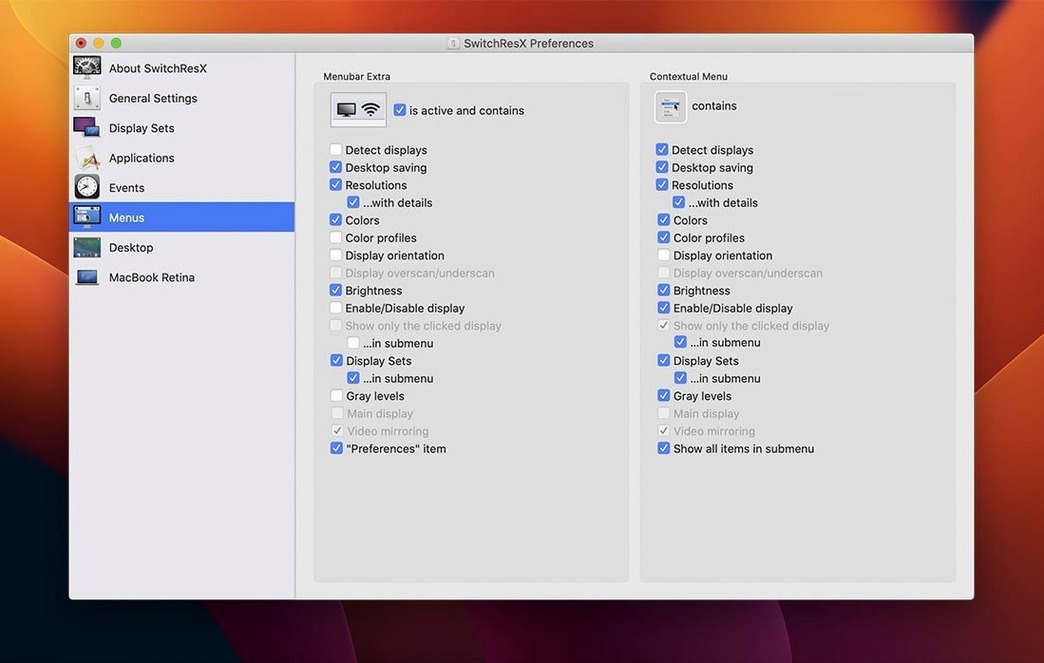
SwitchResX is for anyone who needs more control over their macOS display than System Settings provides. Sysadmins, designers, and anyone running multiple monitors use it to fix resolution gaps, force scaling on external displays, or build color-plus-resolution profiles for specific tasks. It also handles rotation, mirroring, and Retina support that macOS leaves out by default.
| Detail | Info |
|---|---|
| Developer | Stéphane Madrau |
| Version | 4.14.2 (2025-10-23) |
| macOS | OS X 10.10 or later |
| Architecture | Intel & Apple Silicon |
| Interface | English |
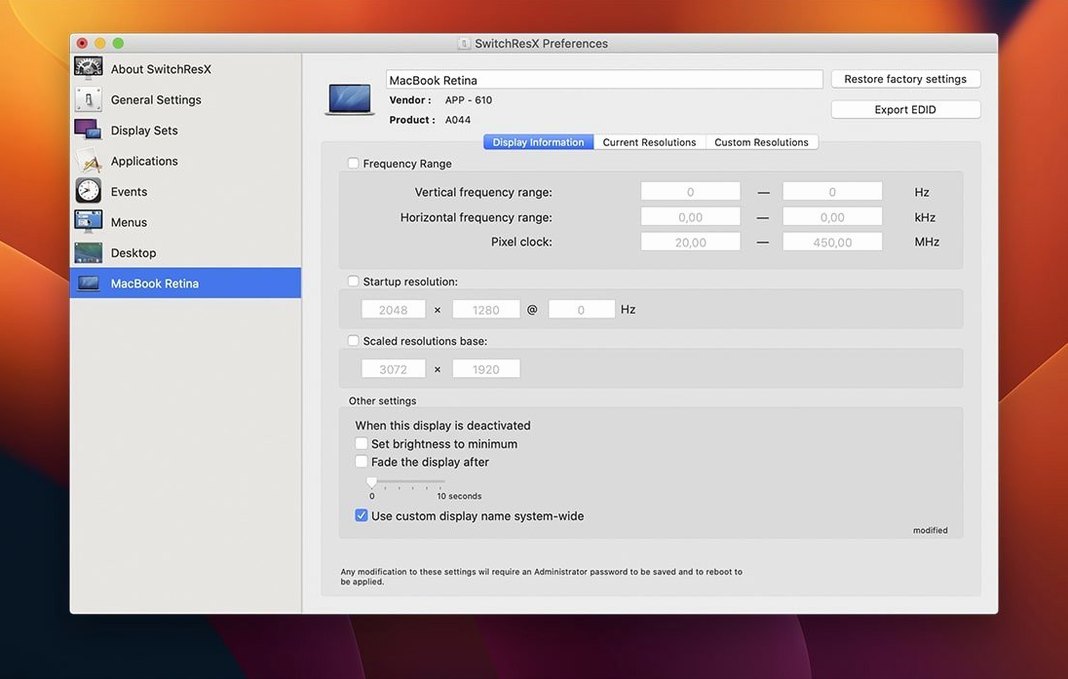
The standout feature is creating custom resolutions that OS X won't offer natively — useful for forcing a specific aspect ratio or getting a display to run at its native resolution over HDMI or DisplayPort. Color profiles can be tied to a resolution, so switching between a video-editing preset and a general-use preset is a single click. Version 4.14.2 stopped a bug where the app would repeatedly save its own settings when no display was connected, and now lets you quit the Dock when disabling a display on Apple Silicon Macs.
How SwitchResX compares with other Mac display utilities
macOS has three main ways to handle custom display settings beyond SwitchResX, and each serves a different purpose. The built-in System Settings > Displays panel covers basic resolution and scaling for standard monitors, but stops short when you need a non-standard refresh rate or a resolution macOS doesn't recognize. DisplayFusion offers deep multi-monitor control, but its Mac version has lagged behind the Windows release and lacks the per-application resolution assignments that SwitchResX handles directly. MonitorControl focuses on hardware brightness and contrast over DDC, with no custom resolution creation at all.
SwitchResX fills the gap that the others leave open: you can define a resolution that macOS never heard of, save it as a profile, and have it trigger automatically when you launch Final Cut Pro or a specific game. No other Mac utility in this space wraps color management, rotation, mirroring, and per-app resolution switching into one tool without requiring a separate calibration device or scripting knowledge.
When a projector shows the wrong resolution, create and apply a custom one
You connect a portable projector at a client site, and macOS offers only 1280x720 despite the projector being capable of 1920x1080. Open SwitchResX, create a new custom resolution at 1920x1080, apply it — the projector now shows the correct aspect ratio and fills the screen. No restart, no terminal commands.
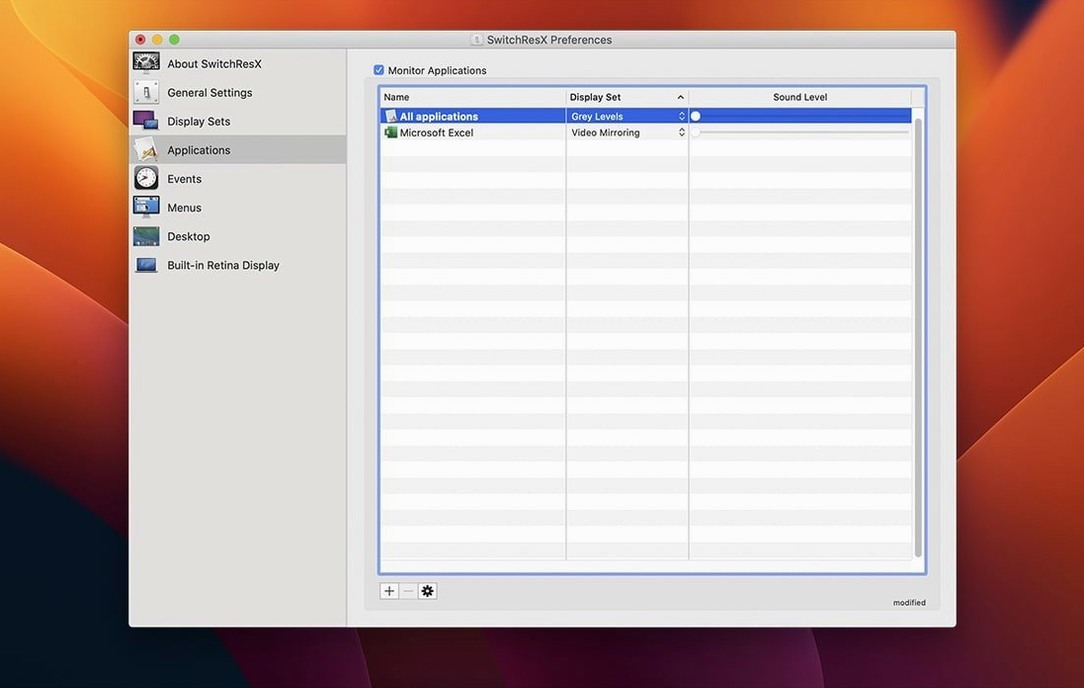
Later that day, you switch back to your desk with a 4K monitor and a secondary 1200p panel. SwitchResX remembers that Photoshop needs a calibrated sRGB profile with the 4K panel rotated to portrait. You open Photoshop, and the resolution flips to portrait mode with the matching color profile applied. Meanwhile, your secondary monitor mirrors the main display at its native resolution for client demos — that mirroring toggle is a checkbox in SwitchResX, not a multi-step macOS workaround.
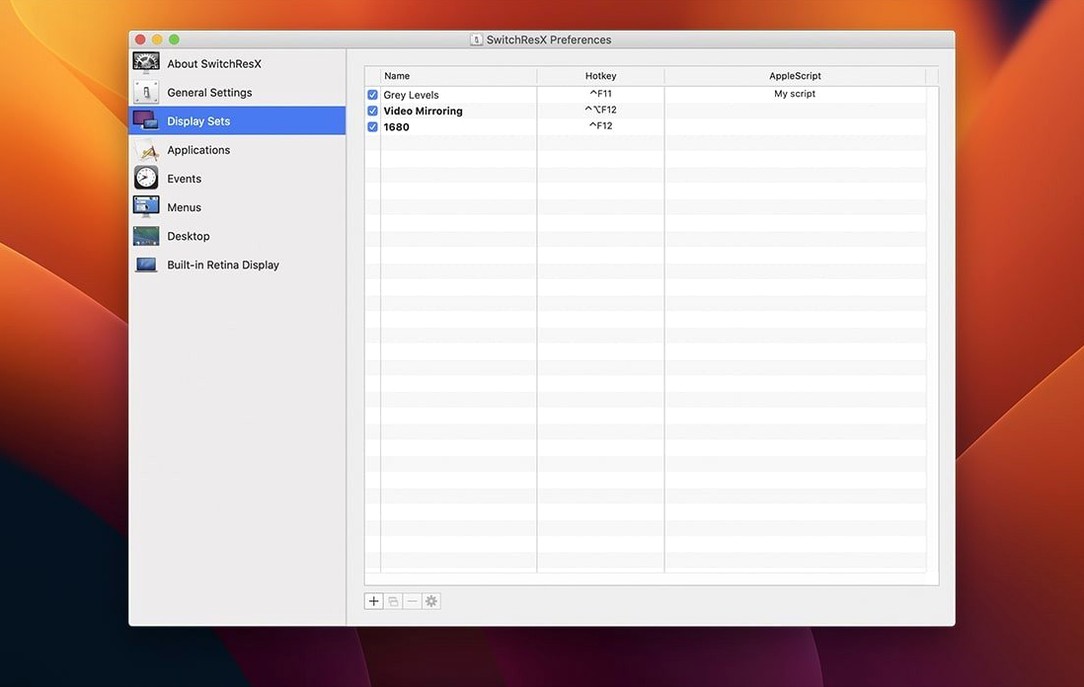
You also set up a Display Set for a presentation scenario: main monitor at 1920x1080, secondary monitor disabled, color profile set to Rec. 709. One click switches the whole workspace to that configuration. When the presentation ends, you restore your editing layout the same way.
Display Sets and per-app resolution presets you might overlook
- Display Sets — Groups of resolution, rotation, and color settings that can be saved and recalled as a single preset. Deleting a set that was referenced by another set no longer causes errors in version 4.14.2.
- Per-application resolution switching — Assign a specific resolution and color profile to an application, and SwitchResX applies it when that application gets focus. Revert when you switch away.
- AppleScript compatibility — You can trigger resolution changes from scripts, which means automated workflows like switching to a calibrated preset when a batch render starts do not require manual intervention.
- Retina-aware scaling — Custom resolutions respect Retina display logic, so a 2880x1800 panel scaled to 1920x1200 looks crisp instead of blurry.
- Quitting from the Dock — On Apple Silicon Macs, version 4.14.2 lets you quit the Dock entirely when a display is disabled, which avoids leaving an icon on the bar when you only needed SwitchResX for one session.
System administrators and IT teams who manage fleet displays
Three groups benefit the most. System administrators and IT teams who manage fleets of Macs connected to conference-room projectors, TV panels, or non-Apple monitors can standardize resolution settings without buying new cables or adapter hardware. They write AppleScript calls to apply a Display Set on login, and every projector shows the right resolution regardless of the macOS version.
Video editors and color graders rely on per-application color-plus-resolution profiles. DaVinci Resolve, Premiere Pro, and Final Cut Pro each get their own calibrated preset — no manual toggling of Display P3 or sRGB when switching between apps.
People with multiple external displays who rotate one monitor to portrait or run a mix of Retina and non-Retina panels. macOS alone cannot always handle mixed DPI setups cleanly; SwitchResX applies a consistent scaled resolution to the secondary display so text and UI elements match the primary monitor.
How SwitchResX fits with other apps and macOS features
SwitchResX works alongside macOS virtual desktop tools like Spaces and Mission Control without conflict. A Display Set can be tied to an AppleScript that triggers when you switch to a specific Space — useful for having a code-editing layout on Space 1 and a color-grading layout on Space 2.
The AppleScript hook means SwitchResX integrates with automation tools like Keyboard Maestro, BetterTouchTool, or simple shell scripts. You can bind a keyboard shortcut to switch resolutions or build a cron-style schedule that swaps profiles during your lunch break.
In multi-monitor setups, SwitchResX mirrors or extends the display without interfering with macOS drag-and-drop display arrangement. The mirroring option works by duplicating the primary screen at a different resolution, which is useful for presentations where the projector cannot match your monitor's native resolution. The secondary display shows the same content at its own best resolution, and macOS treats it as a standard mirrored display — no extra drivers or system-level hacks required.
Color management profiles created by SwitchResX are standard macOS ICM profiles. That means they appear in Photoshop's color settings, in the macOS Color Management panel, and in any app that reads system color profiles. You do not have to maintain a separate library of calibration files — SwitchResX uses what macOS already knows and ties it to the resolution switch.
- Fixes repeated self-updating of settings when no display is attached.
- Fixes an issue with displays that have no name in macOS.
- Fixes an issue deleting a Display Set used after another Display Set.
- Allows quitting the Dock when disabling a display on Apple Silicon Macs.
- macOS OS X 10.10 or later
- Intel or Apple Silicon
Questions from the notes
Can SwitchResX create custom monitor resolutions?
Yes, SwitchResX can create custom resolutions not supported by macOS by default, including Retina-scaled modes and aspect ratios for external displays.
Install procedure
- Mount the downloaded disk image.
- Run the standard installation procedure.
- Use the included serials file for activation.
Reports from players
Sign in or create a tester account to file a report.
No reports filed yet.