A session with Techtool Pro, step by step
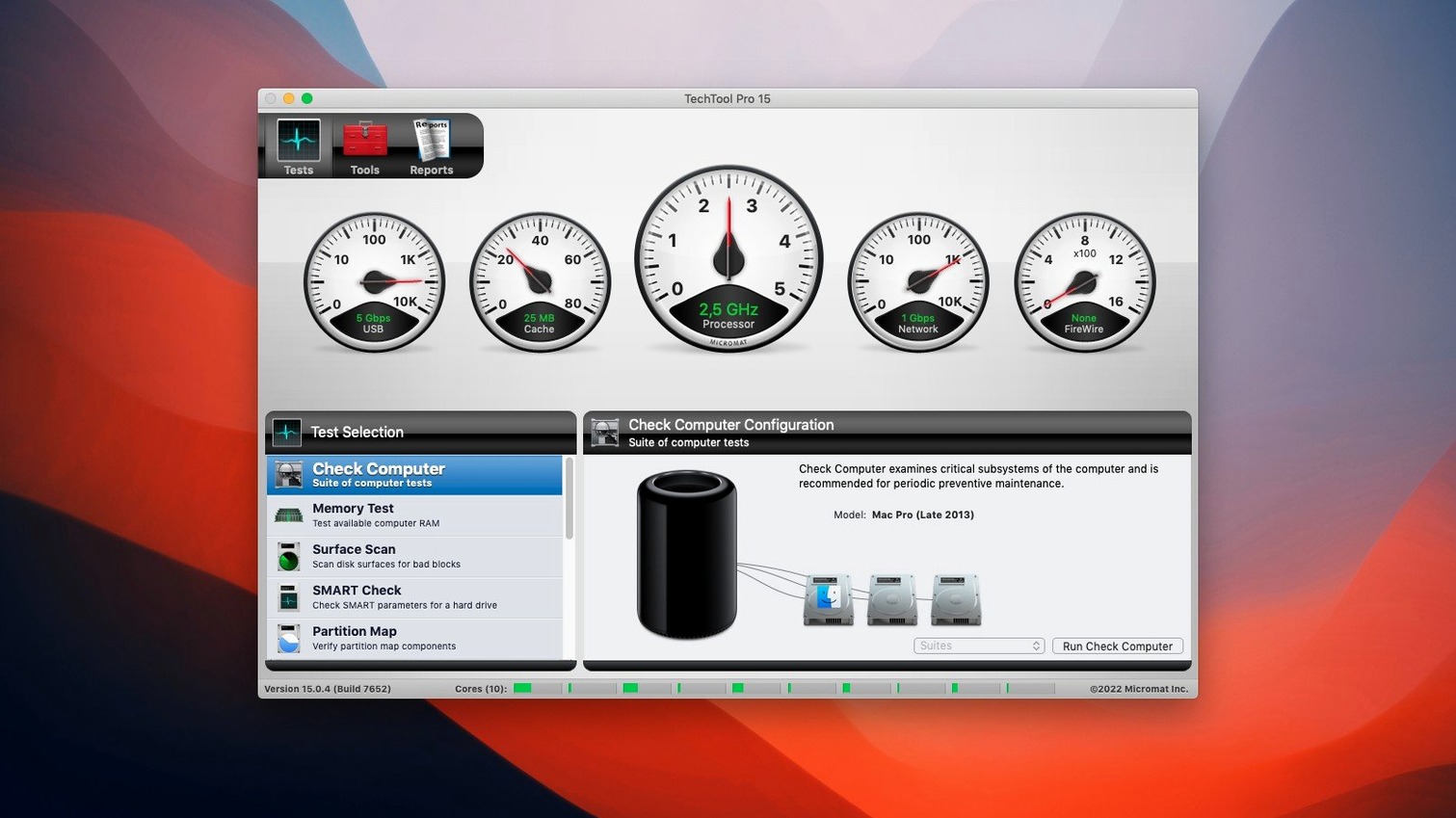
The scenario: a colleague’s iMac has been beachballing for a few seconds every hour. No obvious crash, just a hesitation that grows more frequent. You load Techtool Pro and start with a SMART test on the internal drive. The result comes back green — the hardware is not signaling an imminent failure yet. Next, you run a volume check. The tool finds a handful of minor directory errors and repairs them in place. After a restart, the hesitation is gone. The session takes maybe ten minutes.
If the repair had failed, the next move would be a volume clone to an external drive. Techtool Pro handles cloning natively — you select the source volume, pick a destination, and let it run. The clone is bootable, so you can test the replacement drive before the original drive is pulled. If the original drive had bad blocks, the tool recovers files from them during the clone process rather than skipping them entirely.
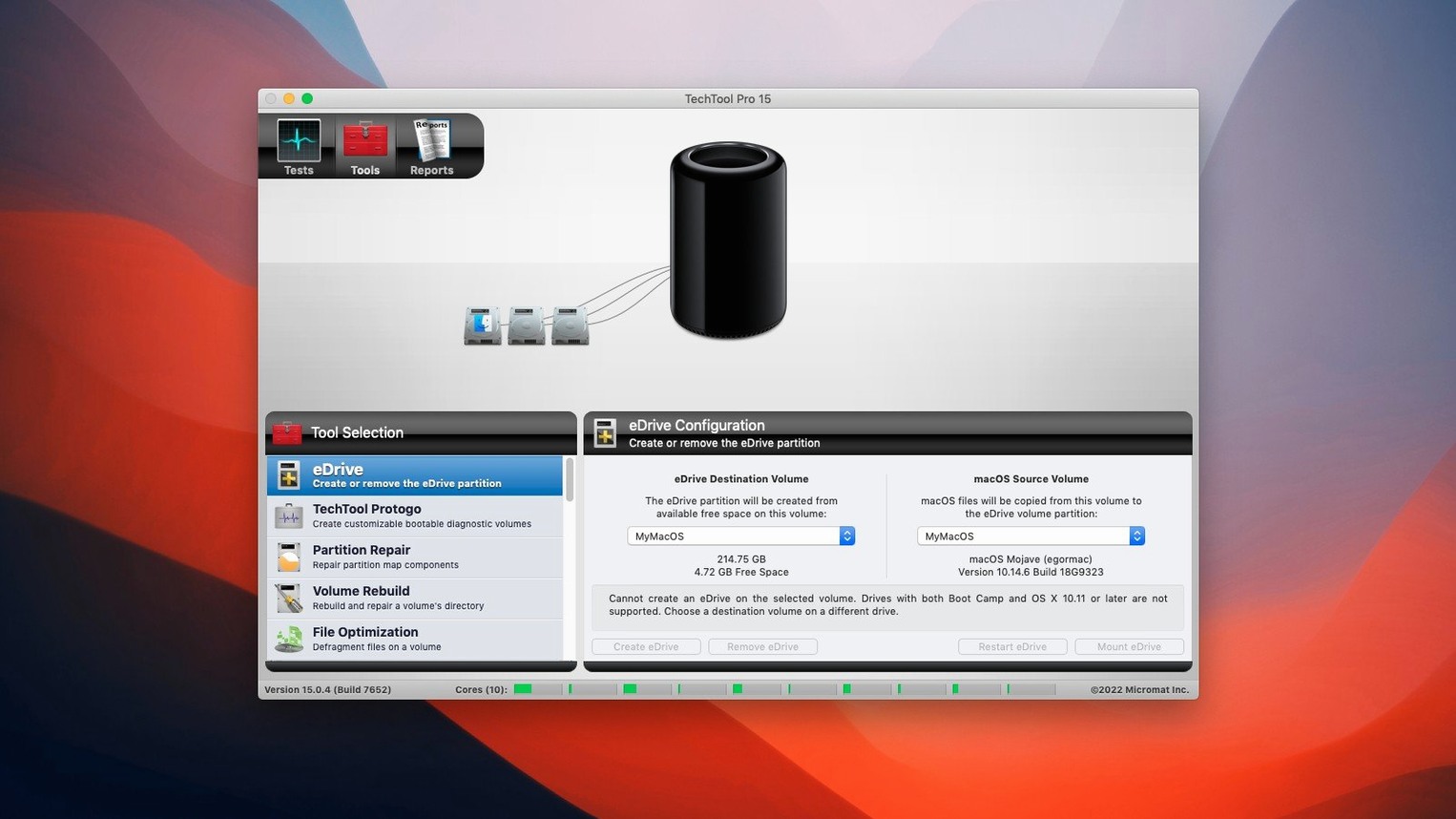
For a machine that refuses to boot at all, Protogo is the step before opening the case. You build a bootable diagnostic drive on a USB stick or an external disk using the Protogo feature. Boot from that, and the full Techtool Pro interface is available — you can run tests, repair volumes, and copy data off a dying drive without needing the installed system to load.
Overnight clone verification failure fixed in build 9559
The two fixes in build 9559 are narrow but practical. The Volume Cloning fix addresses a specific verification failure during File Sync clones. If you schedule an overnight clone as part of a backup routine, a failed verification would break the chain — you would wake up to a partial clone and no clear error. That fix closes a gap for anyone using the tool as a primary cloning utility.
The TechTool Monitor crash fix matters if you leave the monitoring feature running in the background. A crash in the monitor component means you stop getting alerts — temperature warnings, disk space notifications, or SMART status changes — silently. The fix restores that continuous guard without requiring manual restarts. The minor fixes and enhancements in the same build cover smaller, unlisted edge cases.
Deleted file logging provides a starting point for missing system files
- Techtool Protection tracks removed files. This is not a file recovery feature upfront — it logs what gets deleted and when. If a critical system file vanishes between sessions, the log gives you a starting point without digging through Console.
- Disk space monitoring runs automatically. Techtool Protection can watch free space and warn you before a volume fills completely. That prevents the cascade of problems that follows a full boot drive — failed writes, corrupted caches, and system instability.
- Backups of critical directories are saved on schedule. Before making changes, Techtool Protection can back up folders you specify. If a repair or setting change causes problems, you can restore from these local copies without reaching for Time Machine.
- Email notifications for remote machines. The same on-screen popup that appears on a local Mac can be forwarded to an email address. For a Mac administrator managing several machines on a local network, that means a warning about a failing drive arrives in your inbox before the user notices anything wrong.
- SMART monitoring is a background process. You do not need to open the app regularly; Techtool Protection checks SMART status at intervals. If a drive transitions from green to yellow, the tool flags it without you running a manual test each week.
- macOS 10.13 High Sierra or later
- Intel or Apple Silicon
- Interface language: English
Questions from the notes
Can Techtool Pro monitor my Mac automatically?
Yes — Techtool Protection runs in the background and can show on-screen warnings or send email notifications when it detects abnormal behavior or a failing component.
Does it work on Apple Silicon Macs?
Yes, version 21 supports both Intel and Apple Silicon Macs running macOS 10.13 High Sierra or later.
How do I create a bootable diagnostic drive?
Use the built-in Protogo tool to create a bootable test drive. It works from within Techtool Pro and lets you run diagnostics on a Mac that won't start normally.
Install procedure
- Mount the downloaded disk image.
- Run the standard installer.
- Use SN.txt to activate the software.
Reports from players
Sign in or create a tester account to file a report.
No reports filed yet.