You have a Mac that won't boot, and the only copy of your work is on that drive. SuperDuper! exists to prevent that scenario. It creates bootable backups and clones disks so you can restore a system or move it to another computer.
Runs on macOS 10.13 and later, ARM and Intel
SuperDuper! 4.0.7 runs on macOS 10.13 and later, and supports both ARM and 64-bit x86 Macs. The installer comes as a disk image; you drag the app into Applications. That's the whole setup.
Clones disks, schedules backups, and offers rollback checkpoints
The core job is cloning a disk, volume, or image file. You can schedule automatic backups and create periodic copies of important data. Checkpoints let you roll back to an earlier system copy after a failure. If you're moving to a new Mac, an exact disk copy makes the transfer straightforward.
Plug in a drive, pick sources, click Copy Now
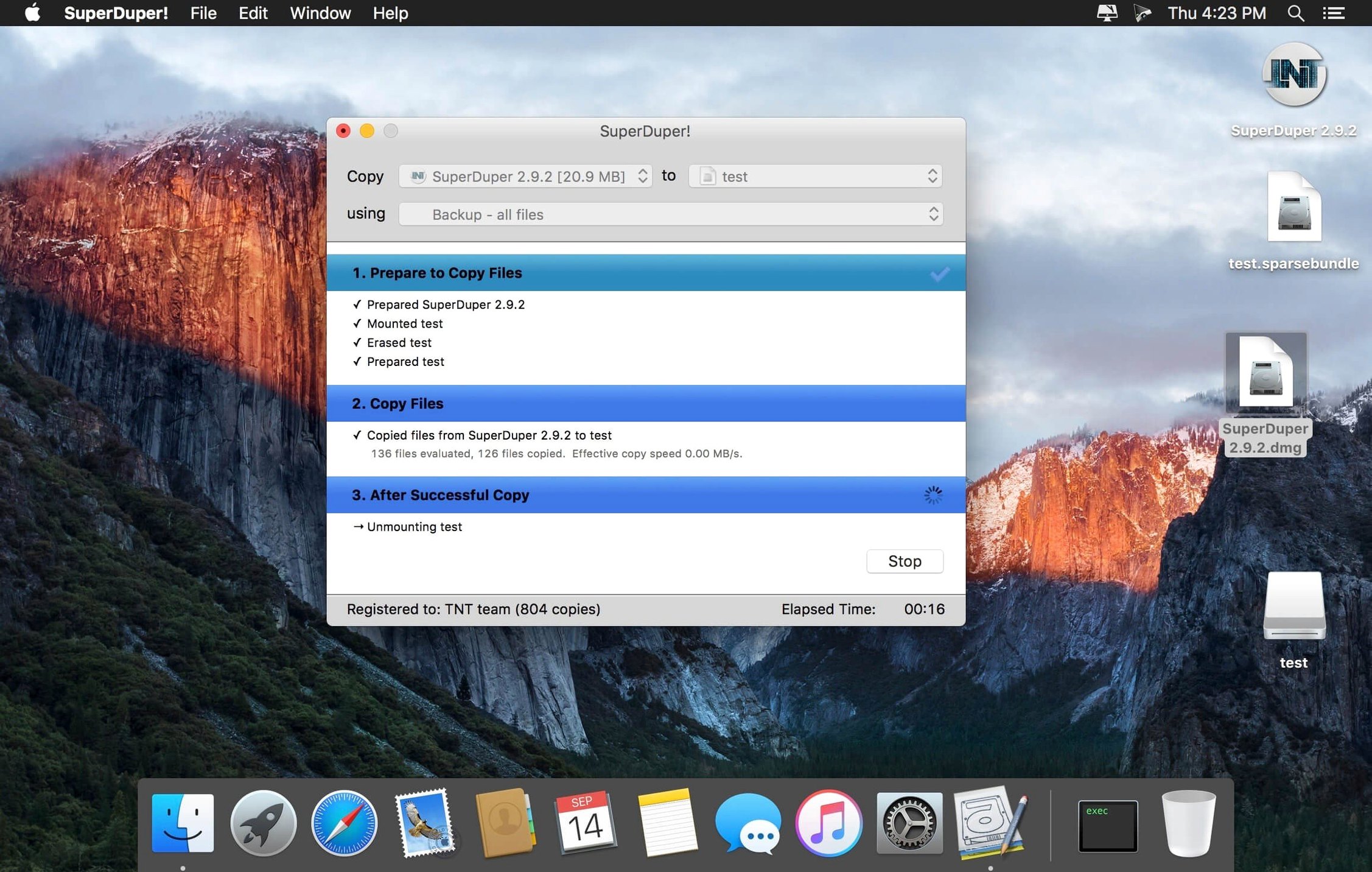
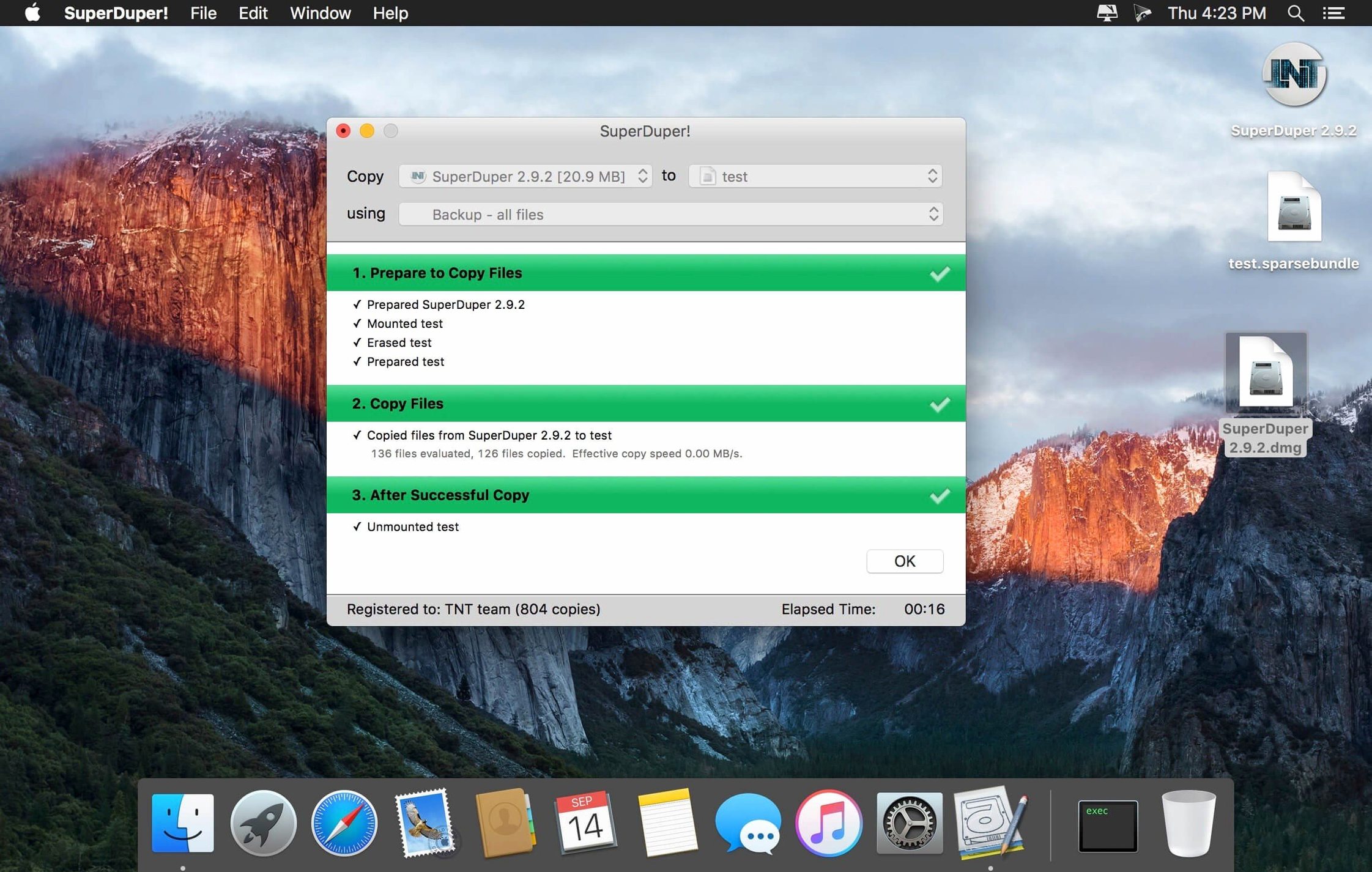
You plug in an external drive. Open SuperDuper!. The main window shows a source selector and a destination selector. You choose your internal drive as the source and the external drive as the destination. One click on "Copy Now" and the process begins. The first clone takes a while because it copies everything. After that, you can run a Smart Update that only copies changed files.
If you need a bootable copy for an emergency, you pick "Backup – all files" from the copy mode menu. This creates a clone that you can boot from by holding the Option key during startup and selecting that drive. For a smaller, more frequent backup, you choose "Backup – user files" instead. This skips system files and focuses on your home folder.
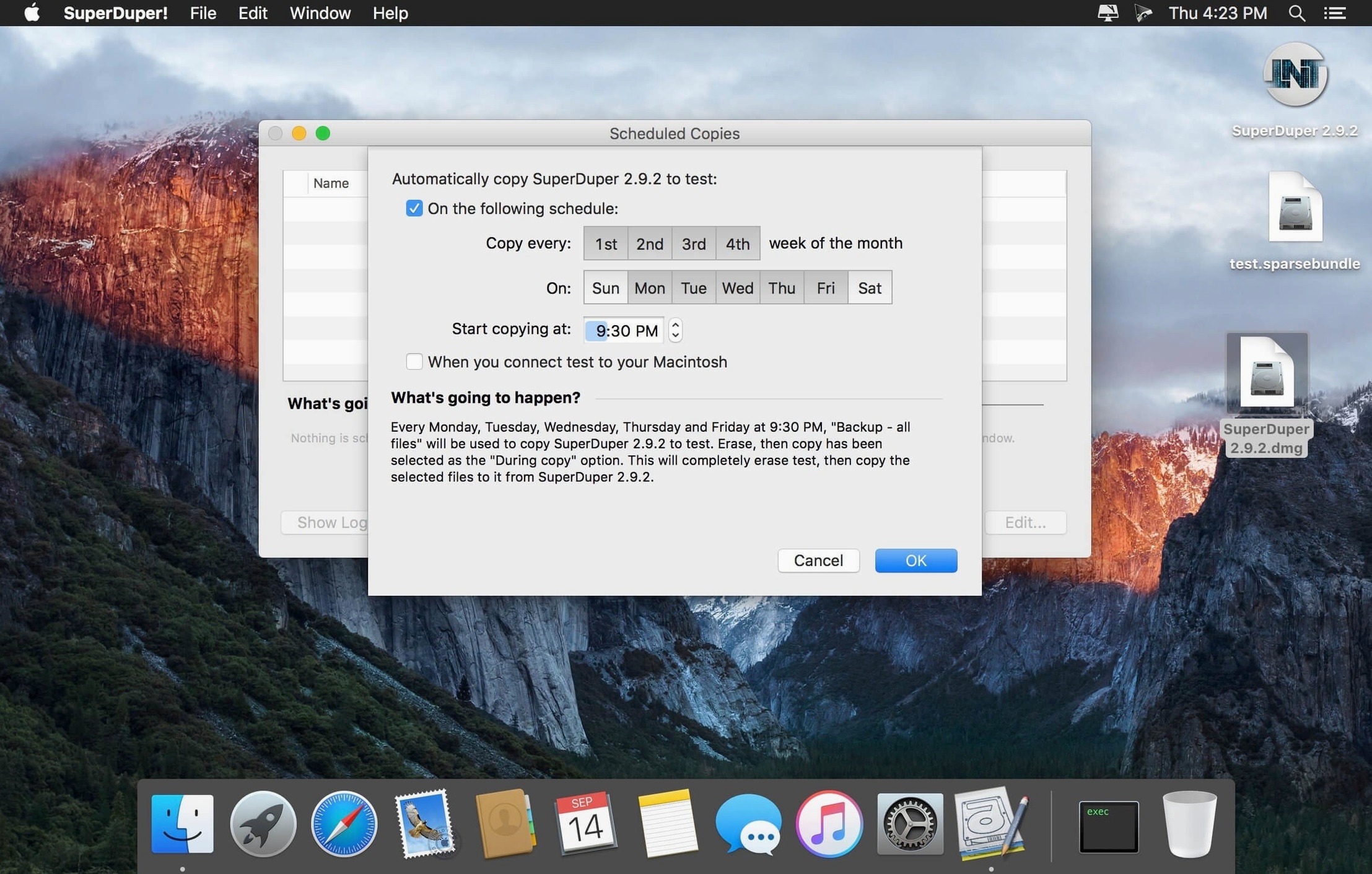
Once the backup runs, you can set a schedule. The scheduler lets you pick daily, weekly, or custom intervals. You can also set it to run when the drive is connected. After that, SuperDuper! runs unattended. You check the log occasionally to confirm no errors appeared.
When you need to restore, you reverse the source and destination. Point SuperDuper! at your backup drive as the source and your internal drive as the destination. The same copy process applies. After the restore finishes, you restart and the Mac boots from the cloned system.
For a one-time folder copy, you select "Copy files from a folder" from the source menu instead of a whole volume. This is useful for moving a project folder to an external drive or a colleague's disk.
Exact disk copy saves reinstalling apps on a new Mac
Carbon Copy Cloner
Carbon Copy Cloner is the main alternative. Both create bootable clones and run on the same macOS versions. Carbon Copy Cloner offers more granular filtering — you can exclude specific file types or folders by pattern. SuperDuper! keeps the interface simpler and the scheduling more basic. For most users who want a full disk clone without configuring filters, SuperDuper! is the faster tool to set up.
Time Machine
Time Machine is built into macOS and requires no download. It creates incremental backups and can restore individual files or the whole system from the Recovery environment. The catch: a Time Machine backup is not bootable. You cannot restart from a Time Machine drive the way you can from a SuperDuper! clone. If your internal drive fails completely, you need to reinstall macOS first, then restore. SuperDuper! gets you back to work in a single restart.
rsync in the terminal
Advanced users sometimes script their own backups using rsync. It is free and flexible. But a plain rsync command does not copy the boot files needed for a bootable clone. You need extra flags and knowledge of system files. SuperDuper! handles all of that automatically. For anyone who values time over terminal skills, the app is worth considering.
Enable automatic updates for macOS compatibility fixes
Mac users who upgrade to a new machine every few years benefit from the exact disk copy. You clone the old drive to an external drive, then clone that drive to the new Mac. No need to reinstall apps or reconfigure settings.
IT administrators managing multiple Macs can push a single cloned disk image to several machines. SuperDuper! supports scripts, so you can automate the clone as part of a larger deployment workflow.
Users who work on mission-critical projects and cannot afford downtime will appreciate the bootable backup. A failed drive becomes a two-minute restart instead of a day-long rebuild.
Anyone who already uses Time Machine and wants an extra layer of protection can run both. SuperDuper! for the bootable clone, Time Machine for the file-level history. They do not conflict.
Perfect for Mac users upgrading every few years
Before your first backup, open SuperDuper!'s Preferences. Two settings make a difference. First, enable the "Automatically check for updates" option if it is off. Version 4.0.7 includes a workaround for a macOS 27 Golden Gate issue, and future versions may fix other edge cases. Keeping updates automatic saves you from needing to check manually before a restore.
Second, decide your copy mode. The default is "Backup – all files." If you only need your data, switch to "Backup – user files." This runs faster and uses less space on the destination drive. You can change it later, but setting it now avoids a full-system clone that you did not want.
If you plan to schedule backups, set the schedule right after your first manual clone. The scheduler will then run incremental Smart Updates by default, keeping the backup current without another full clone.
For a utility that does one thing well, SuperDuper! covers the essential backup cases without extra clutter.
- Added a workaround for a startup-drive visibility issue under macOS 27 Golden Gate.
- macOS 10.13 or later
- ARM or 64-bit x86 architecture
Questions from the notes
Does SuperDuper! work on Apple Silicon Macs?
Yes, SuperDuper! supports ARM and 64-bit x86 Macs.
What macOS versions are supported?
SuperDuper! runs on macOS 10.13 and later.
Can SuperDuper! schedule automatic backups?
Yes, it includes a scheduler for automatic backups.
Install procedure
- Open the downloaded disk image.
- Drag the app to the Applications folder alias.
- Launch the app from Launchpad after copying finishes.
Reports from players
Sign in or create a tester account to file a report.
No reports filed yet.