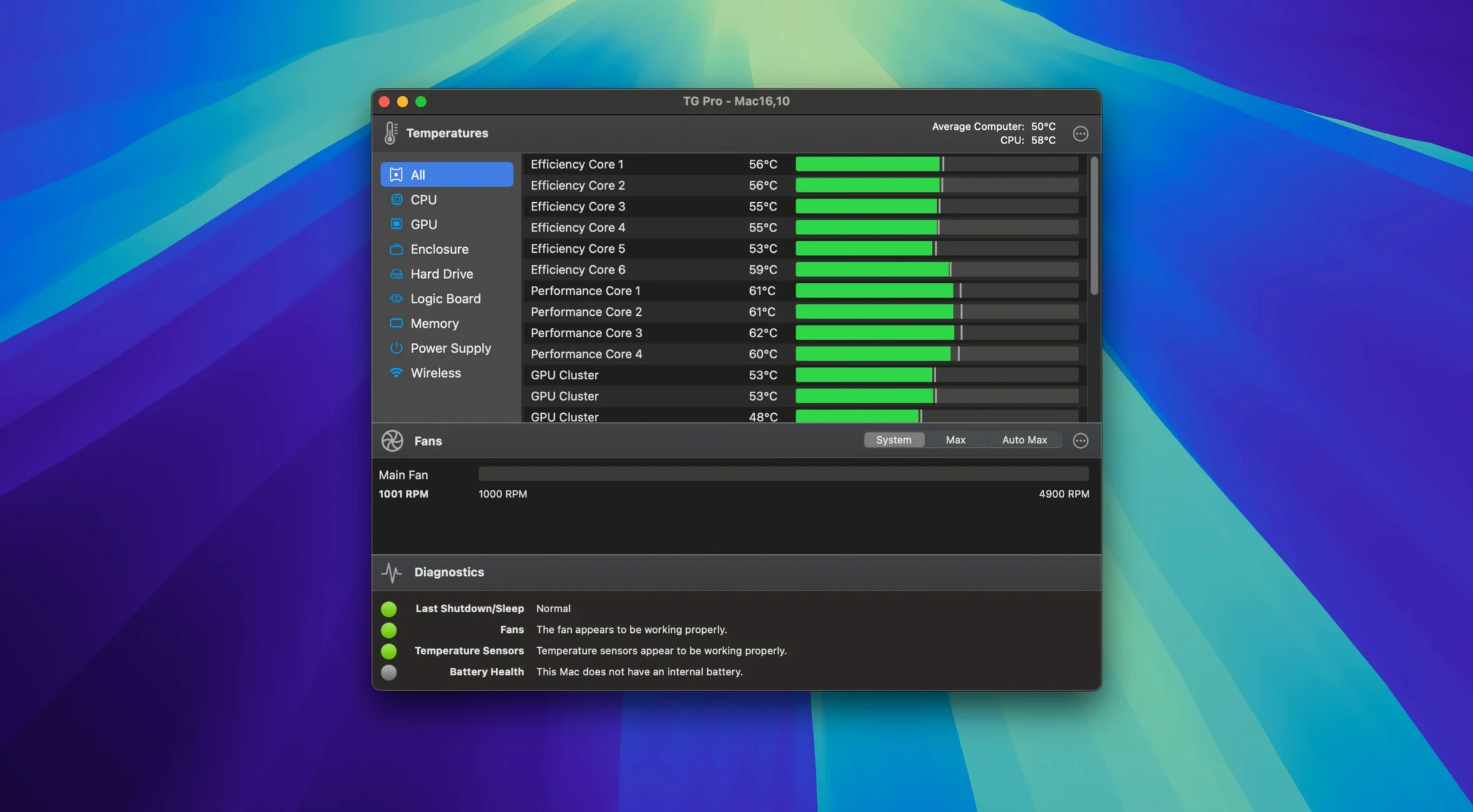
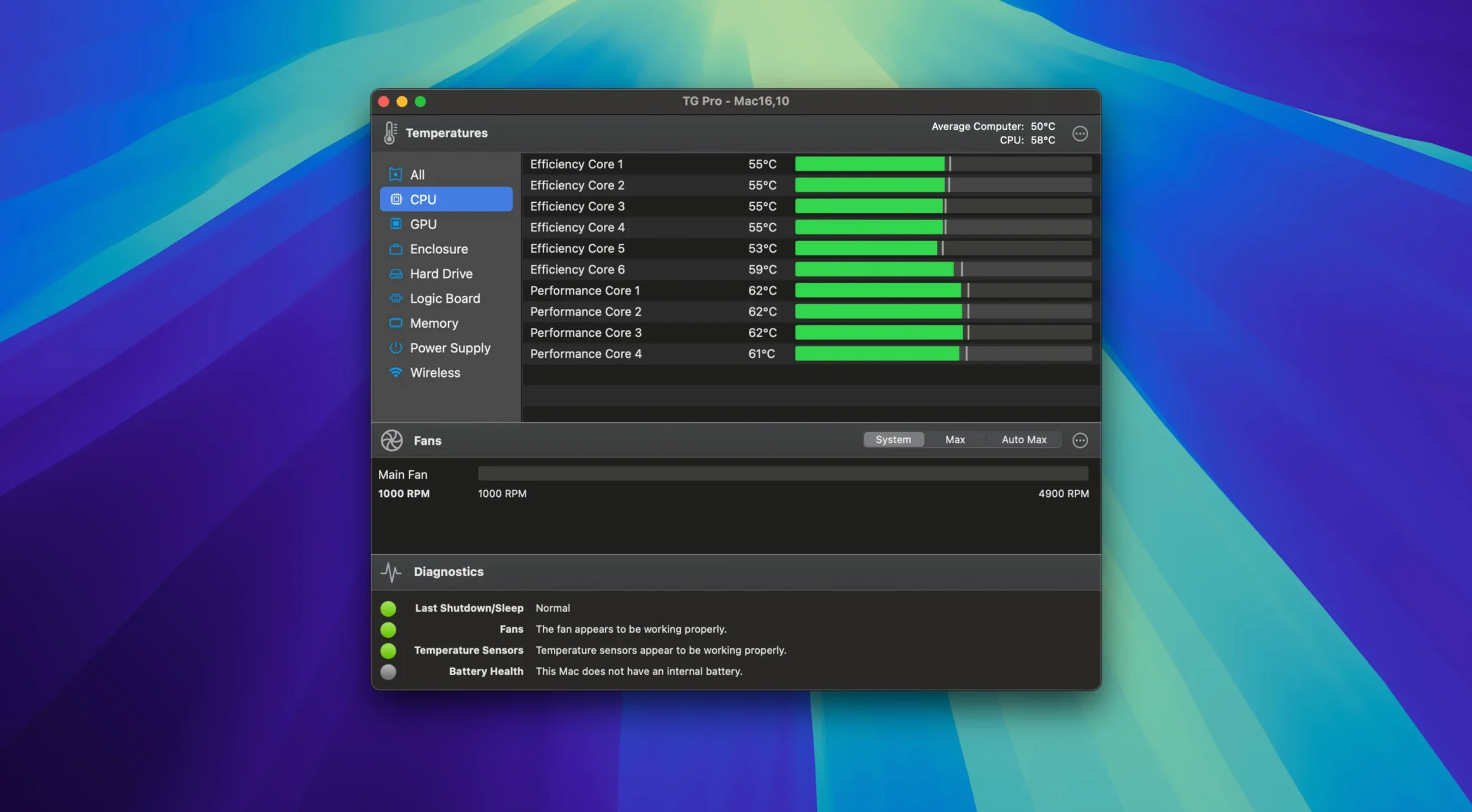
Version 2.103 fixed Auto Boost rules that could fail when switching power sources, improved the startup flow for new installations, added complete fan control for M4, M4 Pro, and M4 Max Macs, and restored fan control and speeds after Siri or voice dictation finished.
Setting up temperature monitoring
Launch the app from Launchpad after installation. It runs in the background with low CPU usage, logging temperature events and triggering alerts when thresholds are crossed.
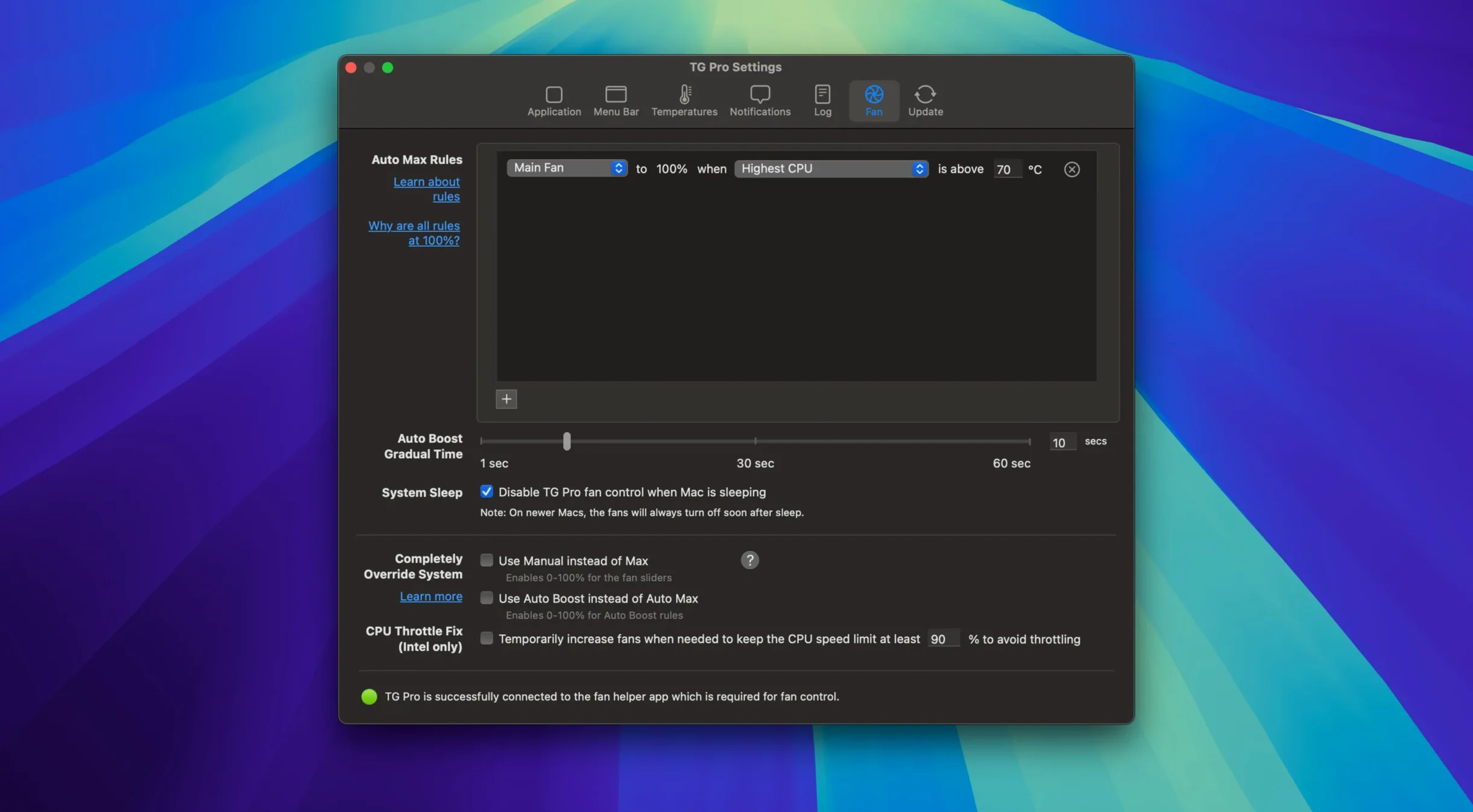
Adjusting fan speeds manually or automatically
You can set manual fan speeds or let TG Pro handle them automatically. The app supports macOS 10.13 through 26 on both Intel and Apple Silicon Macs, including Hackintosh systems with a preference toggle.
A scenario for someone who edits video on a MacBook
This is where TG Pro becomes a tool you use daily.
During a multicam export of a 30-minute project, the internal fans often stay at maximum speed for several minutes after the export completes. With TG Pro, you can set a custom fan rule that ties the fan curve to the CPU temperature sensor rather than the system's default logic. The same rule can be saved and reapplied the next time you edit. No need to open the app again — it runs in the background and enforces your rule automatically.
A second scenario: you are at a coffee shop editing a timeline with the MacBook on your lap. The bottom case gets warm, but the fans are barely spinning because macOS prioritizes silence. TG Pro lets you set a minimum fan speed that keeps the chassis cooler without resorting to full blast. It is a small adjustment that makes the laptop more comfortable to hold during an hour of cuts and transitions.
TG Pro takes over fan control from macOS firmware
A few questions come up often enough that they are worth answering here.
Does TG Pro conflict with macOS fan control? No. The app takes over the fan control logic from the system firmware when it is running, and it restores the original control when you quit. There is no permanent modification to the Mac's SMC or EFI. If you want to revert to macOS defaults, just quit TG Pro or disable the automatic fan rules in its preferences.
It polls temperature sensors and updates the menu bar display, but it does not keep the CPU awake unnecessarily.
Can I use it alongside other monitoring tools like iStat Menus or Stats? You can run them side by side. TG Pro focuses on fan control and temperature alerts — iStat Menus covers a wider set of system stats but does not offer the same granular fan rules. They do not interfere with each other. Just be aware that if both apps try to write fan speeds, the last one to apply a change wins.
Does it work on Hackintosh systems? Yes. There is a preference toggle in the app's settings that enables Hackintosh support. This is necessary because the sensor data may be reported differently on non-Apple hardware. Toggle it on, restart the app, and it should detect your temperature sensors and fans normally.
TG Pro vs. Macs Fan Control: manual rules and sensor support
There are a few alternatives on macOS for monitoring temperatures and controlling fans. They each approach the problem differently.
Macs Fan Control by CrystalIDEA is the closest competitor. It allows manual fan speed adjustment and temperature-based rules, and it supports both Intel and Apple Silicon Macs. The main difference is that TG Pro includes a hardware diagnostics view and temperature logging with alerts, while Macs Fan Control stays focused on fan curves and does not offer diagnostic tests. If you just want to set a fixed fan speed and forget it, Macs Fan Control works fine. If you want to log temperatures over time, get alerts when a sensor passes a threshold, or run a diagnostic check, TG Pro covers more ground.
iStat Menus by Bjango is a comprehensive system monitor that shows temperatures, fan speeds, CPU load, memory usage, and network activity in the menu bar. It does not control fans at all. It is a read-only tool. If you need fan control and temperature logging together, you would use iStat Menus for the dashboard and TG Pro for the actual fan management. They complement each other rather than compete.
smcFanControl is an older open-source utility that can set minimum fan speeds on Intel Macs. It does not support Apple Silicon, it does not monitor temperatures, and it has not been updated in years. For modern Macs it is effectively obsolete. TG Pro supports both architectures and is actively maintained.
Fix the missing fan detection by approving the system extension
A few things can trip up a new installation. They are easy to fix once you know what to look for.
The app does not detect any fans or sensors. This usually happens when the system extension is not approved by macOS. After you launch TG Pro for the first time, macOS may block the kernel extension or the system extension that reads sensors. Go to System Settings > Privacy & Security and look for a message about blocked software from Tunabelly. Click Allow, then restart the app. On Apple Silicon, the same step applies under Privacy & Security for system extensions.
Fan control does not work after waking from sleep. TG Pro automatically reapplies your fan rules when the Mac wakes, but if you closed the lid while a rule was active, a brief glitch can leave fans at default speed. The fix is to either toggle the rule off and on again in the app, or set a short sleep delay in the app's preferences so it rechecks sensors a few seconds after wake. Version 2.103 also fixed a related issue where Siri or voice dictation could reset fan speeds — that should no longer occur.
If you are still seeing the problem, make sure you are running 2.103. If you are, try deleting the rule and recreating it — the rule's trigger conditions may have been saved with a stale power state reference.
The app shows very high temperatures on a Hackintosh. Toggle the Hackintosh preference in the app's settings, then restart TG Pro. That tells the app to expect non-standard sensor reporting. If temperatures still look wrong, check that your SMBIOS settings in the bootloader are correct — mismatched SMBIOS data can confuse sensor readings across the board.
The diagnostics view shows temperature sensors, fan speeds, and hardware status. The interface is English only.
- Fixed Auto Boost rules that could fail when switching between power sources.
- Improved the startup flow for new installations.
- Added complete fan control for M4, M4 Pro, and M4 Max Macs.
- Restored fan control and speeds after Siri or voice dictation finished.
- macOS 10.13 High Sierra or later
- Intel or Apple Silicon
- Interface: English
Install procedure
- Open the downloaded disk image.
- Drag the app into the Applications folder alias.
- After copying finishes, launch the app from Launchpad.
Reports from players
Sign in or create a tester account to file a report.
No reports filed yet.