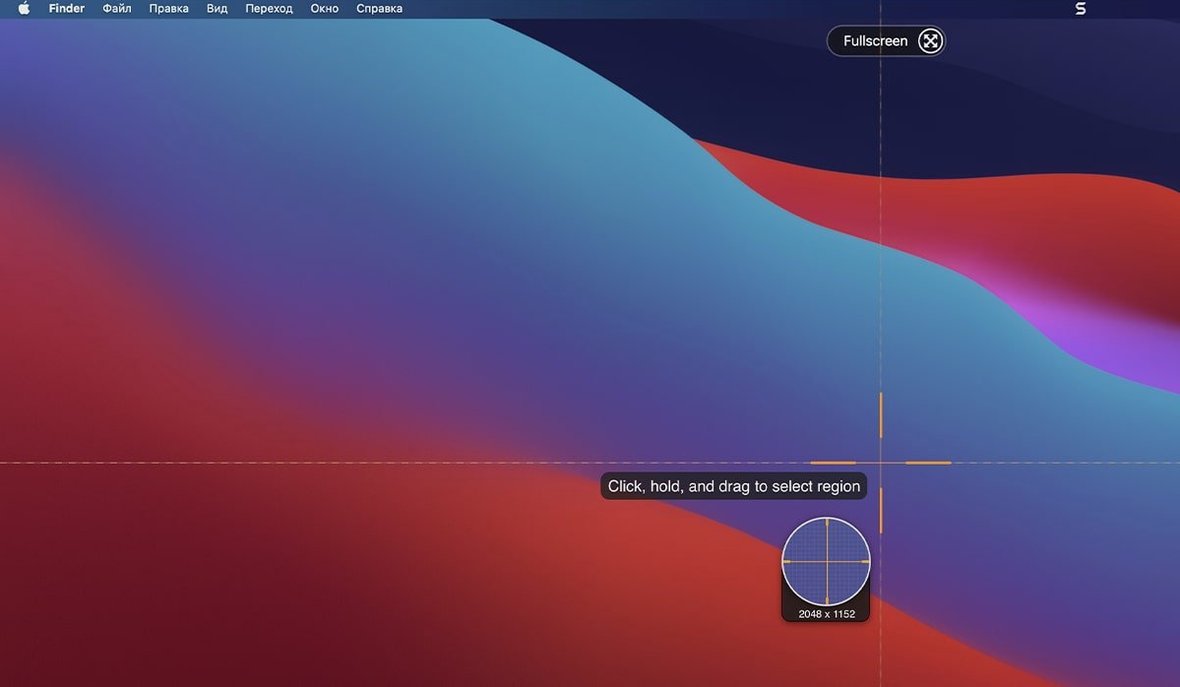
The 2026.3.3 release focuses on macOS 27 compatibility. Capture toolbars and controls that could not be moved are fixed, along with video playback controls and arrow keys in the Library when QuickLook is active. If you've been holding off on upgrading, this is the build that behaves.
What Snagit handles well
- Full-screen, window, region, and scrolling captures
- Screen recording with video playback controls
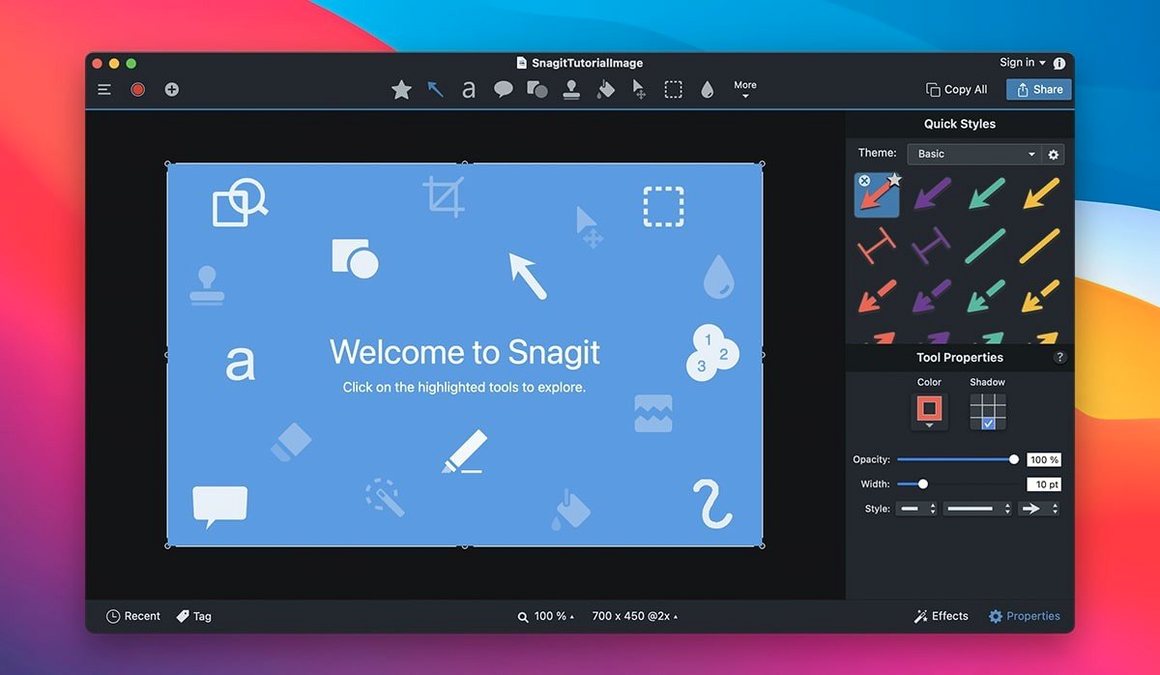
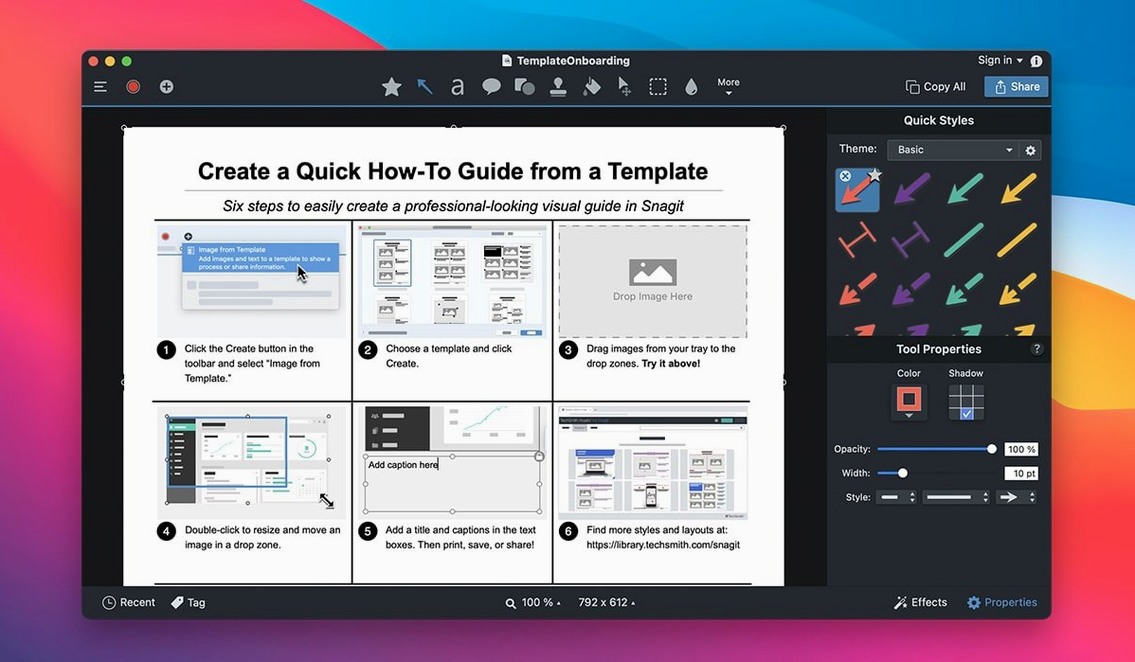
- Image editing: remove parts, rounded corners, page-curl effect
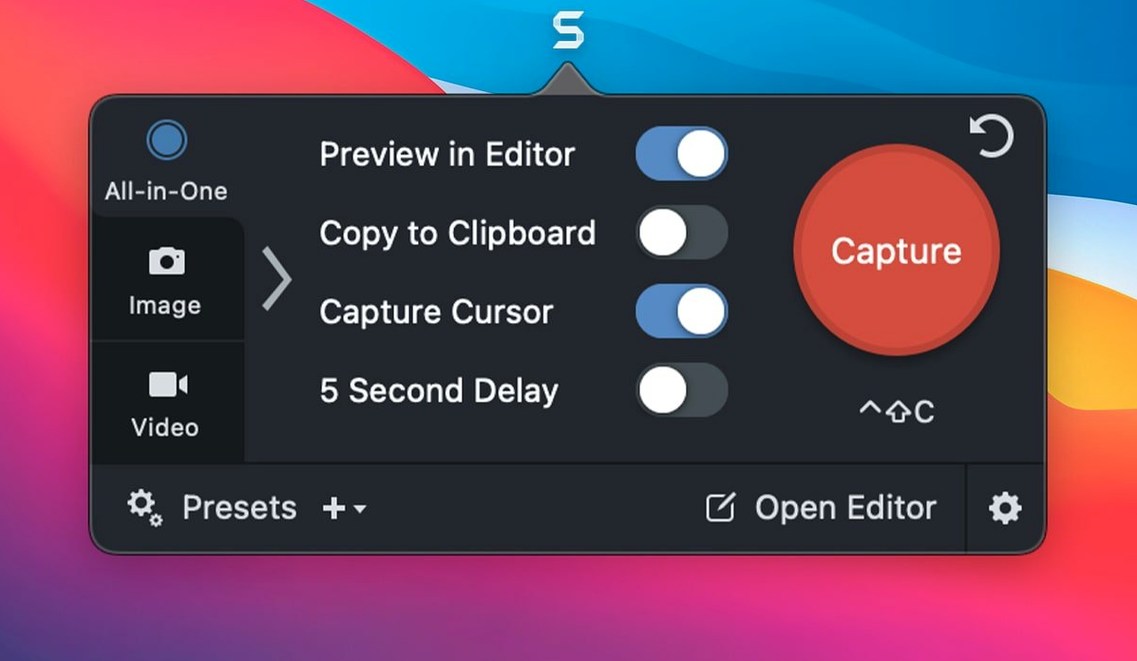
- Custom capture presets for repeated tasks
- Automatic library organization, searchable by date or source
- Publish to blog, FTP, email, or Microsoft Office tools
One realistic task: capturing a scrolling window for documentation
Say you need a full-page screenshot of a long settings panel. Set up a scrolling window capture preset, trigger it, and Snagit stitches the scroll into one image. Then remove the irrelevant toolbar area, apply rounded corners, and save it to the library. Later, searching by creation date finds it without digging through folders. That's the whole workflow, start to finish, without leaving the app.
What the requirements mean for your Mac
Snagit 2026.3.3 needs macOS 15 or later and runs on both Intel and Apple Silicon Macs. The Intel build works through Rosetta 2 on Apple Silicon, while the ARM-native binary runs without translation. Both architectures receive the same feature set. The disk image installs via a Gatekeeper-friendly path — you mount it, run a terminal command to bypass the block, then drag the app into Applications. No extra dependencies or background services are installed.
Where beginners get tripped up
- Scrolling capture requires a preset. New users often try to trigger it from the default capture panel and get a static region instead. The solution is to create a scrolling window preset first.
- Custom capture presets need a keyboard shortcut assigned. Without one, you're clicking through menus every time. Assign a shortcut during preset creation or from the preferences panel.
- The library automatically saves everything. If you take a lot of captures, the default view fills up fast. Use the search-by-date or source filters to narrow results, or assign tags to keep things grouped.
- Text capture from web pages works only on rendered text. It won't extract text from images inside the page. Users sometimes assume it's a full OCR tool.
- The email and blog publish options require account setup first. Trying to send a capture without configuring the destination returns an error, not a prompt. Head to the sharing preferences beforehand.
Real-world scenario: a support team member documenting a bug
You're on a support team and need to report a UI glitch. Open Snagit, select a window capture preset, and record a short screen video showing the issue. The video saves with playback controls that work correctly on macOS 27, so the developer can scrub through the clip. After recording, add a callout arrow pointing at the glitch and a label explaining the expected behavior. Save the image side-by-side with the video in the library, tag both with the ticket number, and search by that tag later when the fix lands. No external tools, no file renaming, no lost footage.
Set your default capture format before muscle memory kicks in
- Go into preferences and set your default capture format. The app picks a reasonable default, but if you need PNG over JPG or a specific resolution, change it now before muscle memory kicks in.
- Create two presets: one for window capture, one for scrolling capture. Assign distinct keyboard shortcuts for each. Test them once to confirm they trigger the right capture type.
- Open the library and browse the default organization. Create a few tags that match your common projects, like "bug reports," "documentation," or "client work." Tag a test capture to see how the filter behaves.
- If you plan to publish captures to a blog, FTP, or Office tools, set those destinations up in the sharing section. A test send to each destination verifies the credentials work before you need them under deadline.
- Disable auto-saving if you prefer to review captures before they go into the library. That option lives in the capture preferences and keeps the library clean of false starts.
- Fixed video playback controls not working on macOS 27
- Fixed arrow keys not working when QuickLook is active in the Snagit Library on macOS 27
- Fixed capture toolbars and controls that could not be moved on macOS 27
- macOS 15 or later
- Intel or Apple Silicon
Questions from the notes
Does Snagit work on Apple Silicon Macs?
Yes, Snagit supports both Intel and Apple Silicon architectures on macOS 15 and newer.
Can I capture a scrolling window with Snagit?
Yes, Snagit can capture a scrolling window, stitching the scroll into a single image automatically.
Install procedure
- Mount the disk image and run Open Gatekeeper friendly.
- Press Enter in Terminal to bypass Gatekeeper.
- Drag the app to the Applications folder.
- Open the app when installation is complete.
Reports from players
Sign in or create a tester account to file a report.
No reports filed yet.