
SiteSucker Pro’s update to 6.2.2 resolves issues with generating PDFs and introduces a Format HTML feature within Webpage settings. It runs on macOS 14.0 or later and is localized in English, German, Spanish, Italian, Portuguese, and French.
Preserves site directory structure on your Mac
- Downloading entire websites while preserving the site’s directory structure on your local disk.
- Downloading embedded YouTube and Vimeo videos — a Pro feature that sets it apart from the standard edition.
- Controlling what gets pulled in via the Limits section: link depth, total file count, and minimum/maximum file size.
- Filtering by file type — you can download all files or only selected types.
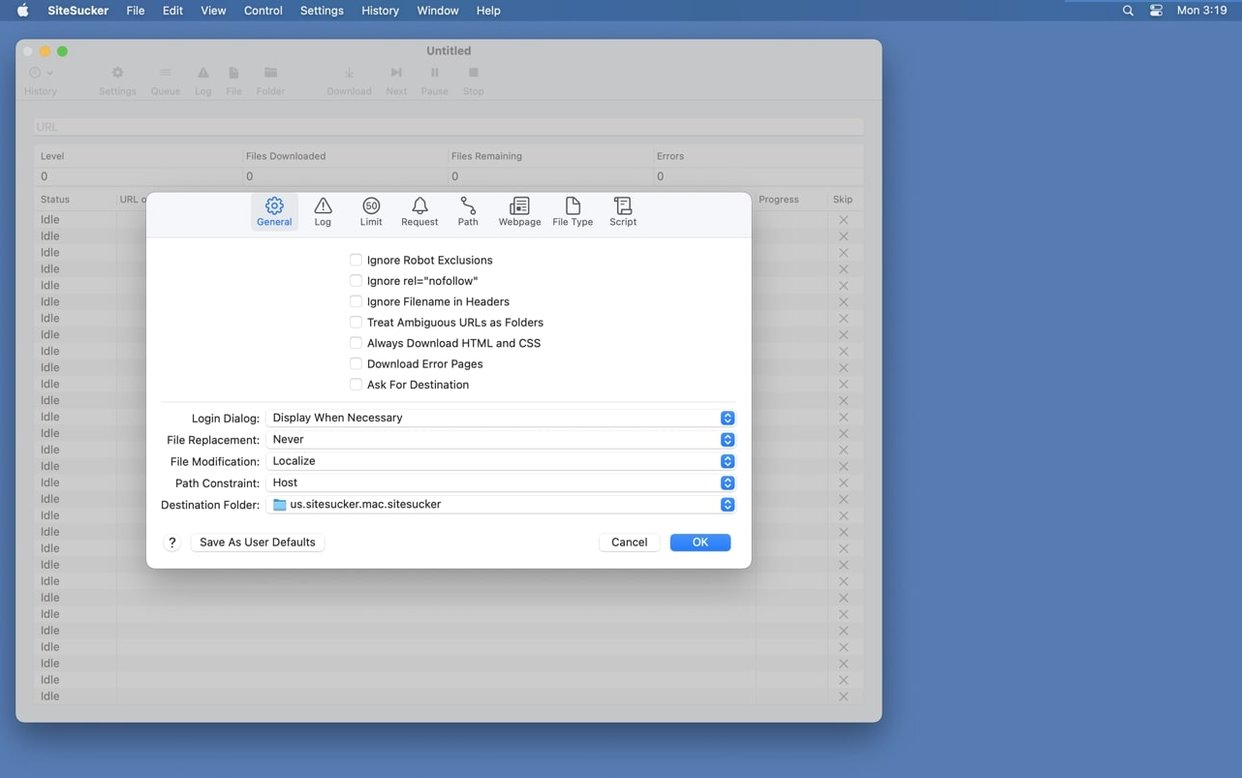
- Disabling robots.txt exclusion in settings if a site’s robots.txt blocks content you want.
Requires macOS 14 and bypasses robots.txt by default
- Requires macOS 14.0 or later.
- By default, files listed in robots.txt are not downloaded — you have to turn that off manually.
- The app keeps an operation log from when downloading starts; you can open it in Console.
Start by pasting a URL and watching the log panel
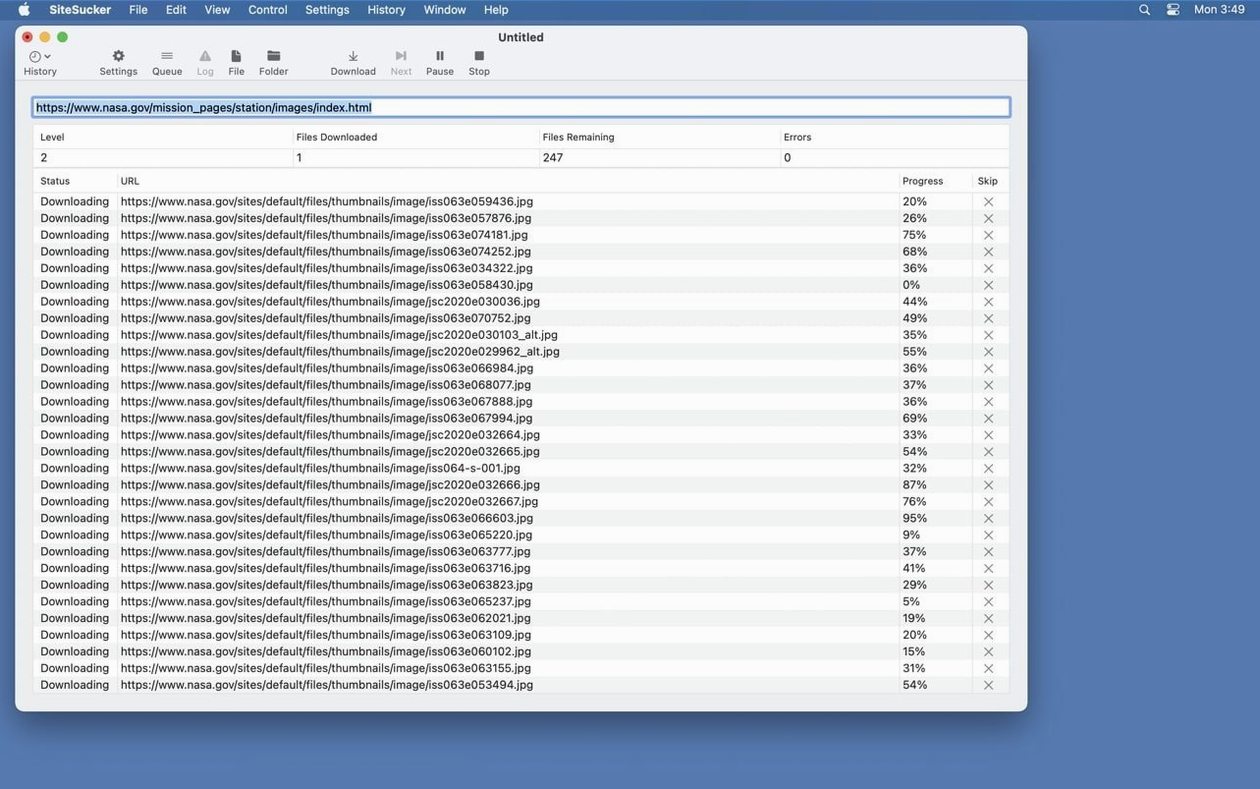
You start with a URL. Paste it into the address field, and the app reads the page structure before it downloads anything. On larger sites, that initial scan takes a moment — the log panel shows each discovered resource as it builds the queue.
Once the scan finishes, you can review what SiteSucker Pro intends to grab. The file list populates with everything from HTML pages to embedded video. This is the point where you decide whether to let it run as-is or tighten the filters. If you only need the current page and its immediate children, you set the link depth to 1 or 2 in the Limits section. For a full site archive, you leave depth high and let the app work through the tree.
Hit download. The app begins pulling files in order of discovery, writing them to a local folder that mirrors the original server structure. The log updates in real time — every downloaded file, every skipped resource, every connection error. You can follow along or leave it running in the background. The operation log stays open and timestamped, so you can check later what succeeded and what didn't.
For embedded YouTube and Vimeo videos, the app handles those during the same pass. No extra setup needed — if the video is linked on the page, the Pro version picks it up alongside images and stylesheets. The video file lands in the same local directory tree, organized by the page it came from.
When the download finishes, you open the local folder. The site opens in a browser without an internet connection — styles load, images display, links navigate locally. The directory structure is intact, which makes browsing offline feel normal rather than broken.
Raise the file count limit or set it to zero for unlimited
Downloads stop before the site is complete.
Check the Limits section. The total file count limit might be set too low — raise it or set it to zero for unlimited. Link depth is another common cap: if the site uses deep navigation menus, a depth of two or three might not cover all pages. Increase depth and restart.
Files that should be there are missing.
The robots.txt exclusion is on by default. Open Settings, go to General, and disable the robots.txt rule. Many sites use robots.txt to block crawlers from assets like images or scripts — turning that off lets SiteSucker Pro treat those files as fair game.
Certain file types never appear in the download.
The File Types section defaults to all files, but if you previously set it to selected types, PDFs, video, or other formats might be excluded. Switch back to "Download all files" or add the missing extensions to the allowed list.
The download takes too long on large sites.
Use the Paths section to force specific pages or directories to be skipped. You can also set minimum and maximum file size in Limits to avoid downloading oversized assets like full-resolution video files when you only need the page content.
The log is empty or doesn't update.
The app maintains an operation log from the moment downloading starts. If you don't see entries, click Open Log on the toolbar — it opens the log file in Console. If Console shows nothing, the app may have finished before you opened the log, or the download never started due to a connection issue.
Set link depth before your first real download
Before your first real site download, open Settings and adjust these:
- Limits → Link Depth. Set it to a number that matches what you actually need. Depth 0 grabs only the starting URL. Depth 1 adds all pages linked from that page. For most single-section archives, depth 2 or 3 is enough. Depth 0 means you only get the page you entered — nothing linked from it.
- General → Robots.txt Exclusion. Turn this off unless you are certain the site allows full crawling. Many administrators use robots.txt to block assets that are perfectly fine to download for personal offline use.
- Limits → Total File Count. Raise this to zero (unlimited) or a number well above the expected page count. A default limit of a few hundred files stops downloads on medium-sized sites before they finish.
- File Types → Download. If you want everything, leave it on "All files." If you only need text and images, switch to "Selected file types" and check only HTML, CSS, JavaScript, and image formats.
- Advanced → User-Agent. Some sites serve different content to different browsers. The Advanced section lets you imitate Safari or Firefox. If a site returns a stripped-down mobile version or blocks the download entirely, try switching the user-agent string.
These settings are per-session, so you can reconfigure for each site without affecting the next download.
Force external CDN resources to be downloaded in Paths
The Paths section in settings lets you force specific file or page links to be downloaded or skipped. If you know a site loads a large resource from an external CDN, you can force that URL to be included — or exclude it to keep the download lean.
The operation log is not just a running status readout. It stays accessible after the download finishes. Click Open Log on the toolbar and the log file opens in Console, where you can search for errors, filter by timestamp, or save it for reference. This is useful when you want to compare what a site contained before and after an update.
Webpage settings now include a Format HTML option (added in version 6.2.2). This reformats the downloaded HTML for readability. If you plan to edit the local files or pass them through other tools, having cleanly indented HTML saves time compared to minified or single-line source.
The app writes files in a local directory structure that mirrors the original server paths. This means relative links inside pages continue to work offline. Images, stylesheets, and JavaScript files resolve to the local copies automatically. You do not need to remap paths or edit links by hand.
- Fixed bugs related to creating PDFs.
- Added a Format HTML option to Webpage settings.
- macOS 14.0 or later
- Intel or Apple Silicon
Questions from the notes
Can SiteSucker Pro download videos from YouTube and Vimeo?
Yes, the Pro edition can download embedded YouTube and Vimeo videos.
Install procedure
- Mount the disk image and run Open Gatekeeper friendly.
- Press Enter in the Terminal window to bypass Gatekeeper.
- Drag the app to the Applications folder.
- Launch the app when installation is complete.
Reports from players
Sign in or create a tester account to file a report.
No reports filed yet.