
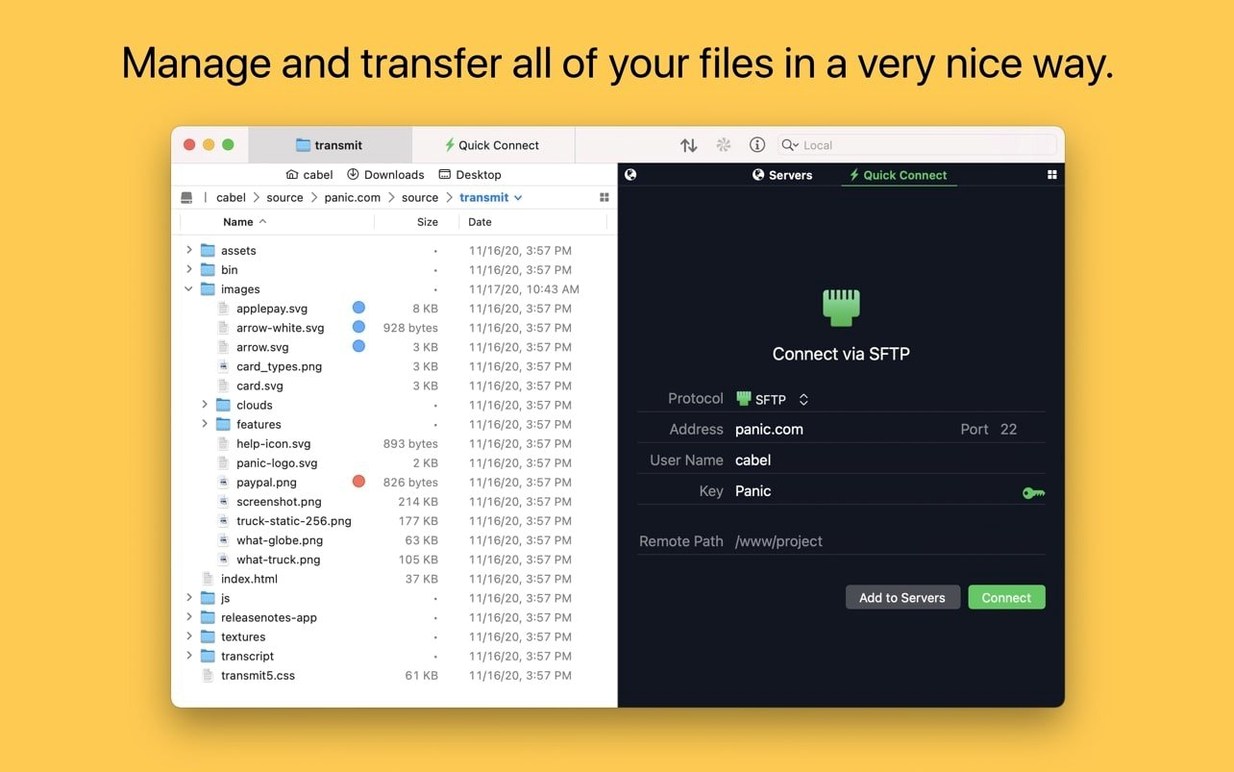
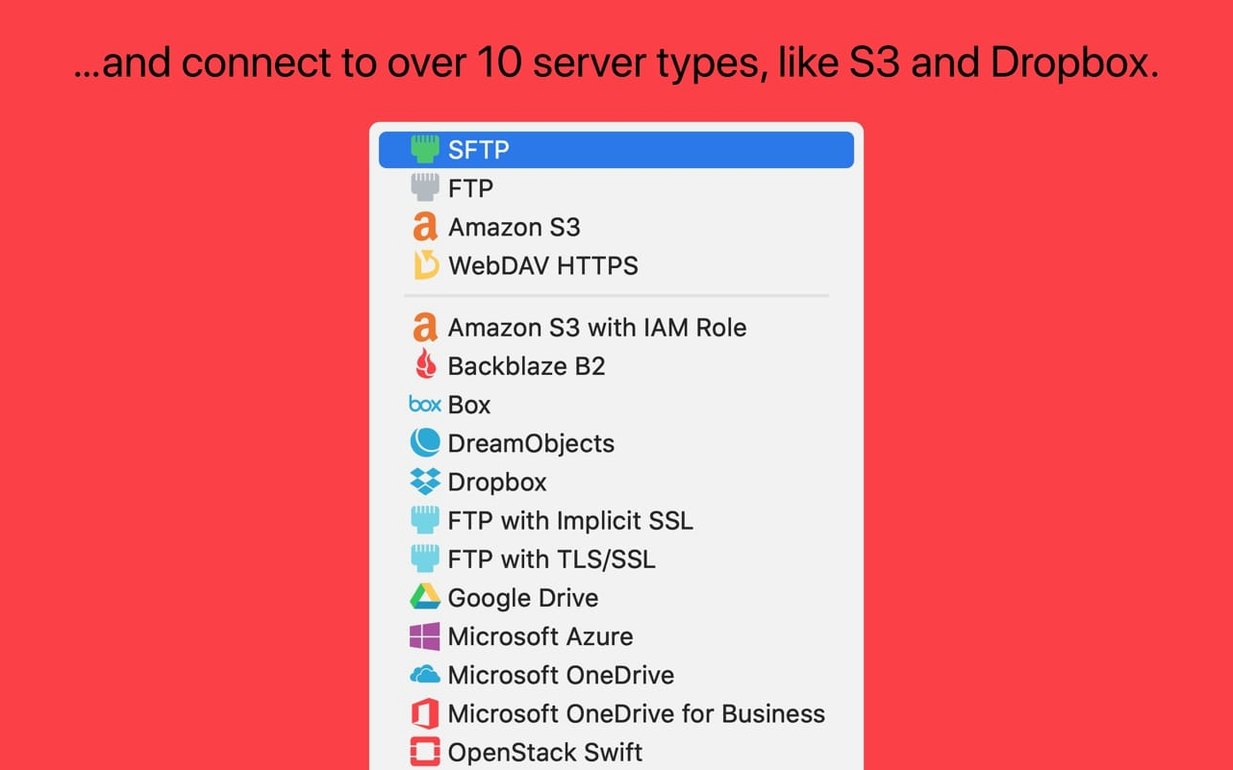
Transmit 5 supports four protocols (FTP, SFTP, S3, WebDAV), handles very large Amazon S3 files, and includes two-factor login for secure connections.
- FTP
- Standard file transfer protocol for uploading and downloading files to servers.
- SFTP
- Secure file transfer over SSH, encrypting both commands and data.
- S3
- Amazon Simple Storage Service — supports very large files and improved error reporting for oversized uploads.
- WebDAV
- HTTP-based protocol for remote file management, often used with cloud services.
- Panic Sync
- Synchronizes your sites and bookmarks across Macs, so you don't re-enter server details manually.
- Two-factor login
- Supports 2FA for services that require it, adding a second authentication step.
- Local and remote file synchronization
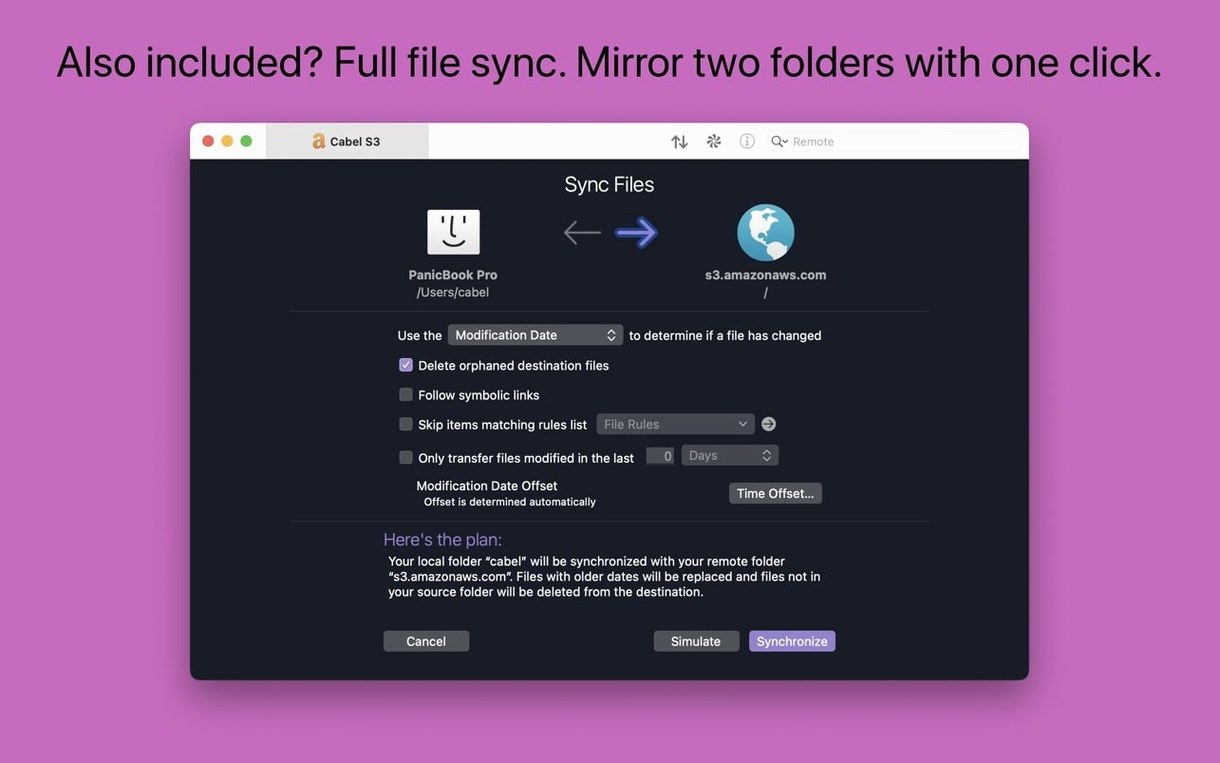
- Keeps folder contents in sync between your Mac and a remote server, one or both ways.
- Information sidebar
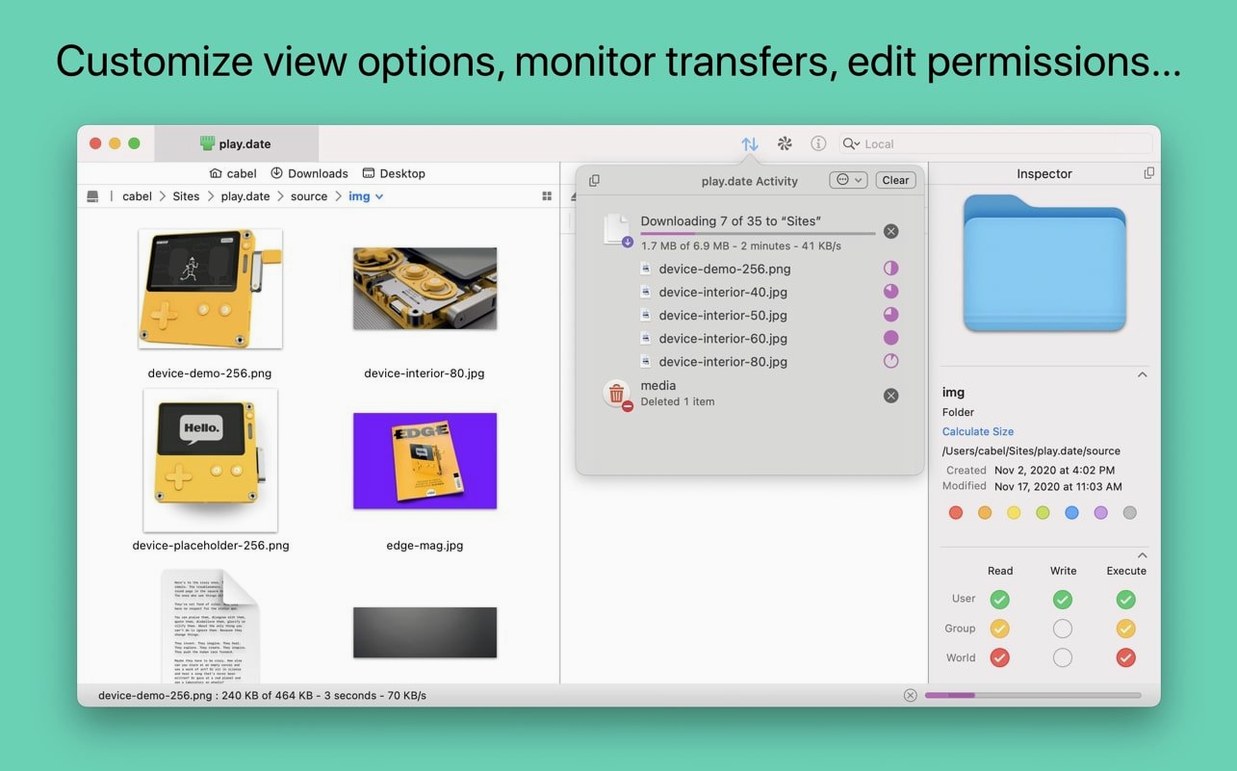
- Shows file metadata, permissions, and previews while browsing.
- Tags
- Mac tags work in Transmit — tag files and folders for quick filtering.
- Open in Terminal
- Opens the current remote or local directory directly in Terminal.
Batch rename tool with find-and-replace patterns
The batch renaming tool is tucked into the toolbar but does more than sequential numbering. You can apply find-and-replace patterns, add prefixes or suffixes, and run the operation on a mix of local and remote files at the same time. The same sheet shows a live preview of the new names before you commit, which saves undoing mistakes.
The Places Bar runs along the top of the file browser and holds frequently used folders. You drag a folder onto it to save it, then click to jump there instantly. It works for both local and remote paths, so you can keep a shortlist of common server directories and local download folders in one row.
Key management is built into the app. You can generate SSH key pairs directly inside Transmit without opening Terminal or using ssh-keygen. The public key is copied to your clipboard, ready to paste into a server's authorized_keys file. For servers that already require key-based authentication, you can point Transmit at your existing private key and it stores the path in the site configuration.
The Info sidebar shows more than just file size and dates. It displays extended attributes, POSIX permissions, and file type indicators. For images and PDFs, it renders a live preview so you can confirm what you are about to transfer without opening the file separately.
Tag remote files natively with macOS Finder tags
Transmit uses macOS tags natively. You can assign Finder tags to remote files — the tags are stored locally as extended attributes and sync back when you reconnect. This means you can tag a file on your server as "Review" or "Final" and filter for it later in either Transmit or Finder.
The Open in Terminal feature goes beyond convenience. When you are troubleshooting a server issue, you can open the same remote path in Terminal, run commands, then switch back to Transmit to transfer files without leaving the context. The terminal window opens at the exact directory you were browsing in Transmit.
Panic Sync works through a free Panic account and keeps your site list synchronized across multiple Macs running Transmit. If you add a server on your work Mac, it appears automatically on your home Mac without exporting or emailing files. The sync data is end-to-end encrypted.
Transmit also integrates with macOS drag-and-drop. You can drag files from a Finder window into Transmit's remote browser to upload them, or drag from the remote browser into Finder to download. The same works with IntelliJ — the 5.11.6 release fixed a crash that could happen when dragging files into that editor.
Scenario: a web developer deploying a static site
Imagine you maintain a small static site hosted on an S3 bucket. You build the site locally with a static generator, then need to upload the output folder to S3. With Transmit, you set up one site entry with your S3 credentials and two-factor authentication. You drag the build folder onto the remote pane, and Transmit uploads only changed files if you use the sync feature. The improved error reporting in 5.11.6 tells you exactly which file was too large if your generator produces oversized assets. You can then batch-rename image files or remove the offending ones without leaving the app.
Lacks batch renaming and key generation unlike Cyberduck
Cyberduck is the most common free alternative. It covers the same base protocols (FTP, SFTP, S3, WebDAV) and also supports cloud storage providers. Cyberduck is lighter on disk and has a simpler interface, but it lacks batch renaming, key generation, and the Places Bar. Transmit's interface is denser and more customizable, which suits users who manage many servers.
FileZilla Pro for macOS offers a similar protocol range and supports cloud storage. It has a more traditional two-pane layout with a queue at the bottom. FileZilla's queue management is more detailed — you can prioritize transfers and schedule them. Transmit lacks a visible transfer queue by default; it shows progress inline. Transmit's integration with macOS (tags, Terminal, Panic Sync) is tighter because it uses native Cocoa APIs rather than a cross-platform toolkit.
ForkLift is the closest in terms of polish and macOS-native design. It includes FTP, SFTP, and S3 support, plus the same kind of Places Bar and dual-pane browsing. ForkLift also offers batch renaming and sync tools. Transmit stands apart with its dedicated key management, two-factor login support, and Panic Sync for site synchronization. ForkLift's sync is file-level only; Transmit's sync handles folders both locally and remotely.
- Fixed a crash when dragging files into IntelliJ.
- Improved error reporting when files are too large to upload to S3.
- Get Info toolbar button is active immediately after launch.
- German File Rename text entry fields are larger.
- macOS 13 Ventura or later
- Intel or Apple Silicon (universal binary)
Questions from the notes
Does Transmit work on Apple Silicon Macs?
Yes, Transmit 5 runs natively on both Intel and Apple Silicon Macs. The minimum requirement is macOS 13 Ventura.
Install procedure
- Open the downloaded disk image.
- Drag the app to the Applications folder alias.
- Launch the app from Launchpad after copying finishes.
Reports from players
Sign in or create a tester account to file a report.
No reports filed yet.