
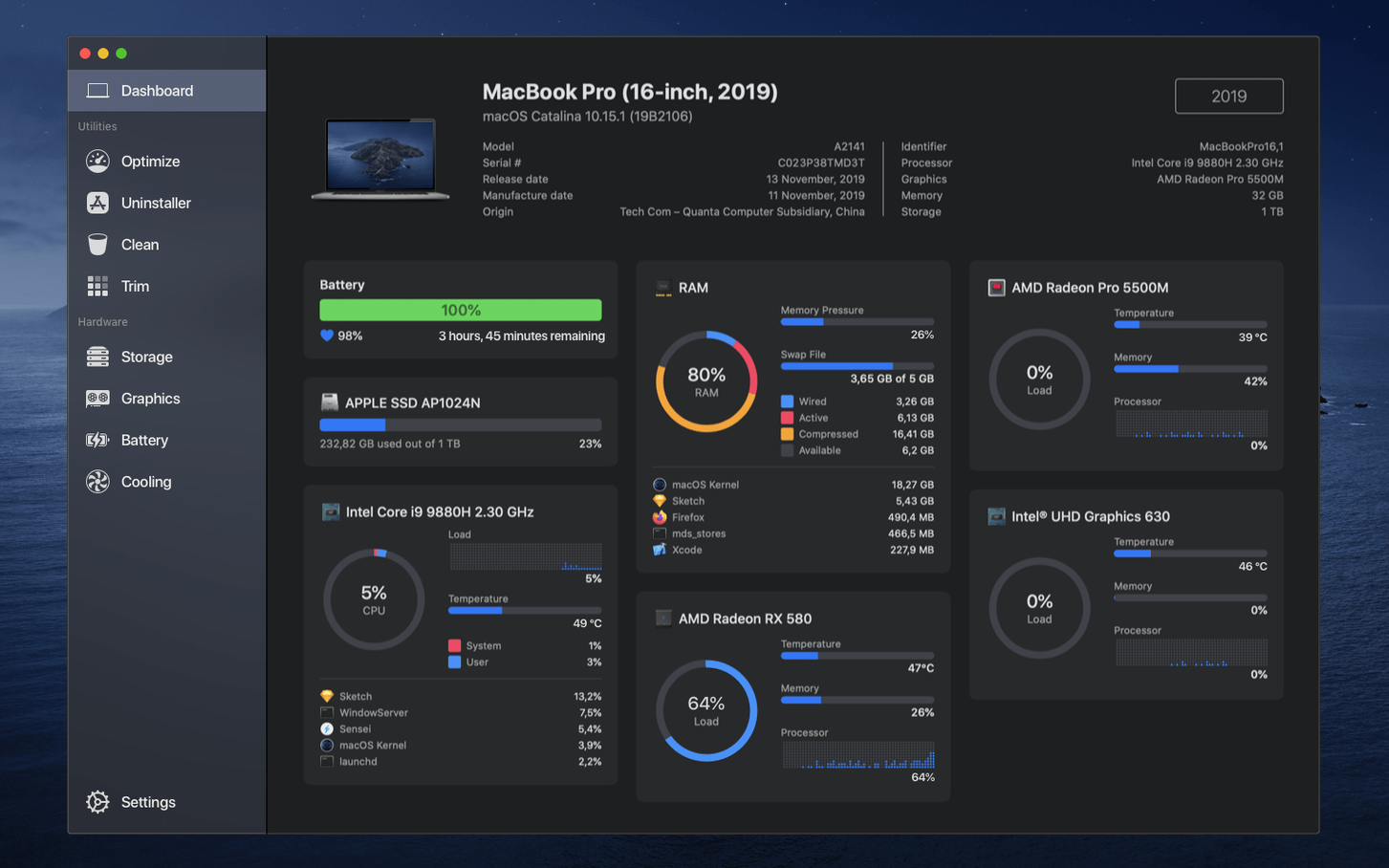
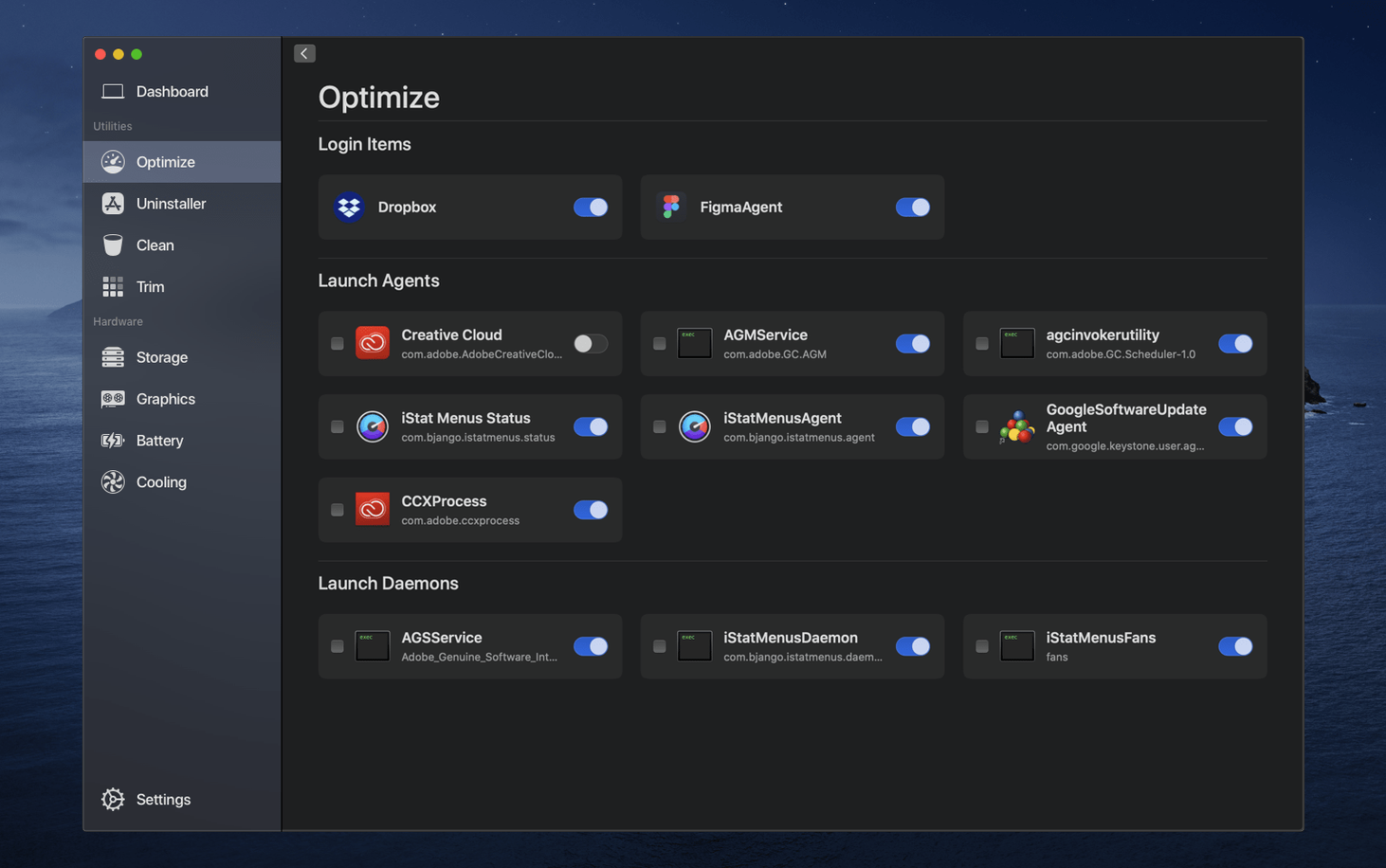
Sensei 2.1.2 from Cindori AB is a Mac utility that pairs performance monitoring with cleaning tools in one app. The Dashboard gives a quick overview of your system's state, while the cleaning functions help free up space.
Compatibility and requirements
- macOS 14 or later
- Works on both Intel and Apple Silicon Macs
- Interface languages: Russian, English, Spanish, Simplified Chinese, Dutch, French, Swedish, Japanese
monitors system health and cleans in one place
If your Mac meets the requirements, Sensei runs as a straightforward monitor and cleaner. It's a practical tool for keeping an eye on system health without jumping between separate apps.
What changed in 2.1.2
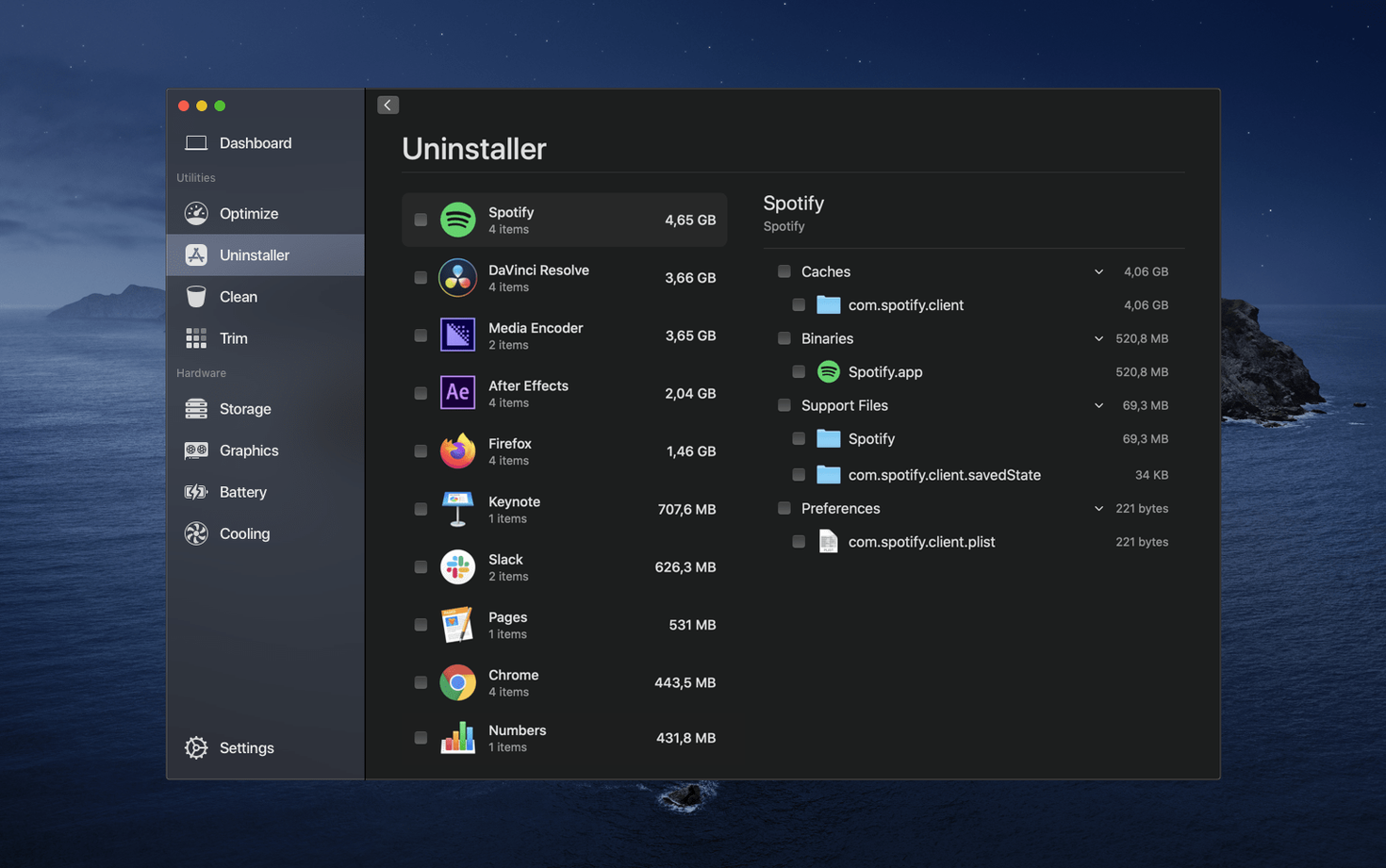
Version 2.1.2 didn't overhaul the interface or add a major new module. The changes are refinements that affect daily use in small but noticeable ways. The System Monitor in the menu bar now updates temperature readings more consistently when switching between sensors. Disk cleanup scanning is a bit faster on drives with many small files — a change that matters if you run it weekly. The uninstaller module now groups leftover folders more clearly, so you see what belongs to an app versus what's shared data before you delete it. No new languages were added; the same eight are still present.
opens from the menu bar to check cpu and drive temperatures
I open Sensei from the menu bar icon — that's the entry point most days. The Dashboard loads immediately and shows CPU load, memory usage, and drive temperatures. I glance at it to see if anything is running hot or if memory is close to full. That takes about five seconds.
If disk space looks tight, I go to the Drive section. I run a quick scan on the system drive. Sensei lists large files and temporary data, and I pick the obvious candidates — app caches, old downloads, browser caches. I don't touch system caches unless I know what they are. After cleaning, the Dashboard updates the free space number. This is the bulk of my session: a check, a clean, a confirmation.
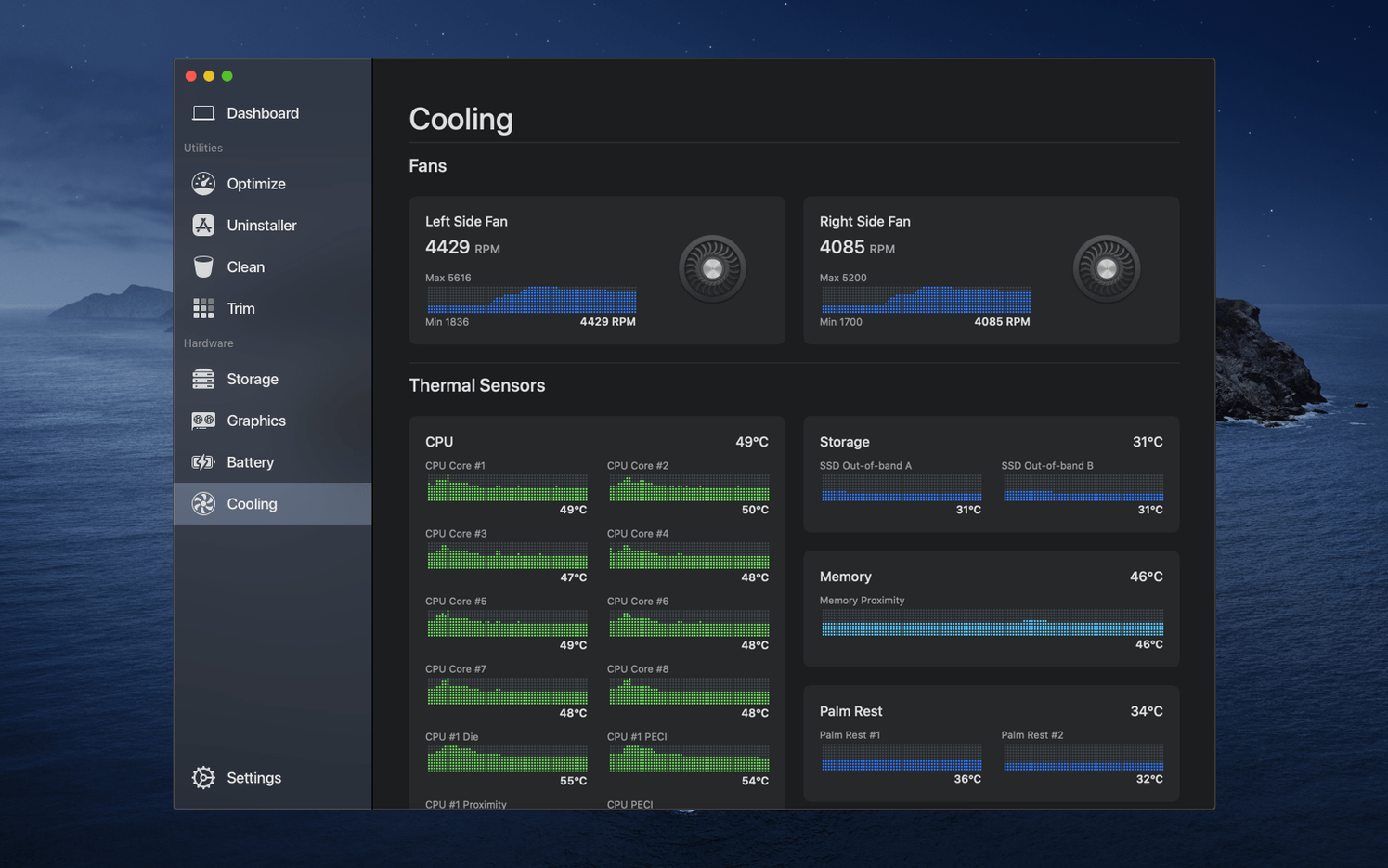
Once a week I open the Sensors panel. I watch the CPU temperature for a minute while the Mac is idle, then while it loads a project in an app. I note if the fan speed seems off — Sensei shows the RPM there too. If I see a temperature spike, I check which process is using the most CPU in the Processes tab. Most weeks nothing is wrong, and I close the app after thirty seconds. That's the point: it's quick enough to check often.
Workflow: clean up after uninstalling an app
Uninstalling an app through Sensei instead of dragging it to the Trash gives you control over leftover files. Here's the full workflow.
- Open Sensei and go to the Uninstaller section. The list shows every app Sensei can manage, sorted by size.
- Find the app you want to remove. Click it once to see the app's details — its version, install date, and the folder location.
- Click Uninstall. Sensei runs the app's own uninstaller first. That removes the main program files.
- When the uninstaller finishes, Sensei scans for leftovers. It lists orphaned preferences, cache files, and support folders. Each item shows its size and location.
- You can select individual leftovers or select all. Click Remove to delete them.
- After removal, the free space number on the Dashboard updates immediately. You can verify the change in the Drive section if you want.
Sensei catches folders you would have to hunt for manually.
cleans like CleanMyMac but adds hardware readings
Three other Mac utilities overlap with what Sensei does, though each has a different focus.
CleanMyMac is the closest competitor in the cleaning space. It handles large-file finding, app removal, and cache cleaning similarly. If you need those readings, you'd run CleanMyMac for cleanup and a separate tool for sensors. Sensei keeps both in one window.
iStatistica focuses entirely on monitoring. It shows CPU, GPU, RAM, temperature, and network usage in a dashboard widget. It does not clean disks or uninstall apps. If monitoring is all you need, iStatistica is leaner. But if you also want to free up space without opening a second app, Sensei covers that ground.
Monity is a newer system monitor with a minimalist interface. It tracks CPU, memory, disk, and network usage. It has no cleanup or uninstaller. For a quick glance at current load, Monity works. For deeper hardware insight and maintenance, Sensei offers more.
None of these three combine monitoring and cleaning the way Sensei does. If you prefer to use separate apps for each task, any of them could replace the corresponding part of Sensei. If you want one tool for both monitoring and maintenance, the comparison stops there.
- macOS 14 or later
- Architecture: Intel and Apple Silicon
Install procedure
- Open the downloaded disk image.
- Drag the app into the Applications folder alias.
- Once copying finishes, launch the app from Launchpad.
Reports from players
Sign in or create a tester account to file a report.
No reports filed yet.