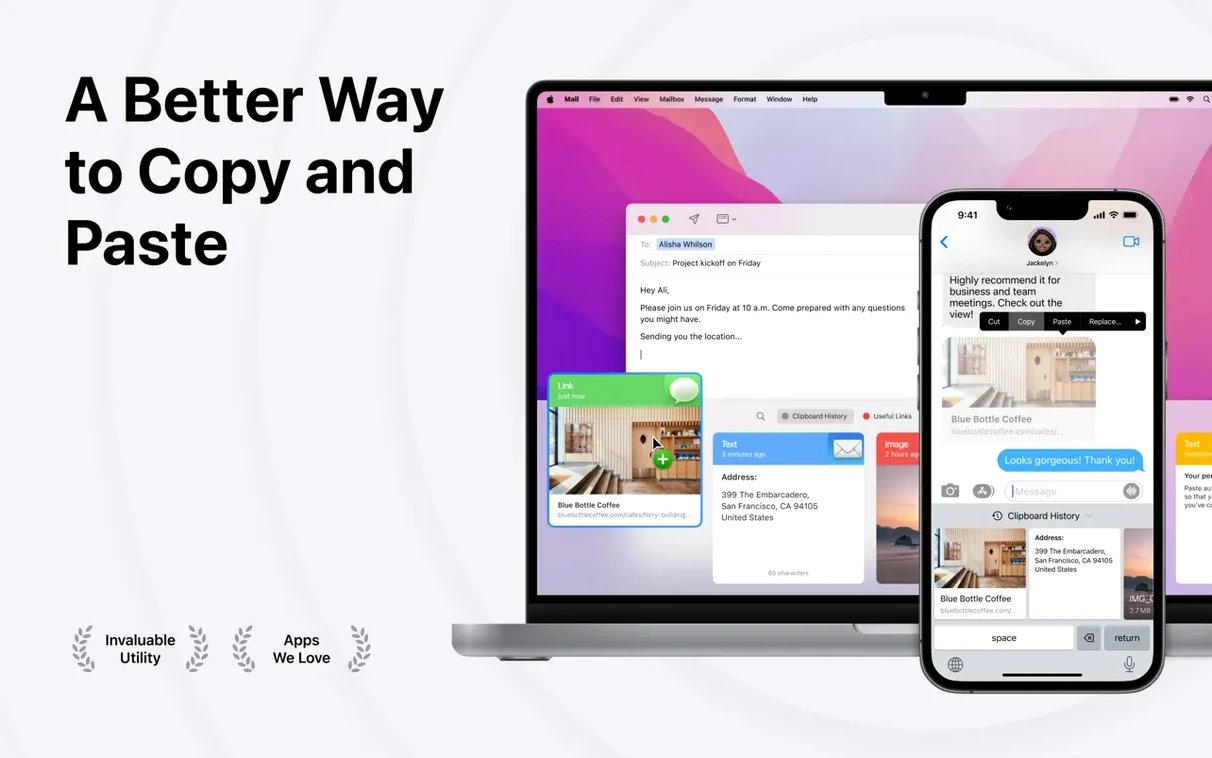
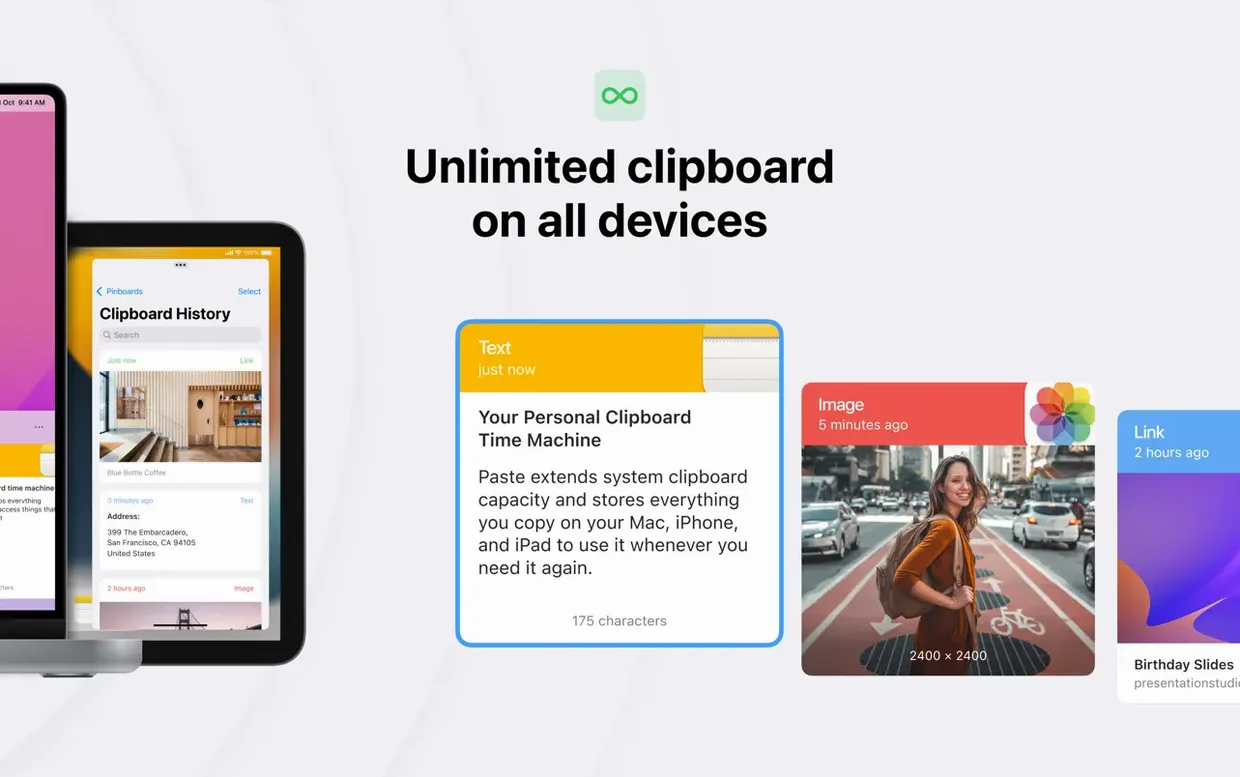

Paste is a clipboard history manager for people who copy more than they think. The surface tools — history, search, sync — are obvious. The deeper tools are what keep you from losing work.
Plain text view — strips formatting when you need clean text, not a rich paste.
Custom keyboard shortcuts — bind history access to whatever keys your muscle memory expects.
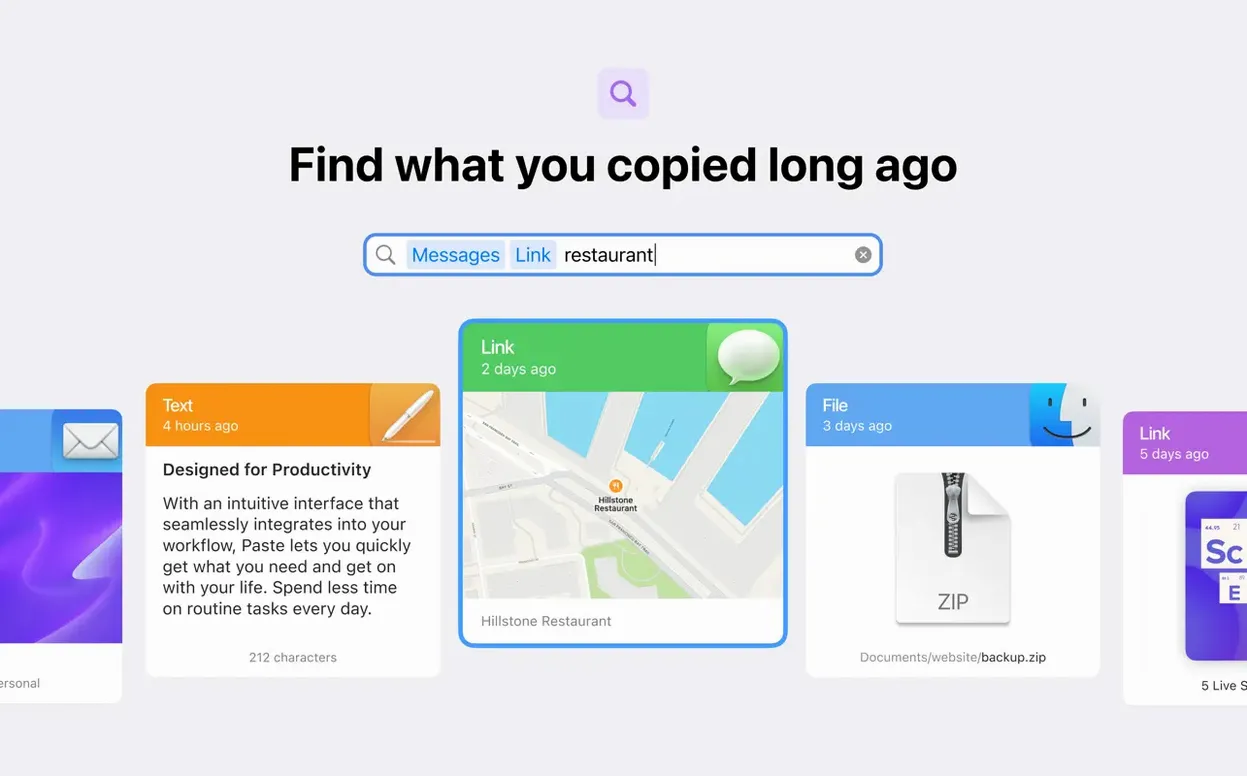
Smart search — finds copied items by content, not just by timestamp.
Shared clipboard history — lets you share copied items with other people, useful for team handoffs.
Cross-device sync — keeps history consistent across Mac, iPhone, and iPad.
Paste runs on Apple Silicon and Intel 64-bit Macs, with macOS 13 or later. The interface is available in 21 languages, including English, Russian, Spanish, and Japanese.
Real-world scenario: a designer pulling assets across projects
A graphic designer I know works on weekly social media decks. Each deck draws from a shared brand folder — logos, color swatches, icon sets, sample screenshots. Before Paste, she'd keep a Finder window open for every asset type, re-copying the same files each time she switched between Illustrator and After Effects. With Paste 6.6.2, she copies the brand kit once at the start of the week. The files live in her clipboard history all week. When she needs the primary logo again, she doesn't dig through folders — she opens Paste, searches "logo", and pastes it. The same history follows her to her iPad Pro via iCloud sync when she reviews comps during a commute. It's not a flashy use case, but it saves her the kind of repetitive steps that add up over a full project.
Typical working session with Paste
A session starts with launch. Paste lives in the menu bar by default. You copy a few things as you normally would — a screenshot from Preview, a URL from Safari, a line of code from VS Code. Paste collects them in the order you copied them, no extra steps needed.
Mid-morning, you need that URL again. You hit your custom keyboard shortcut (set once during setup), and the Paste panel opens. Type "api reference" into smart search, and the right link appears. Click it once, and it's ready to paste into a Slack message. No switching windows.
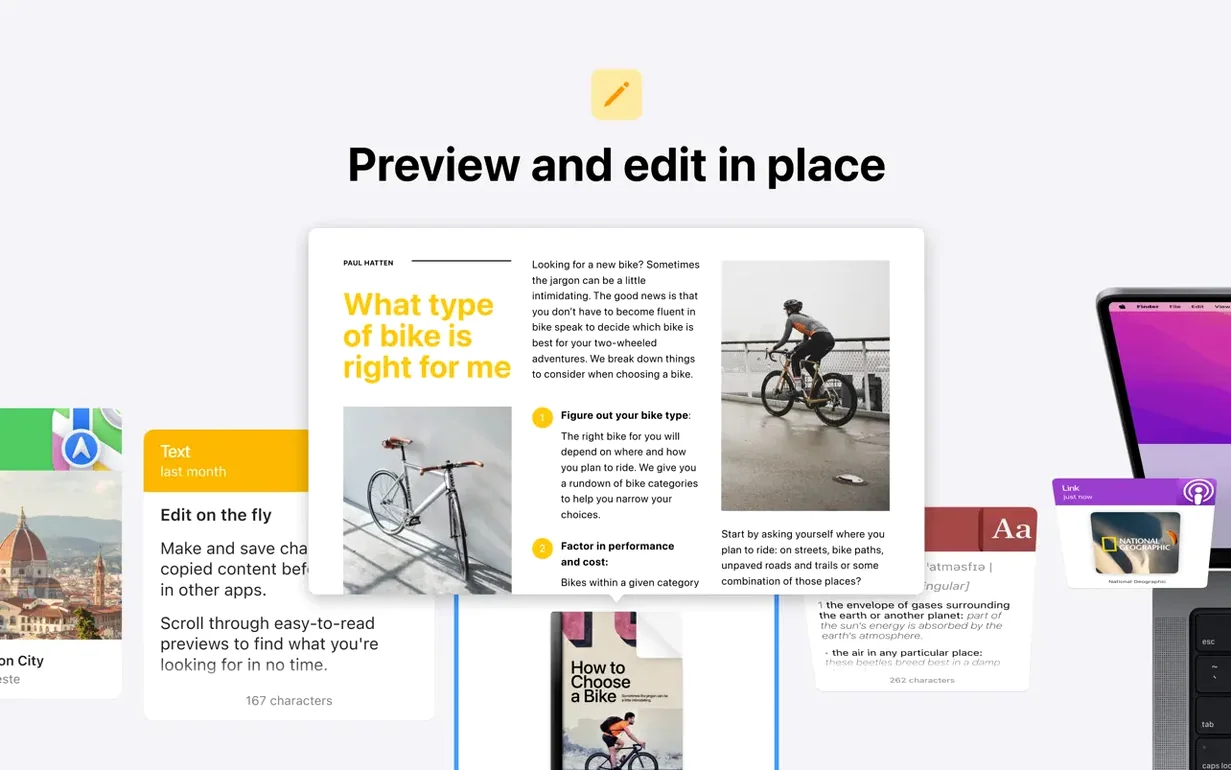
Later, you copy a block of formatted text from a Google Doc — headers, bold, bullet points. You want it plain in a ticket description. Instead of pasting and cleaning, you right-click the item in Paste and select the plain text view. The paste strips formatting automatically.
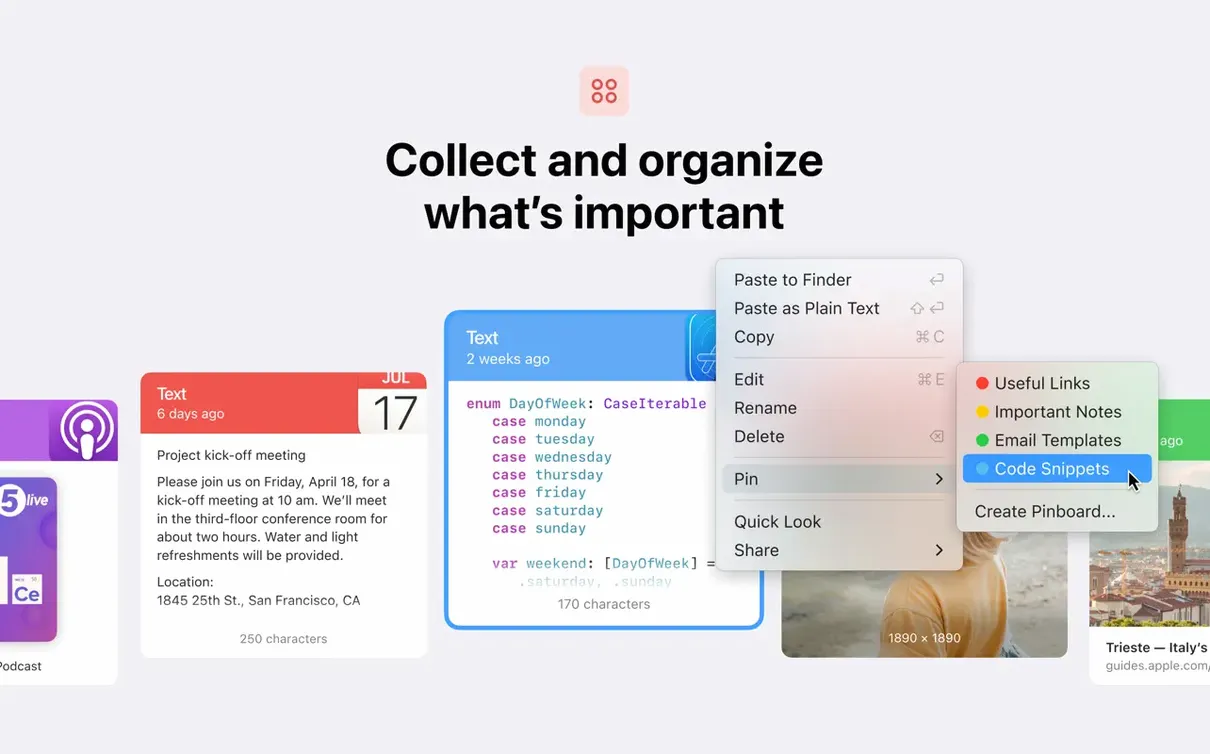
Before lunch, you pin a few items: a color hex code, a frequently used email signature, a file path. Pinboards keep them at the top of your history. They don't scroll away with new copies.
End of day, you copy a set of screenshots and notes for a colleague. You share the clipboard history with them directly — no Dropbox link, no email thread. They see the items in their own Paste instance.
Set a keyboard shortcut your left hand can reach
The default settings work, but a few adjustments make Paste feel tighter for daily use.
- Keyboard shortcut — set it to something your left hand can reach without leaving the keyboard home row. The default is Option+Space, but if that conflicts with another app, rebind it in Preferences.
- History retention — decide how far back you want Paste to remember. Unlimited history is useful if you frequently revisit old items; a shorter window reduces the database size if you copy a lot of large files.
- iCloud sync toggle — on by default. If you only use Paste on one Mac, turning sync off keeps history from propagating to other devices unnecessarily.
- Plain text default — if most of your work involves clean pastes, set Paste to strip formatting by default. You can still keep rich formatting for selective pastes.
How Paste fits with macOS and other apps
Paste integrates with macOS at the system clipboard level. It doesn't interfere with Universal Clipboard — the two coexist. Paste stores a persistent log of what you copy, while Universal Clipboard handles real-time cross-device paste. They serve different needs: Universal Clipboard is for immediate transfer, Paste is for retrieval hours or days later.
For users who also run Alfred or Raycast, Paste's smart search overlaps a little with their clipboard snippets. Paste is better for visual items — images, screenshots, file previews — where those launchers show plain text. The two tools complement each other: Alfred handles workflows, Paste handles clipboard history.
In the Finder, Paste can re-copy file paths and images you previously grabbed. If you copy a screenshot, then copy a URL, then copy a folder path, all three remain accessible. You never need to revisit the source. For anyone who finds themselves re-opening the same page or folder just to copy something again, that's where Paste saves the repetitions.
- macOS 13 or later
- Apple Silicon or Intel 64-bit
- Built-in purchases
Questions from the notes
Can I copy an item without formatting?
Yes, Paste can show plain text without the original formatting, so you paste clean content when needed.
Does Paste work on Intel Macs?
Yes, Paste supports both Apple Silicon and Intel 64-bit Macs.
What macOS version do I need?
The current version requires macOS 13 or later, according to the official requirements.
Install procedure
- Open the downloaded disk image.
- Drag the app onto the Applications folder alias.
- Once the copy finishes, launch Paste from Launchpad.
Reports from players
Sign in or create a tester account to file a report.
No reports filed yet.