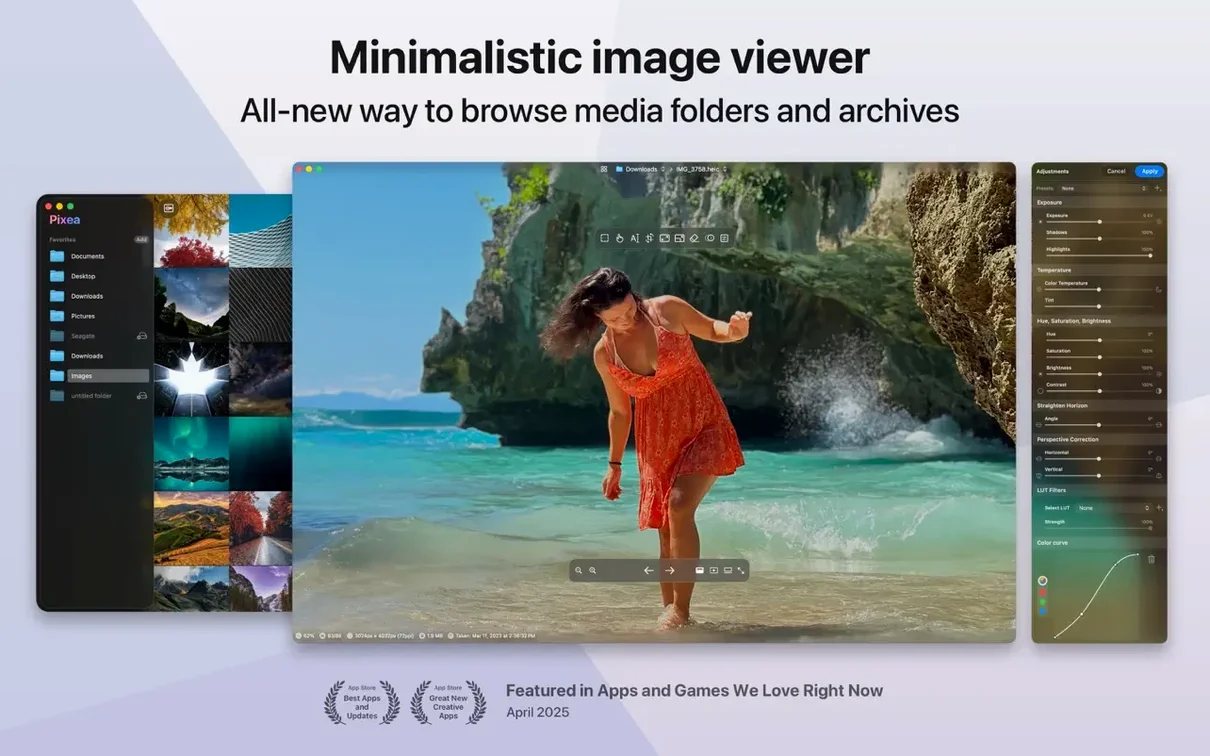
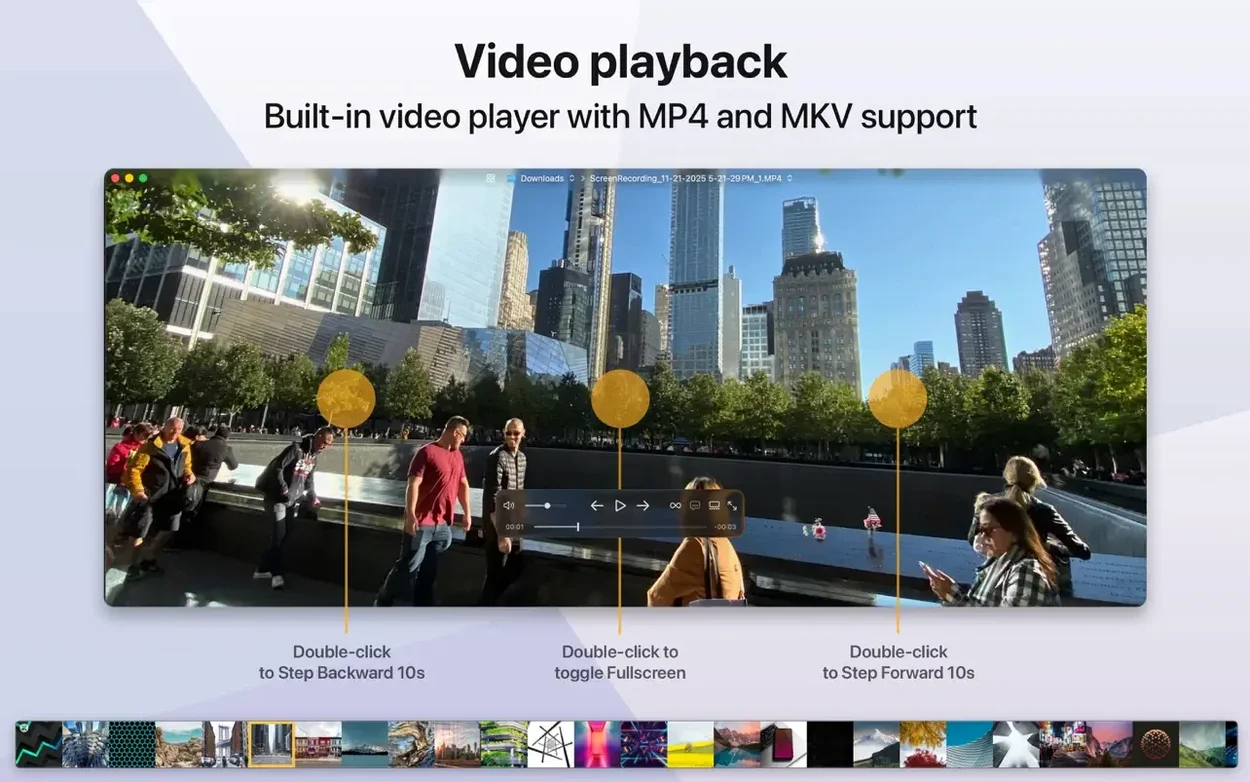
Pixea is for people who need to look at images without importing them into a photo library. It opens files directly and shows the technical details that matter: a color histogram, EXIF data, and other metadata. It is an image viewer for macOS, not a cataloging app.
Checking a file in Pixea
- Launch Pixea and open a file from the Finder or the Open dialog.
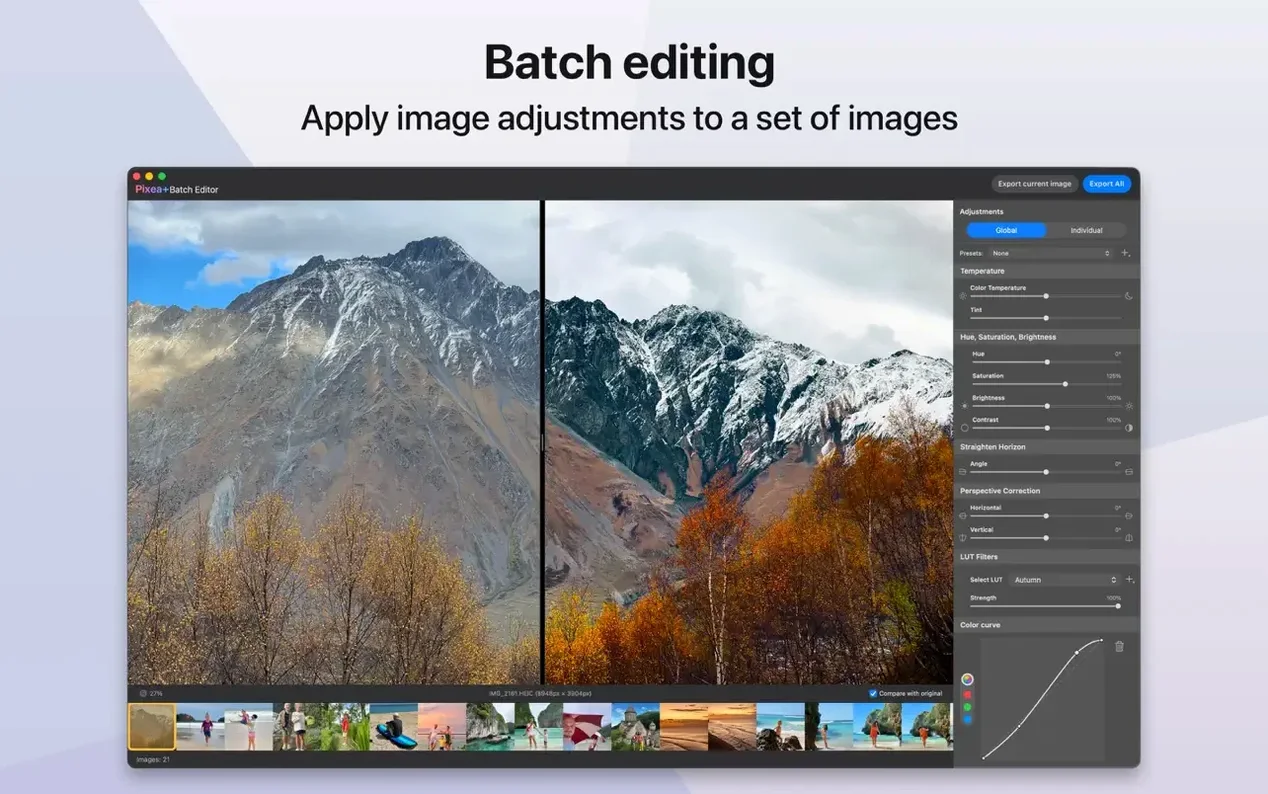
- Use the built-in editing tools for basic adjustments before saving.
- Check the histogram and EXIF panel to confirm the image data.
- If the file is a RAW from a Sony, Nikon, Canon, or other supported camera, it loads without conversion.
The current version keeps the same supported formats—JPEG, HEIC, GIF, PNG, TIFF, PSD, BMP, Radiance, Google WebP—and runs on both Apple Silicon and Intel Macs. New in 8.3.0 are masks, undo/redo actions, and the Pixea Image format. That last one is a container specific to the app, so expect it to stay inside Pixea unless you export to a standard format.
three groups benefit the most from Pixea Plus
Three groups benefit the most. Photographers who shoot RAW and want a fast inspection tool before moving files into a full editor. Web designers and UI people who batch-check export formats like WebP, PNG, and GIF without a layout app. And anyone on macOS who regularly opens ZIP archives of images and doesn't want to unzip them first.
The built-in RAW support for Leica, Sony, Olympus, Minolta, Nikon, Fuji, Canon, and Hasselblad cameras means you can skip the camera maker's own software for a quick check. If your workflow is "shoot, open, cull, send to editor," Pixea covers the open-and-cull part without importing into a library. The histogram and EXIF panel tell you what the camera recorded before you decide which file to work on.
treating Pixea like a library app is a common mistake
The most frequent one is treating Pixea like a library app. It does not organize folders, apply keywords, or build collections. Opening a folder full of images works fine, but closing the app loses the session. If you need to return to the same set of files tomorrow, you reopen them manually.
Another mistake is expecting layer-based editing. Pixea Plus has masks and adjustments, but it is not Photoshop. Masks control adjustment areas—exposure, hue, saturation—not composite layers. Users coming from GIMP or Affinity sometimes hit undo and expect a full layer history instead of a linear undo stack.
A third one involves the Pixea Image format. It saves masks, non-destructive adjustments, and extra data for later editing. That is useful inside the app, but sending a .pixea file to someone who does not use Pixea means they cannot open it. Export to a standard format before sharing, or save a JPEG copy alongside it.
verifies metadata before opening in Capture One or Pixelmator
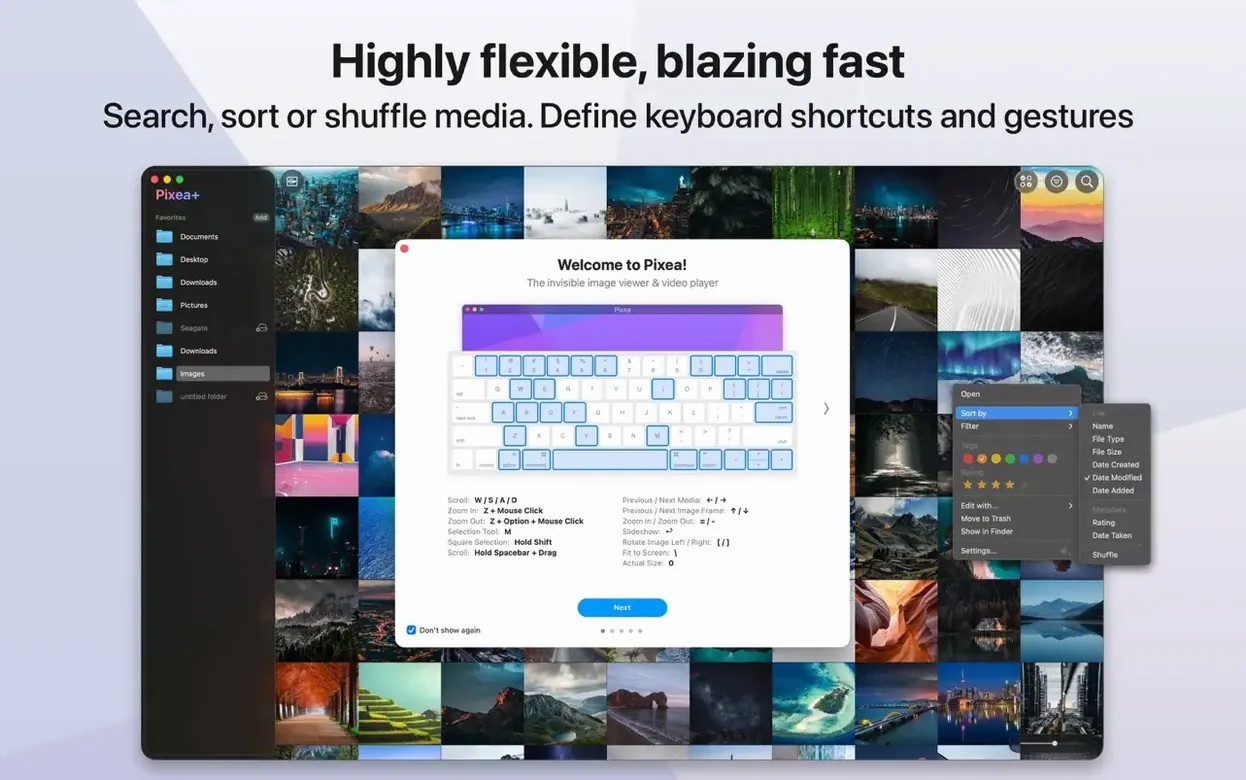
Pixea works well as a companion to larger editors. Use it to verify a file's metadata before opening it in Capture One, Darktable, or Pixelmator. Use it to convert between formats when you only need a quick resize or format swap. The trackpad gestures and keyboard shortcuts make it fast to flip through a folder of images without touching a mouse.
Because it opens files directly without importing, it integrates naturally with macOS drag-and-drop workflows. Drag a folder of images onto the app window, or open a file from Finder. It also reads files inside ZIP archives without extraction, which saves time when you receive compressed image sets from clients or photographers.
The app runs on both ARM and x86 Macs, so it moves between an M-series laptop and an older Intel desktop without needing a separate version. That is convenient for users who keep a mixed hardware setup.
closer to XnView MP in format support but with a different interface
XnView MP is the closest match in terms of format support and metadata display. It also opens archives without extraction and shows EXIF data. The difference is interface philosophy: XnView MP uses a traditional multi-pane layout with a folder tree and thumbnail browser, while Pixea keeps a minimal single-window design. XnView MP also offers batch conversion and renaming tools that Pixea does not have.
ImageGlass on macOS is a lightweight viewer with a clean interface, comparable to Pixea in simplicity. It supports common formats and EXIF display, but does not handle RAW files as broadly (no Hasselblad or Minolta support, for example). ImageGlass also lacks masks and non-destructive adjustments, so Pixea offers more editing capability for users who need to make quick exposure or color tweaks.
Apple Preview is already on every Mac and opens many of the same formats. It is free and fast. But it does not display a color histogram, does not show detailed EXIF, cannot open RAW files from most of the supported camera brands, and has no adjustment tools at all. For anyone who regularly needs to inspect image data or make basic edits, Pixea fills those gaps without switching to a full editor.
Version 8.4.1 adds a set of image adjustment tools and some print handling fixes.
- New Reshape tool for local geometry corrections.
- Spatial dehaze using depth-based adjustments.
- Clarity slider added to the adjustment set.
- Brilliance adjustment reworked for better results.
- Print dialog now supports auto-rotate, custom scale, and images-per-sheet layout.
- Copy to Clipboard gets two modes: maximize compatibility, or preserve HDR statistics and headroom.
- Various UI and UX refinements, plus the usual round of bug fixes.
- macOS 11 or later
- Apple Silicon or Intel 64-bit
Questions from the notes
Which RAW camera formats does Pixea support?
It reads RAW files from Leica, Sony, Olympus, Minolta, Nikon, Fuji, Canon, and Hasselblad cameras.
Does Pixea run on Intel Macs?
Yes, it supports both ARM and 64-bit x86 architectures, so it works on Apple Silicon and Intel.
Install procedure
- Mount the disk image and run Open Gatekeeper friendly.
- Press Enter in Terminal to bypass Gatekeeper.
- Drag the app to the Applications folder.
- Open the app when installation is complete.
Reports from players
Sign in or create a tester account to file a report.
No reports filed yet.