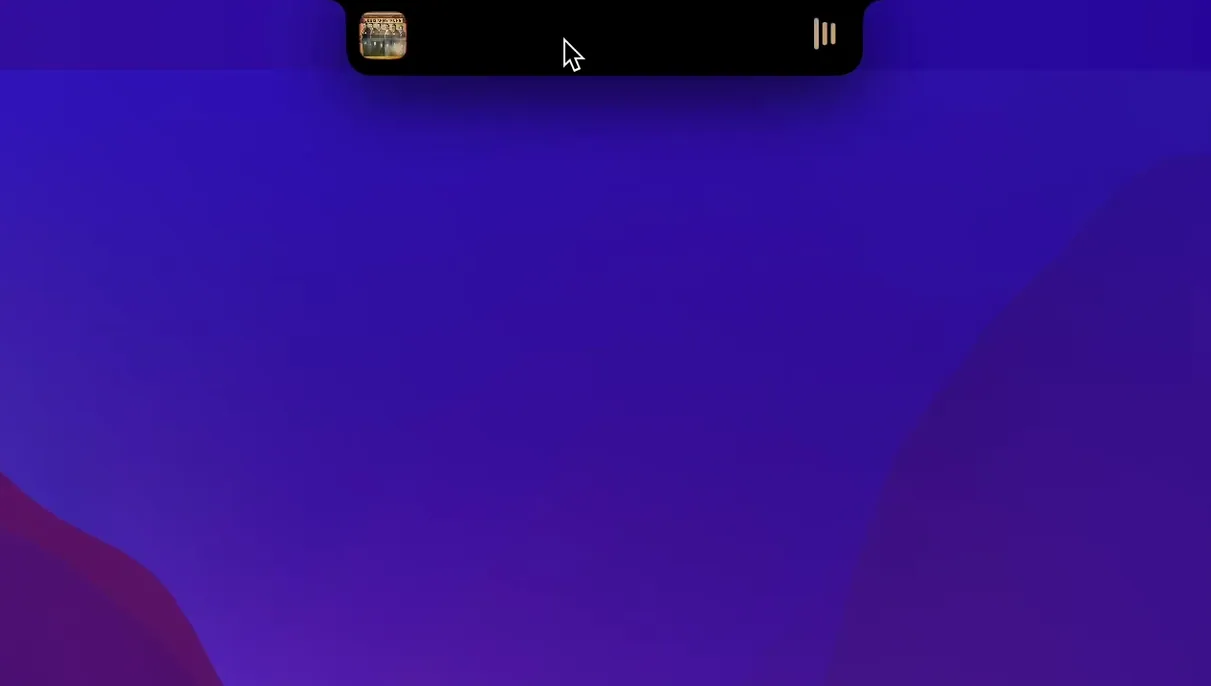
NotchNook is a macOS app that turns the MacBook notch into an interactive control area.
Good for:
- Quick music controls without switching apps.
- Keeping an eye on Live Activities (timers, downloads, sports) right in the notch.
- Adding widgets like a calendar view to the top of your screen.
Keep in mind:
- Requires macOS 14.6 or later.
- Supports Apple Silicon Macs.
- Interface languages include English, French, German, Japanese, Chinese, and many others.
Runs on any MacBook with a notch on macOS 14.6 or later
NotchNook runs on any MacBook with a notch running macOS 14.6 or later—Intel and Apple Silicon models both work. The app itself is a lightweight companion that lives in the menu bar and draws its interface into the notch area. Because it hooks into system-level notification and media frameworks, you’ll see it respond to the same playback and alert events that Control Center or the Lock Screen use. No extra permissions or kernel extensions are needed; it works within standard macOS entitlements.
The notch becomes a drop zone for the file shelf, and the widgets panel expands on click or hover. The calendar view and Live Activities update in real time, matching the data sources macOS already manages. Expect the interface to feel native—it uses system fonts, accent colors, and follows the current dark or light mode setting.
Grant accessibility access to enable media keys and Live Activities
After you drag NotchNook to Applications and launch it from Launchpad, give it a moment to request accessibility or notification access if macOS prompts you. Granting these lets the app intercept media key events and display Live Activities.
- Open the disk image file you downloaded.
- Drag the app to the Applications folder alias inside the disk image window.
- After the copy finishes, open NotchNook from Launchpad or the Applications folder.
- Check the menu bar for the NotchNook icon—click it to see available toggles and settings.
- Try clicking or swiping on the notch area itself to expand the control panel. If nothing happens, confirm the app is running and that macOS 14.6 or later is installed.
Spend a few minutes adding a couple of widgets you actually use—calendar, weather, or a timer. The file shelf works best when you drag a file you need to move between windows; it stays visible until you drag it out. Music controls should appear automatically when audio starts in any supported app (Apple Music, Spotify, browser-based players).
Pulls data from macOS widgets and Live Activities without extra setup
NotchNook pulls data from the same sources macOS uses for its own widgets and Now Playing display. That means Calendar, Reminders, and third-party apps that support Live Activities will appear in the notch area without additional setup. The file shelf acts like a temporary holding area between Finder windows—drag a file onto the notch and it stays there until you either drop it into a destination folder or close the shelf.
Because NotchNook sits on top of the menu bar, it doesn’t conflict with full-screen apps or split-screen views; the notch area remains accessible with a swipe or click. If you use Stage Manager, the control panel stays visible above your active stage. The app respects Focus modes—if Do Not Disturb is on, notifications won’t pop up in the notch until you toggle it off.
For users who work with multiple displays, NotchNook only activates on the built-in MacBook screen. External monitors without a notch are ignored, which is expected behavior.
Saves clicks for music, timers, and calendar switchers
If you frequently switch between music, timers, and calendar checks, having all three visible without opening another app saves a few clicks per hour.
Users who manage files across multiple Finder windows benefit from the shelf: drag a document or image to the notch, switch to another app, and drop it where needed. The same goes for Live Activities—if you track sports scores, delivery times, or cooking timers, seeing them update above the menu bar is less disruptive than a full notification pop-up.
It’s also a good fit for anyone running macOS 14.6 who wants to reclaim the notch as functional space rather than a dead zone. The multilingual interface (over thirty languages) makes it accessible to a wide range of users.
Fixes widget refresh after sleep and Live Activities syncing
The latest build, version 1.6.2 fix, addresses stability for the widget panel and Live Activities syncing. Users who previously saw widgets fail to refresh after waking from sleep should notice they load correctly now. The fix also tightens the integration with the macOS media framework—music controls register play/pause commands more consistently when switching between audio sources.
No new features were added in this point release; the focus was on making existing functions work reliably across both Intel and Apple Silicon Macs. If you were on an earlier version, the update is a straightforward replacement—download the disk image, drag the new app over the old one in Applications, and continue using it with the same settings.
Version 1.6.14 of NotchNook is now available. The developer has not published a detailed changelog for this release.
- macOS 14 or later
- Apple Silicon or Intel 64-bit processor
Install procedure
- Open the downloaded disk image.
- Drag the app to the Applications folder alias.
- After the copy finishes, open the app from Launchpad.
Reports from players
Sign in or create a tester account to file a report.
No reports filed yet.