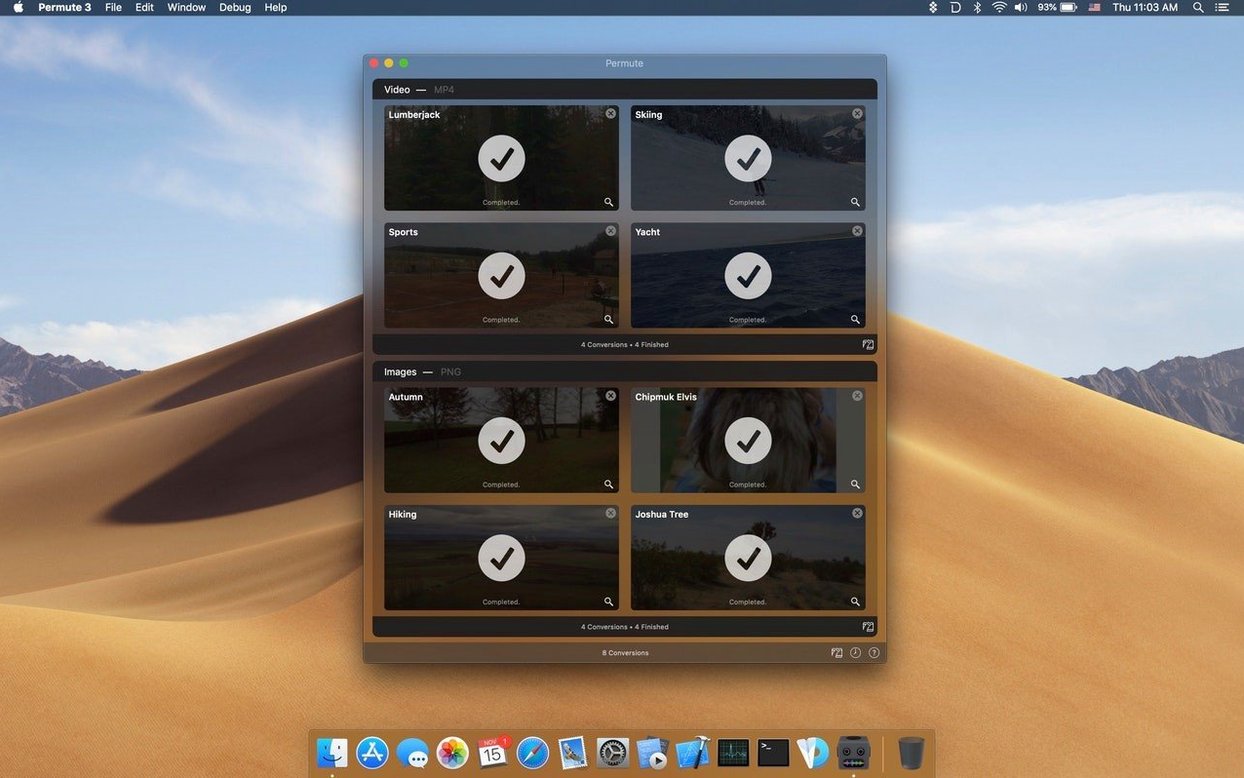
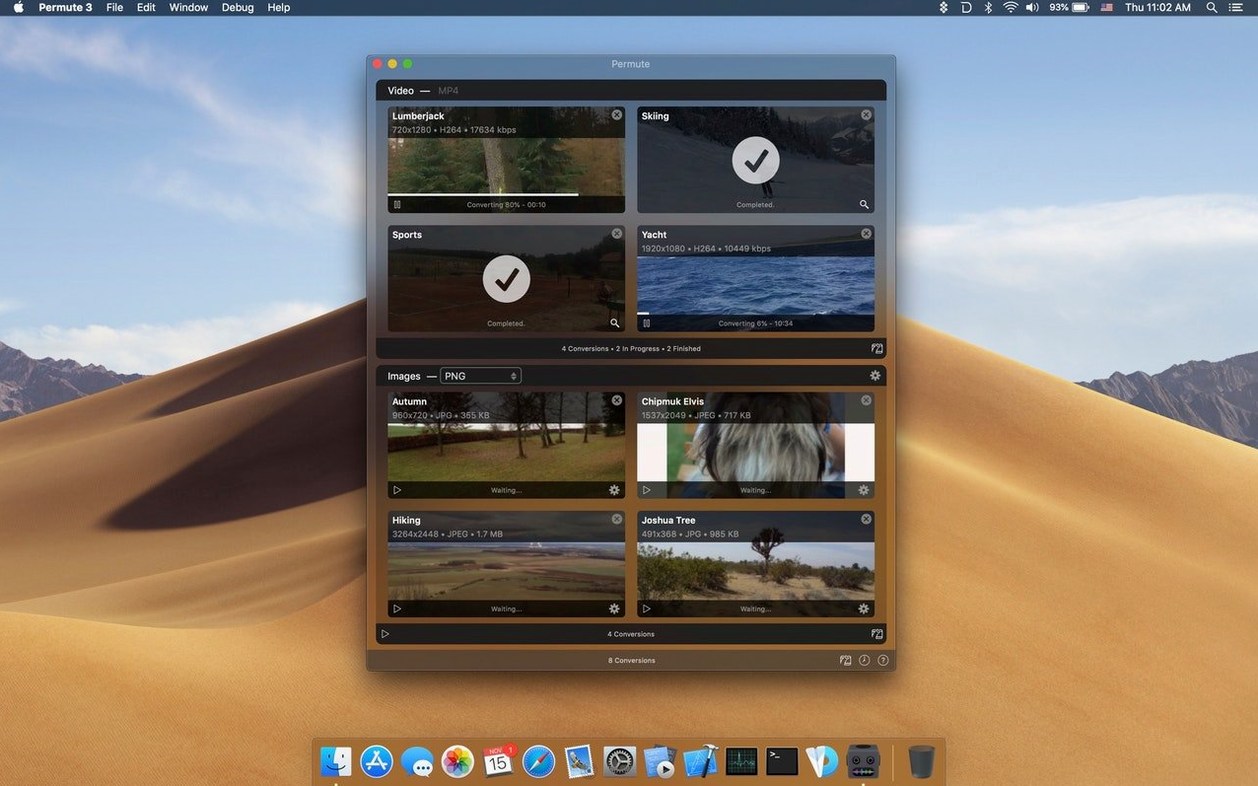
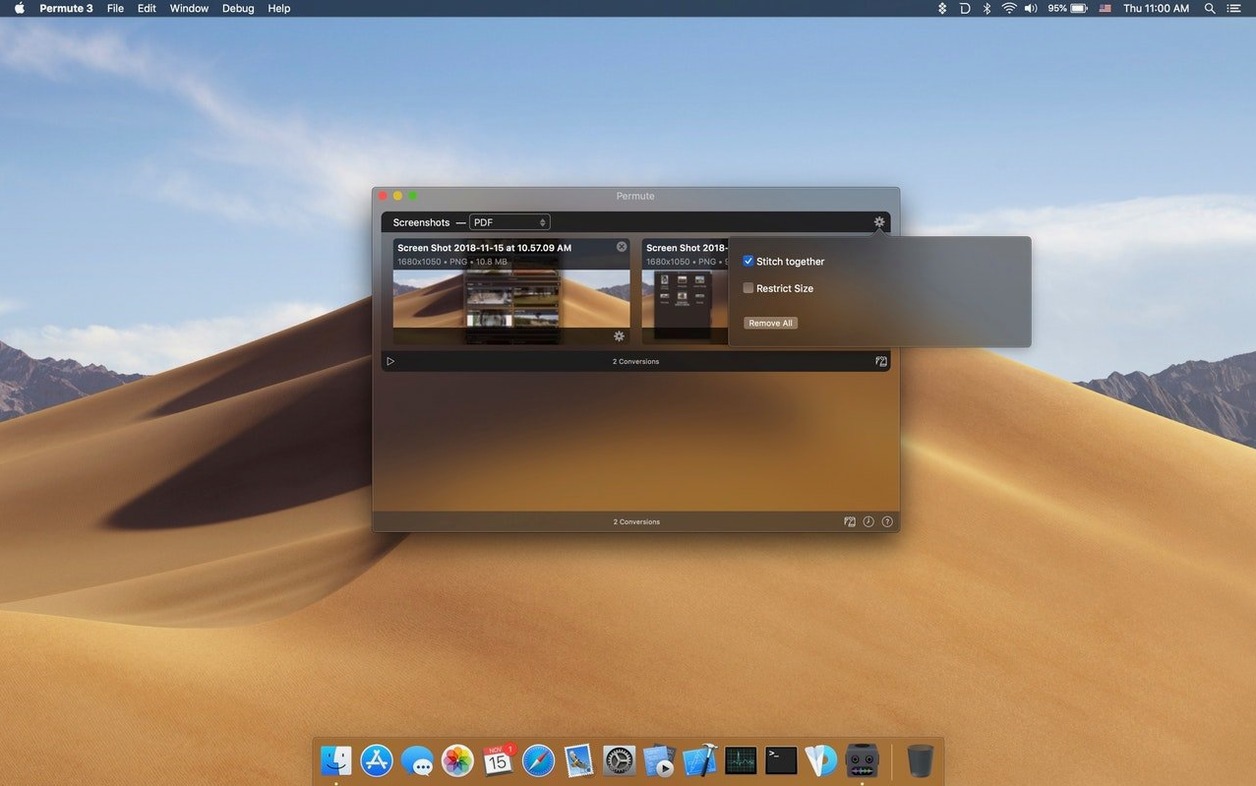
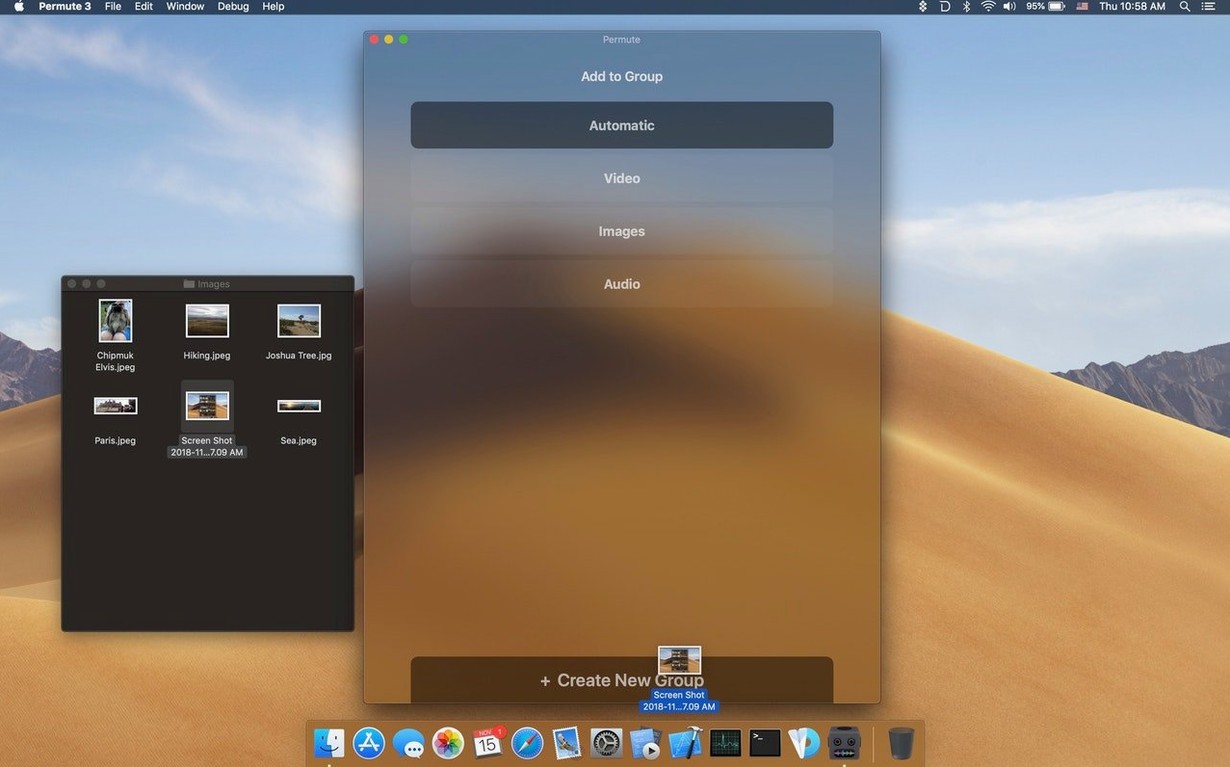
The "Drag & Drop" zone is where most sessions start. It accepts video, audio, and image files without fuss, and the preset drawer on the right lets you pick a target format before you drop anything.
Merge two videos into one
Drop both clips onto the queue, select them both, then choose "Merge" from the toolbar or the right-click menu. The output will be a single file with the second clip appended to the first — no re-encoding of the audio track unless the formats mismatch.
Convert an image to another format
Drag a PNG or a JPEG onto the list, then pick a different image format from the presets — WebP, TIFF, or even a PDF. Permute handles the conversion without opening an image editor.
Batch-process a folder of media
Drag a folder onto the window. Permute adds every compatible file inside it. Set a common output preset, click "Start," and the app walks through the list while you do something else.
Video editors, podcasters, and archivists who need quick format conversion
Video editors who need quick proxies for rough cuts benefit from dropping camera originals into Permute at a lower resolution. Podcasters working on macOS find it useful for exporting interview recordings as MP3 or AAC without launching a DAW. Archivists converting a collection of family videos from one container to another — say, MOV to MP4 — save time because the batch queue processes everything unattended.
A specific workflow: adding subtitles to a video
Start with a video file and an SRT subtitle file in the same folder. Drag the video onto the Permute queue. Open the presets and choose a format that supports embedded subtitles — MKV is a common pick. Before clicking start, right-click the queued video and select "Subtitles," then point Permute to the SRT file. The app embeds the subtitle track into the output without re-encoding the video stream unless the source and target formats force it. Once the conversion finishes, the resulting file plays with subtitles in any player that supports the container.
Forgetting to check the output preset before starting leaves files unconverted
- Forgetting to check the output preset before starting. Dropping a file and hitting start without selecting a format produces a file in the same format as the source — no conversion happens. Beginners sometimes think Permute failed when it actually did exactly what it was told.
- Not selecting both clips before clicking merge. If only one clip is selected, the merge option stays grayed out or does nothing. Select both items in the queue first, then choose merge.
- Dragging an entire folder that contains unsupported files. Permute skips incompatible files silently, but beginners who expect a progress bar for every item in the folder might worry the app missed something. Check the queue count after the drop.
- Overwriting the original file by accident. Permute saves output to a default folder unless you change it. A quick habit: set the output destination to a "Converted" subfolder so originals stay untouched.
Scenario: an archivist converting a batch of photos
An archivist working with a collection of scanned TIFF files needs smaller JPEG versions for a preview gallery. They drag the folder containing 200 TIFFs onto Permute. After the queue populates, they set the preset to JPEG and adjust the quality slider if needed. The batch runs overnight, and the next morning they have a folder of JPEGs ready for the web. No manual image-by-image export, no opening Photoshop. The archivist keeps the original TIFFs untouched on a separate drive.
- macOS 26 or later
- Apple Silicon
Install procedure
- Mount the downloaded disk image.
- Drag the app to the Applications folder alias.
- After copying finishes, open the app from Launchpad.
Reports from players
Sign in or create a tester account to file a report.
No reports filed yet.