NotchBox is a macOS utility that turns the notch into an interactive hub for files, music, and tools.
Requires macOS 13 or later on Intel or Apple Silicon
Requirements are straightforward: macOS 13 (Ventura) or later, on either Intel 64-bit or Apple Silicon Macs. That covers most machines from 2017 onward. No other dependencies listed.
Wi‑Fi speed, calendar events, camera mirror, and file drag‑and‑drop
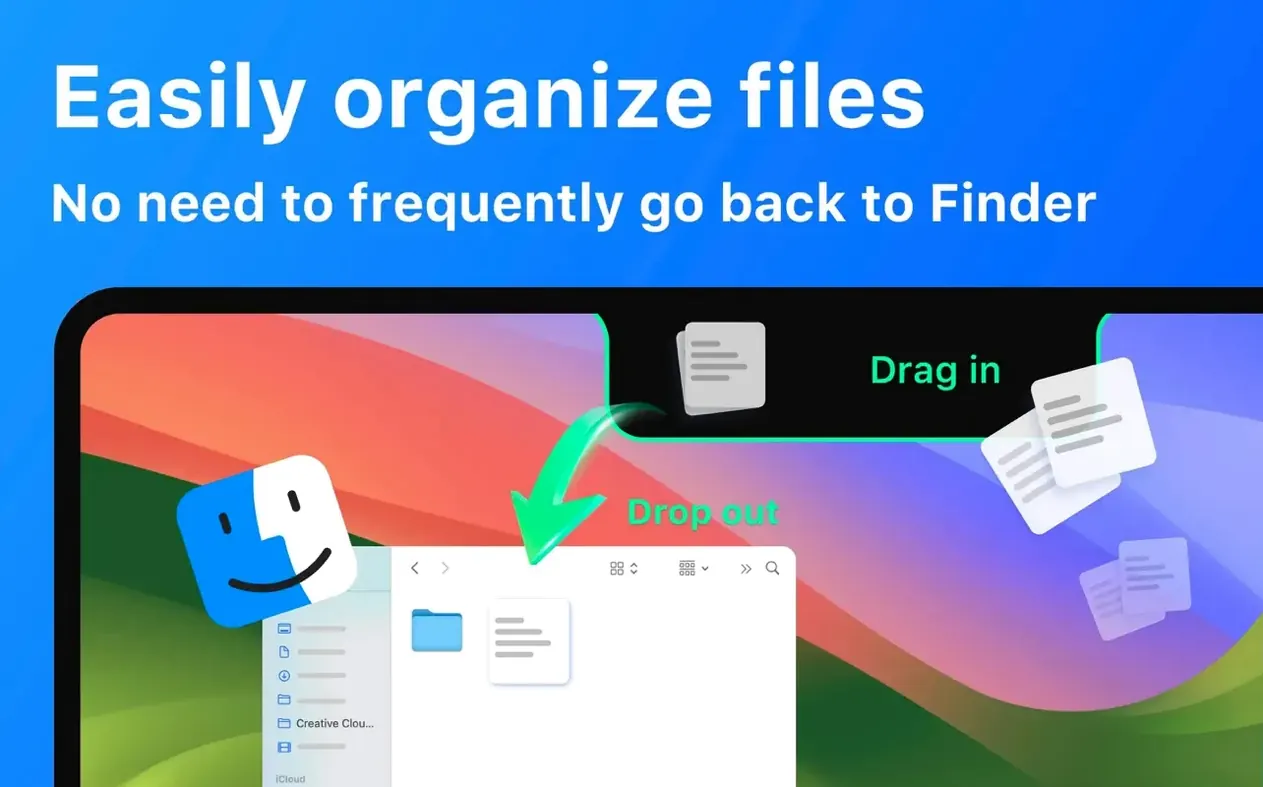
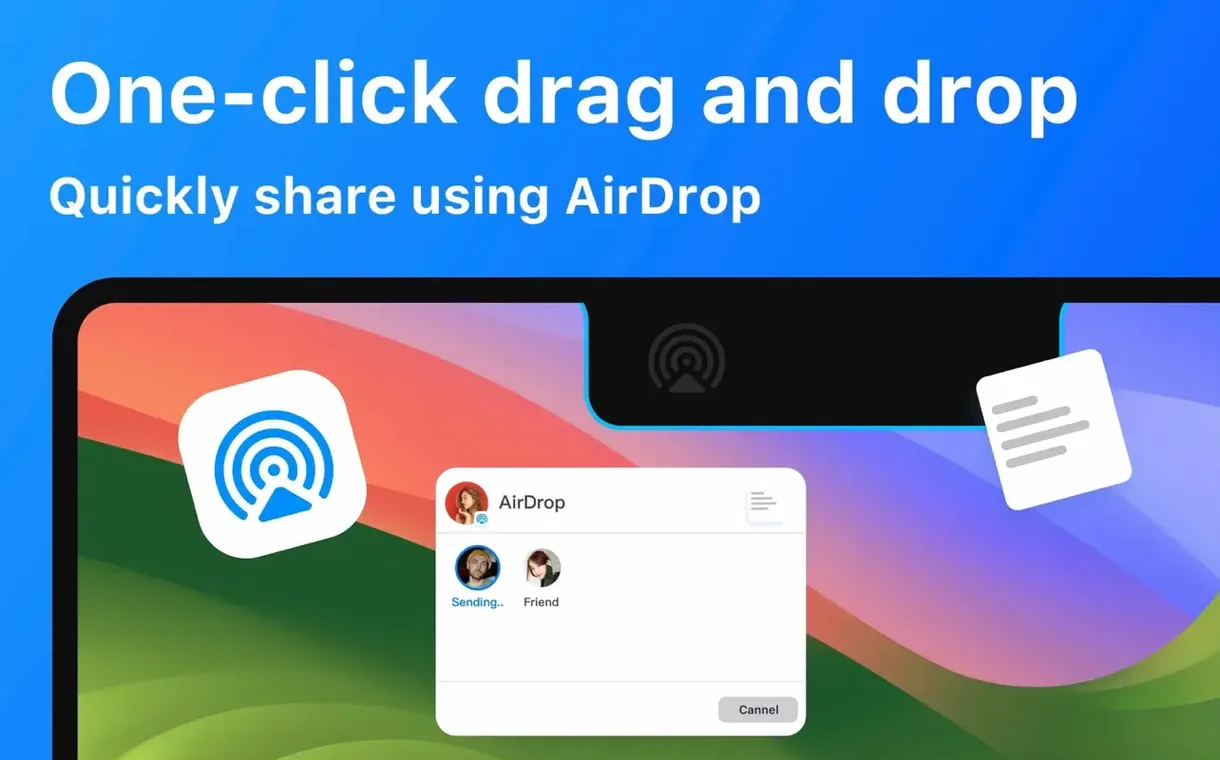
The notch shows Wi‑Fi network speed and signal strength, calendar events and upcoming meetings, a camera mirror view, and a countdown timer. Files can be dragged into the notch for temporary storage, and AirDrop file sharing works the same way—drag and drop into the notch.
Faster clipboard history and smoother calendar widget in 1.1.71
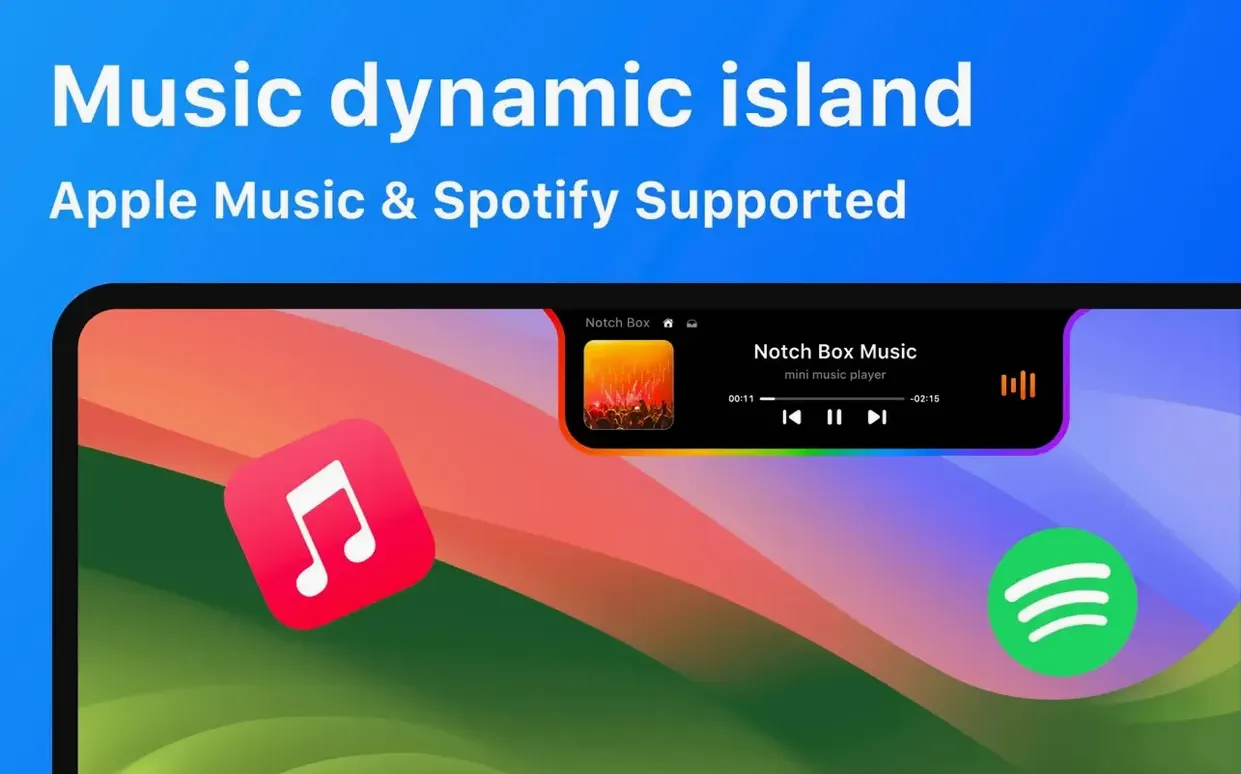
The current release, 1.1.71, is a maintenance build that tightened a few interactions rather than adding visible new panels. Clipboard history access feels more responsive—the window appears and dismisses with less lag than earlier builds. The calendar events widget now refreshes when you switch months inside Apple Calendar, which it sometimes missed before. Music integration for both Apple Music and Spotify stopped dropping the now-playing state after the Mac woke from sleep; that specific fix makes the notch more reliable as a playback controller during a workday.
If you use the camera mirror view to check framing before a call, version 1.1.71 loads it a beat faster. The difference is small, but noticeable when you are in a hurry. AirDrop drag-and-drop into the notch also received an under-the-hood change: files now register their drop target correctly on the first attempt if you hold them over the notch for a full second.
Choose which notch modules appear and which to turn off
After installing, the default configuration works, but a few adjustments match the tool more closely to how you actually use your Mac.
- Which modules appear in the notch. NotchBox lets you choose what shows up. Turn off anything you do not need—clipboard history if you rarely paste old items, the timer if you never use it. Fewer modules means less visual clutter and the notch stays informative without feeling busy.
- Music service default. If you use both Apple Music and Spotify, set one as the primary service. The notch will prioritize that player for play/pause and track info. Switching later takes two clicks, but setting it early avoids the wrong player responding.
- File storage auto-clear. Temporary files dragged into the notch accumulate until you clear them. Enable auto-clear after a set idle time if you tend to forget old drops. Otherwise, the storage list grows and you end up manually cleaning it.
- Launch at login. NotchBox is most useful when it is always running. Enable the launch-at-login option during the first session so you do not have to open it manually after every restart.
Build the drag‑and‑drop habit over the first few days
The notch behaves differently than a normal menu bar app. Give yourself a day or two to build the habit of using it instead of reaching for the regular menus.
- Drag files slowly at first. The drop zone is the notch itself, not an icon inside it. Drag a file upward until the notch highlights, then release. Rushing the motion often misses the trigger zone. After a few tries it becomes automatic.
- Check clipboard history early. Open the clipboard panel a couple of times on day one to see what it captures. NotchBox stores plain text, links, and images. Knowing what is there saves digging through browser history later.
- Test AirDrop by sending a screenshot to yourself. Drag the screenshot into the notch, choose your own Mac as the destination, and confirm the transfer works. That way you know the setup is correct before you need to send something to someone else.
- Pay attention to the calendar widget. It shows the next event only. If your calendar is dense, the single-event view may not be enough. Use it as a glance, not a full schedule replacement.
Scenario: a designer moving assets between tools
Caroline works as a motion designer on a MacBook Pro with a notch. Her day involves pulling video clips and PNG sequences from Finder, dropping them into After Effects, then exporting comps to a shared project folder. Before NotchBox, she kept a Finder window pinned at half-screen just for transfers.
Now she drags the source clips into the notch as she collects them. The temporary storage holds five to eight files at a time—enough for a single scene. She opens the file list from the notch, drags each one directly into the After Effects timeline, and clears the list when the scene is done. For final exports, she drags the rendered file into the notch and uses AirDrop to send it to the team lead’s Mac across the office. She does not open Finder for file movement during an average morning. The notch replaces that whole workflow.
She also keeps the Wi‑Fi speed display visible during uploads to the project server. If the upload stalls, she glances at the notch to confirm the network is still running at normal speed before blaming the server. Calendar events stay active so she does not miss the daily standup while deep in a timeline.
- macOS 13 or later
- Intel 64-bit or Apple Silicon
Install procedure
- Open the downloaded disk image.
- Drag the app to the Applications folder.
- After copying finishes, open the app from Launchpad.
Reports from players
Sign in or create a tester account to file a report.
No reports filed yet.