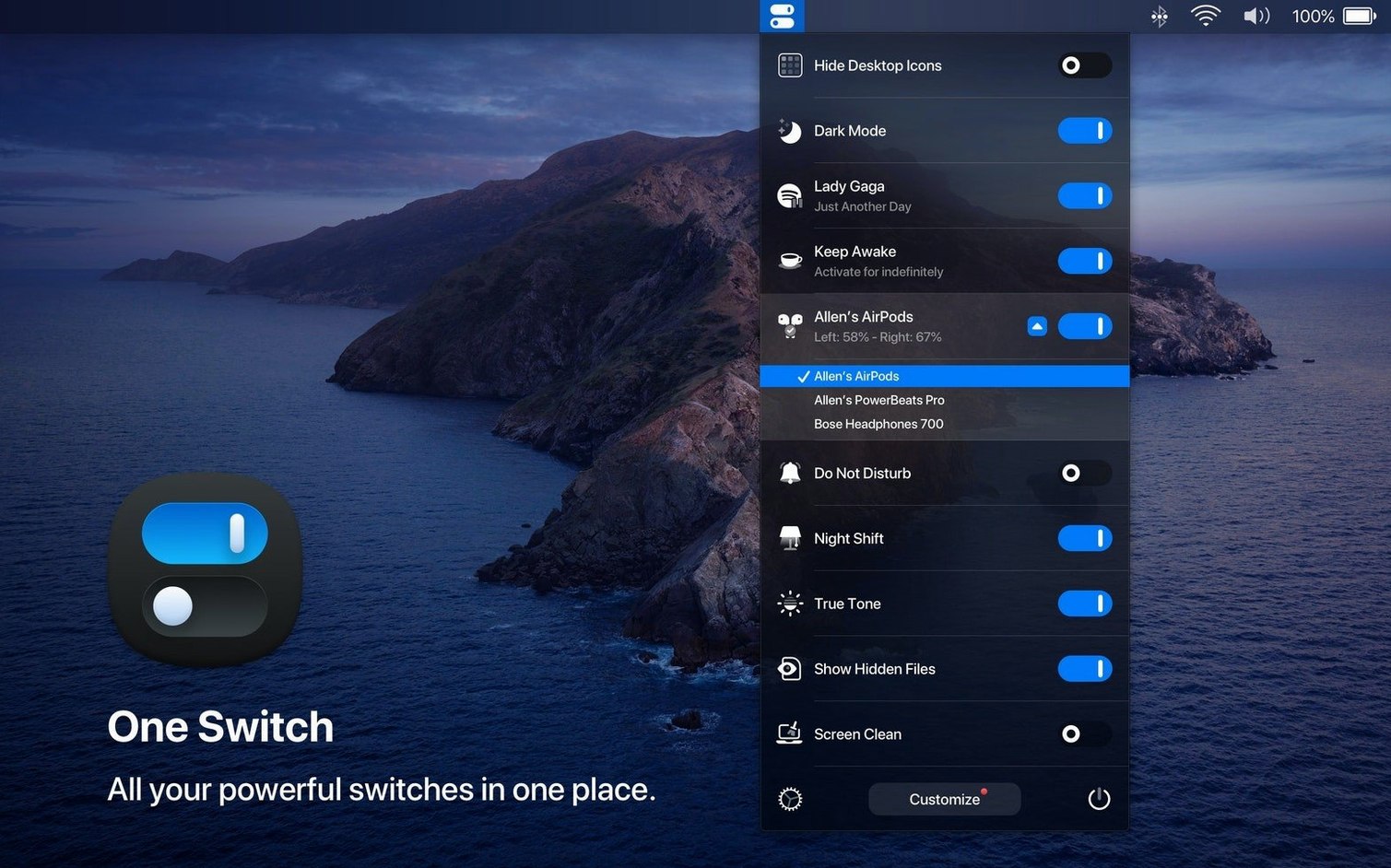
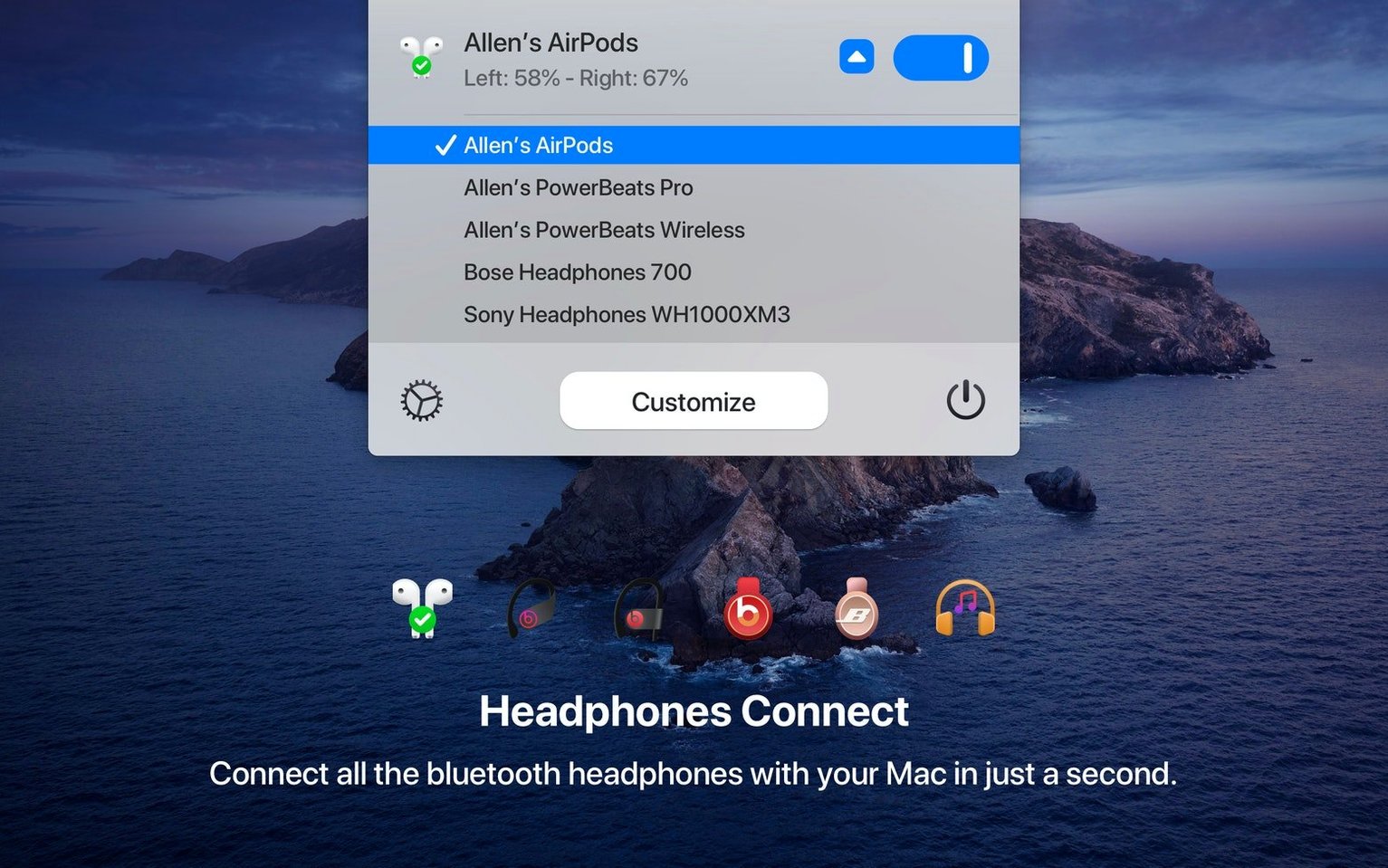
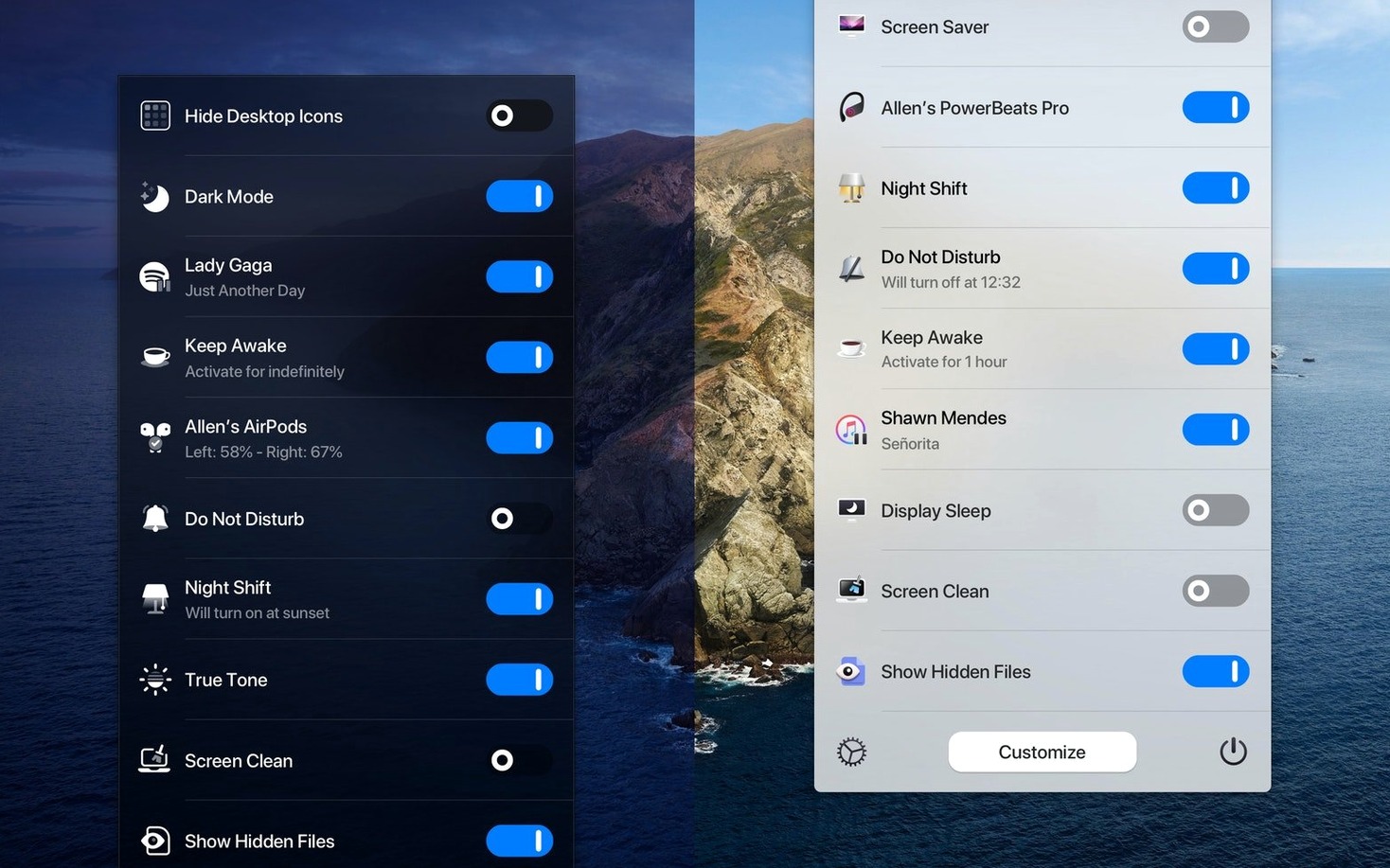
You are about to leave for a meeting, and the Mac is set to Dark appearance, desktop icons are scattered, and AirPods are connected to the phone. One Switch puts those controls in the menu bar, so you can flip them without opening System Settings.
- Switches between Light and Dark appearance, with an option to automate the change during the day.
- Hides or shows desktop icons — useful before a screen share or a demo.
- Sets automatic sleep and wake times, or puts the Mac to sleep immediately.
- Activates Do Not Disturb and controls notifications from the same menu.
- Connects or disconnects AirPods without digging into Bluetooth settings.
- Shows up to seven switches at once; configure which ones appear and disable the rest.
One Switch runs on macOS 10.15 and later, and its menu bar presence means it sits next to the other toggles you already use. It does not replace a full settings app; it just makes the frequent switches faster.
Lives in the menu bar alongside calendar apps and clipboard managers
One Switch lives in the menu bar, so it works alongside whatever else you have up there — calendar apps, clipboard managers, or monitoring tools. It does not fight with them for space; you choose which switches appear, and the rest stay hidden. The app hooks into macOS system APIs for Dark Mode, Do Not Disturb, and sleep controls, meaning it respects whatever the OS is doing. If you manually toggle Dark Mode in System Preferences, One Switch updates its state within a second or two. The same goes for turning Do Not Disturb on from the Notification Center.
For AirPods, One Switch does not replace Bluetooth preferences entirely. It is a quick connect and disconnect tool. Pairing new earbuds or adjusting audio output still happens in System Settings. The automation for Light and Dark appearance runs on a timer you set inside the app — it does not tie into macOS’s built-in schedule, so it works as a standalone option if you want different timing than the OS offers.
Switches not showing after launch is a common hiccup
A few things trip people up when they first run One Switch. None are deal-breakers, but knowing them saves a minute of head-scratching.
- Switches not showing after launch: The app starts with a default set of switches. If one is missing, open One Switch preferences and drag it into the enabled list. The menu bar icon updates within a few seconds.
- Do Not Disturb or Dark Mode toggling but not sticking: This happens if another app — a focus timer or a window manager — is also controlling those settings. One Switch does not lock the state, so two sources can fight. Close the other app or disable its control for that feature.
- AirPods connect option grayed out: The switch only appears when your AirPods have been paired to the Mac at least once through System Settings. Pair them first, then restart One Switch from the menu bar icon’s context menu.
- Automatic Light/Dark schedule does not run: Check that the times are set in the app’s preferences. If they are, and the schedule still misses, make sure the Mac is awake at the transition time — sleep mode pauses the timer.
- Menu bar icon disappears after a system update: Re-launch One Switch from Applications. It keeps its settings, so the icon and your switches come right back.
One Switch versus three other menu-bar toggle tools
Several tools put system toggles in the menu bar. Here is how One Switch stacks up against three common ones.
BetterTouchTool
BetterTouchTool is a window management utility that also offers a few toggles for Dark Mode and Do Not Disturb. It is broader — it remaps trackpad gestures and customizes windows — but its switch panel is secondary. One Switch is simpler: it does one thing and does not clutter the menu bar with gesture controls you might not need. If you only want the toggles, One Switch is the leaner choice.
SystemPalette
SystemPalette focuses on appearance — switching between Light and Dark mode, plus a few accent colors. It does not handle AirPods, sleep, or Do Not Disturb. One Switch covers that ground and adds desktop icon visibility and sleep scheduling. If you need more than a color toggle, One Switch replaces SystemPalette with a single app.
Little Snitch
Little Snitch is a network firewall, not a system toggle app. It has a menu bar presence for blocking or allowing connections, but its scope is different. Comparing them is apples and oranges — use Little Snitch for network control and One Switch for everything else. They coexist without conflict.
One Switch is a focused tool. It does not try to be a universal menu bar utility. For people who want a one switch mac app that handles the seven most common system actions, it hits the mark. The one switch mac free download gets you the same version with no feature limitations, so you can test it before deciding to keep it around.
- Added multilingual support: German, Italian, Japanese, Korean, Portuguese, Russian, and Spanish.
- macOS 10.15 or later
- Intel or Apple Silicon
Questions from the notes
Can One Switch automate switching between Light and Dark appearance?
Yes, One Switch can automate the change during the day, so you do not have to do it manually.
Install procedure
- Mount the downloaded disk image.
- Drag the app into the Applications folder alias.
- Launch it from Launchpad once the copy finishes.
Reports from players
Sign in or create a tester account to file a report.
No reports filed yet.