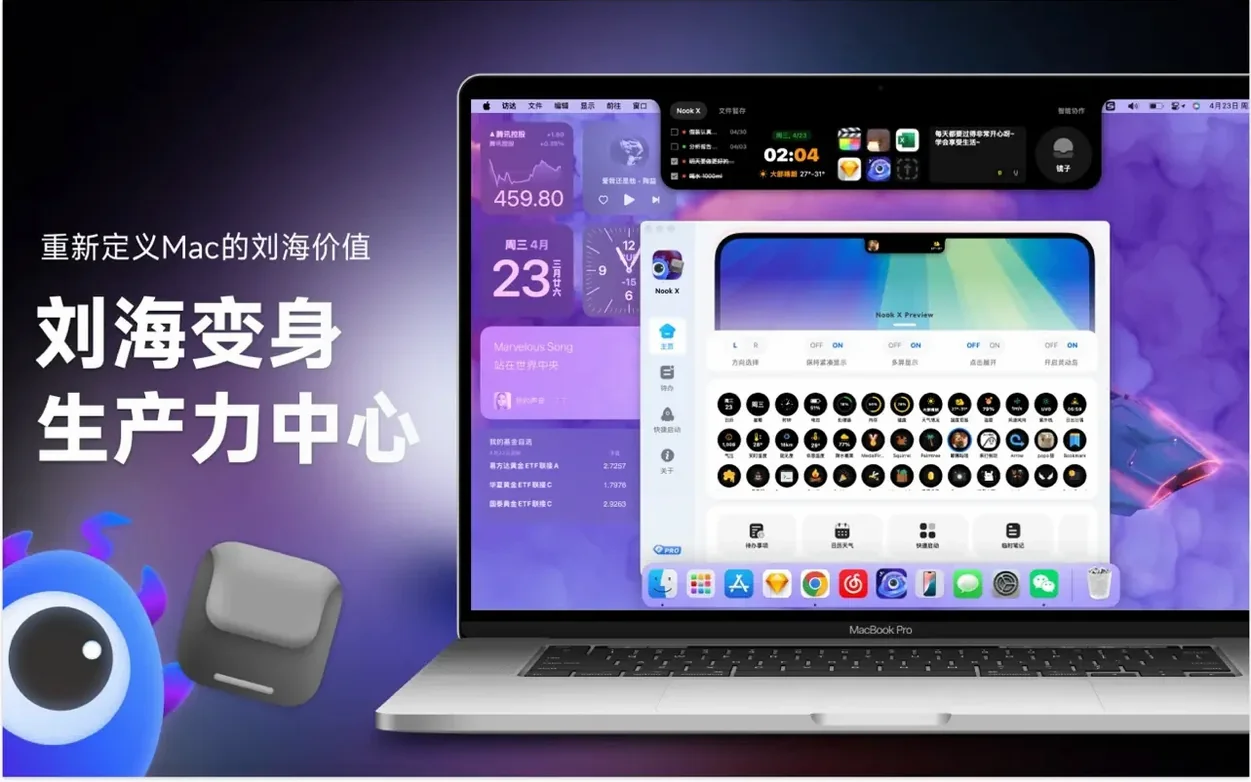
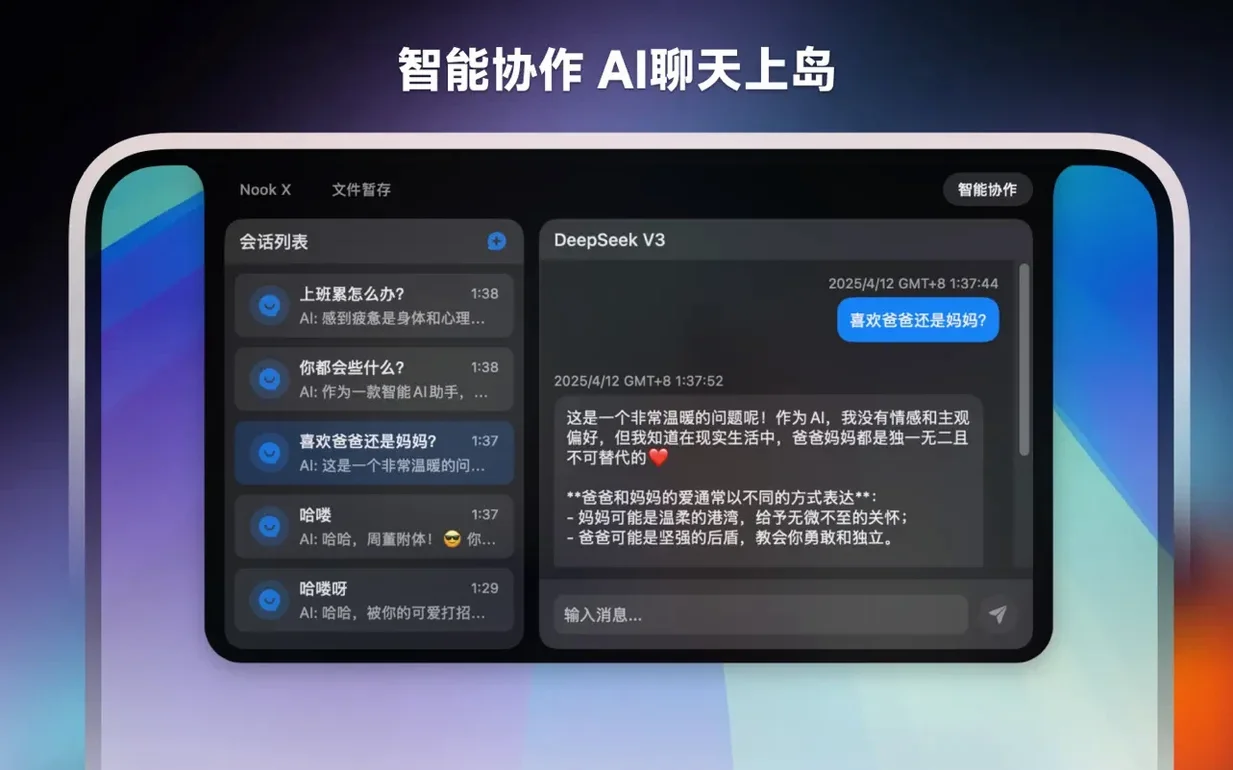
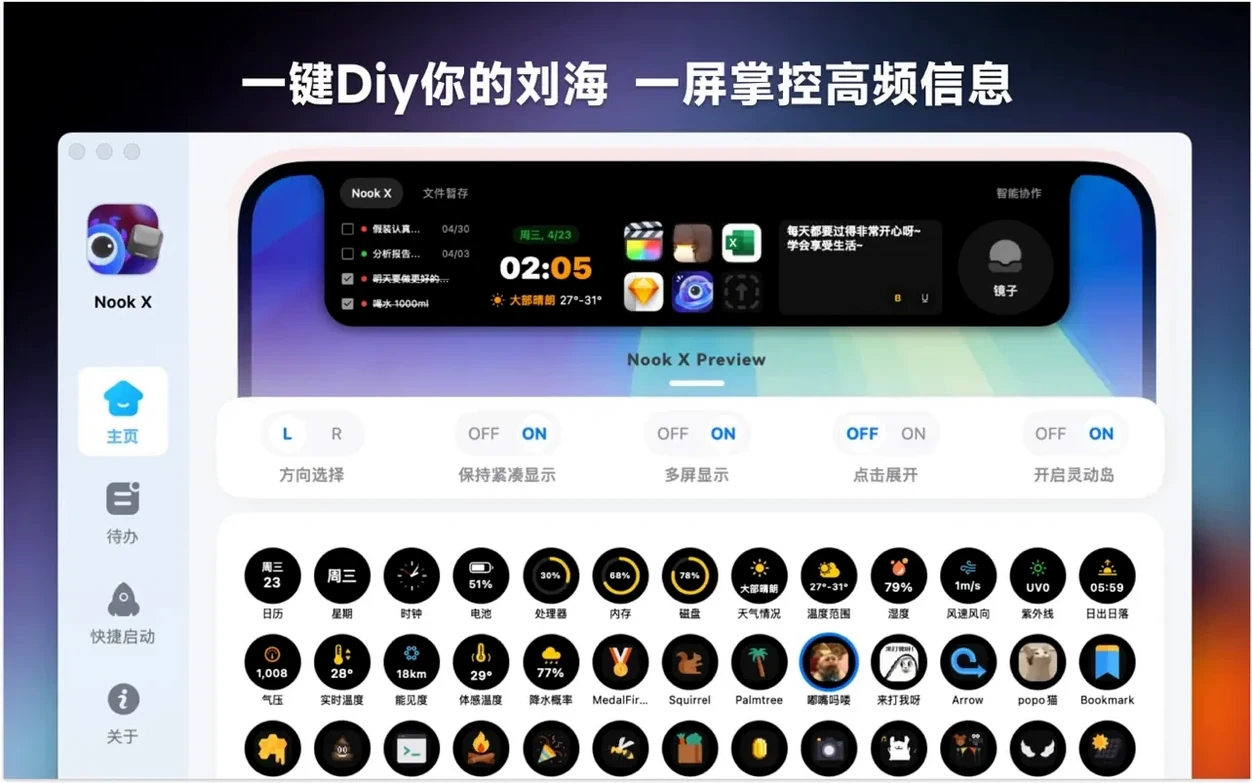
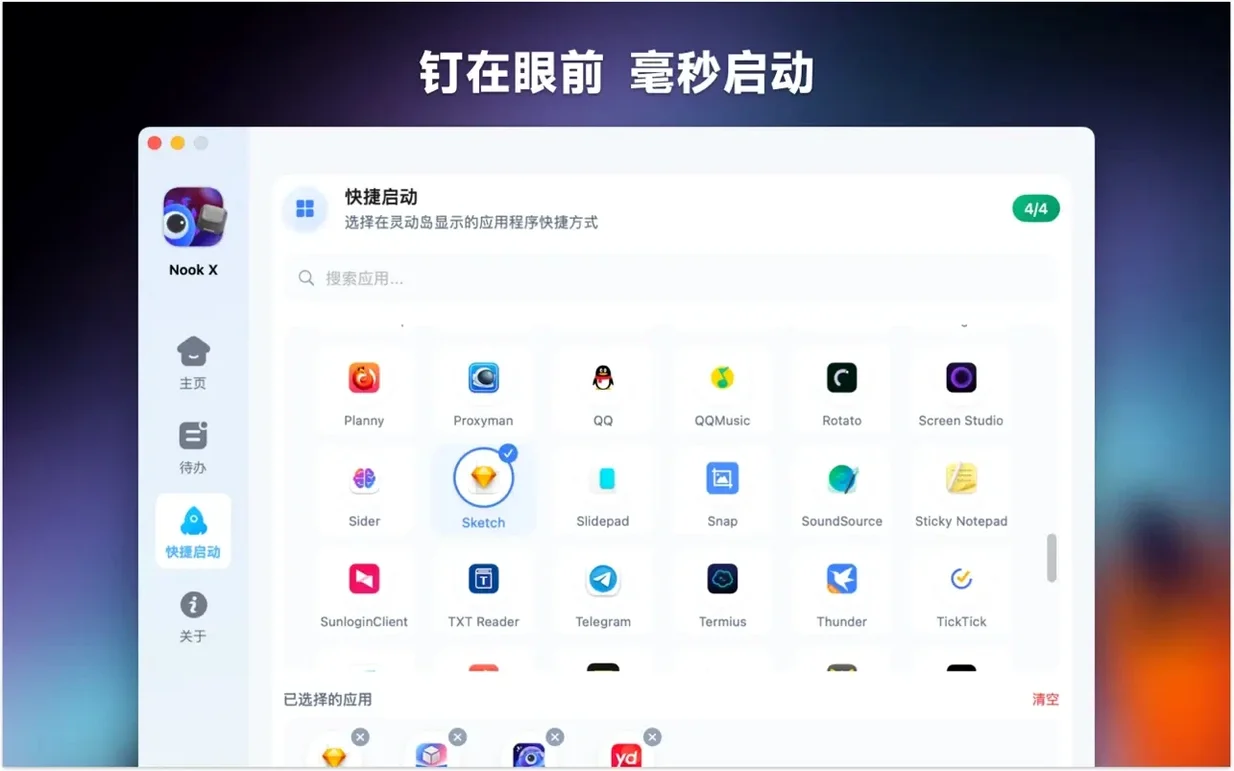
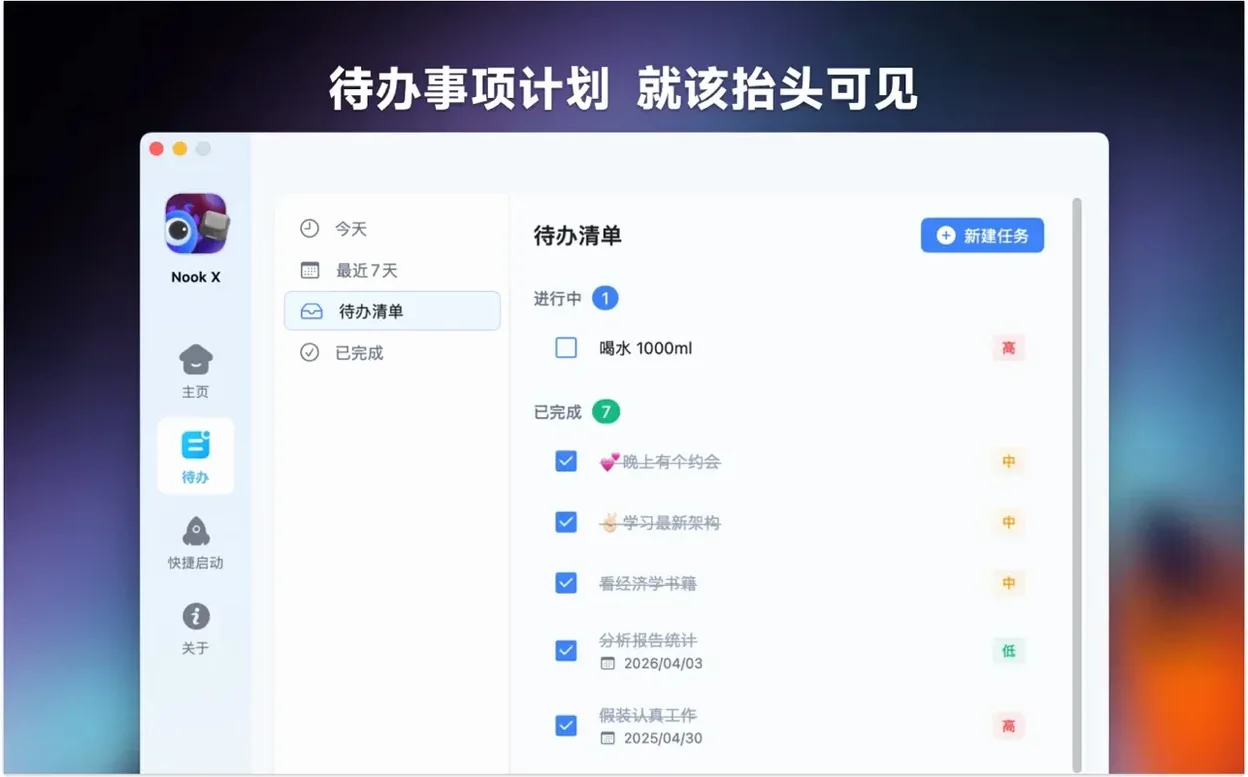
The notch on a Mac usually just sits there. Nook X puts it to work, turning that sliver of screen into a hub for three everyday needs: tasks, music, and quick answers. Instead of juggling separate apps, you get one utility that covers a to-do list, a music player with lyrics, and an AI chat assistant.
Task management without opening a full project app
- People who want task management without opening a full project app.
- Listening to local audio files with lyrics on screen, and searching songs by lyric fragments.
- Quick AI help—answering questions, translating text, or brainstorming ideas—without switching windows.
Requires macOS 13 or later on Apple Silicon or Intel
- Requires macOS 13 or later.
- Supports both Apple Silicon and Intel 64-bit Macs.
- The built-in player handles popular audio formats.
- Interface is available in 14 languages, including English, Spanish, French, and Japanese.
How it works on your Mac
Nook X is a notch-area utility, so it lives at the top of the screen and drops down when you click it. Nothing gets installed at login unless you set it up that way. The app takes up very little space on disk — expect it to launch quickly and sit quietly in the menu bar area until called. Because it supports both Intel and Apple Silicon, it runs natively on M-series Macs and performs fine on Intel models from 2017 onward, as long as they’re on macOS 13 Ventura or newer.
The AI chat feature needs an internet connection to function. The music player plays local audio files you already own — it doesn’t stream from a service. The task list stores everything locally, so there’s no cloud sync between Macs unless you manage that yourself. For a single-machine user, that’s fine. For someone hopping between a desktop and a laptop, it means tasks don’t follow you automatically.
Karaoke mode needs properly tagged audio files
A few things tend to trip people up during first use. None are dealbreakers.
- Lyrics don’t show up. The karaoke mode needs properly tagged audio files. If your music files lack embedded lyrics or have them in a format the app doesn’t parse, the lyric window stays blank. Re-tag the file with a tool like MusicBrainz Picard or add lyrics manually in iTunes/Apple Music first.
- Voice input doesn’t respond. This requires microphone permission. Go to System Settings > Privacy & Security > Microphone and make sure Nook X is enabled. After granting access, quit and relaunch the app.
- Tasks created from chat don’t appear. The feature works only when you explicitly ask the AI to create a task. Saying “remind me” in a casual sentence doesn’t always trigger it. Try phrasing as “create a task called …” or “add a to-do for …”.
- The notch area feels crowded. If you run multiple notch utilities, they can overlap. Nook X works best as the primary notch tool. Disable or quit others to avoid visual clutter.
- The app won’t open after copying. This usually happens if you launched it from inside the disk image instead of from Applications. Drag it to Applications first, then launch from there. On macOS 14 and later, you might also need to allow it in System Settings > Privacy & Security under “Allow apps downloaded from”.
Content creator juggles deadlines and music without switching apps
Take a content creator who manages multiple deadlines and listens to music while working. They have a folder of interview recordings, reference tracks, and a growing task list. Without Nook X, they’d have Notes for to-dos, a separate media player for audio, and a browser tab for AI answers. With Nook X, all three sit in one drop-down at the top of the screen. They search for a song by a lyric fragment they remember — “midnight blue” or something close — and the player finds it. They ask the AI to translate a client’s note from French to English without leaving the editor. They type “add task: export final mix by Friday, high priority” and it shows up in the task list with a priority marker. The scenario is the same every day: one utility replaces three separate apps, and the notch finally earns its keep.
Not setting priorities makes tasks blend together
- Not setting priorities on tasks. The app supports priorities, but it doesn’t force you to pick one. New users add tasks and forget to assign any, then wonder why nothing stands out. Set a priority as you create the task — it makes the list useful instead of flat.
- Ignoring the language picker. The app ships with 14 languages. If the interface shows up in a language you don’t read, check the app’s preferences or its initial setup screen for a language selector. It’s easy to miss if you click through quickly.
- Expecting it to replace Apple Music or Spotify. The player handles local files, not streaming. People who drag in a DRM-protected track from Apple Music find it won’t play. Use MP3, AAC, or other unprotected formats.
- Assuming the AI works offline. It doesn’t. If you lose internet, the chat panel returns an error. The task list and music player still work fine — just the AI features go dark.
- Overlooking voice input for tasks. Dictating a task is faster than typing it, but only if you allow microphone access and speak clearly after clicking the voice button. Many users tap it, say something, and get nothing — because they didn’t release or submit after speaking. Hold the button, speak, then let go.
Switch to your language before diving in
Before diving in, open the app preferences and adjust these:
- Language. If English isn’t your first language, switch to your own early on. The app supports Russian, Vietnamese, Thai, Korean, and several others. Changing it later is fine, but starting in the right language avoids confusion with labels.
- Audio format scan. The player searches for music in default folders. Point it to your actual music directory so tracks appear immediately instead of showing an empty library.
- Task reminders. By default, reminders may not notify you unless you configure them. Turn on notification permission in System Settings and enable reminders in the app’s settings for each task you want to be notified about.
- Lyrics toggle. If you don’t want lyrics, you can disable karaoke mode. Conversely, if you want them always visible for the current track, make sure the setting is on. It’s a per-session preference in most notch tools.
- Voice input language. If you use the AI assistant by voice, set the input language to match yours. The default might be English even if your system language is something else.
Nook X (sometimes referenced as nookx or nook x mac) fits a narrow slot — literally and figuratively. It’s not a full project manager or a streaming service. What it does is combine three light tools into one notch-based utility, and once you adjust the starting settings, it stays out of your way until you need it.
- macOS 13 or later
- Apple Silicon or Intel 64-bit
Questions from the notes
What does Nook X do?
Nook X is a macOS utility that combines task management, a music player with lyrics, and an AI chat assistant in the notch area.
Can I search for songs by lyrics?
Yes, Nook X supports searching for songs by lyrics, so you can find a track even if you only remember part of the words.
Which Macs are supported?
Nook X runs on macOS 13 or later and supports both Apple Silicon and Intel 64-bit Macs.
Install procedure
- Open the downloaded disk image.
- Drag the app to the Applications folder shortcut.
- Once copying finishes, launch the app from Launchpad.
Reports from players
Sign in or create a tester account to file a report.
No reports filed yet.