
You find a track on YouTube or SoundCloud, want it as an MP3 on your phone, and don't want to fiddle with online converters. Musify handles that on your Mac: download the audio, convert it, and move it to an iOS or Android device.
Pulls music from over a dozen sites and converts to MP3, M4A, or WAV
- Pulling music from YouTube, Spotify, SoundCloud, Facebook, Instagram, MixCloud, Bandcamp, Freesound, Audioboom, and Veojam.
- Converting downloaded files to MP3, M4A, or WAV.
- Batch converting multiple MP3 files at once.
- Transferring music to iOS and Android devices.
Not every site guaranteed; check 64-bit Intel or Apple Silicon compatibility
- Supports over 1000 music and video websites, but not every site is guaranteed to work.
- Listed architecture is 64-bit Intel; check compatibility with Apple Silicon if that's your Mac.
- Installation requires bypassing Gatekeeper via Terminal, which is a manual step.
Playlist downloads preserve folder structure for easy transfer
A few things in Musify aren't obvious from the main window but save time once you know them:
- Playlist downloads preserve the folder structure. When you paste a YouTube, Spotify, or SoundCloud playlist URL, Musify downloads every track and keeps them in a folder named after the playlist. No extra renaming or sorting later.
- Metadata stays attached. Title, artist, album, and artwork are written into the file during conversion. If you're building a local library, that saves hours of manual tagging.
- Device transfer works over USB. Connect an iPhone or Android phone via cable, and Musify can push music directly to it. No cloud uploads, no extra apps.
- Batch conversion isn't limited to downloaded files. You can drag in any MP3 files you already have on your Mac and convert them to M4A or WAV in one go.
Best for offline listeners and audio collectors
- People who listen offline. Commuters, travelers, or anyone without unlimited mobile data benefit most. Download a playlist once, transfer it to a phone, and music plays without streaming.
- Podcast or music collectors. If you archive audio from multiple platforms, Musify centralizes the workflow. One app, one output folder, consistent file formats.
- Users with older Macs. Since Musify runs on macOS 10.12 and later and is Intel-native, it works on Macs that can't run the latest version of macOS. That's useful if you're on a 2012–2019 machine that still works fine.
- Anyone who wants YouTube audio without ads. Converting a YouTube video to MP3 in Musify bypasses ads and keeps the audio in a single file. No browser tabs, no ad-blocker needed.
Paste a playlist URL, set output to MP3 320 kbps, and download tracks
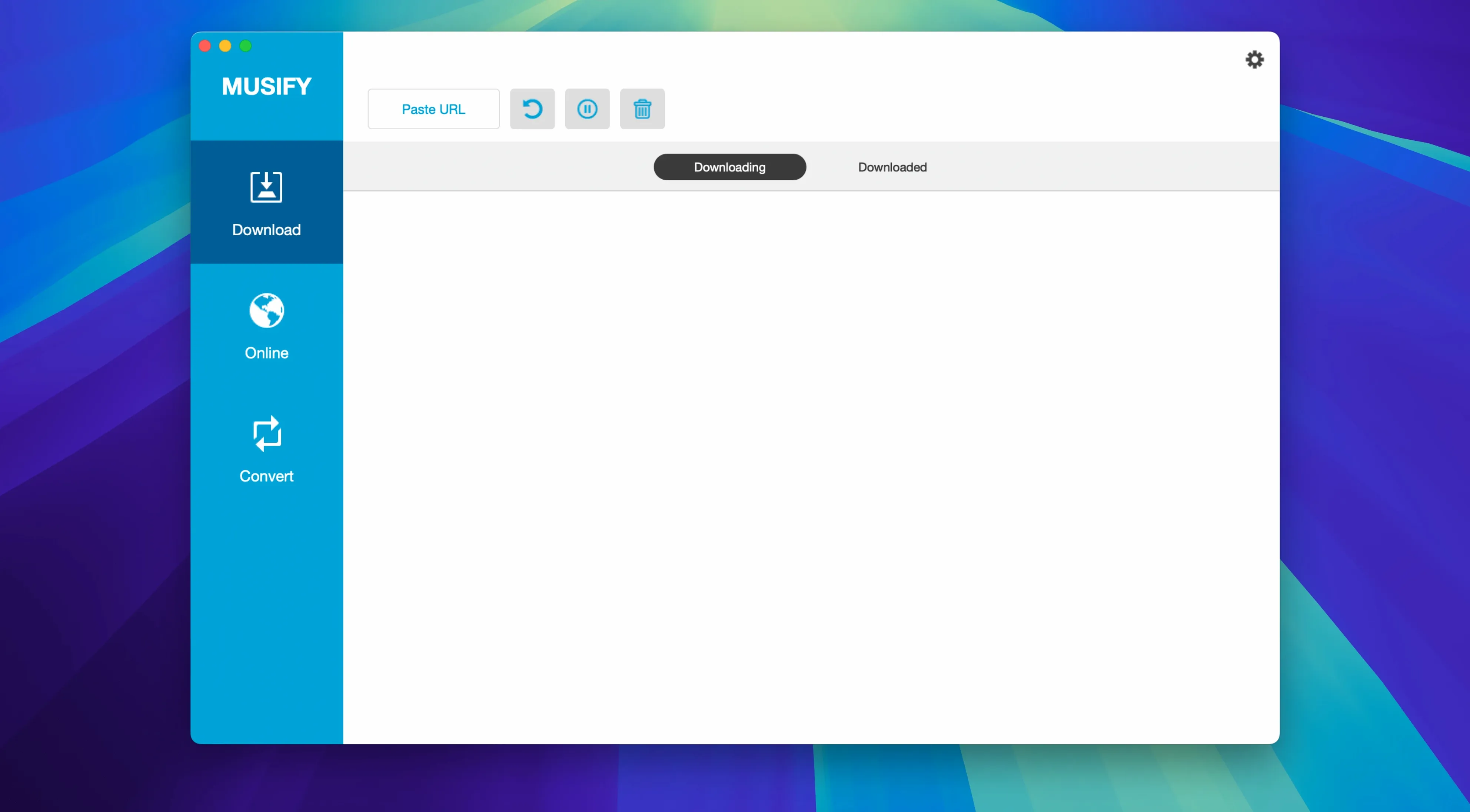
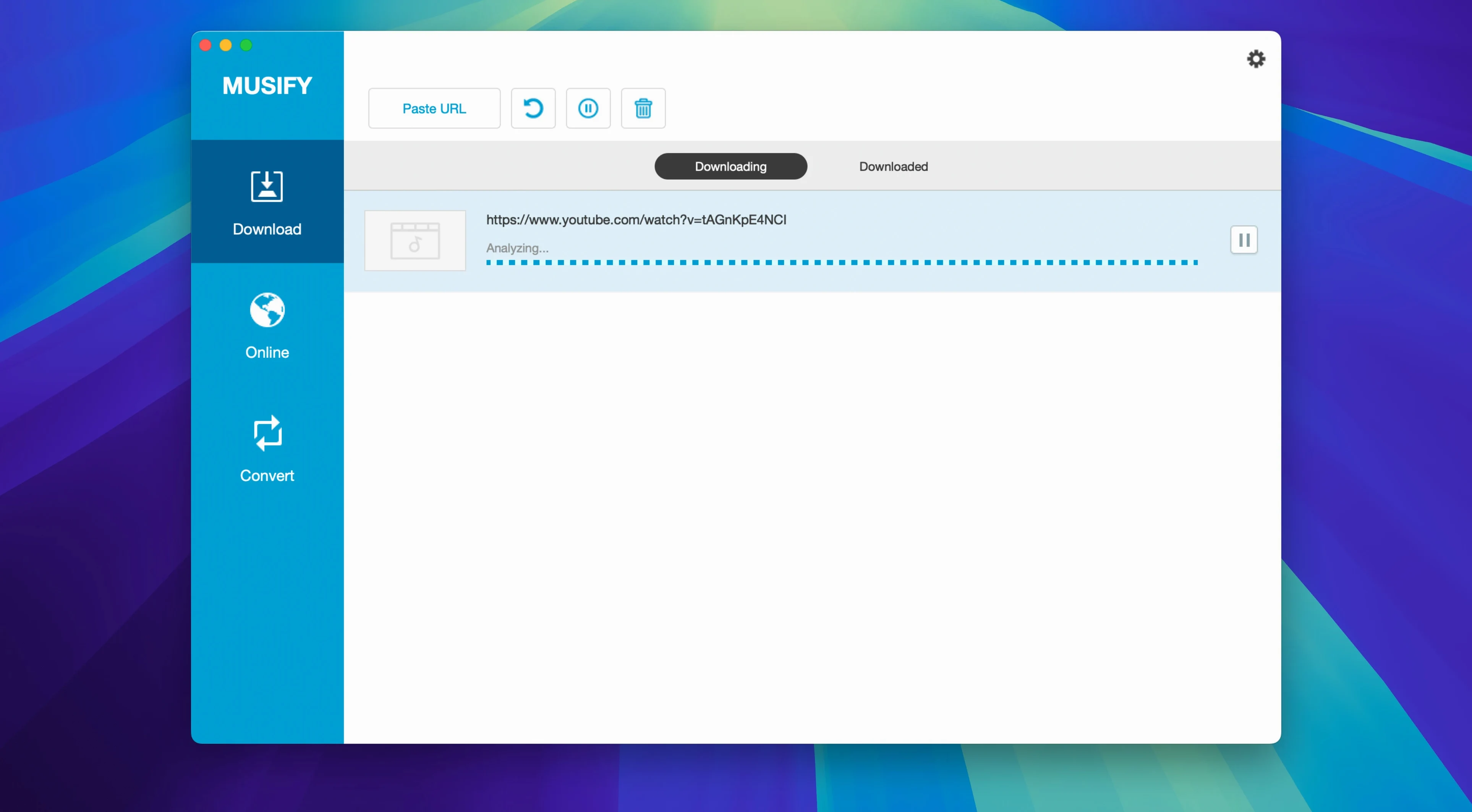
You open Musify after copying it to Applications. The main window shows a search bar and a few format options. You set output to MP3 at 320 kbps, then paste a YouTube playlist URL. The app loads the track titles and shows a download button. You click it. The progress bar moves through each song. While that runs, you copy a SoundCloud link from your browser, paste it into a new download tab, and start that too. Both queues run in parallel.
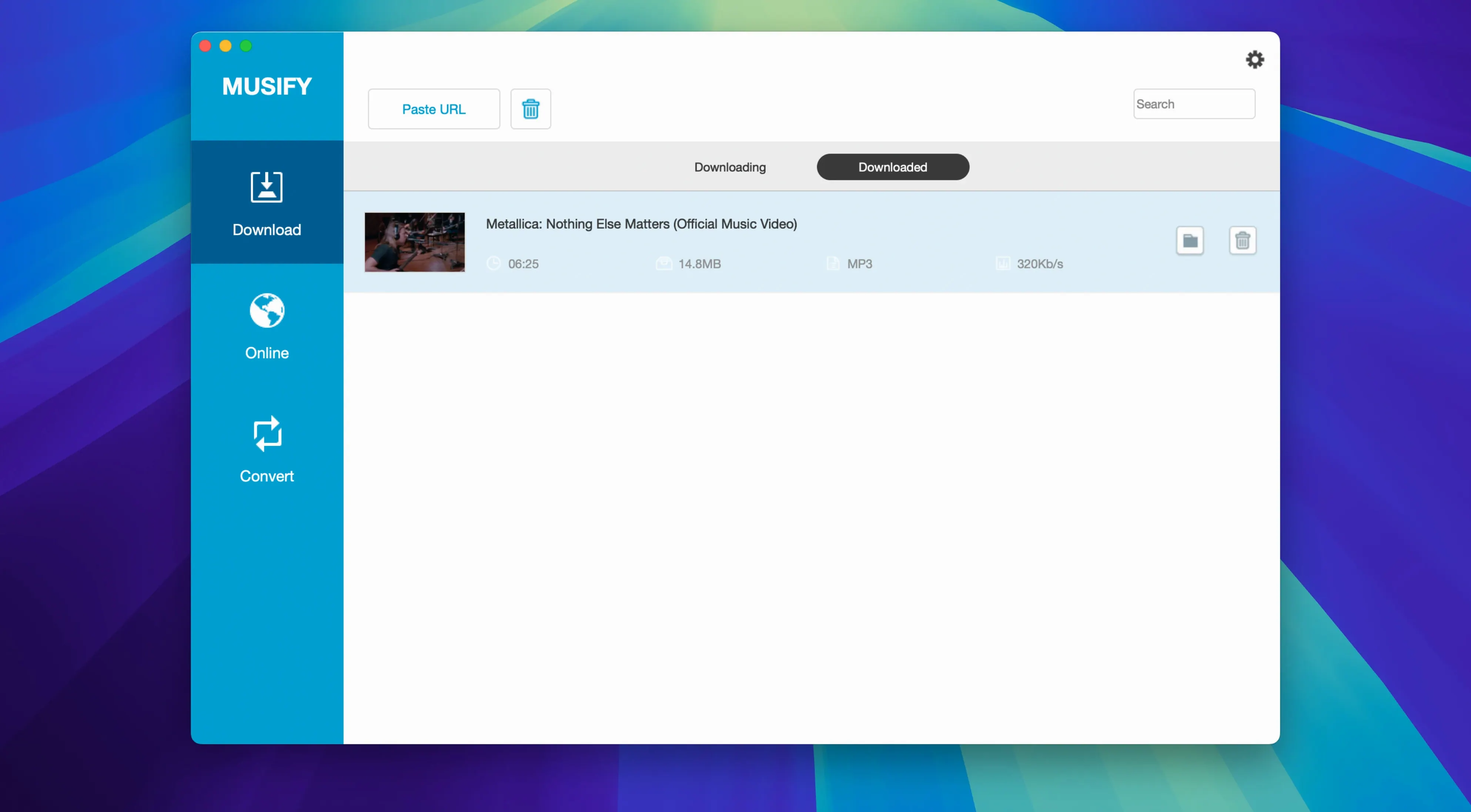
When the downloads finish, you verify the files: all MP3s, all with artist and title tags, all in a folder named after the playlist. You connect your Android phone via USB. In Musify, you select the transfer option, pick the playlist folder, and start the copy. Twenty tracks land on the phone in a few minutes. You unplug, open your music player, and the tracks play with artwork and album info intact.
That's the loop: find audio, paste link, download, convert, transfer. No browser tabs, no online converter, no cloud service.
Format check skipped? Musify remembers last output, leading to huge WAV files
- Skipping the format check. Musify remembers your last output format. If you converted to WAV yesterday and paste a link today, it'll output WAV files. Beginners forget to switch back to MP3 or M4A and end up with huge files that don't fit on their phone.
- Not checking the destination folder. Musify saves files to its default download folder unless you change the path. New users sometimes can't find the downloaded tracks because they look in Downloads or Desktop.
- Assuming every site works the same. Musify supports over 1000 websites, but some smaller sites may not return results. Beginners try one obscure site, get nothing, and think the app is broken. Using a supported service like YouTube or SoundCloud first confirms the workflow works.
- Ignoring the Gatekeeper bypass step. The installation requires pressing Enter in Terminal to allow the app to run. People who skip this step see a warning that the app can't be opened and assume it's corrupted. Read the instructions, run the Terminal command, then drag to Applications.
- Overwriting playlists. If you download the same playlist twice, Musify overwrites the folder. Name it differently or move the first batch before starting the second.
- macOS 10.12 or later
- 64-bit Intel processor
- Interface language: English
Questions from the notes
Can Musify convert YouTube videos to MP3?
Yes, Musify includes a YouTube to MP3 conversion workflow and can download audio from YouTube directly.
What output formats does Musify support?
It converts files to MP3, M4A, and WAV.
Does Musify run on Apple Silicon Macs?
The architecture is listed as 64-bit Intel, so on Apple Silicon you may need Rosetta 2. No explicit ARM build is mentioned.
Install procedure
- Mount the disk image and run Open Gatekeeper friendly.
- Press Enter in Terminal to bypass Gatekeeper.
- Drag the app to the Applications folder.
- Use the app after installation finishes.
Reports from players
Sign in or create a tester account to file a report.
No reports filed yet.