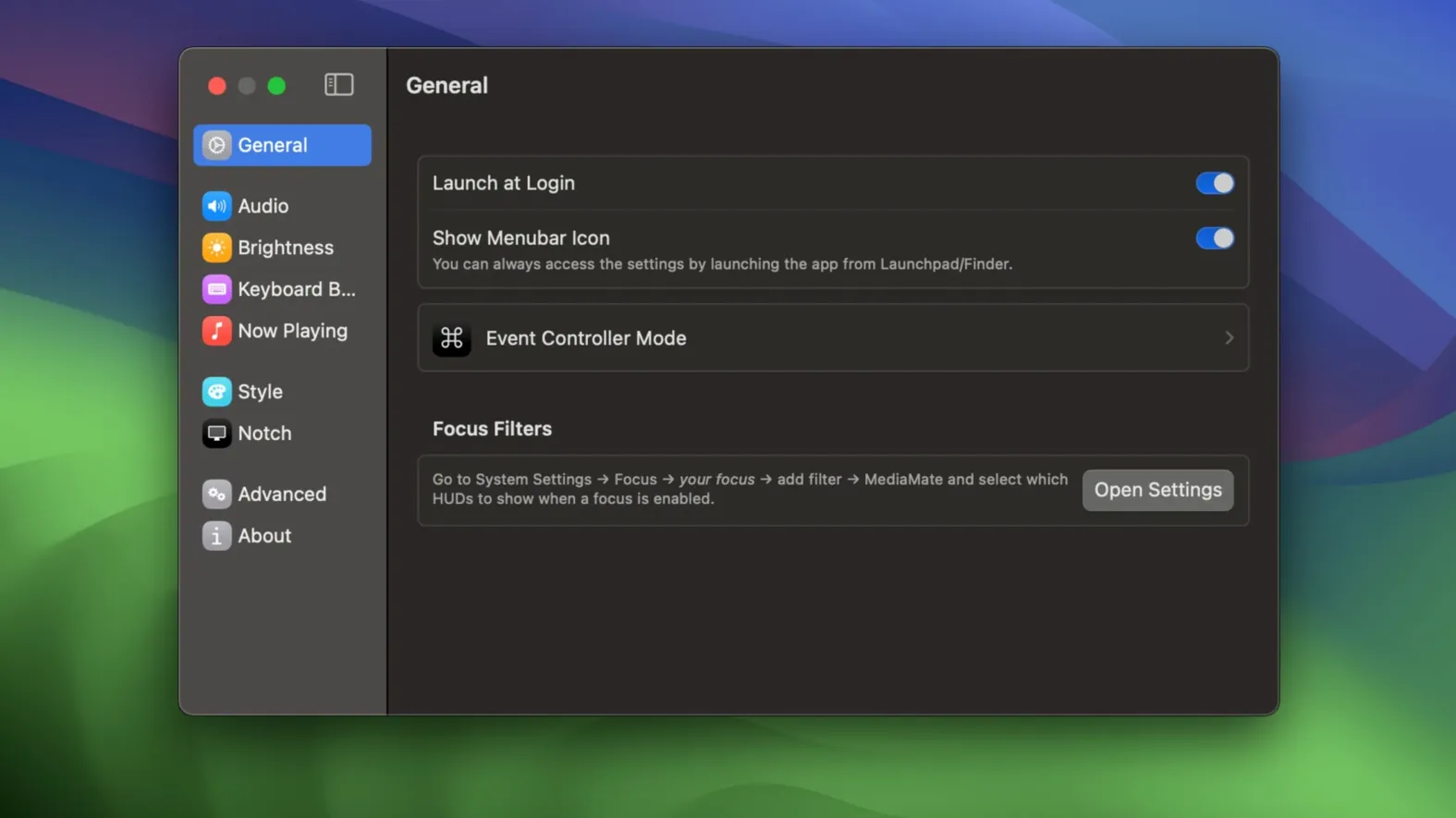
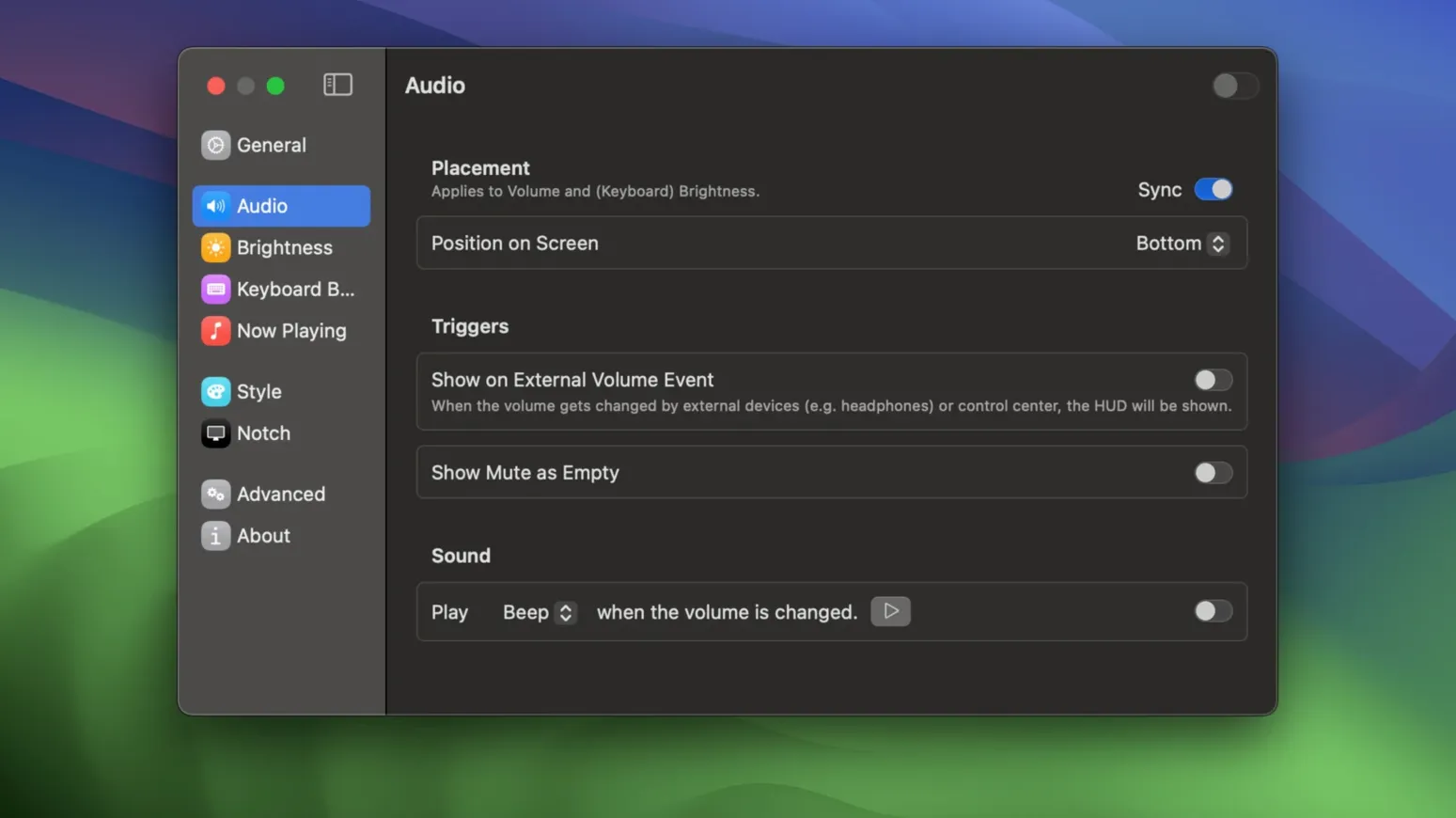
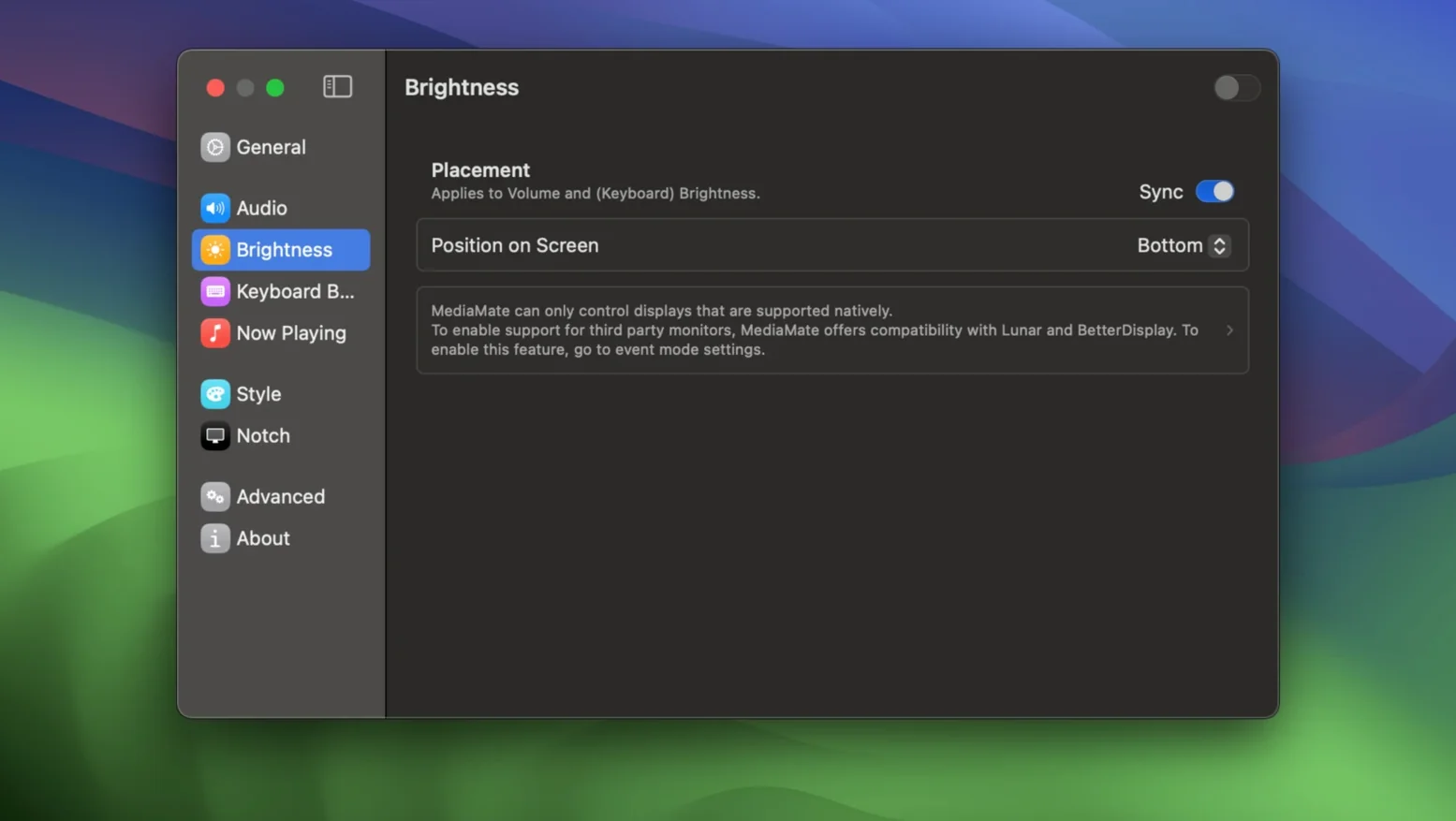
MediaMate runs on any Mac with macOS 13 Ventura or later, covering both Intel and Apple Silicon models. It replaces the standard macOS brightness and volume HUDs with a compact overlay, and adds a now-playing display for media apps. The interface is English only.
- Custom volume and brightness HUDs that replace the default macOS overlays.
- Keyboard backlight brightness control built into the same HUD.
- Now-playing display for music and media apps.
- Works on all Macs, including those with a Touch Bar (requires a separate mode).
- Runs natively on both Intel 64-bit and Apple Silicon.
- Compact, non-intrusive design that stays out of full-screen work.
Now-playing HUD clears half-second blank on pause or skip
The current build, 3.8.4, is a refinement release. It fixes how the now-playing HUD behaves when media apps pause or skip tracks — the overlay now clears faster and shows the next item without the half-second blank that earlier versions left. Keyboard backlight adjustments also register more reliably on a few third-party mechanical keyboards; the previous version sometimes required two taps to change brightness. No new visual themes or control panels were added, so if you already had 3.8.3, the upgrade is purely behavioral.
Overlay suppressed during presentations and slideshow apps
MediaMate keeps its HUDs out of the way during full-screen video by default, but it also detects when a presentation or slideshow app is active and suppresses the overlay entirely — not just the volume pop-up but the now-playing panel too. That means you can advance slides using keyboard brightness keys without a media badge appearing on the projector output.
If you use a Mac with a Touch Bar, the separate mode that MediaMate requires does more than remap input. It also shifts the brightness sliders to a slightly different screen position so they clear the glossy edge reflection that some Touch Bar Macs produce at certain angles. The adjustment is small but noticeable if you work in direct light.
The now-playing display reads track metadata from the active media app, not from system audio. That means it shows the song name, artist, and album artwork from Apple Music, Spotify, or any app that exposes its metadata through the macOS notification system. If a media source does not supply artwork, MediaMate falls back to a clean text-only line — no placeholder icons or blank boxes.
Replaces brightness HUD and adds keyboard backlight control
Volume HUD replacements. Apps like Hud and Volume replace the volume overlay only. MediaMate also replaces the brightness HUD and adds keyboard backlight control, which makes it a better fit for MacBook users who adjust screen brightness frequently. Neither of those apps shows now-playing metadata.
Now-playing displays. SnapPea and MusicHUD focus solely on media metadata overlays. They offer more customization for the now-playing panel (position, font, fade duration) but do not touch volume or brightness at all. MediaMate combines both roles in one app, which saves a menu bar icon and avoids two separate overlays competing for screen space.
Keyboard backlight control. Apple’s own settings panel already handles keyboard brightness, but it takes two clicks and a slider. MediaMate puts it on the same HUD as volume and brightness, so you can adjust all three with the same gesture or key press. No other third-party HUD app I have used includes this.
A workflow for adjusting brightness, volume, and keyboard light during a late-night session
This setup assumes MediaMate is already running in the background — it launches at startup and sits in the menu bar.
- Lower the screen brightness using the keyboard’s brightness keys (F1/F2 on a MacBook, or the dedicated row on an external keyboard). MediaMate shows a compact bar near the top of the screen instead of the large macOS default. Keep pressing until the screen matches the room light.
- Press the volume-down key. The volume HUD appears in the same corner and same size as the brightness HUD. Adjust until the audio is low enough not to disturb others in the room.
- If the keyboard backlight is too bright against the dimmed screen, press the keyboard backlight key (or the assigned shortcut if your keyboard has one). The HUD swaps to a backlight brightness slider. Lower it until the keys are readable but not glaring.
- Open a music app and start a playlist. MediaMate’s now-playing panel fades in at the bottom-right corner of the screen, showing the current track. It stays visible for a few seconds then fades. When the track changes, the panel reappears briefly with the new song name.
The whole chain — brightness, volume, backlight, and now-playing — uses one app and one consistent HUD style. No settings panel needs to be opened.
If you find the default macOS HUDs too large or slow, MediaMate gives you a cleaner alternative with fewer clicks to adjust brightness or volume.
- macOS 13 Ventura or later
- Intel 64-bit or Apple Silicon
- Interface: English
Questions from the notes
Does MediaMate work on Intel Macs?
Yes, MediaMate supports both Intel 64-bit and Apple Silicon Macs.
What macOS version is required?
MediaMate requires macOS 13 Ventura or newer.
Is MediaMate compatible with Macs that have a Touch Bar?
Yes, but Touch Bar Macs require a separate mode to work correctly.
Install procedure
- Open the downloaded disk image.
- Drag the app to the Applications folder.
- After copying finishes, launch the app from Launchpad.
Reports from players
Sign in or create a tester account to file a report.
No reports filed yet.