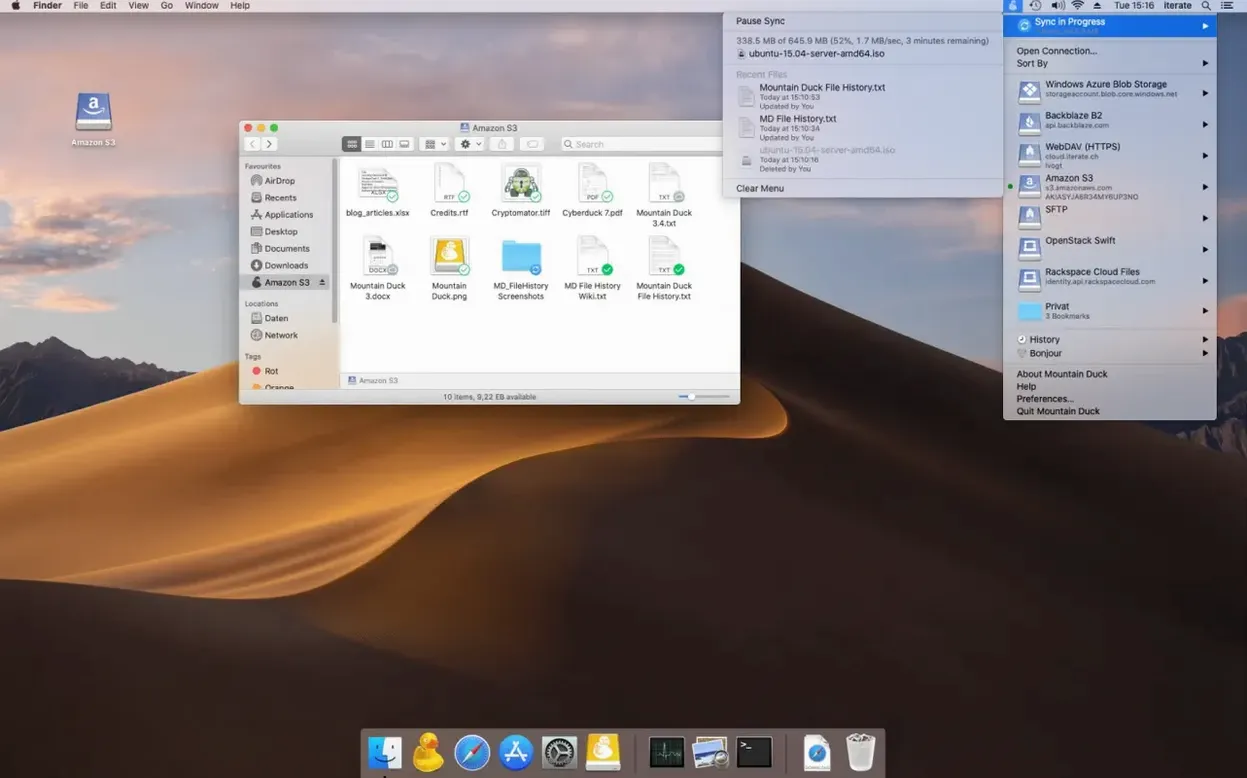
Mountain Duck for macOS is a utility that mounts remote and cloud storage as a regular disk in Finder, so you work with files without a separate sync client.
Mountain Duck mounts servers as Finder volumes
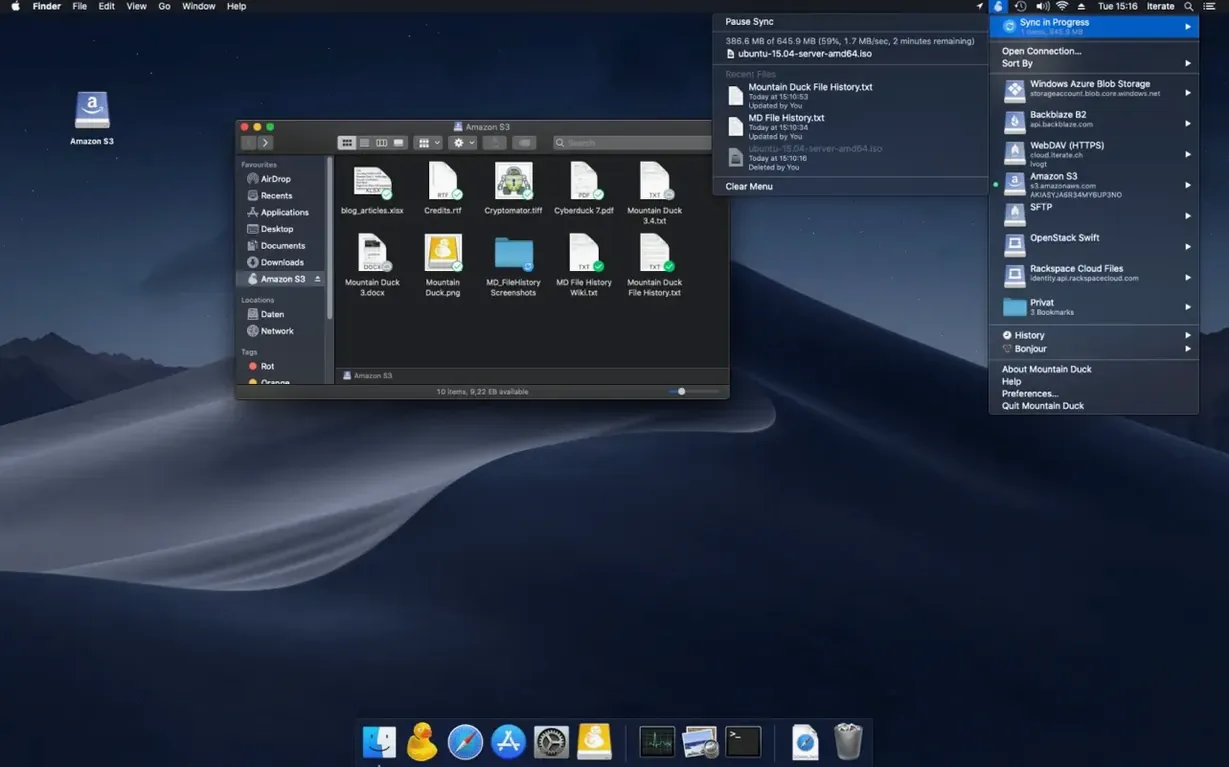
Mountain Duck — the app that brings Cyberduck-style connections into Finder. Instead of opening a transfer window, your server appears as a mounted volume.
Supported protocols — FTP, SFTP, WebDAV, Azure Cloud Storage, Amazon S3, Google Cloud Storage, Google Drive, Dropbox, Backblaze B2, and OpenStack Swift.
Offline files — mark selected files or folders to stay stored locally, so you can open them without a connection.
Smart Synchronization — files download to the local disk when you open them, then upload changes back.
Encryption — works with Cryptomator-compatible storage to keep data encrypted at rest.
Bookmarks — shared with Cyberduck when it's installed, so you set up a connection once.
SMB — version 5 adds support for SMB connections, covering Windows file shares.
Anyone regularly moving files between cloud and Mac
Anyone who regularly moves files between cloud services and their Mac, or who prefers Finder's familiar interface over a web browser. It runs on Apple Silicon and Intel 64-bit Macs running macOS 13 or later.
Local caching defaults to on-demand with Smart Synchronization
By default, files cache locally only when you open them — Smart Synchronization handles this. Files you mark for offline storage stay on the local disk permanently. The rest exist as remote-only until needed.
Will it work alongside my existing cloud sync apps? Generally yes. Mountain Duck mounts a volume in Finder, so it coexists with Dropbox, Google Drive for Desktop, or rclone mounts. The one thing to watch for is writing to the same remote path from two apps at once. Each treats the remote as a single source, and version conflicts are possible. Mountain Duck's version 5 file versioning helps here — it keeps copies of changed files so you can recover a previous version.
What happens if I lose internet while working on a remote file? If you opened the file through Mountain Duck and it cached locally, you can still edit it. The app queues the upload and sends changes when the connection returns. Files you have not opened yet will not be accessible offline unless you explicitly mark them for offline storage.
Does it support two-factor authentication? It supports whatever the underlying protocol supports. For SFTP and WebDAV this usually means password authentication. For cloud services like Google Drive or Dropbox, authentication happens through the service's own flow. Two-factor is handled at the service level, not inside Mountain Duck's interface.
Will it slow down my Mac's startup? Mountain Duck does not mount every connection at login by default. You choose which bookmarks mount automatically. The app itself loads as a background process and uses minimal resources until you access a mounted volume.
Mountain Duck skips Cyberduck's transfer window for Finder disks
Mountain Duck vs. Cyberduck — Both come from the same developer and share bookmarks. Cyberduck is a transfer client with a window you open, select files, and transfer. Mountain Duck skips that window entirely — servers appear as disks. If you prefer drag-and-drop in Finder over a two-panel interface, Mountain Duck is the better fit. Cyberduck is better if you need to browse remote directories without caching files locally.
Mountain Duck vs. rclone — rclone is a command-line tool that can mount cloud storage through FUSE, but it requires terminal work and configuration files. Mountain Duck gives you a GUI approach — add a bookmark through the app's interface, and the volume appears. rclone is more flexible for scripting and batch operations. Mountain Duck is simpler for everyday file work.
Mountain Duck vs. Transmit — Transmit is a dedicated FTP/SFTP client with a split-pane interface and local-to-remote sync tools. It does not mount remote storage as a Finder disk. For users who want remote files to behave like local ones, Mountain Duck has the advantage. Transmit offers more granular transfer controls and queuing options. Both support the common protocols, but Transmit does not include cloud storage like Google Drive or Dropbox.
Add a bookmark and the server appears in Finder's sidebar
You open Mountain Duck from Launchpad. The app sits in the menu bar — a duck icon. You click it and add a bookmark for your SFTP web server: hostname, username, password. The volume appears in Finder under the sidebar's Locations section.
You open a PHP file directly from the mounted volume in VS Code. Mountain Duck downloads it in the background. You make edits and save. The app uploads the changed file automatically. You do not think about the transfer.
You need a folder of product images from Dropbox. You add a Dropbox bookmark. The folder appears as a drive. You drag three images to your Desktop — Mountain Duck copies them from the cloud. Later you delete a test image from the mounted volume. It goes to Dropbox's trash, not your local trash.
Before a flight, you right-click a project folder and pick "Keep Offline." The files sync to your local disk. On the plane, you open them from the mounted volume — they load from the local cache. When you land and connect, Mountain Duck syncs the changes.
A photographer mounts S3 and Drive instead of downloading to scratch
A photographer working with a cloud-based DAM system stores raw files on Amazon S3 and final edits on Google Drive. Before using Mountain Duck, they downloaded files to a scratch folder, edited, and re-uploaded through a browser. Now they mount both S3 and Google Drive as Finder volumes. They open a raw file from S3 in Capture One, edit, and export a TIFF directly to Google Drive by dragging it to the mounted folder. The export path is local in Finder terms — the photographer does not leave their usual workflow. The Smart Synchronization handles the upload while they open the next file. The photographer only touches the menu bar when adding a new client's bucket to S3.
- macOS 13 or later
- Apple Silicon or Intel 64-bit
Install procedure
- Open the downloaded disk image.
- Drag the app into the Applications folder.
- Launch it from Launchpad once copying finishes.
Reports from players
Sign in or create a tester account to file a report.
No reports filed yet.