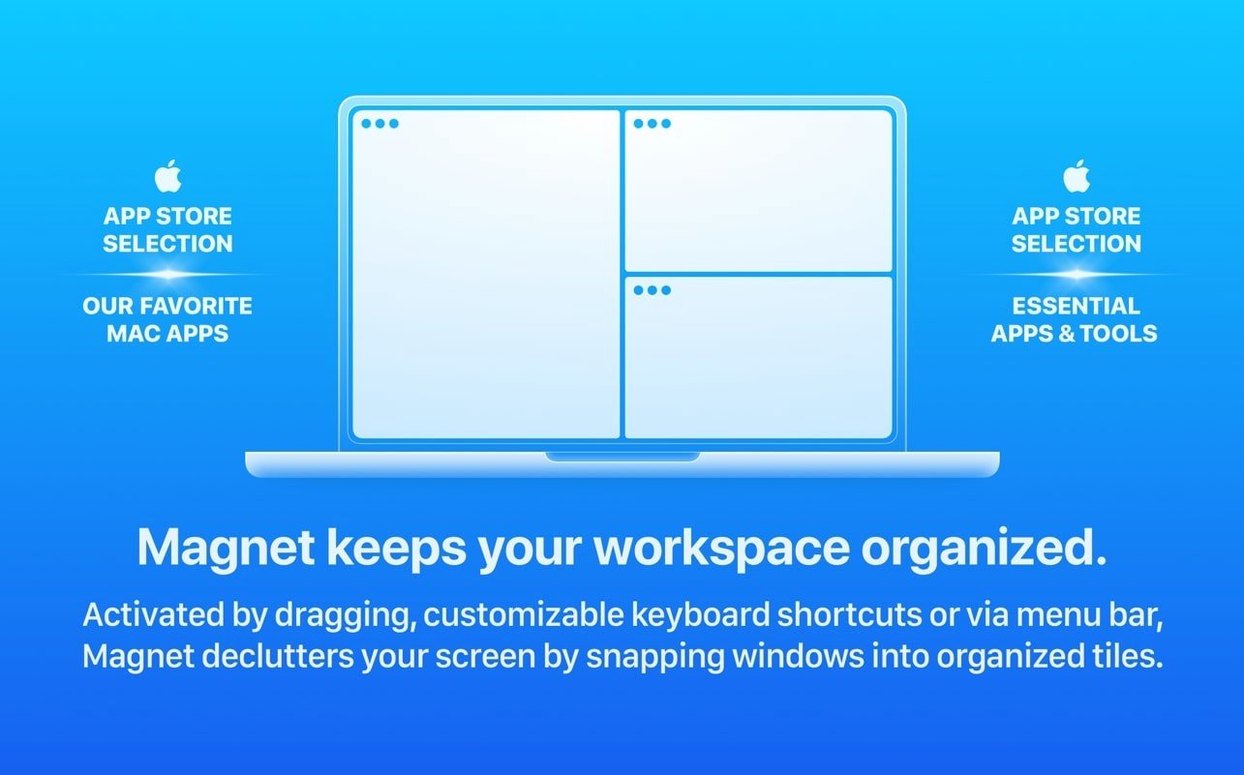
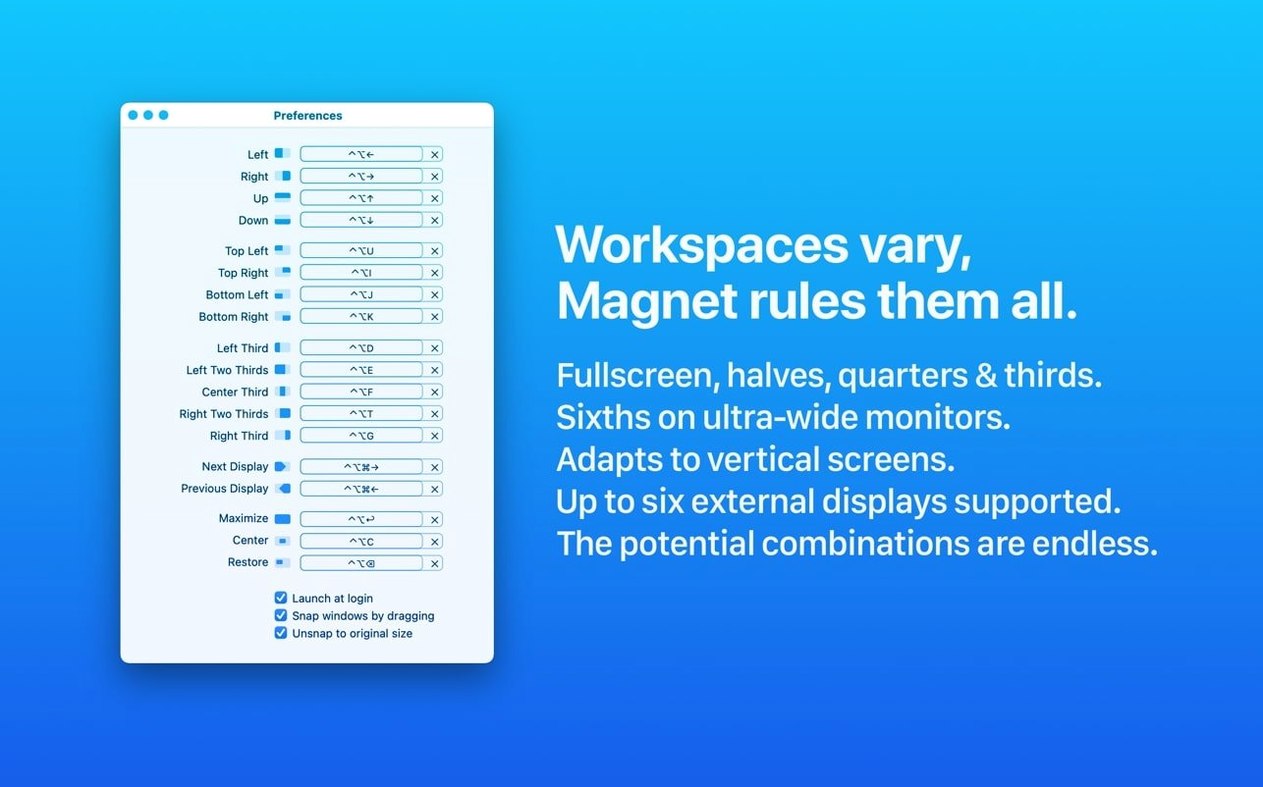
You have six external displays connected and a dozen windows scattered across them. Magnet 3.0.7 for Mac handles layouts by hotkey or by dragging a window to a screen edge. It keeps the same core set of arrangements — full, half, quarter, and custom — and extends what macOS provides natively.
Arrange windows by dragging
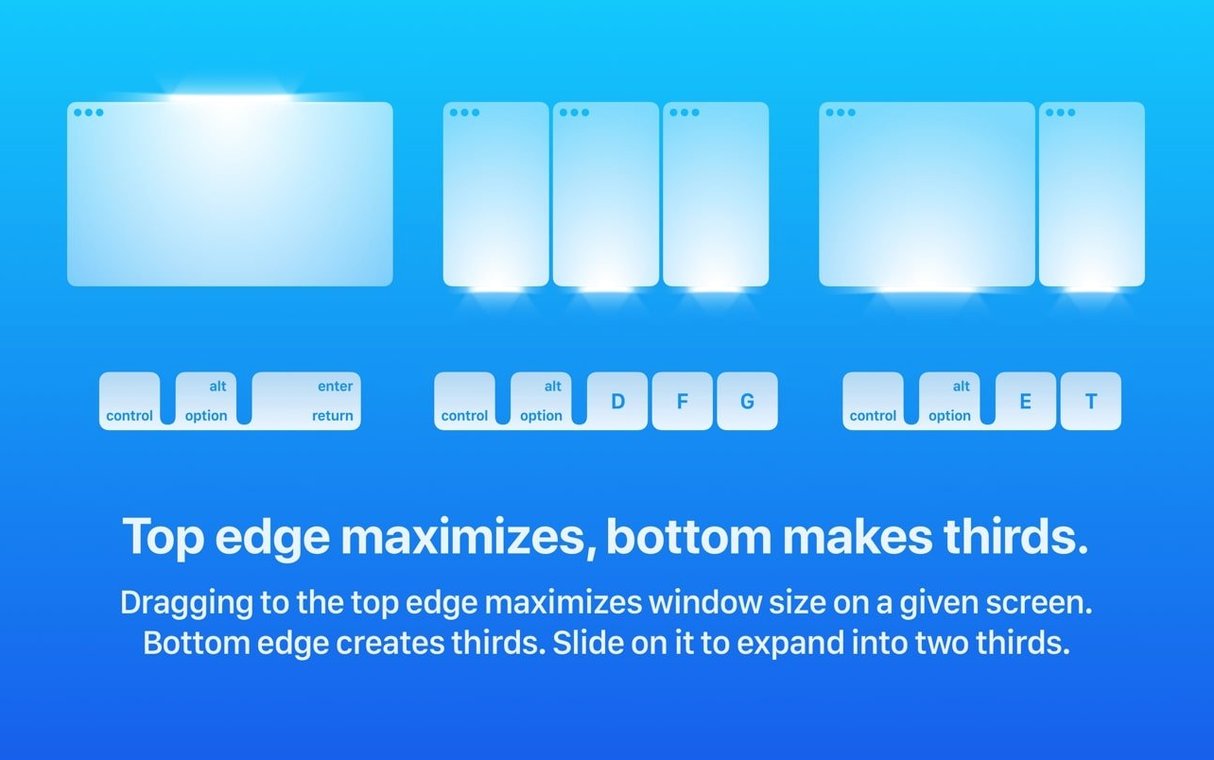
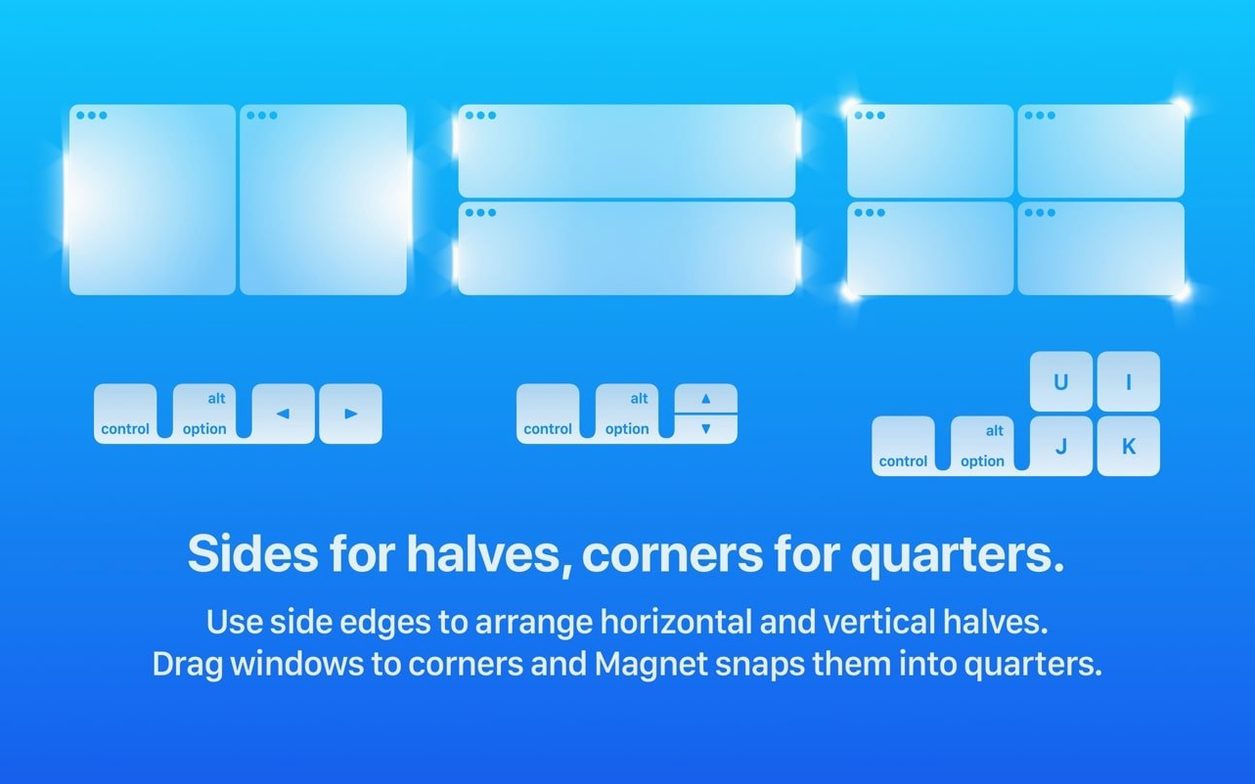
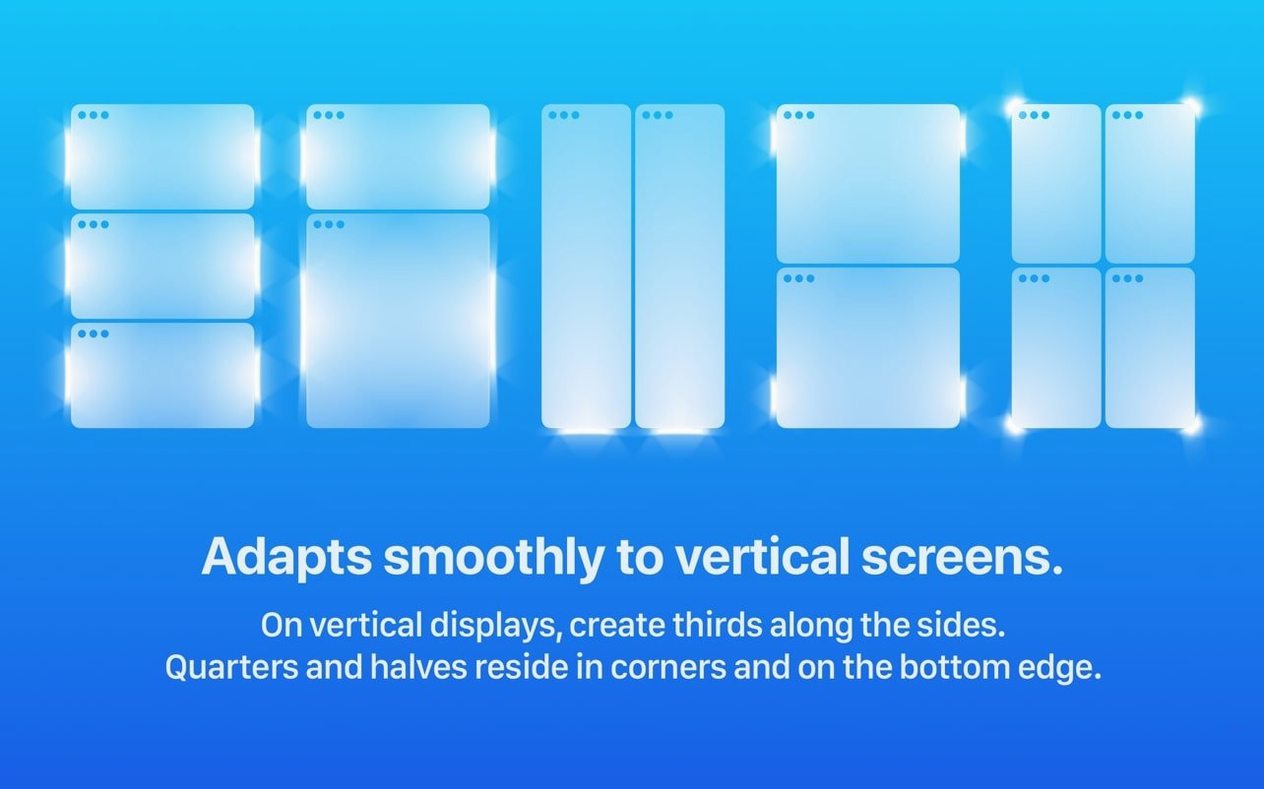
Drag a window to the left edge and it snaps to the left half. Drag to a corner and it takes a quarter of the screen. The system works on up to six external monitors without extra configuration.
Arrange windows by hotkeys
Each layout has a keyboard shortcut. Hit the key for full-screen, half-left, half-right, or one of the quarter positions. No mouse needed once the shortcut is memorized.
Custom layouts
The default presets cover the common splits. For anything else, the custom layout option lets you define your own grid. The interface supports thirteen languages, including English, Russian, Japanese, and Simplified Chinese.
First days with Magnet
After installing Magnet, the first thing to do is open its menu from the menu bar and check the hotkey list. The defaults use combinations that don't conflict with common macOS shortcuts, but you will want to confirm them before muscle memory kicks in. Spend ten minutes trying each layout: full, half, quarter, and any custom grid you set up. Drag a few windows around to see how the snapping feels on your primary display and, if you have them, on external monitors. The app does not require anything beyond macOS 13, so it should work out of the box on Ventura or later on both ARM and x86 machines.
If you use multiple displays, test the layouts on each one. Magnet treats every monitor independently, so dragging a window to the edge of an external display triggers the same behavior as on the built-in screen. I keep a browser on the left half of one monitor and a terminal on the right half of another — the hotkeys make that consistent across sessions.
One practical note: set aside a few minutes to map the custom hotkeys to keys you actually reach for. The defaults are fine, but if you already use keyboard launchers or other window tools, you may want to shift Magnet's shortcuts to less contested key combinations. The menu bar panel makes that straightforward.
Magnet feels more about dragging and hotkeys than automatic tiling
Magnet is not the only Mac app that arranges windows, but it occupies a specific spot. Compared to Rectangle, which also does grid snapping, Magnet feels more about direct dragging and hotkey triggers than about tiling everything automatically. Rectangle leans into automatic tiling when you open new windows; Magnet waits for you to initiate the layout. If you prefer a system that only rearranges when you ask it to, Magnet is the cleaner fit.
Another option is Moom, which offers similar half-and-quarter snapping but without the custom layout flexibility. Moom handles the basics well, but its grid is fixed. Magnet's custom layouts let you define, say, a 70/30 vertical split that neither Rectangle nor Moom supports natively. For people who work with a specific column width for code and another for documentation, that difference matters.
macOS itself has a built-in snap feature that tiles windows to the left, right, and corners. It works for one or two monitors, but it does not handle six external displays, and it has no custom grid option. Magnet fills that gap without replacing the standard macOS window controls. You can still use the green window button for full-screen and Exposé for overview; Magnet adds to them rather than overriding them.
A Mac mini with three displays for build logs, error tracking, and file diffs
I work with a Mac mini that drives three external displays. A typical session has a build log in a terminal on the left display, a browser with error tracking on the center display, and a file comparison tool on the right display. When I need to check asset sizes, I move that window to the bottom quarter of the center display while keeping the error tracker on the top half. With Magnet, I drag the asset window to the bottom-right corner of the center screen and it snaps into place. No resizing, no manual overlap. The hotkey for quarter-bottom-right does the same thing when I am already on the keyboard. For someone who spends all day switching between a debugger, a terminal, and a browser, that consistent snapping shaves off a couple of seconds per switch — enough that I notice when it is missing.
How Magnet fits with other apps and macOS features
Magnet coexists with macOS virtual desktops (Spaces, or what Apple calls workspaces in recent versions). If you use multiple desktops, Magnet works within each one independently. You can have one desktop with a full-screen browser and another with a two-column layout of terminal and notes. The hotkeys do not interfere with the desktop switching keys, and the layouts reset per desktop.
It also plays well with launcher apps like Raycast or Alfred. Those tools assign global hotkeys, and as long as you do not assign the same key combination, nothing conflicts. I use Raycast to launch apps and Magnet to arrange them after they open — the two never step on each other.
For users who rely on accessibility features, Magnet respects macOS's built-in keyboard navigation and does not disable system shortcuts. The window snapping works with the standard macOS window controls, so you can still use the trackpad or the window menu if you prefer.
Windows that don't snap are often locked by media players or games
A few things trip people up early on. If a window does not snap when you drag it to an edge, check whether the window belongs to an app that locks its window size. Some media players and full-screen games override window management. Magnet cannot snap those. The workaround is to use the hotkey for that app's window — sometimes the keyboard shortcut applies even when the drag does not register.
Another snag: custom hotkeys stop working after a system update or after changing keyboard layouts. Go to the Magnet menu bar panel and re-apply the custom mapping. The settings persist, but macOS sometimes reassigns key codes after a layout shift.
If you use multiple displays and a window snaps to the wrong monitor, check the monitor arrangement in macOS System Settings > Displays. Magnet uses the same coordinate system as macOS. If one display is placed above another in the settings, dragging to the top edge of the lower display may trigger a snap on the upper display. Rearranging the displays in System Settings fixes that.
Finally, if you download magnet for mac via a source like magnet free or magnet torrent mac, and the app does not appear in the menu bar after installation, the Gatekeeper bypass step may not have completed. Re-run the terminal command from the install instructions and launch again.
- macOS 13 Ventura or later
- ARM (Apple Silicon) or x86 64-bit processor
Questions from the notes
How many external displays does Magnet support?
Magnet supports up to six external displays in addition to the built-in screen.
Install procedure
- Mount the disk image and run Open Gatekeeper friendly.
- Press Enter in Terminal to bypass Gatekeeper.
- Drag the app into the Applications folder.
- Launch the app when installation is complete.
Reports from players
Sign in or create a tester account to file a report.
No reports filed yet.