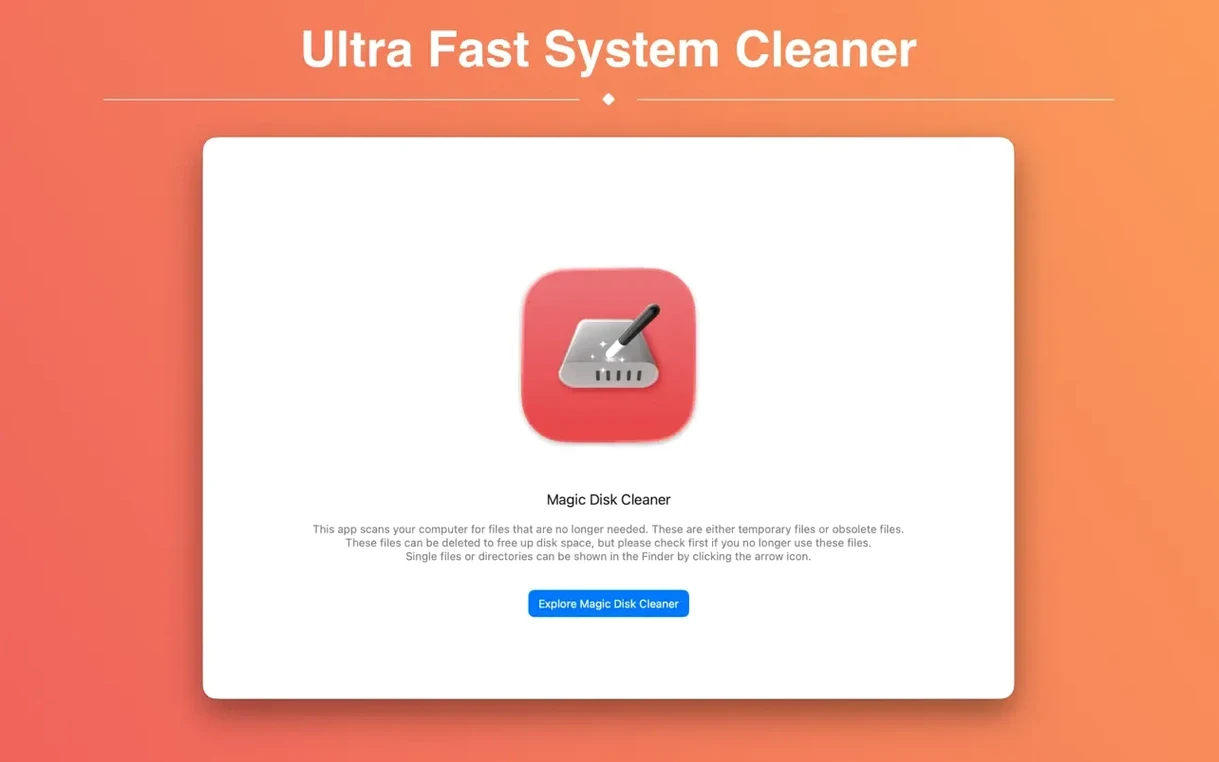
Magic Disk Cleaner 5.4.0 starts searching for temporary files immediately after launch. The app finds them, then deletes only what you approve. It fits well alongside other cleaning tools you already use — no background daemons, no scheduled scans. The interface keeps things simple: scan, review, remove. Works on Intel and Apple Silicon Macs running macOS 15.6 or newer.
Magic Disk Cleaner — the basics
- What it does
- Scans your Mac for temporary files and lets you delete them directly.
- How it starts
- Launches and begins scanning without extra clicks or setup.
- Consent model
- Shows what it found and asks before deleting anything.
The scan starts before I can reach for coffee
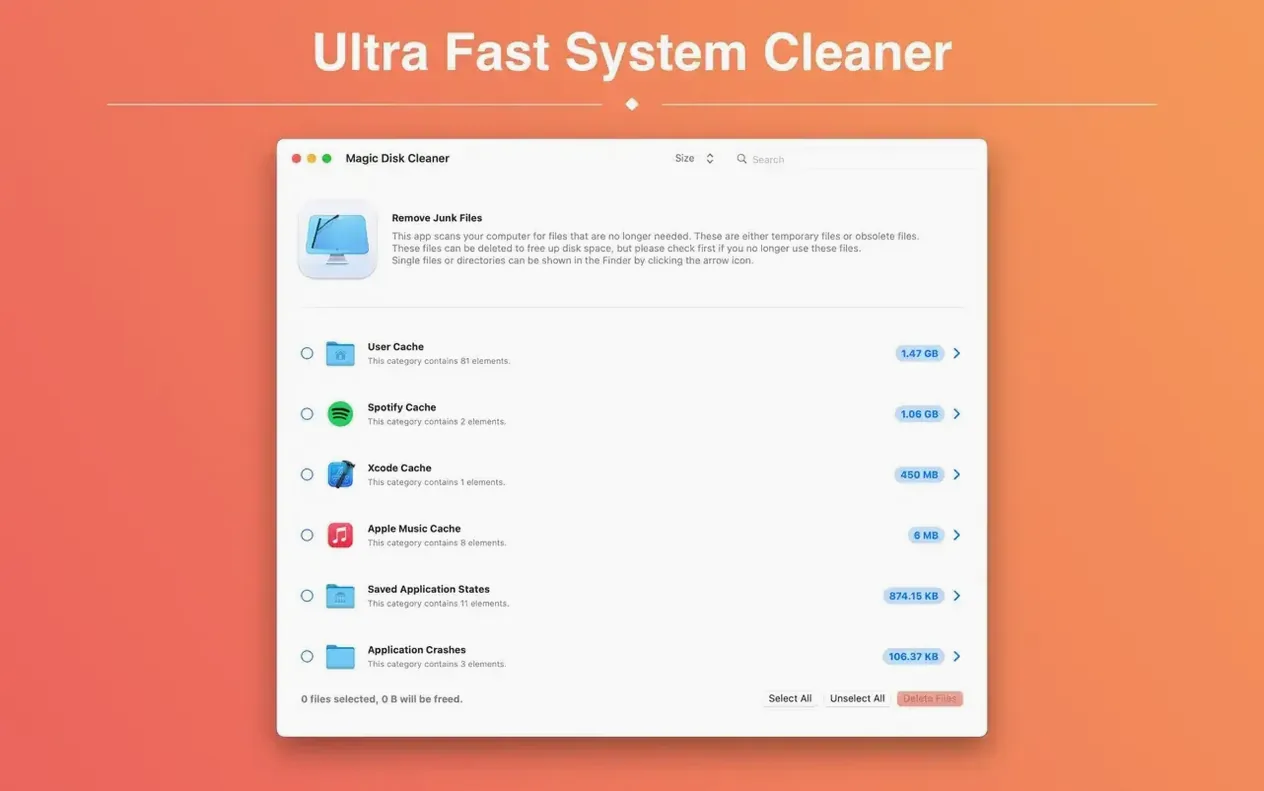
I launch Magic Disk Cleaner, and the scan starts before I can even reach for a coffee. The interface shows a progress bar, not a spinning wheel — I can see it counting through folders. The result is a list of temporary files grouped by type: browser caches, system temp files, application remnants, and so on.
I click each category to expand it. The app shows file names, sizes, and paths. I see old Safari cache entries, a few leftover installer temp files from a game I compiled last week, and a handful of logs from a photo editor I uninstalled months ago. I uncheck anything I might need — for example, a temp folder from a project I am still working on. Then I click the delete button. Magic Disk Cleaner asks for confirmation, and once I approve, it removes the files. The whole process takes maybe a minute.
It targets temporary files that macOS leaves behind
Magic Disk Cleaner does not compete with the built-in macOS disk management tools. The Finder's "Empty Trash" and the Storage pane in System Settings handle different kinds of clutter. Magic Disk Cleaner targets temporary files that macOS leaves behind but does not advertise — browser caches, app temp folders, and the like. I still use Disk Utility for fixing permissions or checking disk health, and I still rely on the Finder's search for finding large files manually. The cleaner fills a gap between those two ends.
The app also works alongside other cleaning utilities without conflict. I have both Magic Disk Cleaner and a separate cache-clearing tool installed. They scan different directories by design. Magic Disk Cleaner does not install a background service, so it never slows down startup or interferes with macOS's own maintenance tasks like Time Machine backups or the nightly idle trim.
Deleting everything without reviewing the list
The most common mistake is deleting everything without reviewing the list. Magic Disk Cleaner asks for consent, but some users click "Delete All" without checking what is inside each category. A temp file from a project you are actively editing might look harmless but could be needed again. I always expand at least the top two or three categories before approving anything.
Another mistake is assuming the app covers every type of temporary file. It finds a broad set, but not everything. Some applications store temp data in hidden folders that the scan does not reach. Beginners sometimes think a single run of Magic Disk Cleaner will reclaim all the space they have lost. It will not. I treat it as one tool among several, not a magic bullet.
A third mistake is forgetting to quit the app after use. It does not run in the background, but leaving it open takes up screen space and a tiny bit of memory. Closing it after the session is a good habit.
Game testers, developers, and designers clear leftover debris
Users who install and uninstall software frequently benefit most. Game testers, developers, and designers end up with leftover temp files from multiple versions of the same app. Magic Disk Cleaner clears that debris quickly.
People who prefer to stay in control of what gets deleted will appreciate the review step. If you want a simple, one-click cleaner that shows you everything before touching it, this app fits. Users who want a fully automated, scheduled cleaner might find it too manual. That is by design: Magic Disk Cleaner does not delete anything without your say-so.
I also recommend it to colleagues who work with large media projects. Video editors, for example, generate temporary preview files and render caches that accumulate quickly. A quick scan with Magic Disk Cleaner after wrapping a project can free up noticeable space without risking the final files.
- Permissions setup redesigned. The window now lays out every required permission on a single screen. Steps already completed are marked, so you can see what remains without clicking through separate panes.
- Other Apps window redesigned. The interface has been rebuilt and now follows the system language instead of defaulting to Russian.
- Trash scanning added. The Recycle Bin category now detects files sitting in the Trash. That was missing before.
- Old app versions category removed. The feature that hunted for superseded application binaries is gone in 6.1.0.
- macOS 15.6 or later
- Apple Silicon or Intel 64-bit Mac
Install procedure
- Mount the disk image and run Open Gatekeeper friendly.
- Press Enter in Terminal to bypass Gatekeeper.
- Drag the app to the Applications folder.
- Launch the app when the copy finishes.
Reports from players
Sign in or create a tester account to file a report.
No reports filed yet.