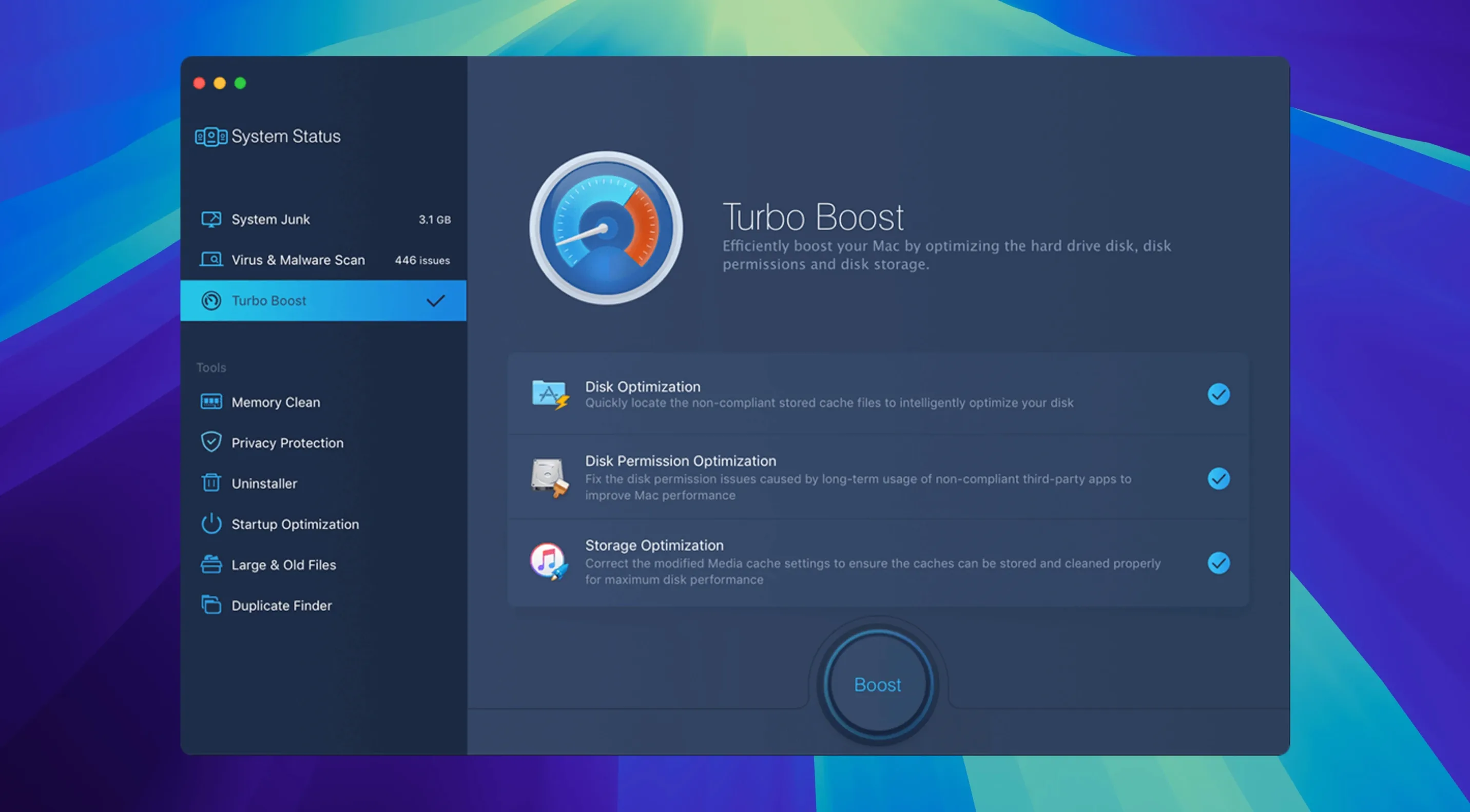
Macs accumulate junk files, duplicate photos, and unnecessary startup items over time. MacBooster 8 addresses that by bundling seven cleanup and optimization tools into one utility. It scans for 20 types of junk, uninstalls unwanted apps, cleans memory, and can repair disk permission problems. The malware removal module is included as part of the suite.
Clears system caches, large files, and privacy traces
- Clearing space by removing system caches, logs, and language files
- Finding and deleting large or duplicate files and photos
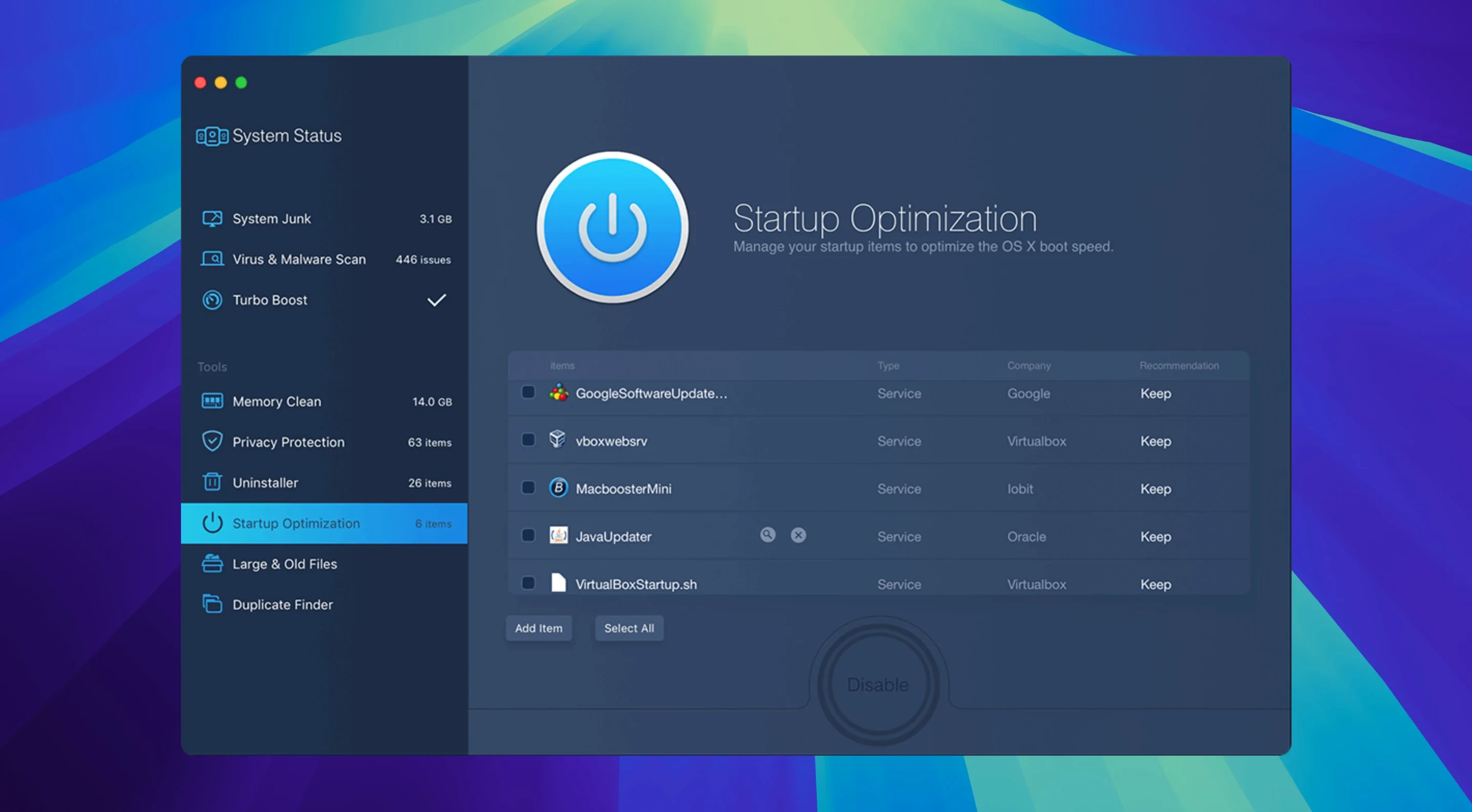
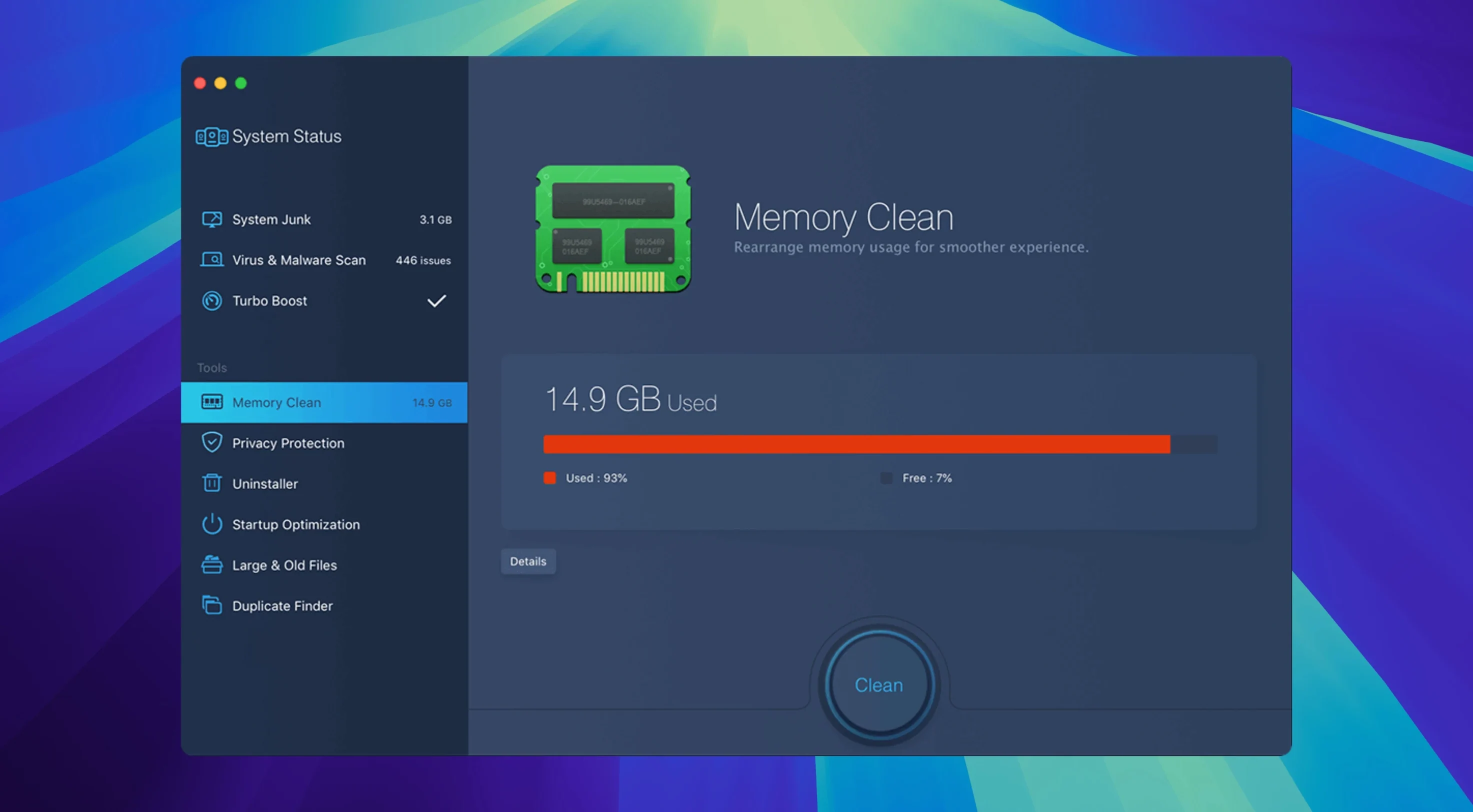
- Managing startup items and freeing up memory
- Protecting privacy by clearing browsing history and recent document lists
- Running on both Intel and Apple Silicon Macs
Requires macOS 11.5 or later and 70+ MB disk space
- Requires macOS 11.5 or later
- Needs 70+ MB of free disk space
- Interface languages include English, German, French, Spanish, Italian, Dutch, Portuguese, Turkish, Russian, Danish, Swedish, Japanese, and both Simplified and Traditional Chinese
- Current version 8.3.0 has no new features — it remains the same toolset as previous 8.x releases
Best for multi-user Macs and routine maintenance
Mac owners who prefer a single interface for routine maintenance tasks get the most out of this utility. If you manage several user accounts on one machine — a family iMac, for example — the ability to clear per-account caches and browser remnants without digging into each user folder separately saves time. The same applies to users who regularly download and evaluate software: temporary installer leftovers, log files, and unneeded preferences accumulate fast, and MacBooster catches most of them in one pass.
People who rarely open Terminal or the Activity Monitor will find the one-click scans useful. The tool exposes system conditions — disk space, memory pressure, startup load — without requiring knowledge of macOS internals. That is its main draw: you do not need to know which folder holds the cache to clear it.
Photographers and designers who store large libraries locally will appreciate the duplicate photo finder. It compares files by content, not just file names, so renaming does not hide duplicates.
A typical maintenance run
Open MacBooster and let it perform the initial system scan. The process checks for junk files, large and duplicate files, startup items, memory load, and disk permission issues in one pass. When the scan finishes, review the results by category before applying fixes.
Start with the Cleanup section. It lists found junk by type — system cache, application cache, log files, language files, browser cache. You can uncheck categories you want to keep. Apply the cleanup.
Move to Startup Manager. The tool lists everything set to launch at login. Disable items you recognize as unnecessary — chat apps, updaters, cloud sync clients that do not need to run immediately. This is a one-time adjustment; you only revisit it when you install something new.
Then go to Large & Duplicate Files. The scan compiles file groups sorted by size. Select whole folders or individual files for removal. The duplicate photo search runs separately and takes longer on large libraries, so run it during a break.
Finally, check Memory Cleaner and Disk Permission repair. The memory cleaner frees RAM if you notice slowdowns after days of uptime. The disk permission scan looks for incorrect access rights and offers to restore them — useful after moving or restoring files from backups.
The whole sequence takes ten to fifteen minutes for a typical system, less for subsequent runs.
Works alongside macOS Disk Utility for file-system clutter
MacBooster does not replace macOS Disk Utility — it does not repair disk sectors or create disk images. It works alongside it. Use Disk Utility for hardware-level checks and MacBooster for the file-system clutter that builds up during normal use.
The malware removal module runs signature-based checks. It is a secondary layer behind a dedicated antivirus app. For users who already run something like ClamAV or Bitdefender, MacBooster’s scanner acts as a second opinion. It catches browser-related threats — extensions, redirects, search hijacks — that general antivirus software sometimes misses because they look like user data.
macbooster 8 integrates with the operating system’s native cleanup triggers. When macOS warns that disk space is low, running MacBooster can clear the temporary and cache files without navigating the System Settings storage menu. It covers the same ground as the built-in df and du commands but presents the results in a way that does not require command-line familiarity.
Users who maintain their system manually with tools like CCleaner for Mac or OnyX will find MacBooster’s feature set comparable, though with a different tool arrangement. The duplicate photo finder is a dedicated module, not a side effect of the general duplicate search, which is a distinction some competing utilities lack.
- macOS 11.5 or later
- Apple Silicon or Intel 64-bit
- 70+ MB of free disk space
Install procedure
- Mount the disk image and run the Open Gatekeeper friendly application.
- Press Enter in the Terminal window to bypass Gatekeeper.
- Drag the app to the Applications folder.
- Launch the app when installation is complete.
Reports from players
Sign in or create a tester account to file a report.
No reports filed yet.