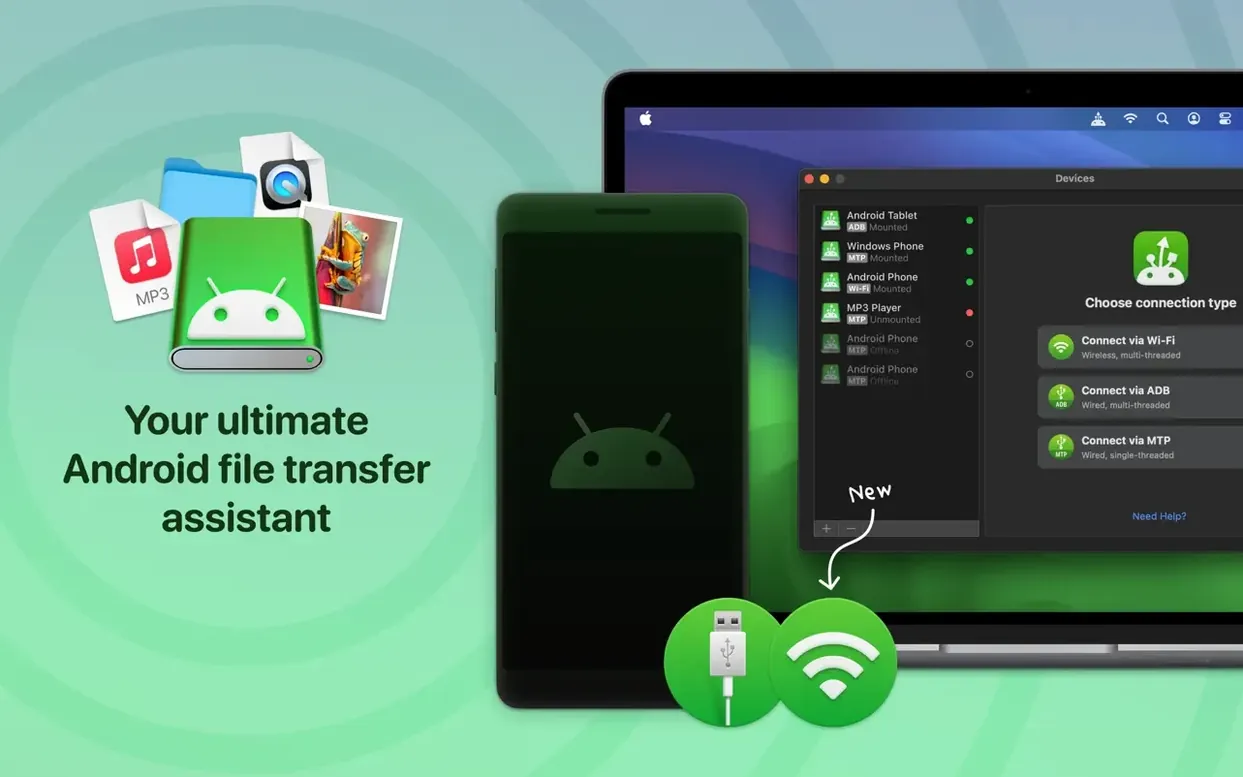
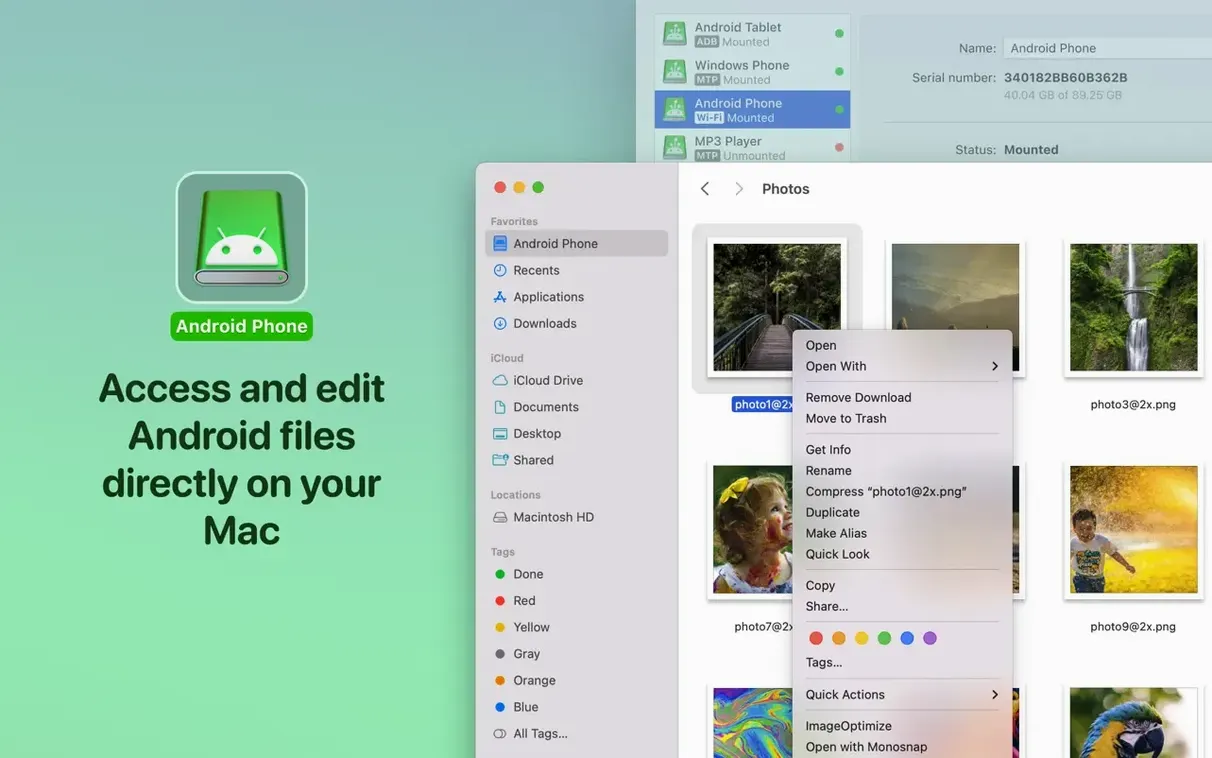
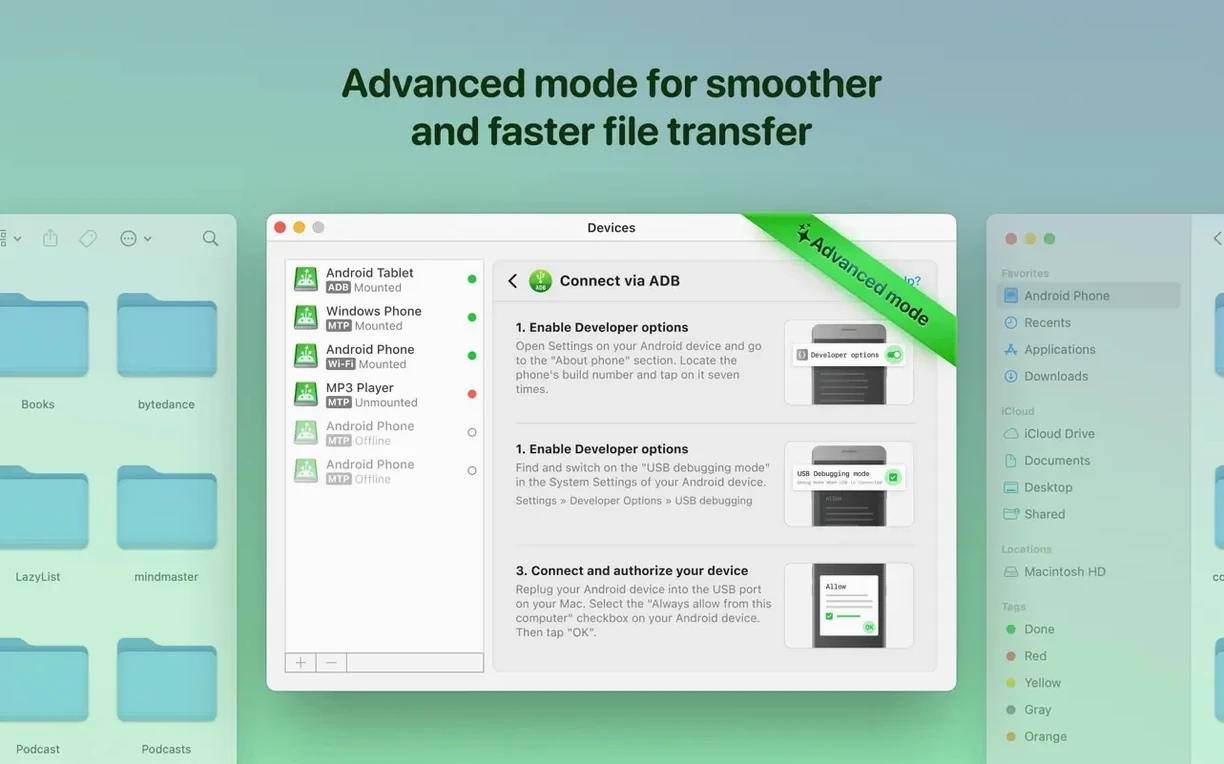
Mounting an Android device as a disk drive is the first thing to try. It changes how you think about the connection – instead of a one-way transfer window, you get a volume on the desktop. Open it, and you can edit files directly on the device without copying them to the Mac first. That alone saves a step every time you tweak a config file or clean up a photo folder.
- Edit files in place – open a document from the mounted Android volume, change it, and save. No copy-over-back dance.
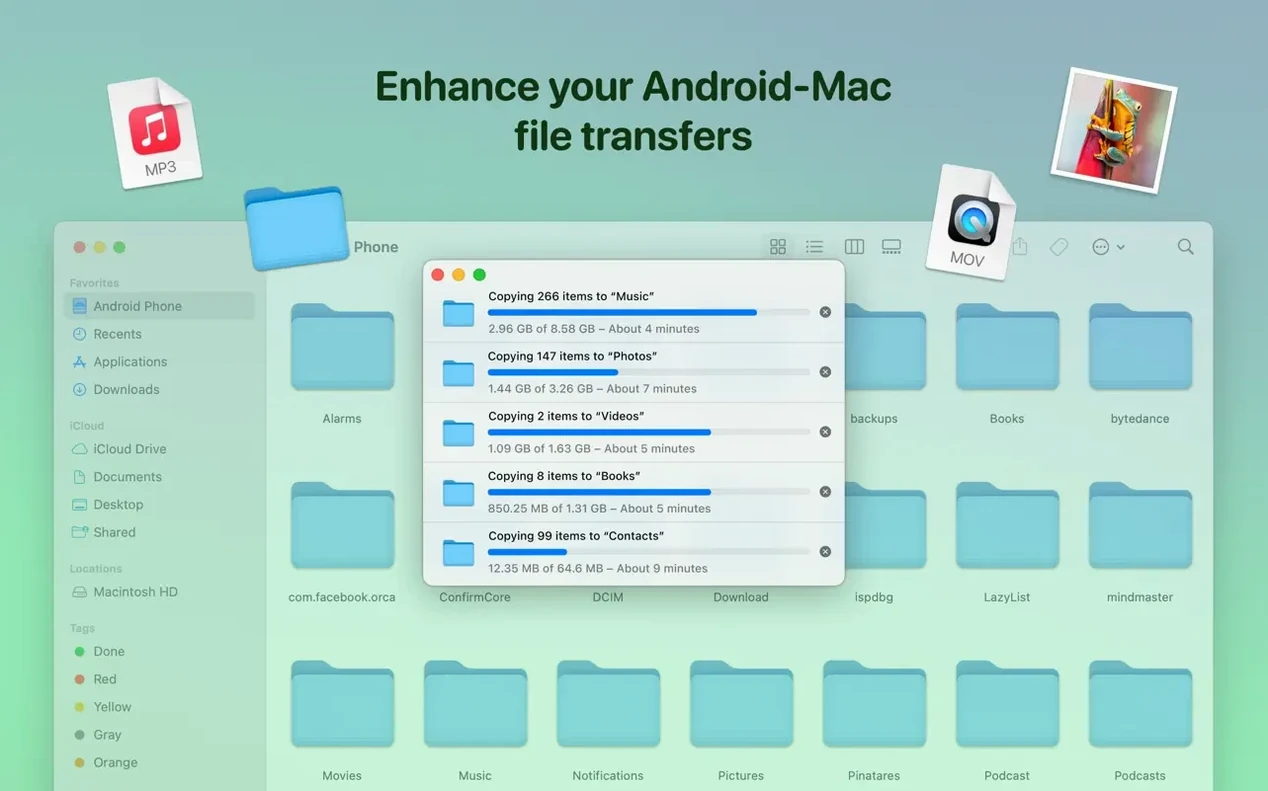
- Drag whole folders between Mac and Android in either direction. The transfer holds the folder structure.
- Add music to the device by dragging tracks into the Music folder. Works with internal or external storage.
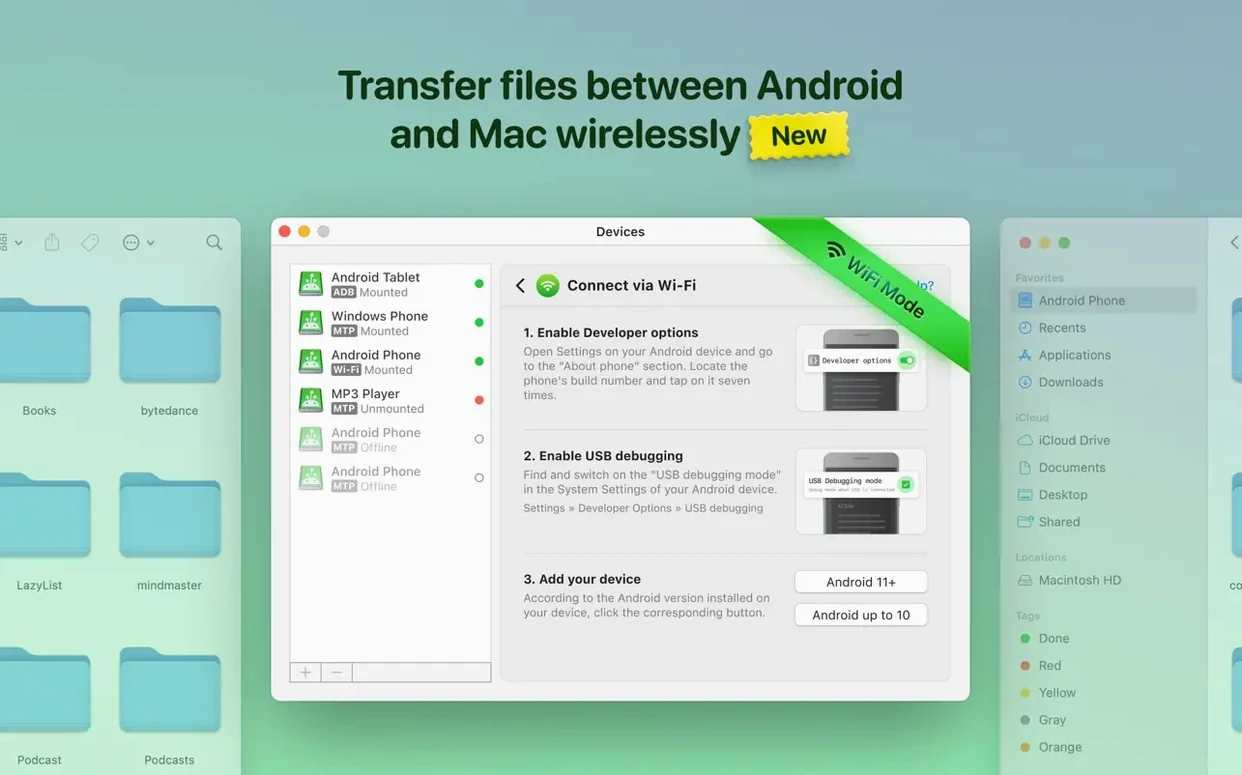
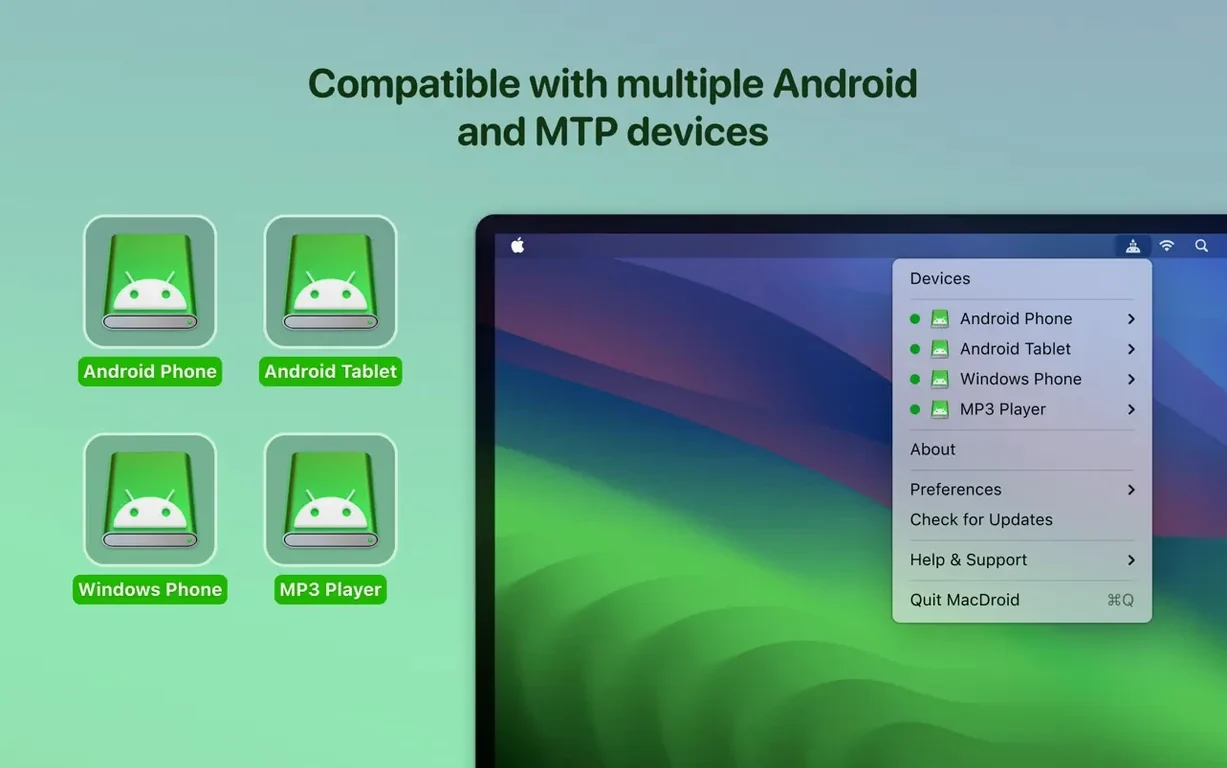
- Switch between MTP, ADB, and Wi-Fi connections. USB is the default for the disk-mount workflow; Wi-Fi helps when you forget the cable.
- Check the file listing speed – version 2.10.0 loads folders faster, and it fixed incorrect listings from earlier builds.
That's the short tour. Mount, edit, drag, repeat. Once you're comfortable with the disk-drive view, try the other connection modes – they each behave slightly differently depending on the device.
Even with a tool this focused, a few things trip people up at first. Most of the friction comes from assumptions about how Mac and Android talk to each other, not from the app itself.
Forget to unlock your Android device first
The biggest mistake is forgetting to unlock the Android device. When you plug in via USB, the phone or tablet needs to be unlocked – the screen has to be on and the passcode entered. If you plug it in while the device is locked, MacDroid sees nothing. Walk away and the screen locks during a long copy job? The transfer stops. Leave the device awake until the operation finishes.
Another one is picking the wrong connection mode. MacDroid defaults to MTP for most USB connections, and that's usually correct. But some Android devices respond better to ADB, especially if they are older models or run custom firmware. If the device mounts but shows an empty folder tree, or the app reports it cannot read the storage, switch to ADB and re-connect. The Wi-Fi mode is reliable once set up, but beginners often skip the pairing step – a QR code appears in the app, and you scan it from the Android notification panel. If you miss that, the wireless connection never establishes.
People also assume the mounted disk drive works exactly like a Mac external drive. It does not. The Android file system is not case-sensitive the way macOS can be, and MTP does not support the full range of POSIX permissions. Trying to chmod or set ACLs inside the mounted volume will just fail silently. MacDroid handles the translation, but you cannot treat the mounted volume as a native Mac volume for system-level operations.
One more: dragging files from the Android device onto the Mac desktop while the device is locked or disconnected mid-transfer. Version 2.10.0 fixed cases where the listing showed stale data, but a broken connection can still leave partially written files on the Mac. Let the progress indicator finish before unplugging anything.
Real-world scenario: a photographer clearing storage on a shoot
A photographer who shoots with a mirrorless camera tethered to an iPad sometimes offloads files to an Android tablet for quick client previews. The cable is already plugged in – iPad to tablet during the shoot, then tablet to Mac after.
With MacDroid, they mount the tablet's internal storage as a disk. They open the DCIM folder, select the day's raw folder, and drag it to the Mac's editing drive. The transfer holds the folder structure – no re-organizing later. While the files copy, they open a few thumbnails directly from the mounted volume to confirm focus and exposure, editing nothing, just checking. Once the folder lands on the Mac, they drag it to the recycle bin on the mounted volume and unmount. The whole workflow replaces the old method of emailing files to themselves or fumbling with cloud storage that compresses the raws.
The key for this user is the edit-in-place capability: they never need to double the storage on the tablet just to hold working copies. The tablet stays lean, and the Mac handles everything.
Mount both internal and external Android storage
MacDroid does not broadcast its minor features. Here are a few that save time once you know they exist:
- The same app mounts internal and external Android storage. Plug in a USB-C SD card reader through the Android device? It appears as a separate volume. No need to remove the card and plug it directly into the Mac.
- Traditional Chinese localization was added in version 2.10.0. If the system language is set to Traditional Chinese, the interface switches automatically – no settings toggle to hunt for.
- The file listing speed improvement is real. Earlier versions could stall for seconds on folders with a few hundred small files (thumbnails, cache, logs). Version 2.10.0 loads them faster, which makes a difference when you are scanning config directories or photo caches.
- The connection indicator in the app's main window is subtle – a small icon changes when the device is mounted. Look for it before you start dragging files, so you are not working on a disconnected volume.
Edit config files and scripts directly on Android
Anyone who moves files between macOS and Android regularly is the obvious audience. But within that group, three kinds of users benefit most.
Developers and system administrators who edit configuration files, log files, or scripts on Android devices. The edit-in-place workflow means they can change a file on the mounted volume from their Mac editor and save it directly to the device – no sftp, no cloud sync, no copying back and forth. This is especially useful for people who maintain Android-based test devices, smart displays, or home-automation hubs that expose a file system via MTP or ADB.
Media professionals handling photos, video clips, or music libraries. The ability to drag entire folder trees without flattening the structure matters when you are organizing a shoot or a playlist. And the Wi-Fi connection mode helps when the device is a secondary screen or a playback unit across the room – no need to walk over with a cable just to drop a single track.
People who run Android on external storage – tablets with microSD slots, phones with USB-C hubs, or Android handhelds that use external SSDs. MacDroid sees the external volume as a separate mount point, so you can copy files to and from the external drive without unmounting it from the Android device first. That is a small convenience, but it avoids the "unplug the drive, plug it into the Mac, copy, unplug, plug it back into the Android device" shuffle.
- Added Traditional Chinese localization.
- Improved MTP connection and operation with devices.
- Faster loading of file and folder listings.
- macOS 11.5 or later
- Apple Silicon or Intel
Install procedure
- Mount the disk image and run Open Gatekeeper friendly.
- Press Enter in Terminal to bypass Gatekeeper.
- Drag the app into the Applications folder.
- Open the app when installation is complete.
Reports from players
Sign in or create a tester account to file a report.
No reports filed yet.