
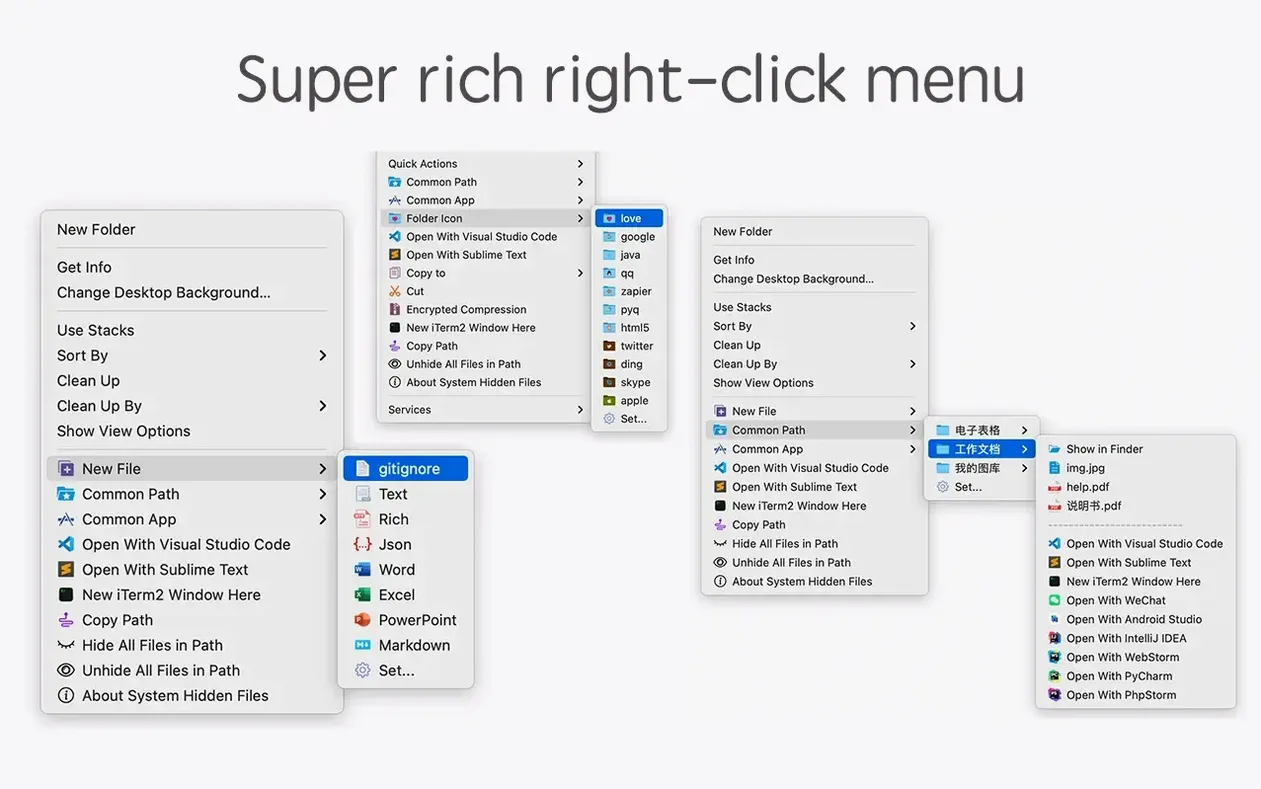
You right-click a folder in the Finder, and instead of the usual short menu, you get quick access to compress it with encryption, delete it permanently, change its icon, or open iTerm2 already in that directory. That is the core of MouseBoost Pro — a context-menu extension that adds over 30 small file utilities.
- Right-click any file or folder in the Finder.
- MouseBoost Pro’s menu appears with tools sorted the way you set them in preferences.
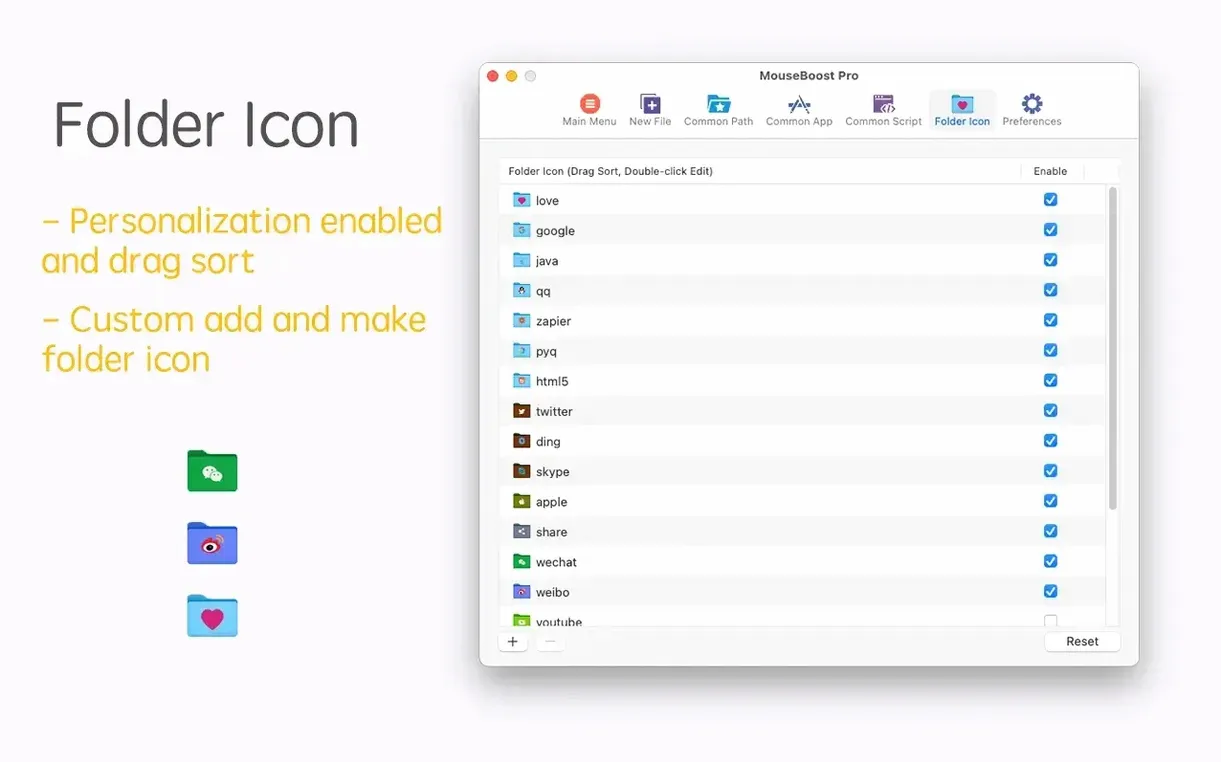
- Choose an action: compress with encryption, move/copy/cut, permanently delete, change folder icon, or open a favorite folder.
- For batch work, use the rename tools — you can now rename from a list or insert text at a specific position.
- Preview folder trees directly from the menu, with a configurable maximum depth.
- Use the image tools: select an aspect ratio or run automatic OCR and copy the text.
MouseBoost Pro 5.2.8 keeps the same workflow as earlier versions but adds quick folder tree preview, aspect ratio selection, automatic OCR copy, and improved scrolling capture. Batch renaming now supports renaming from a list and inserting text at a specific position. The file and directory tree view accepts a maximum depth setting. Menus are user-sortable throughout. The app runs on any Mac from OS X 10.11 onward, Intel or Apple Silicon.
Customize the menu to match your workflow
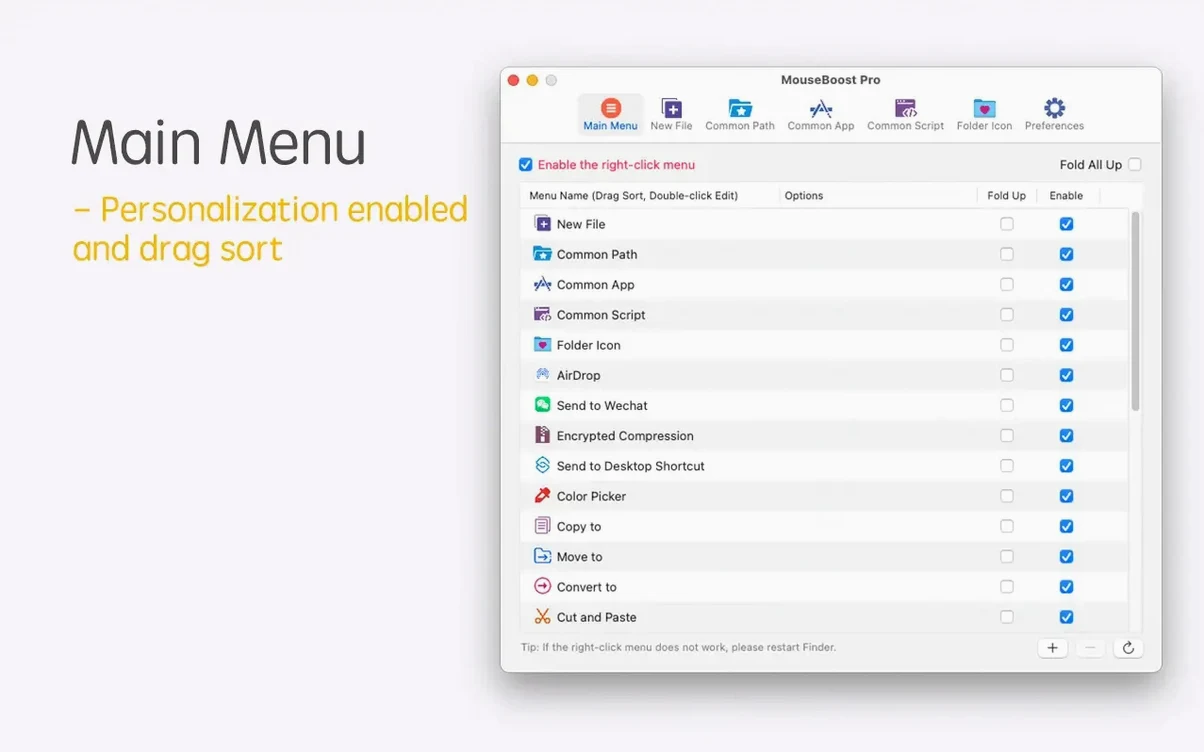
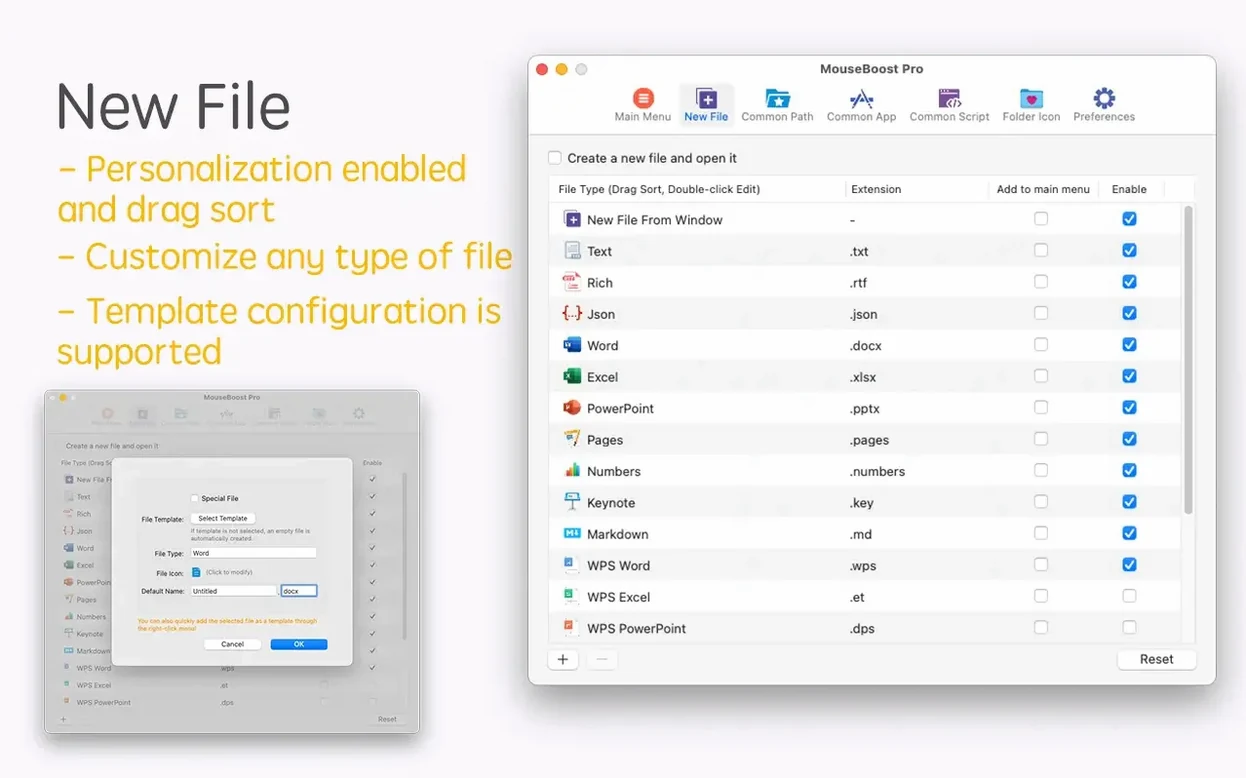
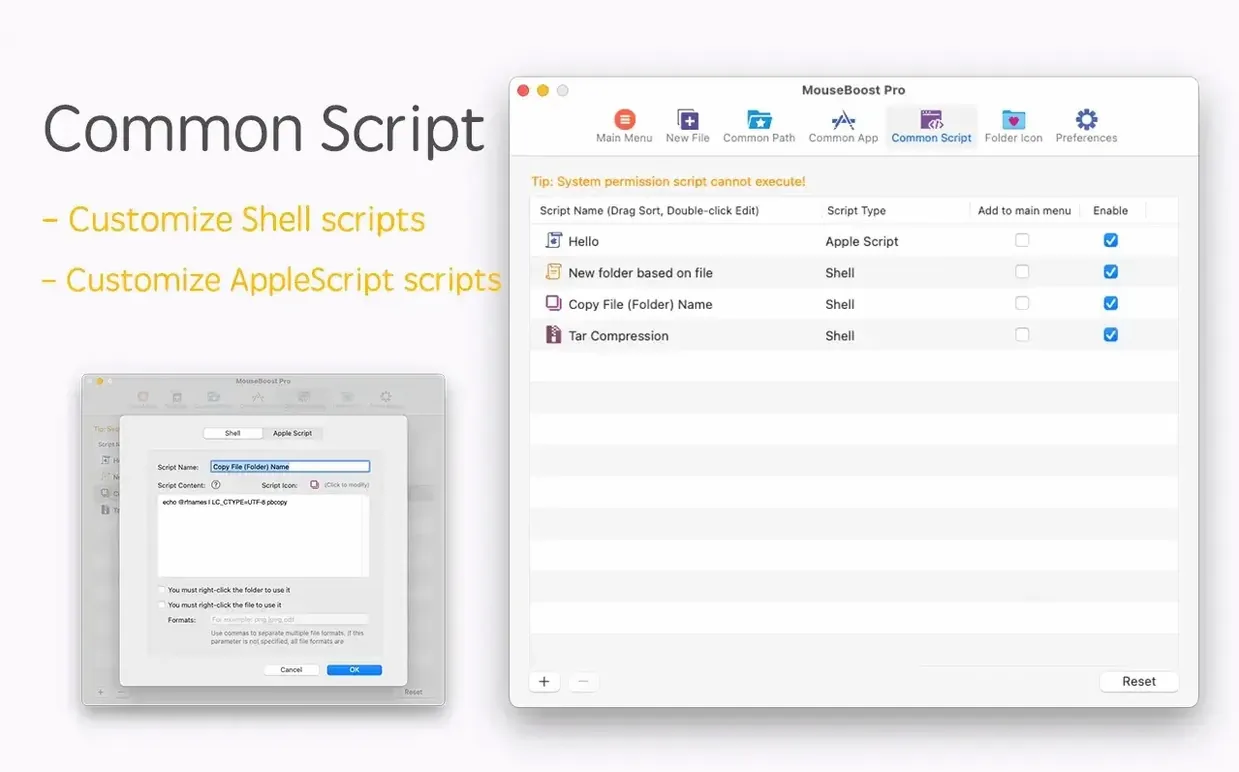
Before you start using MouseBoost Pro daily, spend a few minutes in its preferences. The default layout works, but the tool is built around customization, and the menu is easier to read when it matches how you actually work.
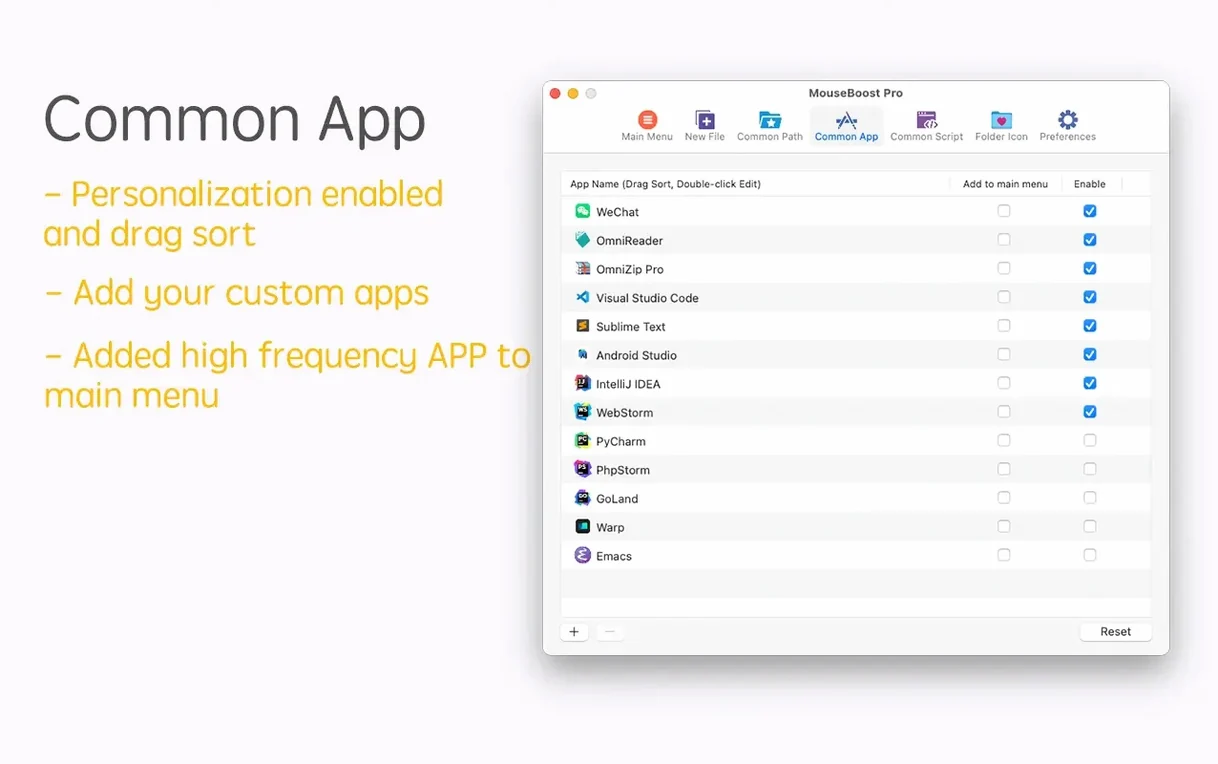
- Sort your menus. The app supports user sorting of all menus. Put the actions you use most — copy path, compress, open in editor — at the top so you are not scanning through the full list every time.
- Trim what you do not need. With over 30 tools, some will simply never come up for you. Removing them from the right-click menu shortens the list and reduces the chance of picking the wrong action.
- Set a maximum depth for folder trees. The new tree preview is useful, but an unlimited tree can get long. Set a depth that gives you enough context without burying the folder you are after.
- Check the deletion settings. Permanent file deletion is one of the more destructive tools here. Make sure you know exactly what it does before you rely on it in a hurry.
Build muscle memory with one or two actions
The first few days with MouseBoost Pro are about building muscle memory. The menu only helps if you reach for it without thinking.
- Start with one or two actions. Copy current path and open favorite folder are good candidates — they are low-risk and save real time.
- Use the rename tools on a test folder with dummy files. The list-based rename and insert-at-position features are powerful, but they work best when you understand how the app parses filenames before you need it on real data.
- Try the image tools on screenshots. Aspect ratio selection and automatic OCR copy are the kind of features you forget about until you need them, so test them early.
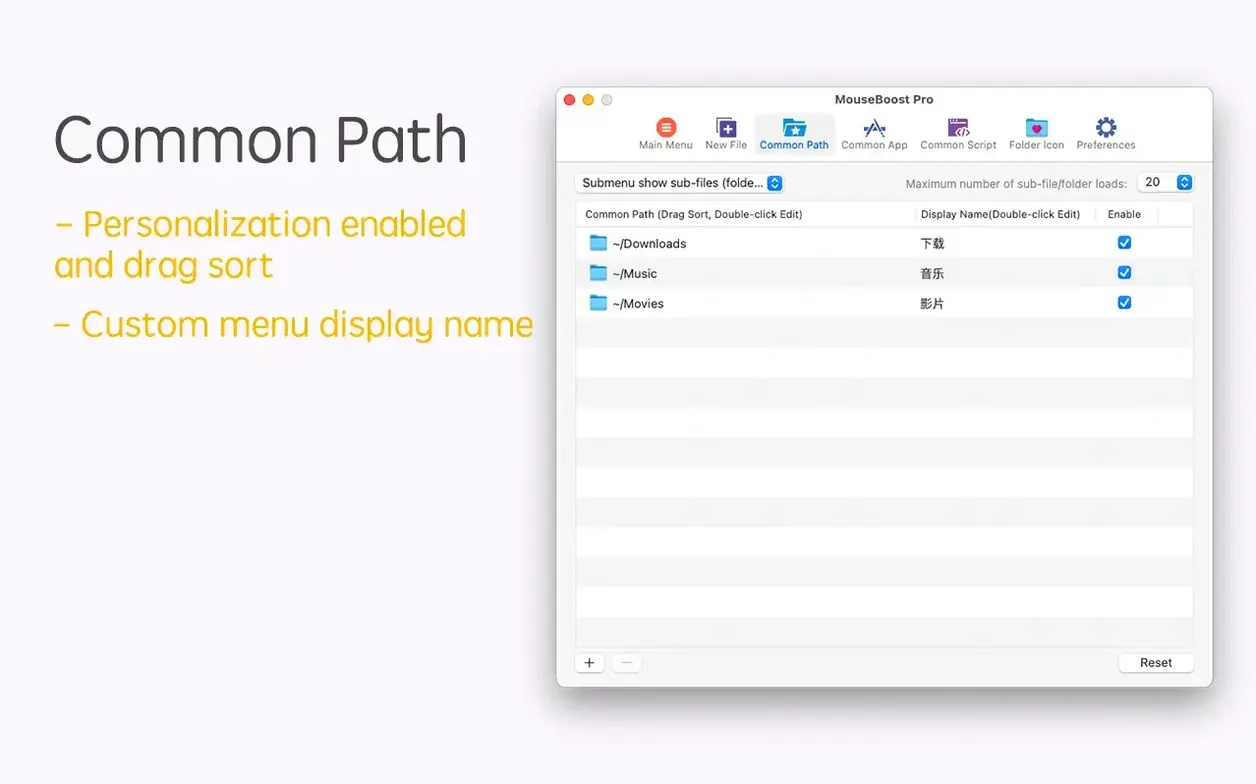
- Set up your favorite folders list. A short list of directories you visit constantly turns the right-click menu into a poor man's dock for file navigation.
Developers win with quick terminal and editor access
MouseBoost Pro is a Finder utility first, so anyone who lives in the Finder benefits. But the toolset leans toward specific groups.
Developers get the clearest win. The ability to open iTerm2 in the current directory, launch VSCode, Sublime Text, or Emacs, and copy the current path removes the repetitive dance of opening a terminal and cd-ing to where you need to be. For daily work across multiple projects, that adds up quickly.
Designers will find the image tools and folder icon changing more relevant. The scrolling capture improvement and aspect ratio selection are aimed at screenshot work, and the OCR copy is handy when you need text out of a mockup or a reference image.
Users who manage large file collections — media libraries, project archives, download folders that spiral out of control — will lean on batch renaming, encrypted compression, and the tree preview. The list-based rename is especially useful for standardizing filenames across a folder of mixed content.
Casual users who only occasionally move files around will still get value, but they will use a fraction of the toolset. If you only want one or two actions, the customization options let you keep the menu minimal.
A Workflow: Organizing a Project Folder
Here is a concrete task — cleaning up a project folder after a few weeks of active work — and how MouseBoost Pro fits in.
- Right-click the project folder and use tree preview to see the full structure at a glance. Set the depth so you can spot misplaced files without expanding everything.
- Open the folder in iTerm2 directly from the menu. Run any cleanup commands you need at the command line without typing the path manually.
- Rename the batch of screenshot files that have meaningless names. Use the rename-from-list feature if you have a reference list, or insert-at-position if the files just need a date or prefix added consistently.
- Copy the current path before moving anything, in case you need to reference the location in a ticket or a message.
- Compress the folder with encryption before archiving it, especially if it contains client data or credentials.
- If some files are temporary, delete them permanently instead of leaving them in the Trash to be emptied later.
That workflow replaces several separate utilities — a terminal, a renaming app, an archive tool, a trash emptier — with one right-click menu. None of the steps are complicated on their own, but the menu keeps you from switching context between apps. MouseBoost Pro is not about doing one thing spectacularly; it is about keeping all those small file tasks in one place, so you can finish the job without leaving the Finder.
- Added quick preview for folder trees.
- Added aspect ratio selection and automatic OCR copy.
- Improved scrolling capture.
- Added support for inserting text at a specific position in batch renaming.
- Added rename-from-list support in batch renaming.
- Added a maximum depth setting for file and directory trees.
- Fixed known issues.
- macOS OS X 10.11 or later
- Intel or Apple Silicon
Questions from the notes
Does MouseBoost Pro work with Apple Silicon Macs?
Yes, the app is a Universal binary and runs natively on both Intel and Apple Silicon Macs.
Can I reorder the right-click menu items?
Yes, all menus are user-sortable through the preferences panel.
What kind of file compression does it support?
It supports standard compression as well as encrypted file compression for sensitive data.
Install procedure
- Mount the disk image and run Open Gatekeeper friendly.
- Press Enter in Terminal to bypass Gatekeeper.
- Drag the app into Applications.
- Launch the app when installation is complete.
Reports from players
Sign in or create a tester account to file a report.
No reports filed yet.