
Little Snitch is a macOS network monitor and application firewall that shows you every connection attempt and lets you decide what goes through.
Check what your apps are doing
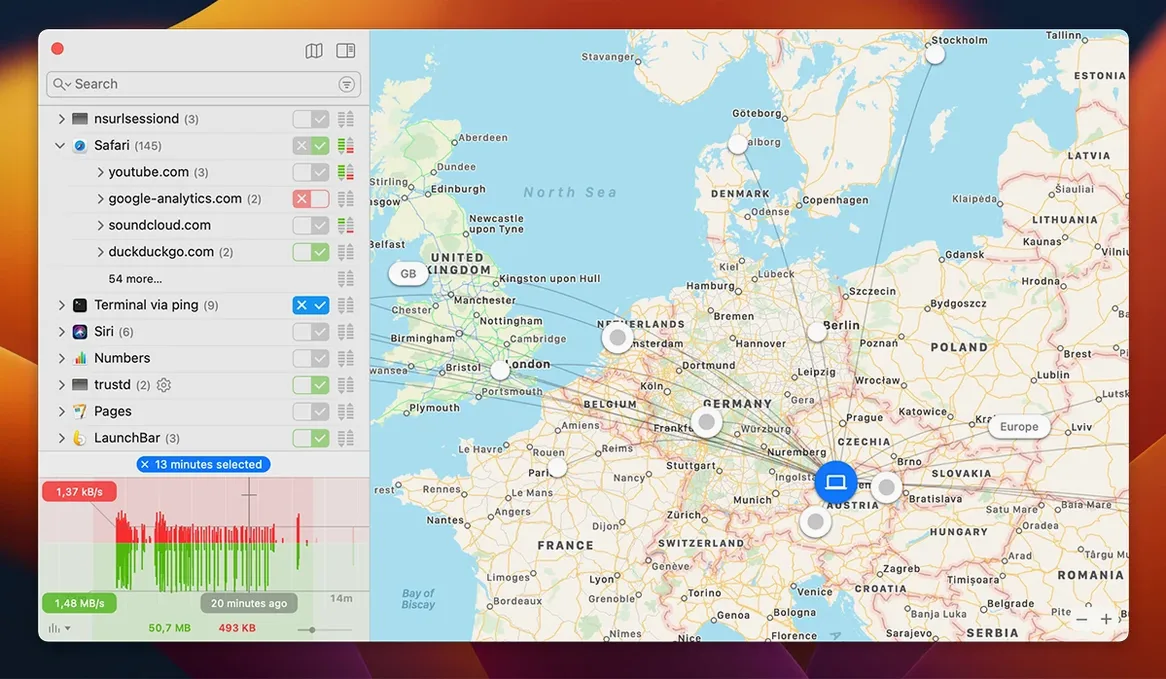
When an app tries to reach a server, Little Snitch shows an alert with the connection details. You can allow or deny it, and the rule is remembered for next time. The Network Monitor gives you a live view of all traffic on your Mac, with server locations plotted on an interactive world map.
Control how your Mac connects
Version 6.5 improves encrypted DNS handling, so you can manage DNS lookups more precisely. It also adds an experimental implementation of NAT64 (RFC 6052), useful for IPv6-only networks. For inbound connections, the app now relies on IP addresses instead of hostnames, which avoids some resolution delays.
Monitors app bundle integrity for unexpected changes
The firewall now monitors app bundle integrity while the app is running, alerting you to unexpected modifications. The label for data usage changed from traffic amount to traffic volume — clearer wording, same data. Script users can still drive Little Snitch from the command line, which makes automated rule management possible.
Won't slow down your Mac with its rewritten filtering engine
Will Little Snitch slow down my Mac? The filtering engine was rewritten for version 6, replacing the older kernel-extension approach. It uses fewer resources than before, but you do get an alert for each new connection attempt until a rule covers it. After a few days of allowing and denying, alerts become rare and the overhead is negligible.
Do I need to be a network expert? Not really. The alerts show the app name, the remote address and the port. If you see something unfamiliar you can deny it temporarily or permanently. Over time you learn which of your apps talk to what servers. System administrators get the command-line interface for scripting, but day-to-day use is straightforward.
Will it conflict with other firewalls? Little Snitch works best as the only outbound firewall on the machine. If you run macOS built-in firewall, NordVPN or similar tools with their own filtering, you may see double alerts or inconsistent rules. Disable other firewall services or configure them to coexist. In practice, most users run Little Snitch alone.
Postpone all notifications with Quiet Mode right after installation
Quiet Mode is useful right after installation. It postpones all notifications and decisions for a set period — you can install a batch of apps, update software or restore a backup without approving every connection in real time. Rules are built from the alerts later, when you review them.
Check the alert window behavior. By default it pops up for every new connection. You can change it to show a smaller notification or to log the attempt silently. Reducing alert intrusiveness early helps you avoid turning the firewall off out of frustration.
Review the temporary rule duration. Short temporary rules (five minutes) expire before you finish a task, forcing a second alert. Setting it to an hour or until reboot cuts down on repetition without committing to a permanent rule for something you only run occasionally.
Install Little Snitch before opening any new browser tabs
Install Little Snitch before you open any new browser tabs or launch chat apps. The first startup triggers alerts for your core system processes, the browser and background services. Approving them in one sitting is faster than dealing with alerts every few minutes.
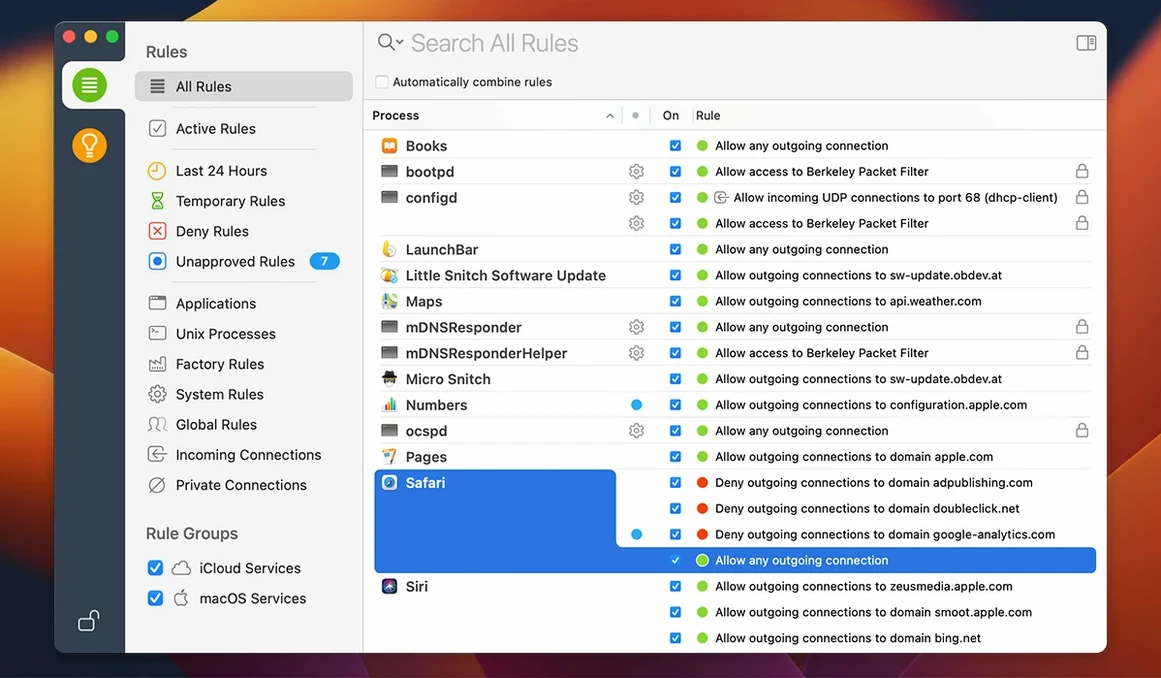
Use deny for anything that looks suspicious or unfamiliar. You can always change the rule later from the rules list. Denying a connection and then reversing it is safer than allowing something once and forgetting about it.
Open the Network Monitor after a day of normal use. The hourly traffic history and the world map show which servers your machine talks to regularly. You may notice unexpected traffic from an app you thought was idle — that is worth investigating.
Avoid allowing every alert to prevent a messy rule set
Allowing everything to stop the alerts. Some users click allow on every alert during the first session. That creates a large, untidy rule set and defeats the purpose of the firewall. You only need to allow the connections that make sense — system updates, browser traffic, app-specific servers. Everything else can stay denied or set to ask again.
Ignoring the rule categories. Little Snitch separates rules into manual, automatic and temporary. Beginners often create temporary rules and forget to review them before they expire. Make a habit of checking Suggestions > Expired after a few days to clean up leftovers.
Disabling the firewall completely during an update. Instead, use Quiet Mode or create a single rule that covers the update server. Turning off the firewall leaves your machine unprotected until you remember to re-enable it.
Remove old versions first to prevent orphaned rules after upgrade
Little snitch 6.2.1 or earlier versions sometimes left orphaned rules after an upgrade. Clean removal before installing the new version prevents that. If you updated without removing the old version first, uninstall both, delete leftover files from /Library/Application Support/Little Snitch and run a fresh install from scratch.
Some apps fail to connect even after you allowed them. Check whether the connection uses a port or protocol you did not approve. An app might use port 443 for the main traffic and port 53 for DNS lookups. Allow the DNS lookup separately or set a broader rule for the whole app.
Encrypted DNS handling changed in version 6.5. If you previously used a third-party DNS filter or a local resolver, Little Snitch may show alerts for DNS traffic it previously ignored. Review the new encrypted DNS settings in the preferences and add rules for your DNS servers if needed.
The interactive world map shows no activity. This usually means the Network Monitor is paused or the display filter is too strict. Open the Network Monitor panel, unpause it if needed and clear any active filters. Also check that you have not accidentally set a rule that blocks all traffic from being logged.
Little snitch mac torrent downloads of old versions sometimes include outdated activation instructions. Version 6.5 needs macOS 14 or later. If you are on an older macOS, the installer will refuse or behave unexpectedly. Verify your macOS version before attempting to activate.
A machine on an IPv6-only network may need the experimental NAT64 implementation enabled explicitly. Go to the advanced network settings and turn it on. It is marked experimental in version 6.5, so test it with your main apps and revert if you see connectivity issues.
- Adds compatibility with macOS 27 Golden Gate.
- Monitors app bundle integrity while running.
- Adds an experimental NAT64 implementation.
- Improves encrypted DNS handling.
- macOS 14 or later
- Intel or Apple Silicon
- Languages: English, German
Install procedure
- Remove the previous version before installing the new one.
- Follow the included installation and activation instructions.
Reports from players
Sign in or create a tester account to file a report.
No reports filed yet.