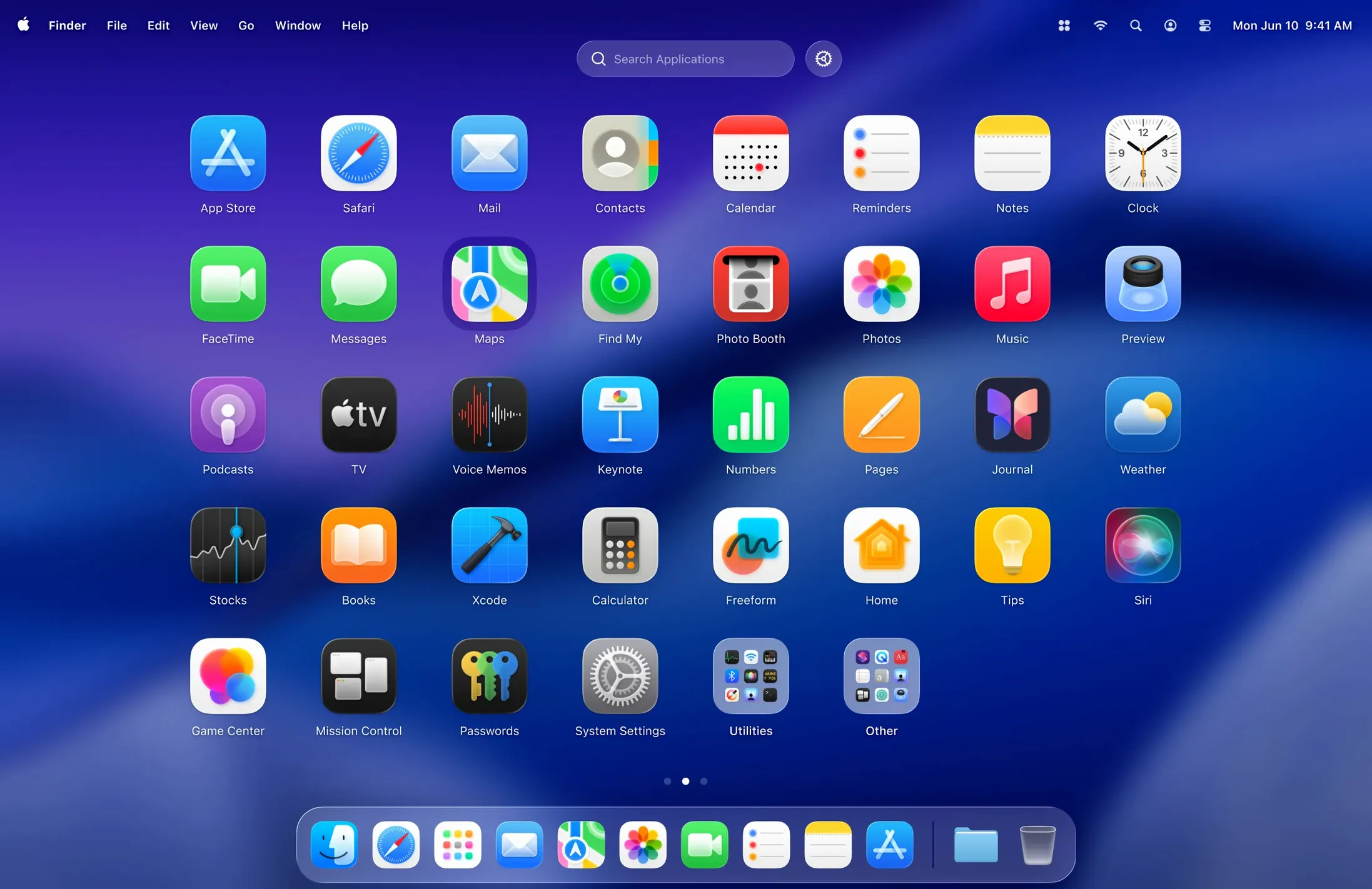
People who find Apple’s Launchpad too rigid or too cluttered often look for a replacement. LaunchOS is one such alternative, an organizer that puts your applications in a grid you can adjust.
LaunchOS mac app — a utility that replaces the built-in Launchpad with its own launcher.
Grid size — you can change the number of columns and rows to fit more apps on screen or make the icons larger.
Hiding apps — select any app and hide it from the grid, useful for utilities you rarely launch.
Uninstall — long-press or right-click an app to remove it from the system, added in version 2.1.0.
Liquid Glass — supports macOS 26’s visual effect, so the launcher matches the rest of the system.
Compatibility — runs on both Apple Silicon and 64-bit Intel Macs, requiring macOS 26 or later.
Languages — the interface is available in English, Russian, German, Spanish, Italian, French, Japanese, Korean, and Chinese (simplified and traditional).
Does LaunchOS replace Launchpad completely
Does LaunchOS replace Launchpad completely? It runs as a separate app that takes over the launcher workflow. Apple’s Launchpad stays on the system, but once you set LaunchOS as your launcher, you will likely stop opening the original one. You can always go back by removing LaunchOS from the system.
Will it slow down the Mac or use noticeable resources? Like any grid-based launcher, it loads app icons from the system and keeps them in memory while running. The app is designed for macOS 26 and later, so it aligns with the current system’s performance characteristics. No unusual overhead has been noted in its design.
What if I want to undo an app hide? The hiding feature works per app. If you hide something and later need it, you can re-enable it through the app's preferences or settings area. The exact menu path depends on the interface language you choose.
Can I use LaunchOS with a keyboard only? Yes. The app supports keyboard shortcuts for launching applications. That covers users who prefer navigation without a mouse or trackpad. Gestures are also supported for the same purpose.
Which languages are actually available in the interface? The list is Russian, English, German, Spanish, Italian, Traditional Chinese, Simplified Chinese, Korean, French, and Japanese. If you set the system language to one of these, LaunchOS should follow it.
Installs cleanly from a disk image with no background daemons
LaunchOS installs cleanly: open the disk image, drag the app to Applications, and launch it from Launchpad. No extra steps, no daemons or background processes that persist after quitting. The app lives in your Applications folder like any other.
The launcher replaces the built-in Launchpad visually and functionally. On macOS 26, it adopts the Liquid Glass design effect, so it does not look like an imported third-party tool. The grid is adjustable: you decide how many columns and rows appear. If you have many apps, a denser grid shows more at once. If you prefer larger icons, you space them out.
Hiding apps is straightforward. The grid stays clean without moving items into folders. The uninstall feature (added in 2.1.0) works from the same long-press or right-click menu, so you do not need to find apps in Finder to remove them.
Setting up a clean launcher workflow
This task assumes you just installed LaunchOS and want a grid that shows only the apps you actually use, arranged in a comfortable layout.
- Launch LaunchOS from Launchpad or the Applications folder. The default grid appears with all system applications.
- Open the grid size settings. Adjust the columns and rows so the icons are large enough to read but dense enough to avoid scrolling. There is no single correct value; try a 6x5 grid first and adjust from there.
- Hide apps you do not need. Right-click an app icon and select the hide option. Repeat for utilities, demo versions, or bundled apps you never open. The grid updates immediately.
- If you installed new apps after setting up the grid, they appear automatically. You can hide them the same way if they are not useful.
- Use the keyboard shortcut for the apps you launch most often. Memorize a few shortcuts and you can open them without opening the grid at all.
The result is a launcher that shows roughly two dozen apps, no folders, no scrolling, with consistent visual style. If you ever want to restore a hidden app, the settings panel lets you unhide individual items.
Morning grid appears with the Liquid Glass effect
I sit down at the Mac in the morning. The system is on macOS 26. I press the shortcut that opens LaunchOS — the grid appears with the Liquid Glass effect, matching the rest of the interface.
I see my adjusted grid: 5 columns, 4 rows. Twenty apps visible. The ones I removed from the grid — GarageBand, iMovie, Chess, Stocks — are nowhere to be seen. I click on Notes to open it. The grid closes and Notes launches.
An hour later, I need to check a design file. I open LaunchOS again and click Figma. It launches. I remember I installed a small utility yesterday called ColorPicker Plus. It appears at the end of the grid. I right-click it and choose hide — it disappears, and the grid looks clean again.
After lunch, a colleague sends a test build for an app I no longer need. I right-click the app in the grid, choose the uninstall option, and confirm. The app is removed from the system. The grid refreshes without it.
Near the end of the day, I want to restart LaunchOS because I changed the system language to French and the grid labels are still in English. I click the status bar menu and select Restart. The grid reappears with French labels.
That is the session. The launcher stays out of the way until called, the grid stays clean, and the only interaction beyond launching is the occasional hide or uninstall. It does not feel like running a separate utility — it feels like Launchpad, but with the controls I wanted.
- Added app uninstallation via long-press or right-click.
- Added Restart option to the status bar menu and right-click context menu.
- macOS 26 or later
- Apple Silicon or 64-bit Intel
Install procedure
- Open the downloaded disk image.
- Drag LaunchOS to the Applications folder.
- Launch it from Launchpad once the copy is done.
Reports from players
Sign in or create a tester account to file a report.
No reports filed yet.