
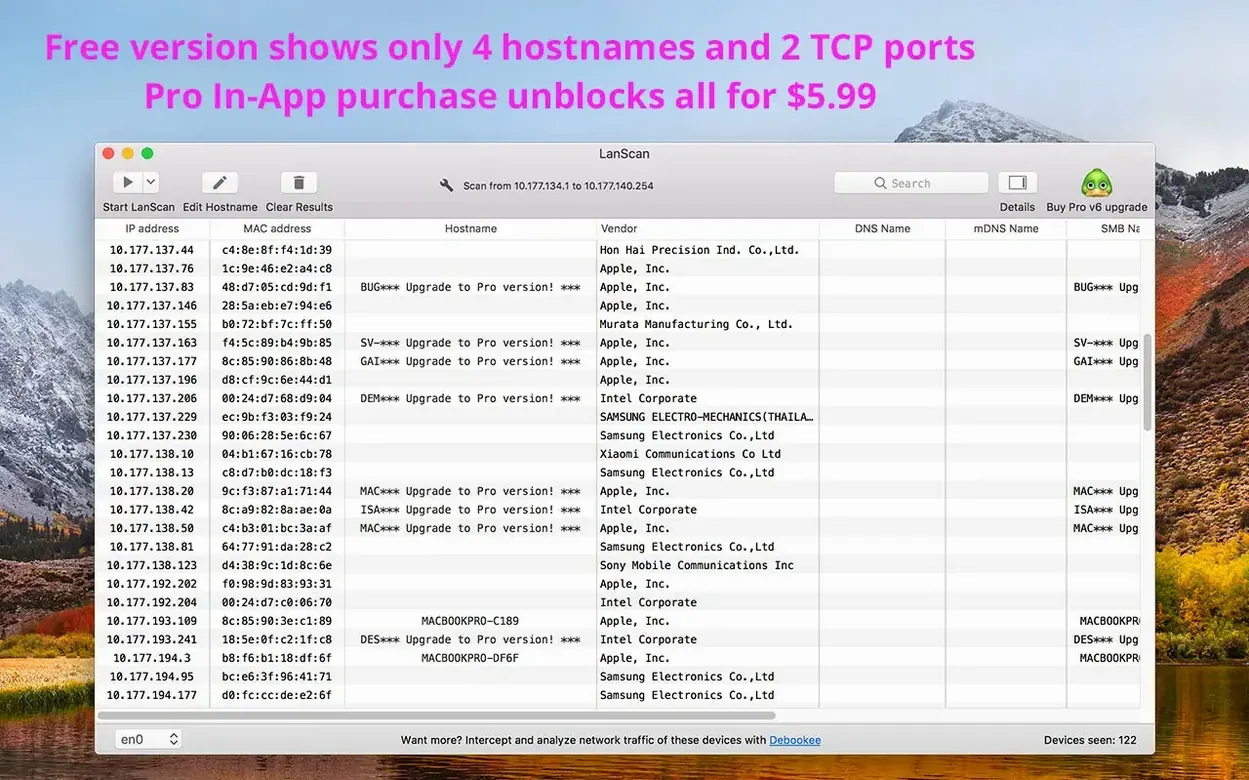
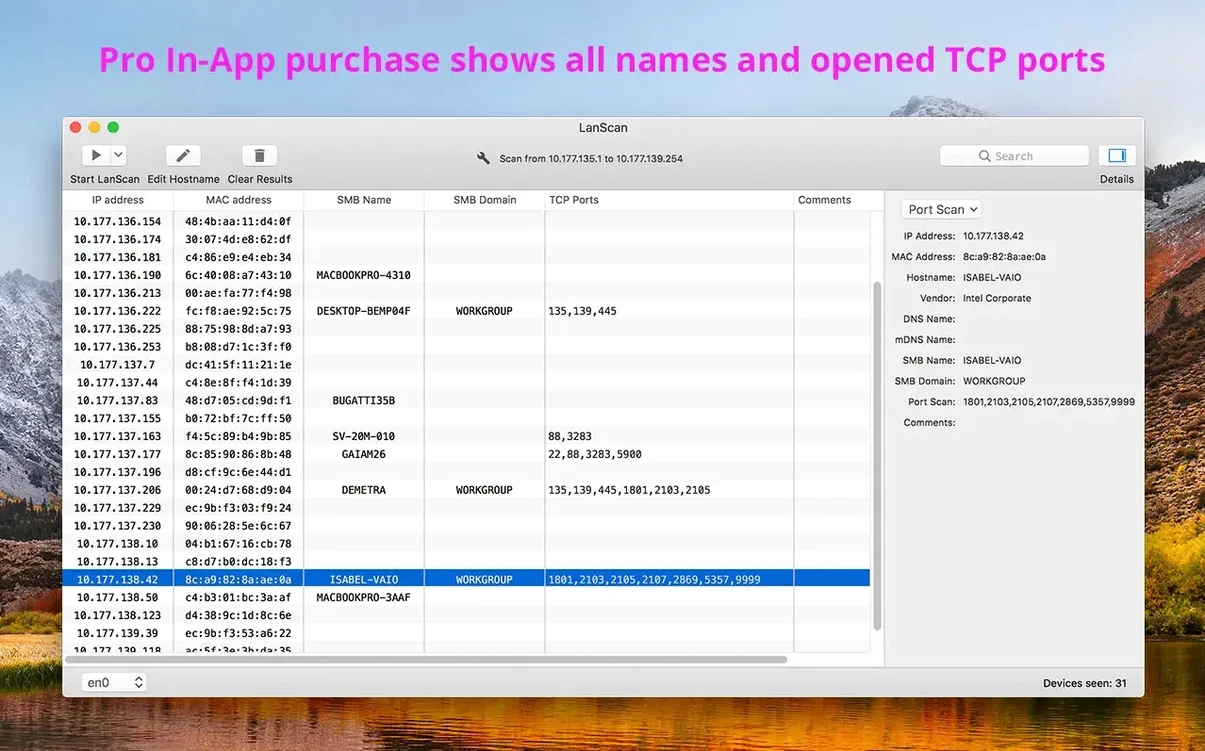
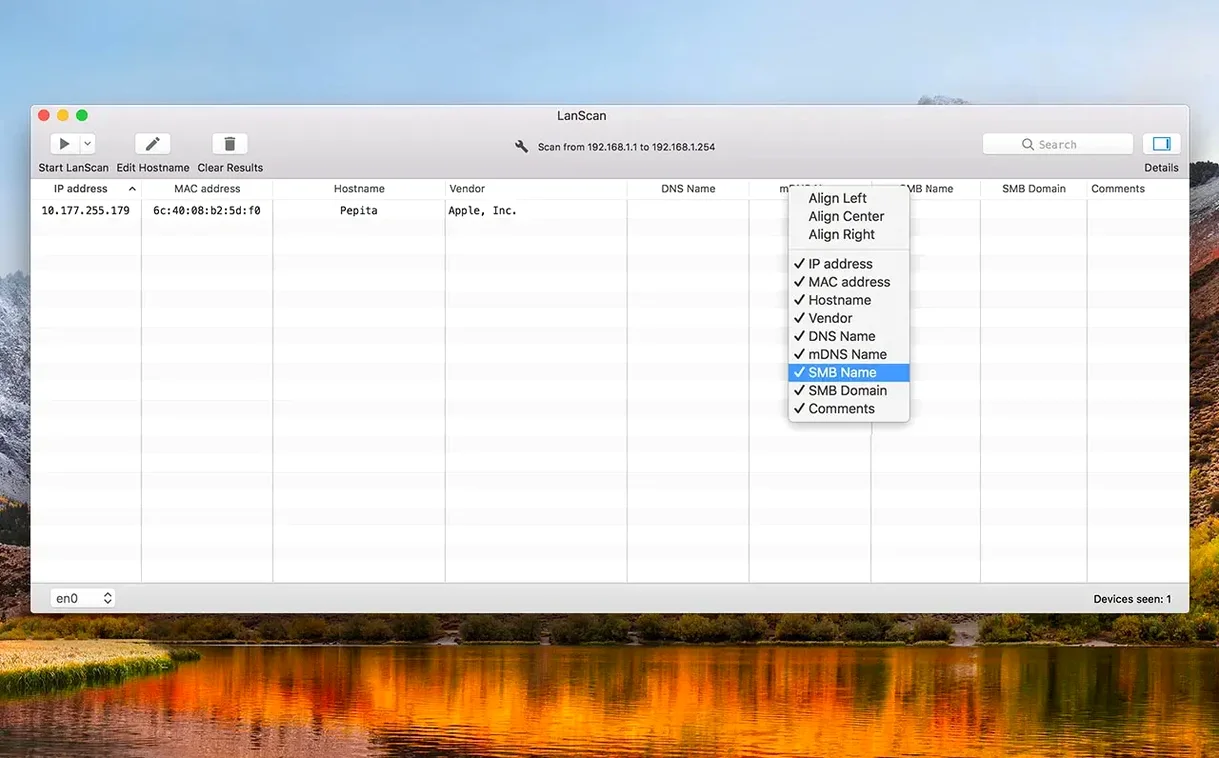
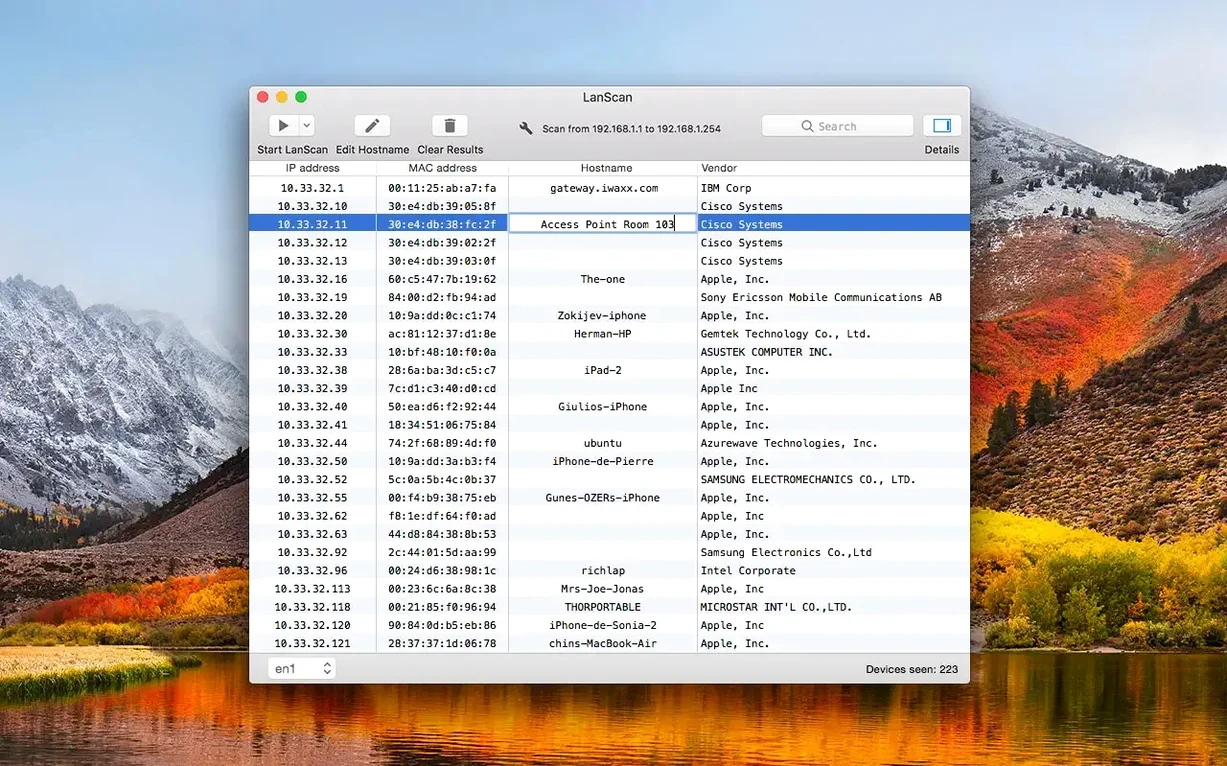
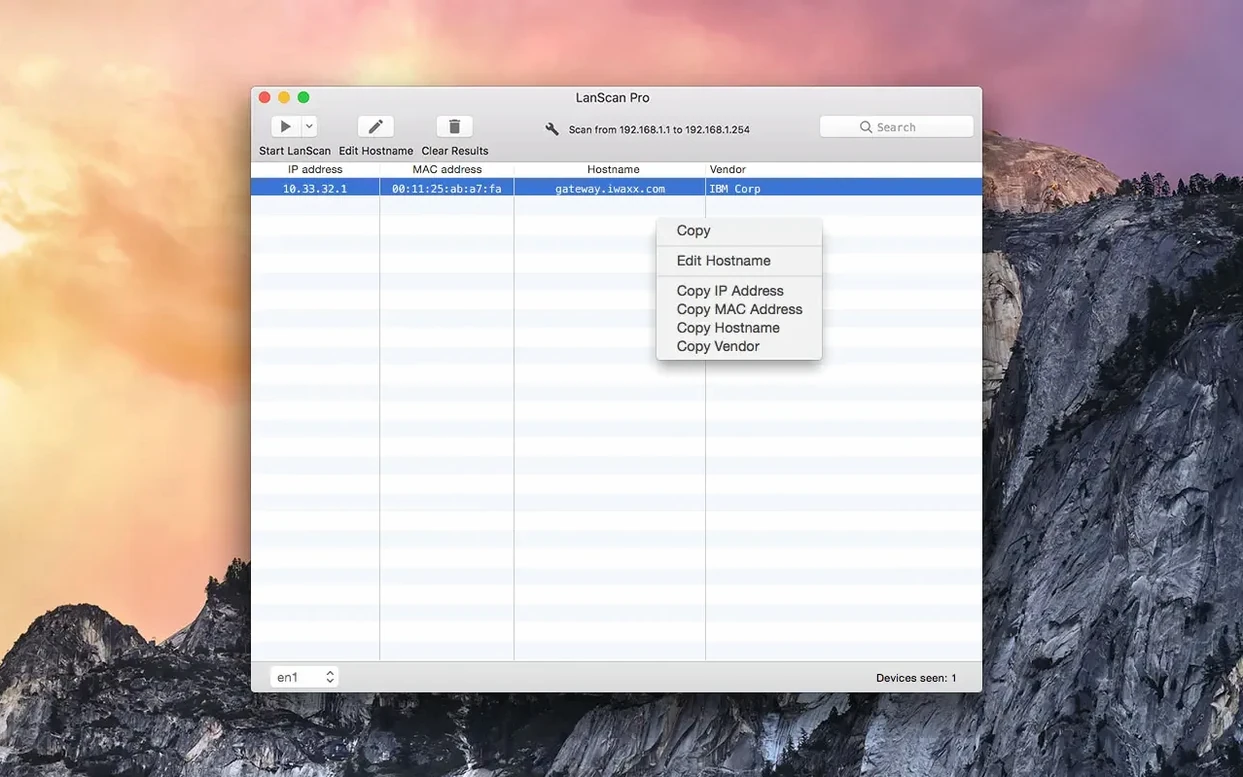
If you've ever used ping or arp in Terminal to figure out what's on your network, LanScan does the same job with a GUI and a few extras. It's a straightforward device discovery tool for macOS that scans IPv4 and IPv6 ranges on a local subnet or a configured public one.
- Uses Ping, SMB, and mDNS packets to find active devices.
- Resolves host names through DNS, mDNS, and SMB, showing up to four names per device.
- Lets you add a custom comment to each device, which helps track what's what.
- Can open a custom URL in a browser for a selected device.
- Exports the results to CSV for further analysis.
- Scans anything from a single IP to the full IPv4 address space.
It runs on both Apple Silicon and 64-bit Intel Macs, so it fits most setups. If you already rely on command-line tools for this, LanScan offers a more visual way to keep an eye on your network.
Earns its place when you need network answers, not dashboards
LanScan is not a tool that demands daily attention. It earns its place on a Mac when you need answers about the network, not when you want dashboards and alerts. The people who get the most value tend to fall into three groups.
Network administrators handling small office or home office setups will find it useful for mapping what's actually connected. A quick scan shows which IP belongs to which vendor, and the host name resolution helps identify devices that don't advertise themselves clearly. The CSV export matters here — you can keep a record of the network state and compare it later if something changes.
IT support staff working on-site will appreciate the speed of getting a device list without opening Terminal. When a colleague says the printer is unreachable, a scan shows whether the printer is even on the network, what its IP is, and whether the vendor string matches the hardware. The custom comment field is a practical way to note which device is in which room or which port it's plugged into.
Home users with a tech bent are the third group. If you've ever wondered how many devices are connected to your router, or you want to check whether that new smart plug actually joined the Wi-Fi, LanScan answers that in one click. The vendor detection alone is often enough to spot unknown devices.
Keeps up with macOS rather than adding flashy features
Version 8.2.17 is the current release, and the changes in the 8.x line have mostly been about keeping up with macOS rather than adding flashy features. The app still runs on macOS 11 or later, which means it works on older Intel Macs that Apple has dropped from support. That's a deliberate choice — the developer hasn't forced a minimum version bump to chase the latest OS.
In everyday use, the notable change is that scans remain stable across macOS updates. Network APIs change between system releases, and scanner apps are exactly the kind of tool that breaks when Apple tweaks how interfaces report themselves. The current version handles the configured interfaces — AirPort, Ethernet, virtual interfaces — without requiring you to manually pick one each time.
For public range scans, the packet mix hasn't changed: Ping, SMB, and mDNS are still the probes used. The advantage of that approach is that it doesn't rely on ARP, which only works on the local subnet. So if you need to check a remote range, the tool still delivers results, just through a different mechanism.
A drag-and-drop install with a baseline scan of your local subnet
LanScan is a drag-and-drop install from a disk image. After moving it to Applications, here's a practical path through the first few sessions.
- Run a scan on your local subnet first. This gives you a baseline of what the tool reports for your own network, including your Mac's own entry.
- Look at the vendor column. It's the fastest way to see whether the device list matches your mental model of what's connected.
- Check the host name column. If some devices show multiple names, that's the mDNS and SMB resolution working in parallel. The one you recognize is the one you'll want to keep.
- Add comments to devices you care about. The comment field is the cheapest way to keep a network map that doesn't go stale.
- Export a CSV after the first scan. It costs nothing and gives you a reference point for later comparisons.
One thing worth doing early is editing a host name manually for a device that shows a cryptic name. The edit is simple and makes future scans more readable. If you use the custom URL feature, set it up for the device you most often need to reach in a browser — it saves a copy-paste step every time.
Sits between command-line tools and heavier network management suites
LanScan sits between command-line tools and heavier network management suites. Two or three alternatives cover the same ground differently.
Network Scanner by a third party. Most Mac network scanners have the same core feature set: IP range scanning, host name resolution, vendor lookup. The difference is often in the extras. LanScan's IPv6 support and its ability to scan the full IPv4 address space are not universal. Some tools cap the scan range or only handle the local subnet.
Angry IP Scanner. This one is free and cross-platform, and it does the job on Macs too. The interface is more utilitarian, and the scan results are similar. What Angry IP Scanner lacks is LanScan's polish around host name handling — showing up to four names per device and resolving through three different protocols is a real advantage when mDNS and DNS disagree.
Fing. Fing is a mobile-first tool that also has a desktop client. It's good for quick checks, but the Mac version has historically been a companion to the phone app. LanScan is a standalone desktop utility that doesn't require an account or a companion device.
If you already run nmap from the command line, LanScan won't replace it. But if you want a tool that shows results in a readable table, exports to CSV, and doesn't need a manual page open, it fills that gap without taking over your workflow.
- macOS 11 or later
- Apple Silicon or Intel
Install procedure
- Open the downloaded disk image.
- Drag the app to the Applications folder alias.
- Launch the app from Launchpad after copying finishes.
Reports from players
Sign in or create a tester account to file a report.
No reports filed yet.