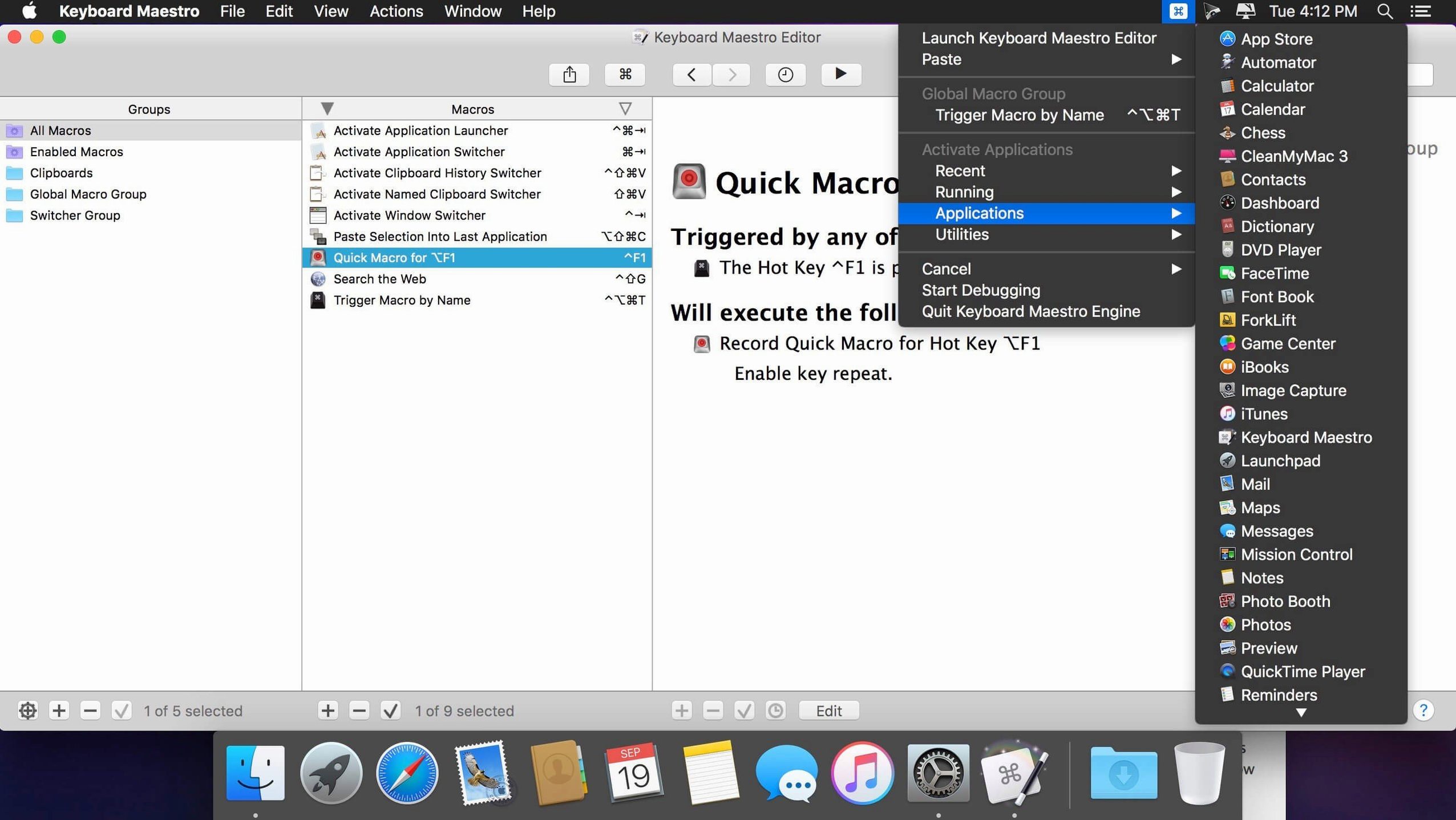
The 11.0.4 release of Keyboard Maestro adds tool tips for the Macro Debugger window and support for Apple Text Recognition in the OCR Condition. It also fixes an issue with search highlighting triggers. For a utility that has been around this long, the updates stay focused on making the existing automation clearer rather than piling on new buttons.
What is the first macro I should build?
Start with a keyboard shortcut that triggers a text snippet expansion. Type a short abbreviation anywhere in macOS and have it replaced with a full address, a code template, or a standard reply. It takes about a minute to set up and shows you the core loop: trigger, action, done.
How do I automate a window layout?
Create a macro that resizes and positions the front window, then assign it to Command+Option+1. Repeat for a second screen arrangement. You get predictable window states without dragging, which matters when you switch between coding and documentation several times an hour.
Can it handle work across different apps?
Yes. Build a macro that copies data from one application, switches to another, and pastes it into a specific field. The sequence editor handles the steps in order, and you can add a confirmation prompt at the end.
What about repetitive web tasks?
Use the web page actions to open a set of sites you check daily, or to click a button on a page that has no keyboard equivalent. The OCR condition from the update also lets you trigger actions based on text found in an image on screen.
How Keyboard Maestro avoids shortcut conflicts with other apps
A common question is whether Keyboard Maestro conflicts with other apps that use keyboard shortcuts. It does not. You assign your own triggers, and if a shortcut already belongs to an app, Keyboard Maestro can still catch it by using a different modifier combination or a macro palette. Another question is whether you need to learn scripting to use it. You do not. The macro editor uses a list of actions you pick from menus, and the flow control and conditions are presented as options with checkboxes and dropdowns. Some users also ask if macros can run on a schedule. Yes, you can set a macro to trigger at a specific time or when your Mac starts up, not only when you press a key.
Another frequent question is about clipboard history. Keyboard Maestro keeps a separate clipboard history with multiple entries, so you can paste something you copied ten minutes ago without losing what you just copied. It does not replace the system clipboard but works alongside it. People also ask about sharing macros with other Macs. You can export a macro as a file and import it on another machine. The format is plain XML, so it is readable if you want to edit it outside the app.
Lightweight installer that works from macOS 10.13 onward
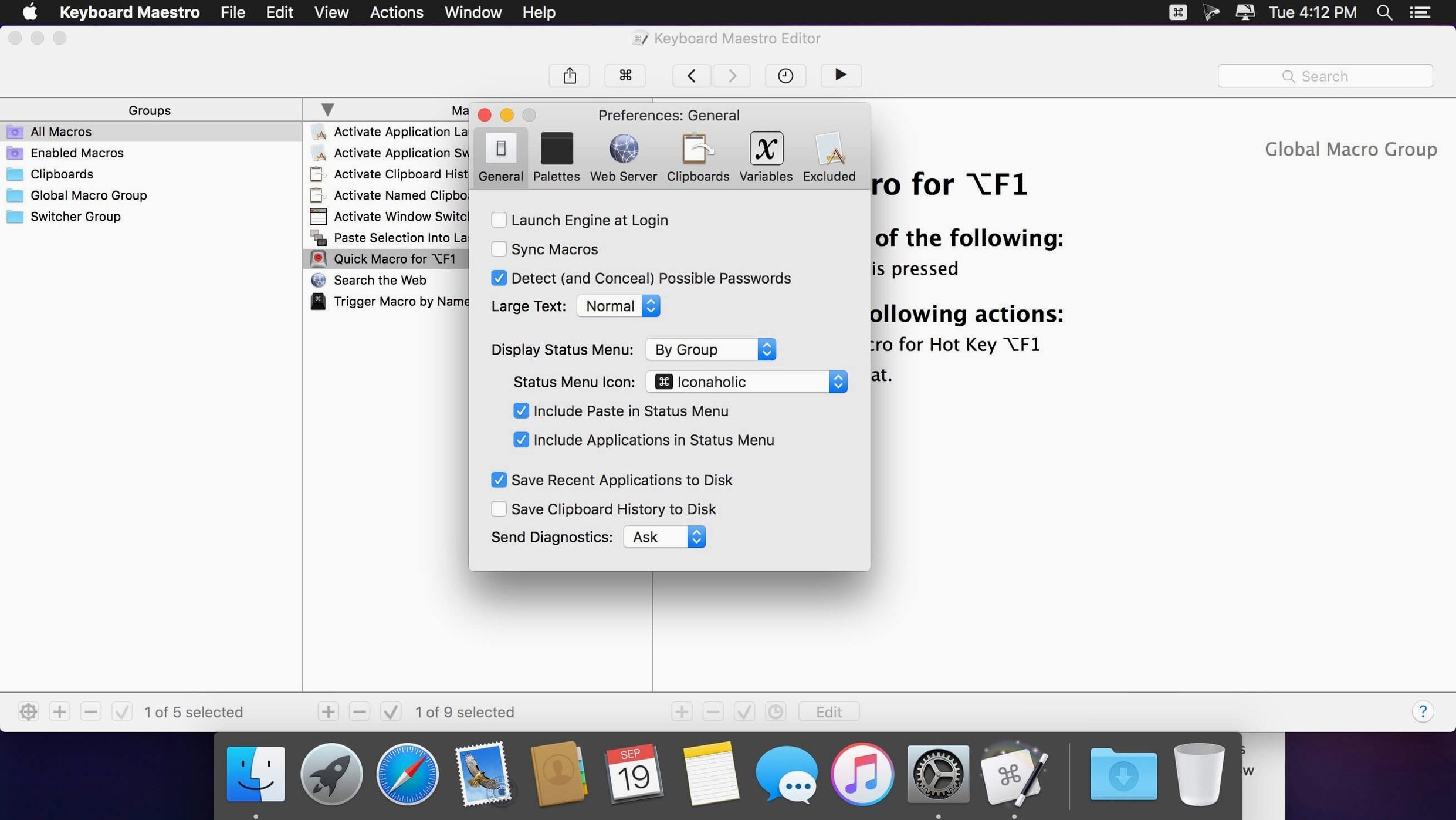
The installer is a disk image you mount and drag into Applications. The app itself is lightweight in terms of storage, and it runs on any Mac from macOS 10.13 onward, both Intel and Apple Silicon. When you first launch it, a small icon appears in the menu bar. That icon is the control center for starting, stopping, and editing macros. Keyboard Maestro stays running in the background and uses very few system resources when idle. It does not need an internet connection to work. All macros and settings are stored locally in a file you can back up manually.
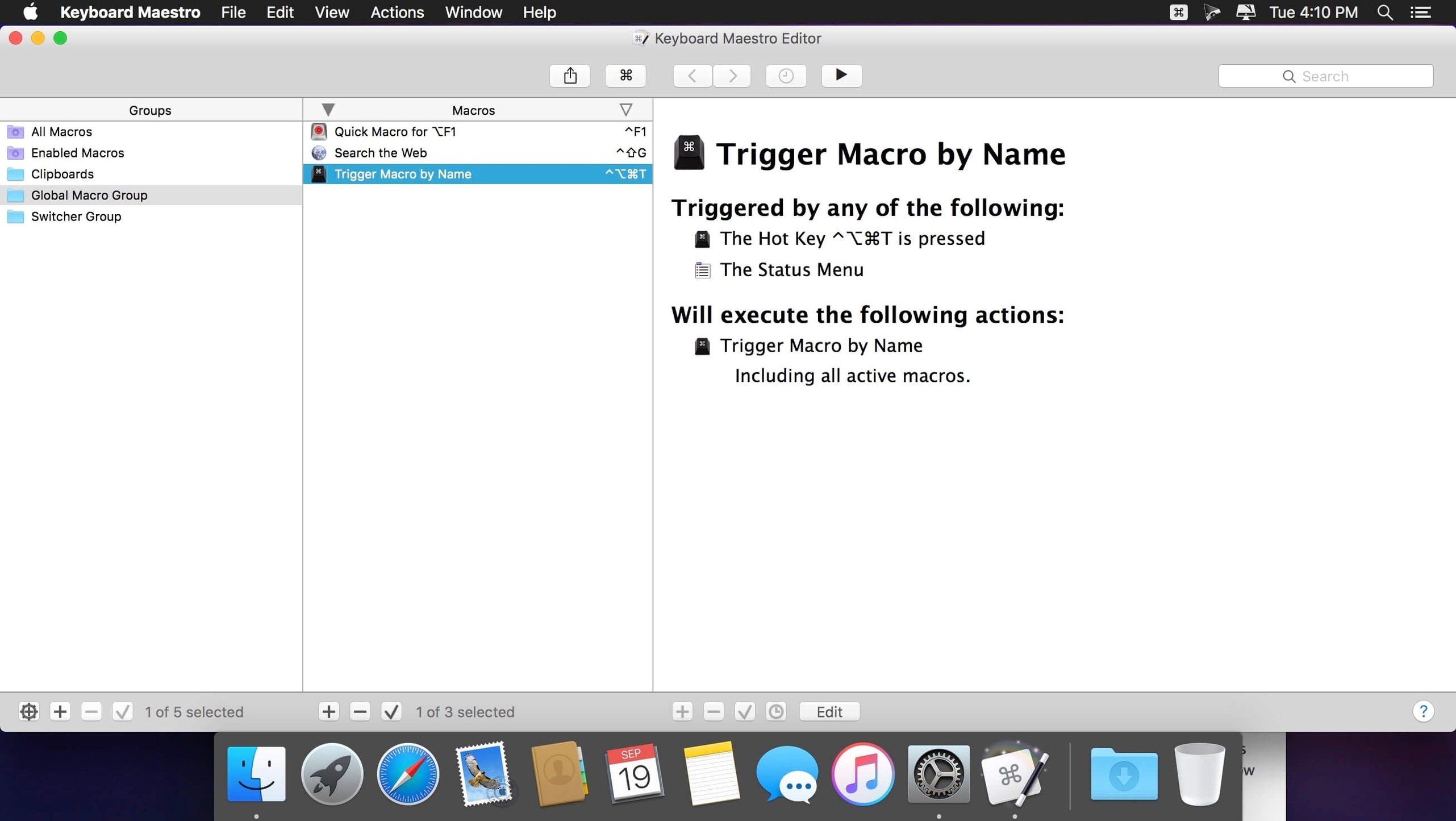
Because it supports both architectures, it runs natively on older Intel Macs and on Apple Silicon without translation. The interface is a standard Mac app window with a sidebar and a detail panel. The OCR condition uses Apple Text Recognition, so it works on whatever text your Mac can detect in an image, whether from a screenshot or a window.
Macro Debugger tool tips explain each action on hover
The Macro Debugger window now has tool tips. When you mouse over an action in the debugger, a brief explanation appears. That helps when you are stepping through a long macro and want to confirm what a particular action does without opening the editor.
The Switch/Case action now shows which entries are currently true or which would execute. You can see, even while editing, which branch will fire. That removes guesswork when you have multiple conditions in a single action.
Clipboard filtering is built in. You can transform the clipboard content before pasting, such as stripping formatting or replacing line breaks. It is a separate action that you insert between a copy and a paste step. The clipboard history is also accessible from the menu bar icon, so you do not need to open the main window to retrieve an older entry.
One shortcut opens and arranges your morning apps
You start the day by pressing a keyboard shortcut you assigned to open your morning set of apps: email, calendar, a project management site in the browser, and a code editor. Keyboard Maestro launches them and arranges each window to a preset position. You do not touch the dock or resize anything.
Mid-morning, you need to send a standard reply to a client. You type a short abbreviation, and Keyboard Maestro expands it into a full paragraph with the client's name and order details. You adjust a date and send it. The reply takes five seconds instead of a minute.
During testing, you copy a bug report from a chat app. You press a second shortcut that opens the report template in a note-taking app, pastes the report into the correct field, and adds the current date as a header. You add a few notes and save it. Later, you need to fill a web form with the same set of credentials you use every week. You activate a macro that fills all fields from a stored snippet and submits the form.
At the end of the day, you have a macro that closes all windows in your browser, saves open documents, and quits each app in sequence. You press one key, and the cleanup runs while you shut the MacBook lid. Nothing was dragged, nothing was clicked manually. The macros ran the same way they did yesterday and will run the same way tomorrow.
- Added display to Switch/Case actions to indicate which entries are true or would execute currently.
- Support Apple Text Recognition in OCR Condition.
- Added Tool Tips for Macro Debugger window.
- Fixed an issue with search highlighting triggers.
- macOS 10.13 or later
- Intel or Apple Silicon
- Interface language: English
Questions from the notes
Does Keyboard Maestro work on Apple Silicon Macs?
Yes. The current version supports both Intel and Apple Silicon architectures and runs on macOS 10.13 or later.
Can Keyboard Maestro automate the clipboard?
It can store and retrieve clipboard contents as part of a macro, which is useful for moving text between documents and applications.
Install procedure
- Mount the downloaded disk image.
- Drag the app into the Applications folder shortcut.
- Launch it from Launchpad after copying finishes.
- Use CORE Keygen for activation.
Reports from players
Sign in or create a tester account to file a report.
No reports filed yet.