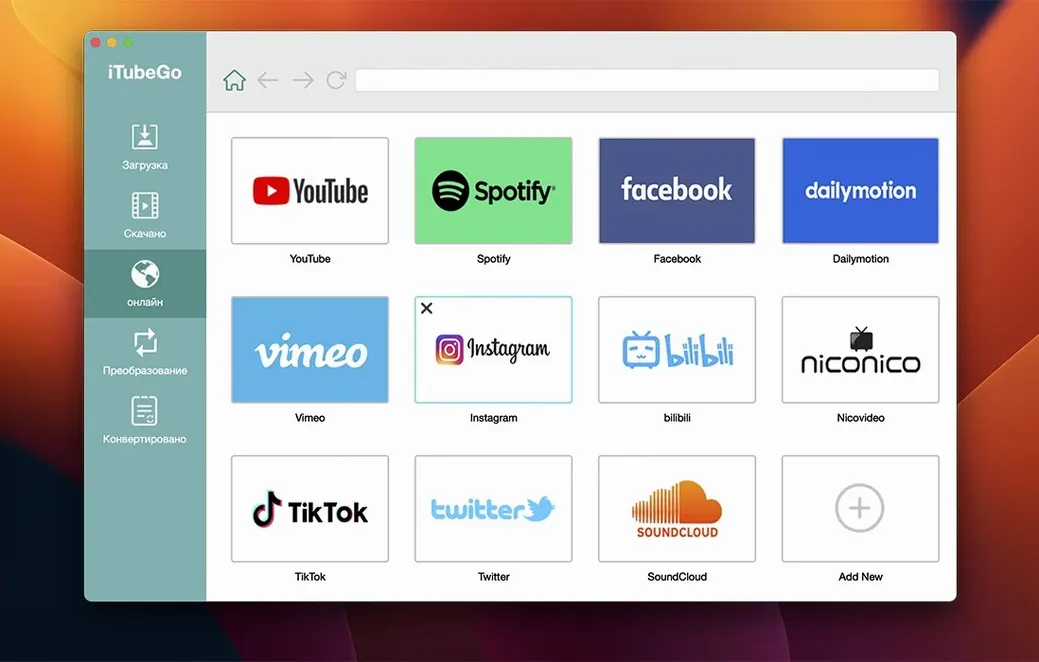
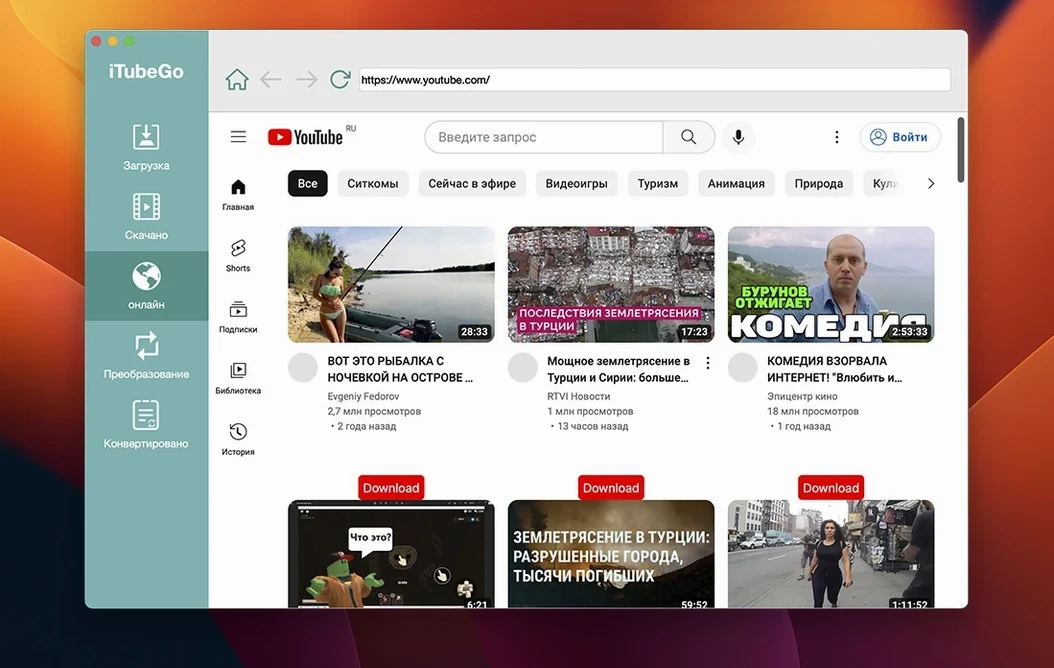
The built-in browser is where iTubeGo earns its keep. Instead of copying links from one app to another, you browse the site inside the downloader, hit the button, and the job queues up. For someone who grabs entire playlists or a string of related videos, that workflow removes a lot of copy-paste friction.
Bulk downloading and format conversion
iTubeGo handles bulk jobs at up to 10x speed, which matters when you're pulling a full season of something. YouTube content converts to MP4, MP3, and other formats, and the same pipeline works for most music sites when you want a straight MP3 download.
Audio extraction at 320 kbps
When the source is video and you only want the sound, iTubeGo extracts the audio and saves it as MP3 at 320 kbps. That bitrate is the ceiling for MP3, so the output is as good as the format allows. No extra conversion step needed—the app does it in one pass.
Interface and platform notes
The interface runs in 13 languages, including English, German, Spanish, French, Russian, and both Chinese variants. The Mac build targets x86 64-bit Intel machines and requires macOS 10.10 or later. If you're on a newer Intel Mac, that's fine; Apple Silicon users will need to look elsewhere.
How iTubeGo compares with similar Mac video downloaders
On macOS, the downloader market splits into a few categories: browser extensions, terminal-based tools, and standalone apps like iTubeGo. The extensions work well for one-off grabs but struggle with playlists and format conversion. Terminal tools like youtube-dl and its forks give you precision and scripting ability, but they ask for command-line comfort and manual format selection.
Standalone apps sit between those extremes. iTubeGo's built-in browser puts it ahead of apps that require you to paste URLs into a text field. Some competitors only support a few hundred sites; iTubeGo claims 10,000-plus. That matters if you pull from less common video hosts or adult sites like Pornhub, Xvideos, and xHamster, which are listed explicitly in its supported sources. Other apps often omit those entirely or handle them poorly.
Where iTubeGo falls short is architecture support. Many Mac downloaders now ship Apple Silicon-native builds. iTubeGo 10.15.0 is Intel-only, so Rosetta 2 compatibility is your only path on an M-series Mac — something to verify before installing.
Not checking the output format before bulk downloads
A few patterns show up repeatedly. The first: not checking the output format before starting a bulk download. iTubeGo defaults to MP4 for video and MP3 for audio, but if you grab a 20-video playlist expecting MP4 and the app is set to AVI or FLV, you end up with a queue of files you have to convert again. Always glance at the format dropdown before hitting download.
The second mistake is treating the built-in browser like a regular web browser. It's for navigating to a video page and triggering a download. Logging into a site through it works, but the experience is stripped down — no ad-blocker, no multi-tab management, and no password manager integration. Beginners try to browse normally, then get frustrated when the interface feels clunky.
Third: ignoring the kbps setting for audio extraction. iTubeGo defaults to 320 kbps, which is fine for most use cases. But if you have storage constraints or are pulling podcasts, 320 kbps wastes space. Setting it to 128 or 192 kbps before the job runs saves you a re-encode step later.
Finally, new users sometimes miss that iTubeGo queues downloads rather than running them immediately. They copy a link, see the progress bar sit at 0%, and assume the app froze. The app batches jobs internally — it doesn't process them in parallel unless you configure it to. Waiting a few seconds or checking the queue tab clarifies what's happening.
Downloading a two-hour festival set in original 1080p
Friday evening, and a friend sent a link to a live set from a festival streamed on YouTube. The set is two hours, but YouTube's compression artifacts are noticeable on a big screen. I want the original 1080p version and a separate MP3 for the car.
I launch iTubeGo. The built-in browser opens to a search page. I paste the YouTube link into the address bar, hit enter, and the page loads inside the app. The video player appears, and hovering over it shows a floating download button — no need to copy and re-paste the URL.
Click the button. A dialog appears with quality options: 360p, 480p, 720p, 1080p, 4K, and 8K. The source caps at 1080p, so I select that. Below the quality row is a format dropdown. I set it to MP4 for the video file. There's a separate box for audio extraction: I check the "Extract audio" option, set format to MP3, bitrate to 320 kbps, and tell it to save both the MP4 and the MP3 in the same output folder.
The job enters the queue. Progress ticks in the status bar. The app doesn't hog the CPU, so I leave it running while I work on something else. Fifteen minutes later, two files sit in the output folder: a 1080p MP4 and a 320 kbps MP3. No re-encoding, no extra tools.
Next, I search for a few short clips from the same festival on Instagram and Dailymotion. I open each in the built-in browser, queue them up, and set them all to 720p MP4. The bulk download runs at 10x speed, so the clips finish in under a minute. I don't touch the app again until it's done.
The session ends with a folder of festival footage and a car playlist ready to transfer to a USB drive. The workflow was: find video, click download, pick quality, wait, and done.
Testing the site list with sites you actually use
Spend the first session testing the site list. iTubeGo claims 10,000-plus supported websites, but not every site works equally well. Try five or six of the sites you actually use — YouTube, Vimeo, Instagram, one or two of the adult sites if that's relevant — and note which ones produce clean downloads and which give you an error or a low-quality fallback. This saves you from assuming it works on every site and hitting a problem mid-project.
Set your default output folder immediately. iTubeGo saves to the desktop by default, which gets messy fast. Point it to a dedicated Downloads/iTubeGo folder. You change this in the settings panel before your first queue builds up.
Test the audio extraction with one short video before you do a playlist. Confirm that the MP3 lands at the bitrate you expect, and that the file tags (artist, title) are either preserved or stripped correctly. If the app doesn't transfer metadata cleanly for your use case, you'll want to know before you convert 30 tracks.
If you use iTubeGo alongside other downloaders, name the output files consistently. iTubeGo names files after the video title by default, which includes spaces, special characters, and sometimes dates. Decide early whether you want to rename manually or rely on the app's naming scheme. For bulk work, the default names are fine; for archival, you may want to set a template in the settings.
Keep a copy of the disk image installer on an external drive. Reinstalls happen, and if the compatibility or version changes, having the current build means you can roll back without hunting for the file again.
Finally, learn the queue management. Pause, resume, and reorder jobs from the queue tab. If you start a download and realize the quality is wrong, canceling one job doesn't lose the others. The queue persists across app restarts, so you can close iTubeGo at night and pick up in the morning.
- macOS 10.10 or later
- Intel x86 64-bit processor
- Interface languages: Russian, English, German, Vietnamese, Indonesian, Spanish, Italian, Traditional Chinese, Simplified Chinese, Korean, Portuguese, French, Japanese
Questions from the notes
What formats does iTubeGo support for YouTube downloads?
It converts YouTube content to MP4, MP3, and other formats, with MP3 audio extraction available at 320 kbps.
Does iTubeGo work on Apple Silicon Macs?
No. The Mac build is for x86 64-bit Intel Macs and requires macOS 10.10 or later.
Which languages is the interface available in?
The interface supports Russian, English, German, Vietnamese, Indonesian, Spanish, Italian, Traditional Chinese, Simplified Chinese, Korean, Portuguese, French, and Japanese.
Install procedure
- Mount the disk image and run the Gatekeeper-friendly opener.
- Press Enter in Terminal to bypass Gatekeeper.
- Drag the app into the Applications folder.
- Start the app.
Reports from players
Sign in or create a tester account to file a report.
No reports filed yet.