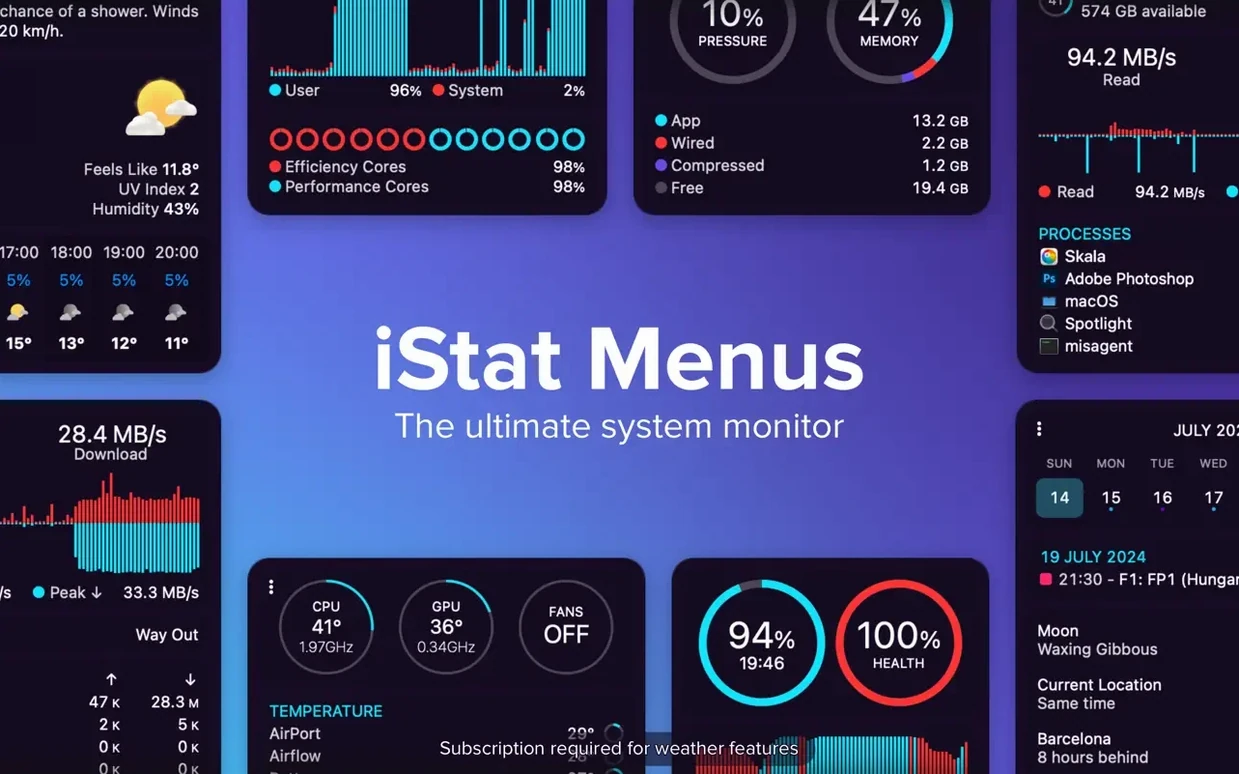
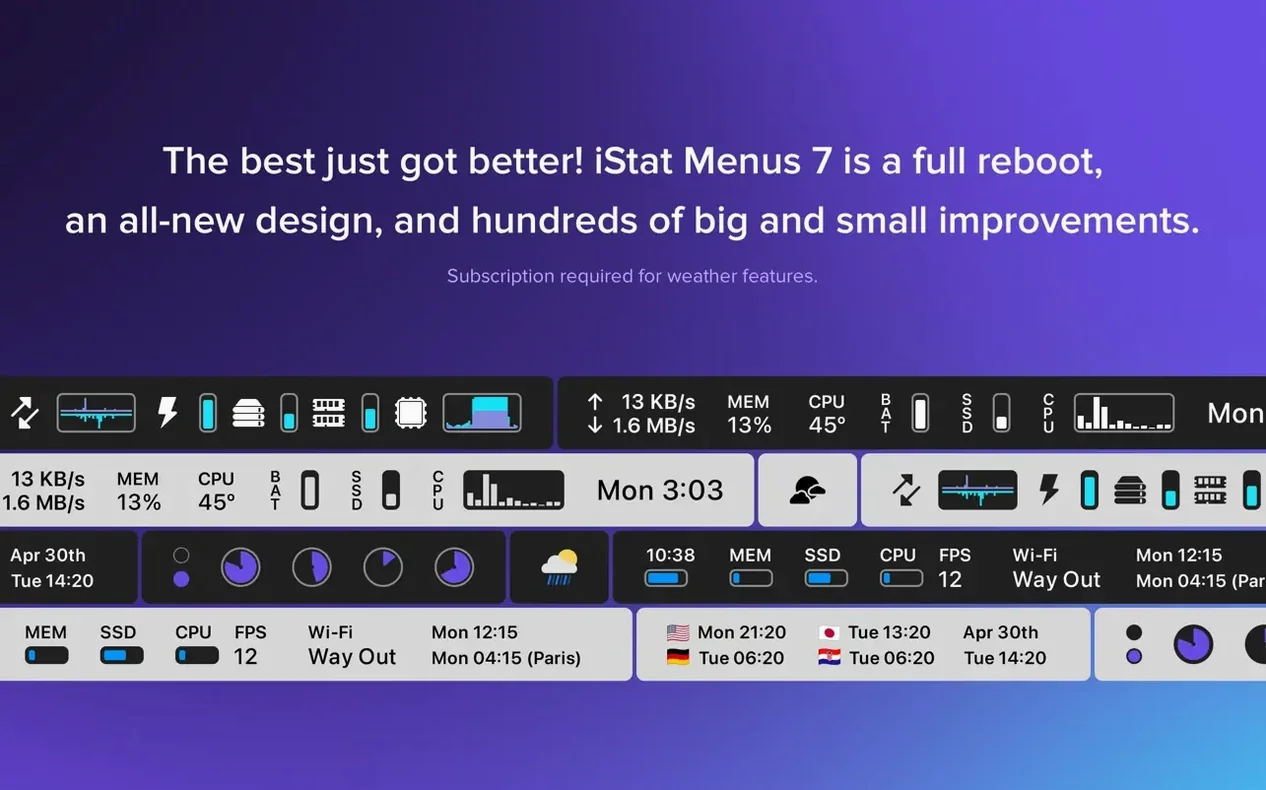
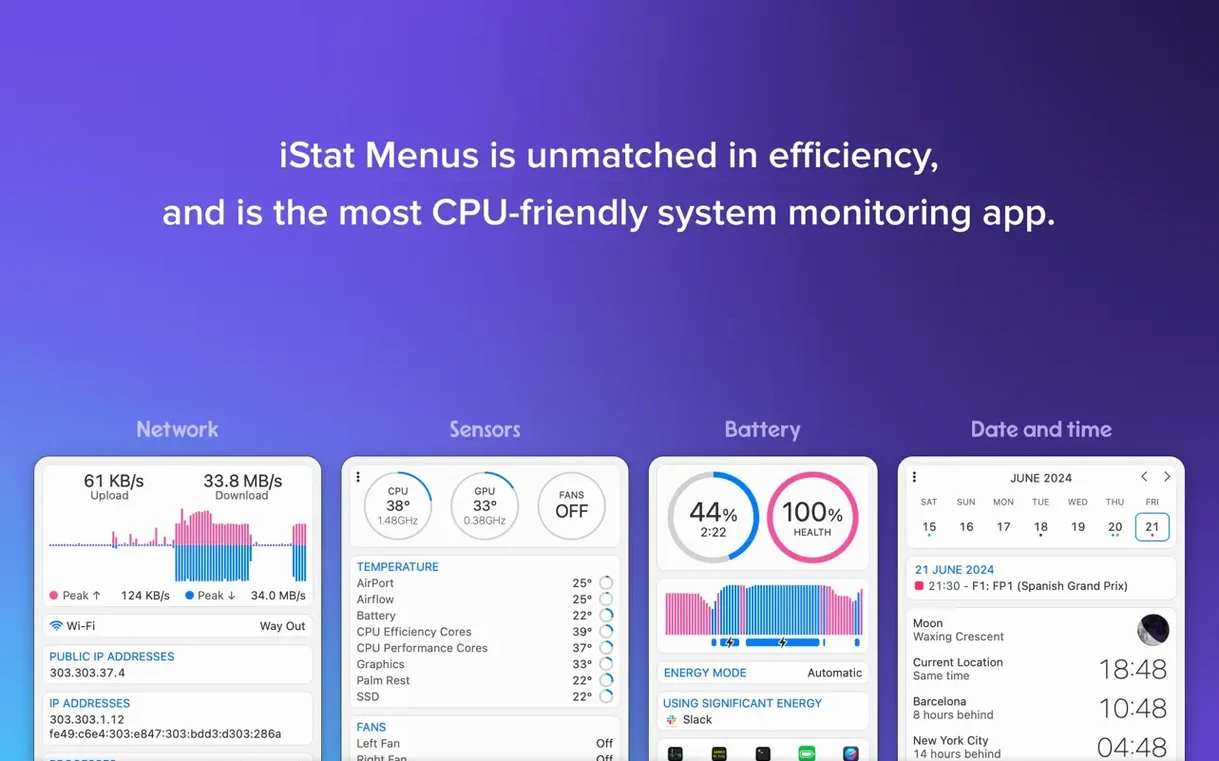
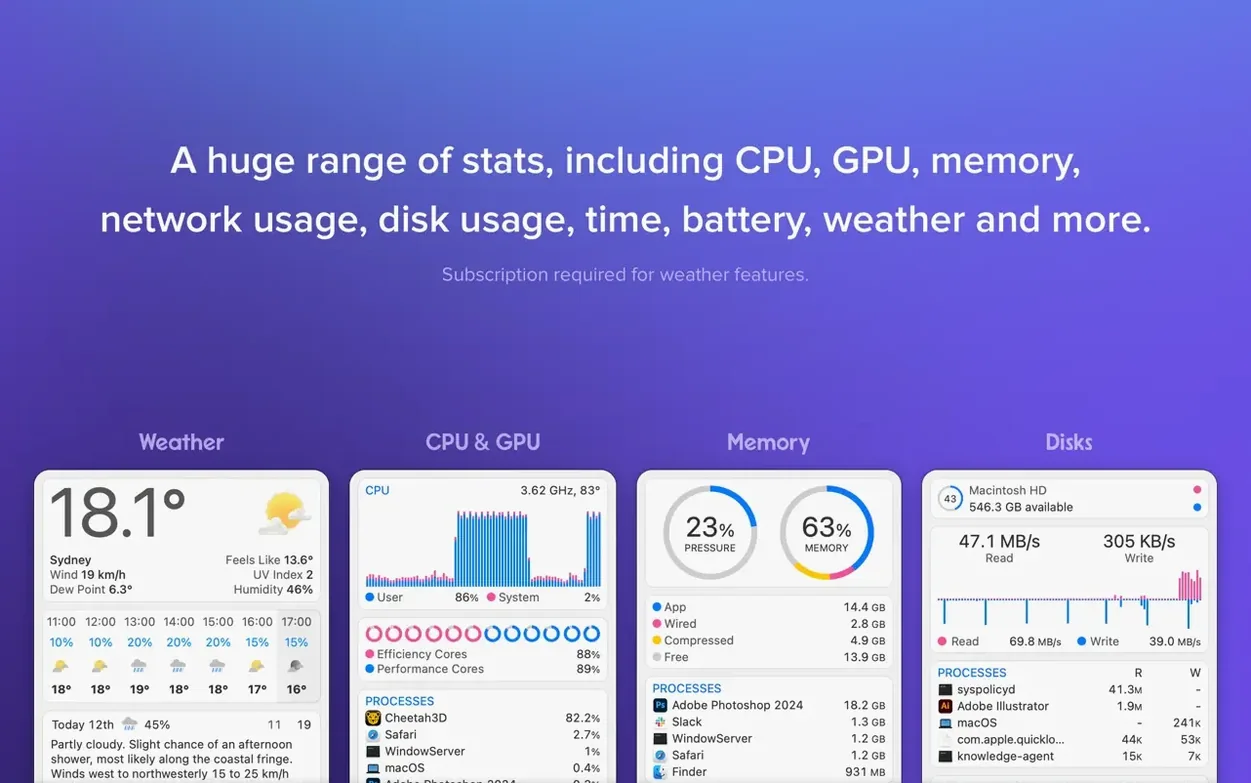
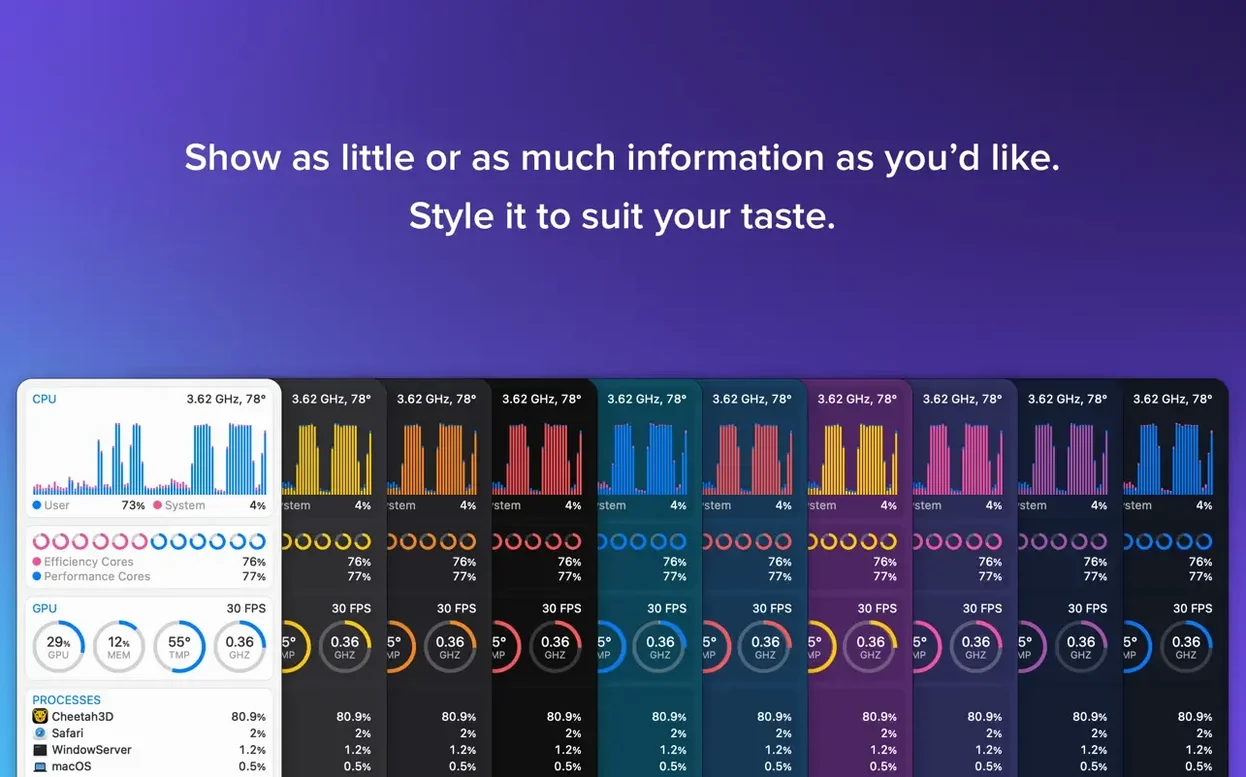
When the menu bar barely shows activity, a runaway process or a hot Mac goes unnoticed until it starts slowing things down. It also reads temperatures, fan speeds, current, and voltage through a helper, so you know exactly what the hardware is doing before you dig into Activity Monitor.
Before installing, a few points come up often:
- Works on macOS 11 or later, on both Apple silicon and Intel 64-bit Macs.
- Real-time CPU load and overall activity display, plus per-app bandwidth charts and active network connections.
- Weather details include forecast, moon phases, wind speed, dew point, sunrise, and sunset.
- Version 7.50 adds a new Astronomy item with seeing, transparency, and cloud cover forecasts.
- Interface supports 30 languages, from English and Russian to Chinese and Arabic.
For a utility that lives in the menu bar, the practical questions are about compatibility and what it can show. This version covers the basics and then some.
Sits in the menu bar without replacing Activity Monitor
iStat Menus sits in the menu bar and reads data that macOS already collects, so it does not replace Activity Monitor or the System Information panel. You can still open those for deeper investigation. The app's value is that it surfaces the same numbers without switching windows. When a build script pins the CPU at full load for minutes, the menu bar icon turns red before the system feels sluggish. That alone saves time.
The helper component is a small background process that gives iStat Menus access to temperature sensors, fan speeds, and voltage readings. Without it, the app still works for network, disk, memory, and weather data. The helper is optional and can be installed during the first launch or added later. It does not interfere with other monitoring tools like HWiNFO or Core Temp — those do not run on macOS anyway. On a Mac with multiple user accounts, each user sees their own menu bar, but the helper runs system-wide once installed.
The weather and astronomy features pull from public forecast data, so they work alongside existing weather widgets or apps like Weather Mate. The Moon phase and cloud cover forecasts are useful for planning photography or telescope sessions without opening a separate browser tab. The astronomy item in version 7.50 adds seeing and transparency ratings, which are terms familiar to anyone who has used Clear Outside or Astrospheric. The data refreshes automatically at intervals you set in the preferences.
Dark Mode follows the system setting, so iStat Menus matches the rest of the interface when you switch between light and dark themes. No separate toggle needed. The menu bar icons and dropdown panels respect the current mode without looking out of place.
What iStat Menus can and cannot read without the helper
Will this slow down my Mac?
The app itself is lightweight. It polls sensors and network stats at intervals you control — every second, every five seconds, or longer. The helper process uses negligible CPU when idle. On Apple silicon Macs, the app runs natively, so there is no emulation overhead. On Intel Macs, it runs as a 64-bit native app. Neither version has a noticeable effect on everyday work.
Can I see GPU stats for both integrated and discrete graphics?
Yes. On Macs with an Intel or Apple silicon GPU, the app shows GPU load and memory usage. On Macs with an NVIDIA or AMD eGPU, it can also detect and display those values, provided the necessary macOS drivers are installed. The panel lists each GPU separately, so you can monitor both at once.
Does it work over Remote Desktop or VNC?
It runs on the local Mac and appears in the menu bar of that Mac. If you connect remotely with VNC or Apple's Remote Desktop, the menu bar of the remote session still shows iStat Menus. The data refreshes normally, so you can monitor the remote Mac's temperatures and network usage without walking over to it.
Can I export or log the data?
Not directly from the app. iStat Menus is a real-time viewer, not a logger. If you need historical records, you can take screenshots of the panels or use macOS's built-in Activity Monitor logging. Some users combine iStat Menus with a screen capture tool to archive the graphs periodically, but that is a manual workaround.
Hardware readings like temperatures and fan speeds require the helper
The app still shows CPU, memory, network, disk, weather, and astronomy data. It simply cannot read temperatures, fan speeds, current, or voltage. The weather and astronomy features are unaffected. If you later decide you want hardware readings, you can install the helper from within the app's preferences without redownloading anything.
Lena monitors disk speed and CPU temperature during 4K rendering
Lena edits 4K footage on a MacBook Pro with an external Thunderbolt drive. During rendering, the drive speed and CPU temperature matter more than the frame counter. She sets iStat Menus to show disk read/write activity and CPU temperature in the menu bar. When the external drive indicator shows a sustained read of zero during a render, she knows the disk cache filled and the drive is throttling — time to let the system rest before the next batch. The temperature reading in the menu bar lets her keep an eye on the CPU without switching to Activity Monitor. The network bandwidth graph helps her check that the proxies are syncing to the NAS at the expected speed. The astronomy forecast is not relevant to her work, but she checks it during lunch breaks to plan a weekend shoot.
Set your weather location early for immediate astronomy forecasts
- Set the weather location early. The app can auto-detect your location from system settings, but you can also type a city name. The astronomy forecasts update immediately after you set the location, so you see cloud cover and transparency ratings right away.
- Adjust the update interval for each sensor. By default, everything refreshes every few seconds. The preferences panel lets you tweak each item.
- Install the helper during the first launch prompt. It takes one click and a password entry. Doing it later is fine, but you get temperature and fan readings immediately if you do it now. The helper does not run as a startup service unless you enable it in the app's settings.
- Rearrange the menu bar items. Drag the iStat Menus icon left or right while holding Command (⌘) to move it. You can place it next to the clock for quick glances or group it with other monitoring tools.
- Check the Astronomy item on a clear night. The seeing and transparency forecasts are more granular than generic weather reports. If the numbers say "poor seeing," do not bother setting up a telescope — the image will shimmer.
- Turn off items you never use. If you do not care about voltage or current, hide them from the menu bar and the dropdown panel. The app still collects the data, but the interface stays clean.
- Fixes: None listed in this update.
- Changes: Adds a new Astronomy item.
- Changes: Adds forecasts for seeing, transparency, cloud cover, and other observing conditions.
- macOS 11 or later
- Apple Silicon or Intel 64-bit
Questions from the notes
Does iStat Menus work on Apple silicon Macs?
Yes, iStat Menus supports both Apple silicon and Intel 64-bit Macs, as long as you're running macOS 11 or later.
Can iStat Menus show fan speeds and temperatures?
Yes, with the helper installed, it can display temperatures, fan speeds, current, and voltage, and you can set fan speed rules when on battery.
Install procedure
- Open the downloaded disk image.
- Drag the app to the Applications folder alias.
- Launch the app from Applications or Launchpad.
Reports from players
Sign in or create a tester account to file a report.
No reports filed yet.