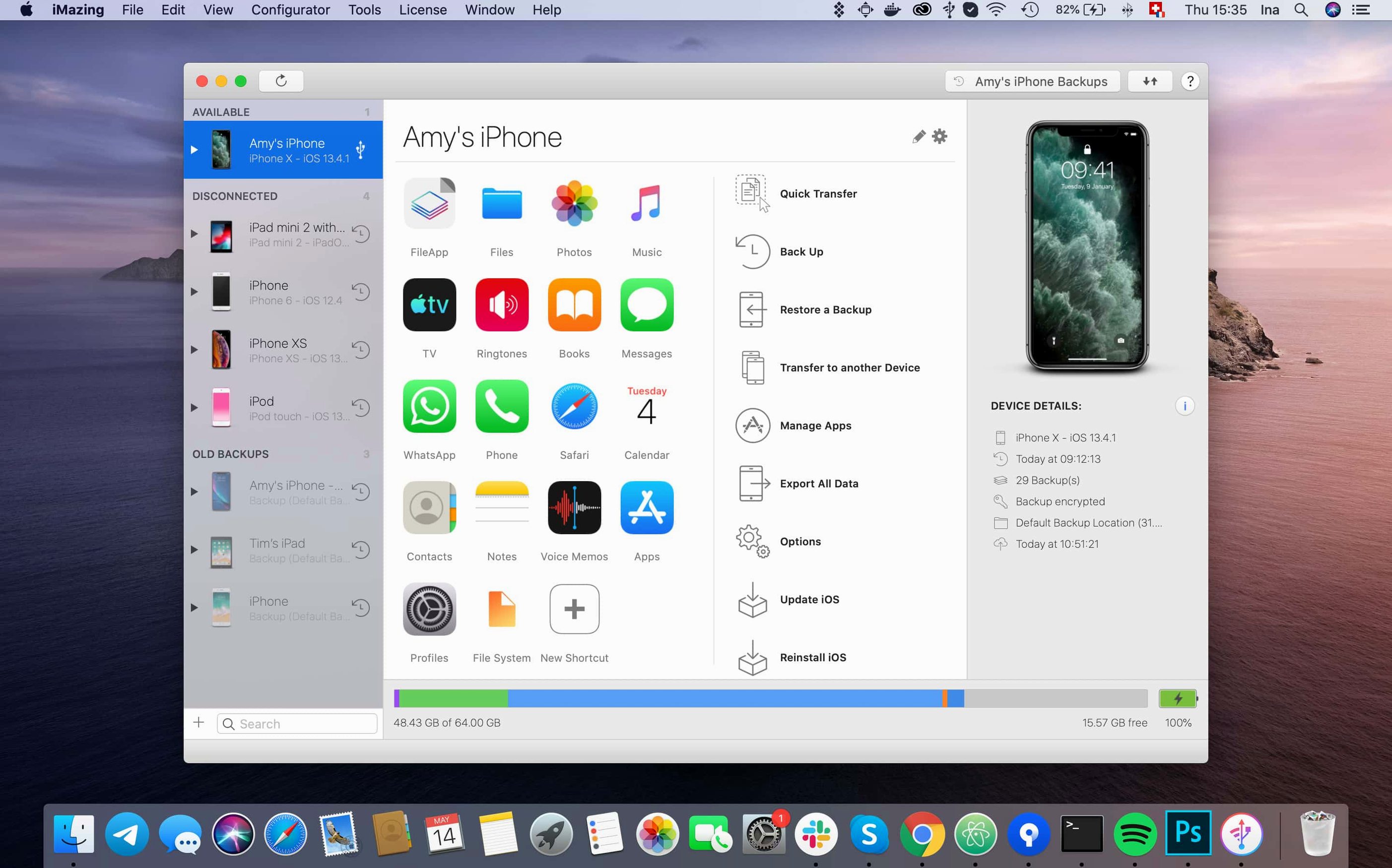
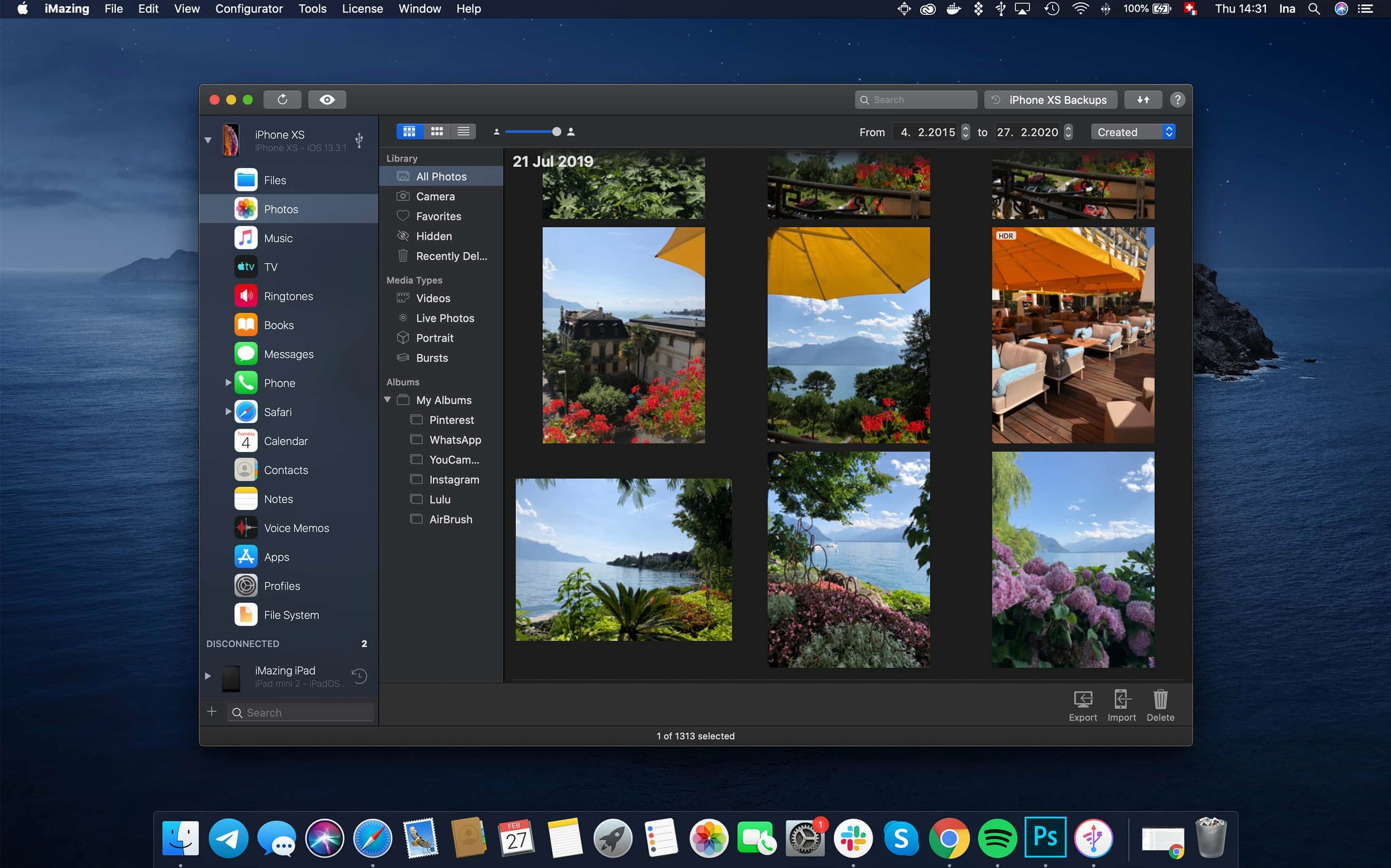
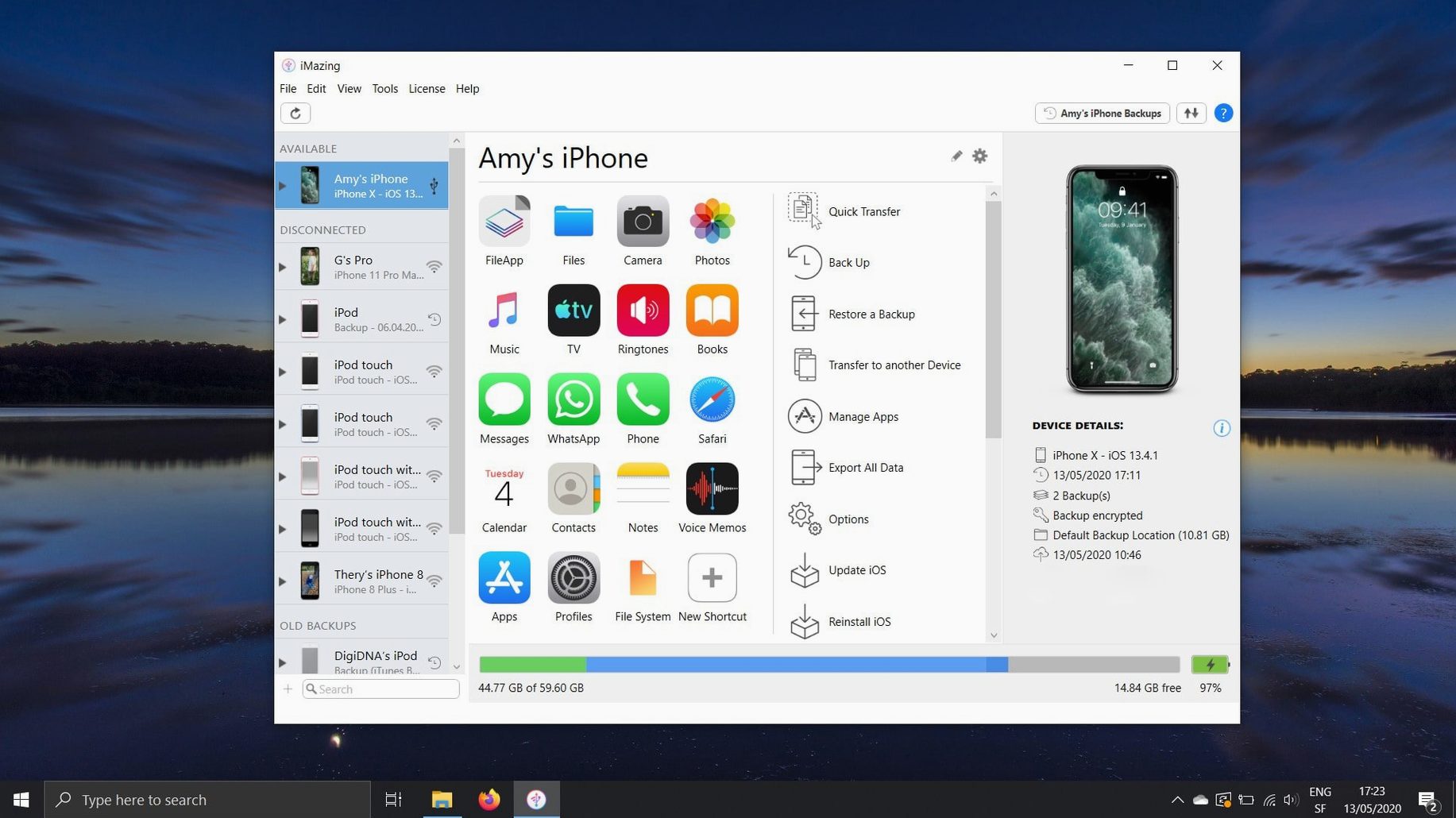
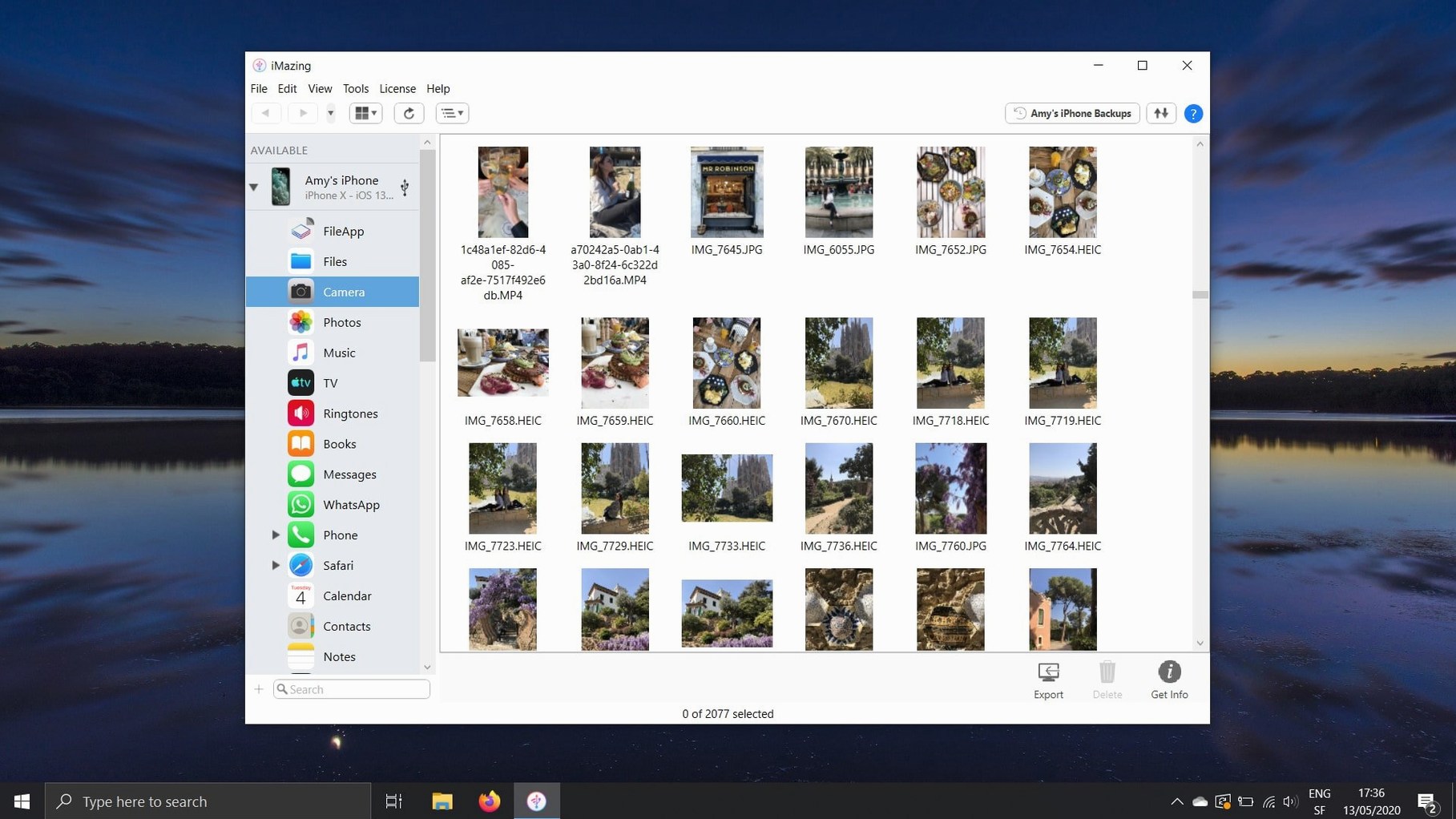
iMazing 3.6.5 manages iPhone, iPad, and iPod touch data on a Mac without iTunes, covering everything from text messages to voicemail.
iMazing — a Mac and Windows app that backs up, transfers, and exports iOS device data.
Backups — automatic wireless backups from iPhone or iPad to your Mac, so you don’t have to plug in.
Messages — copies text messages and attachments to a computer or a new phone, readable as PDF or text.
Voicemail — saves voicemail messages as audio files you can keep or share.
Music and media — moves music and media between a computer and an iOS device without iTunes.
Books — imports ePub and PDF books into Apple Books and exports them to a computer.
Call logs — exports call history as CSV files for record-keeping.
Voice memos — transfers voice memos from iPhone or iPad to a computer.
Calendars — transfers calendars and exports them as ICS or CSV files.
App data — exports and restores documents, settings, and game scores for iOS apps.
Safari bookmarks — transfers bookmarks between an iPhone or iPad and a Mac or PC without iCloud.
A few USB connection issues that actually have fixes
iMazing usually works out of the box, but a few things trip people up. Here's what I've seen come up most often and what actually fixes them.
Device not recognized after connecting via USB. The app shows nothing in the device list, or it stays on "Connecting." First check that the cable supports data transfer, not just charging — some USB-C cables are power-only. If the cable is fine, unlock the phone and tap "Trust" when the Mac asks for permission. On iOS 16 and later, you may need to allow USB connections under Settings > Developer mode or Settings > USB (the exact path varies by iOS version). Restarting both the phone and iMazing after that usually does it.
Wireless backup won't start or keeps dropping. iMazing and the phone need to be on the same Wi-Fi network. If you have a mesh system or a guest network active, make sure both devices are on the same subnet. Firewall software on the Mac can also block the connection — add iMazing to the allowed list. For stubborn cases, a wired USB backup once, then try wireless again; that seems to force the pairing to stick.
Messages export shows blank pages or missing attachments. This usually happens when the phone has a large message history. Try exporting a smaller date range first. If attachments are missing, check that the phone isn't set to auto-delete old media in Messages settings. iMazing reads what's on the device, so if iOS already purged the files, the app can't recover them.
Books import says "Failed" with no further explanation. The EPUB or PDF file may be DRM-locked. iMazing can only import files that Apple Books would accept natively — copy-protected files from some library apps won't work. Convert the file to a standard, unprotected format first and try again.
Backup file won't open for browsing or restore. If the backup was encrypted (iMazing offers that option during backup setup) and you changed your phone's passcode afterward, the old encryption key may not match. You'll need the original passcode that was active when the backup was created. No workaround for that one — keep a note of the passcode you used.
Let it sit for up to five minutes before cancelling. If it still hangs, the source phone may have a corrupted app install. Try transferring that app alone, outside a batch, to isolate the problem.
iMazing works alongside iTunes and iCloud without changes
Do I need to turn off iTunes or iCloud for iMazing to work? No. iMazing runs alongside them. It doesn't modify the iTunes database or iCloud settings. The only thing to watch is that iTunes may grab the device first when you plug it in — you can quit iTunes before connecting, or just let iMazing work over Wi-Fi instead.
Can iMazing read encrypted iPhone backups created by iTunes? No. iTunes backups use Apple's own encryption format that third-party tools can't open. iMazing makes its own backups, which you can browse and restore file by file. If you have old iTunes backups, keep them as-is; iMazing won't replace that workflow.
Does it work with iOS devices that aren't signed into an Apple ID? Yes, for most features. You can back up, transfer files, export messages, and copy music without the phone being logged into an Apple account. Some features like importing books into Apple Books do need the Books app to be set up, but the phone itself doesn't need an Apple ID active.
Will it sync contacts or calendars back to iCloud? iMazing exports contacts and calendars to the computer as files (vCard, CSV, ICS). It doesn't push them back to iCloud automatically. If you want them in iCloud, you'd import those files into the Mac's Contacts or Calendar app, which then syncs with iCloud on its own schedule.
Can I use it to recover files from a broken phone? If the phone turns on and can be trusted on the computer, yes — plug it in and export whatever you need before it dies completely. If the screen is broken but the logic board works, some users manage to connect blindly and back up. If the phone doesn't power on at all, no software tool can help — that's hardware repair territory.
Backups are browsable files, not encrypted blobs like iExplorer
Versus iExplorer. iExplorer is the closest competitor for Mac — same basic feature set of browsing files, exporting messages, and transferring music. The main difference is backup handling. iExplorer stores backups as single encrypted blobs you can only restore wholesale, while iMazing lets you browse a backup's contents and extract individual files. For anyone who wants to pull one photo or a single conversation out of a six-month-old backup, iMazing is more practical. iExplorer also lacks wireless backup; it's USB-only.
Versus AnyTrans. AnyTrans covers iOS file management and content transfer, and it supports wireless connections. Its backup system is less granular than iMazing's — you can restore from a backup, but not browse it as a file structure. AnyTrans also focuses more on content types (music, photos, contacts) as separate modules, while iMazing presents a more unified file-system-like view. For people who think of their phone as a storage drive, iMazing's approach feels more natural.
Versus Mac's own Finder. Finder can see an iPhone as a camera or a generic USB device if you use third-party MTP drivers, but it can't read messages, voicemail, app data, or backup files. It also can't handle encrypted backup restoration or wireless transfers. iMazing fills everything Finder leaves out, but Finder is still faster for bulk photo/video copying when the phone is in camera mode — use it for that, use iMazing for everything else.
Change the backup location to an external drive before starting
Before you start using iMazing seriously, open Preferences and adjust these three things:
- Backup location. By default, backups go into your user folder. Change it to an external drive or a dedicated internal folder you can find easily later. A backup you can't find is as good as no backup.
- Wireless backup interval. If you enable automatic wireless backups, the default schedule may run more often than you need. Set it to daily or weekly instead of every few hours, especially if you keep the app running in the background.
- Export format defaults. iMazing lets you pick the default format for messages (PDF or plain text) and call logs (CSV only). Set these to what you actually use, so you don't have to choose every time.
The language setting is also worth a look if you prefer reading the interface in something other than your system language. iMazing ships with eleven languages, and you can switch at any time without restarting the app.
Retrieving a voicemail from a phone I hadn't connected in weeks
Friday afternoon, I remembered I had a voicemail from my dentist stuck on the phone that I needed to forward to my email. I hadn't connected the phone to the computer in weeks, so I launched iMazing and let it find the phone over Wi-Fi — about fifteen seconds before the device appeared in the sidebar. I clicked into the Voicemail section, saw a list of messages with timestamps, selected the one from Tuesday, and hit Export. iMazing saved it as an M4A file on the desktop. Forwarded it to the dentist's office, done.
While I was in there, I figured I should grab the recent text conversations with the plumber, because I have a habit of deleting threads by accident. I switched to Messages, picked the contact, set the date range to the last month, and exported to PDF. The file came out as a single document with the messages in chronological order, attachments included. I saved it to a folder called "Receipts and references."
Last thing — I had a new EPUB book from a bundle site that I wanted in Apple Books. Dragged the file into the Books section of iMazing, confirmed the import, and it appeared in Apple Books on the phone within a few seconds. No iTunes, no cloud upload, no converting. Just drag, drop, done.
Total time: maybe eight minutes. The phone never left my pocket.
- Adds support for iPhone 18 Pro, iPhone 18 Pro Max, iPhone Duo, Apple Watch Series 12, and Apple Watch Ultra 4.
- Adds export of complete log archives from the unified logs view.
- Adds a link to iMazing Chatbot in the main window toolbar.
- macOS OS X 10.11 or later
- Intel or Apple Silicon
Questions from the notes
Does iMazing require iTunes?
No, iMazing works independently of iTunes for most transfers, though iTunes may be needed for some older iOS versions.
Install procedure
- Open the downloaded disk image.
- Drag the app into the Applications folder shortcut.
- After copying finishes, launch the app from Launchpad.
Reports from players
Sign in or create a tester account to file a report.
No reports filed yet.