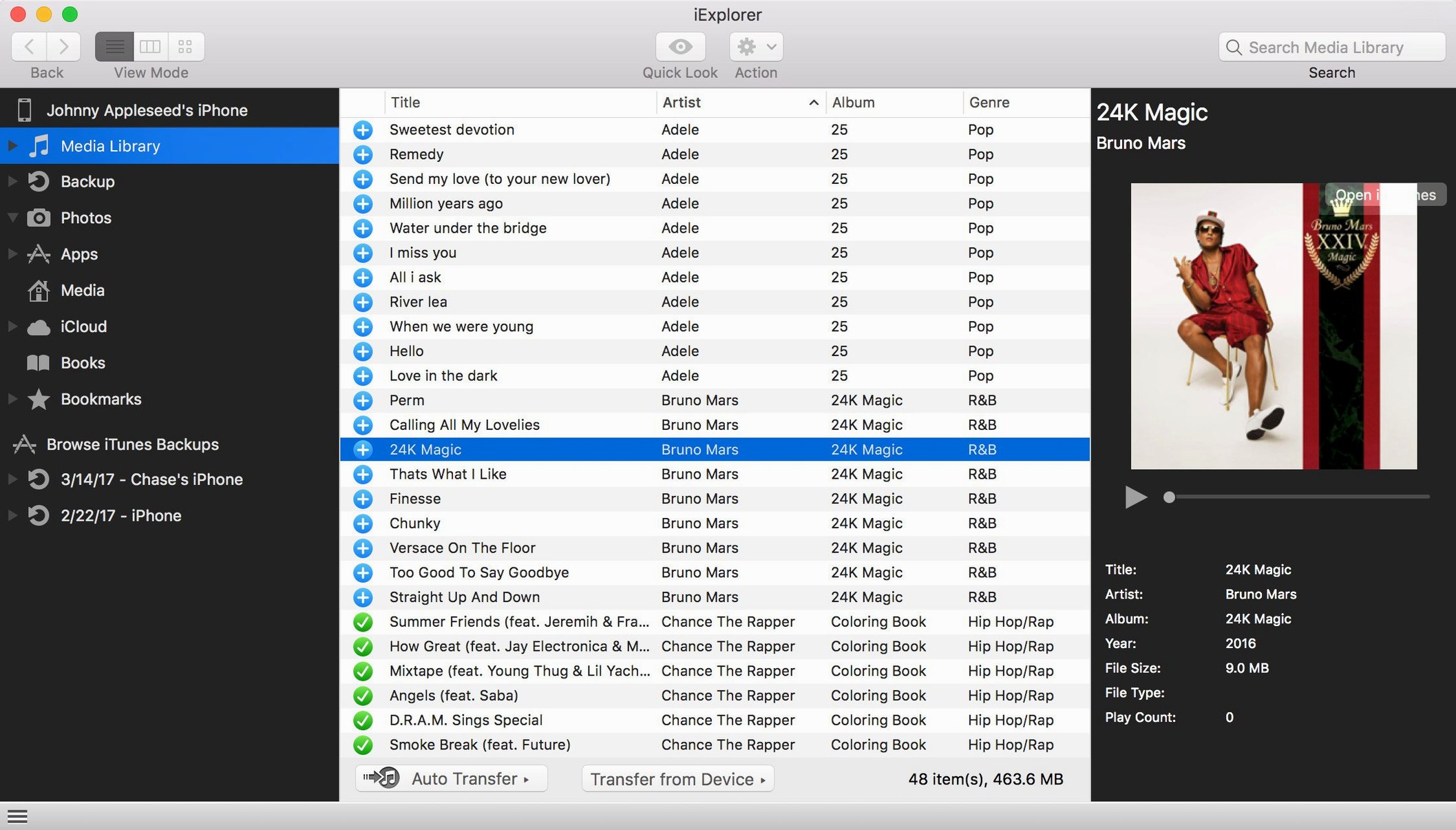
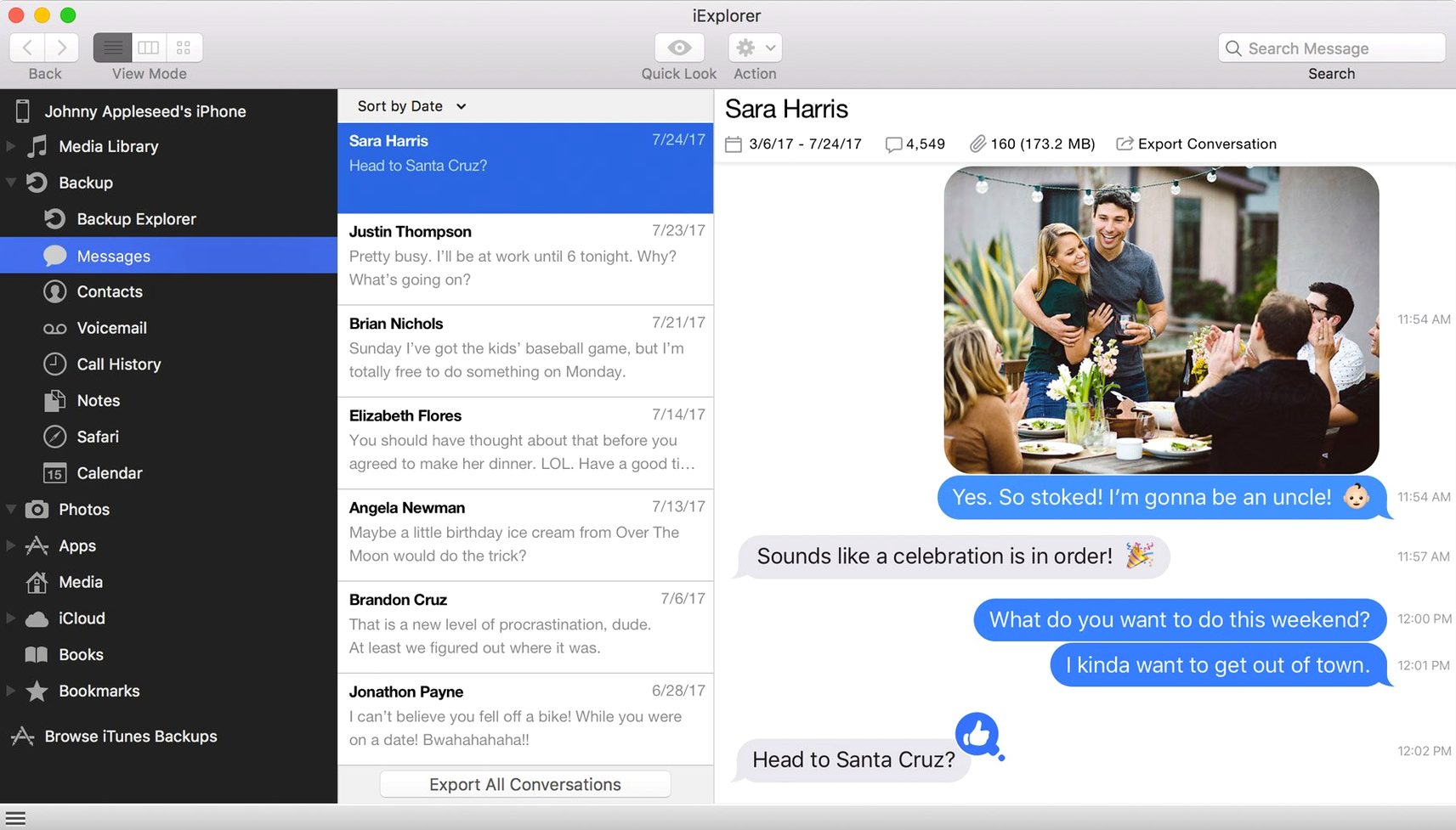
When a device is plugged in and the usual sync routine isn't cutting it, iExplorer offers a desktop workflow for getting at the files directly. Version 4.6.0 brings iOS 16 compatibility improvements, so it stays useful on current devices.
Works alongside your existing setup
iExplorer fits between iTunes and Finder. It can add files to a device without launching iTunes, and it can open backups already stored on your Mac. If you need to pull music or playlists off an iPhone, iPod, or iPad and move them into iTunes, this handles that transfer.
Backups and iCloud access
The app can back up a device itself, and it provides access to iCloud storage from inside the interface. That makes it a single place to browse local backups and cloud files without switching apps.
Requirements and language
iExplorer runs on macOS 10.10 or later with Intel 64-bit architecture, and requires iTunes. The interface is English. Version 4.6.0 was released on October 14, 2022.
Moving music from an old iPod to a new Mac
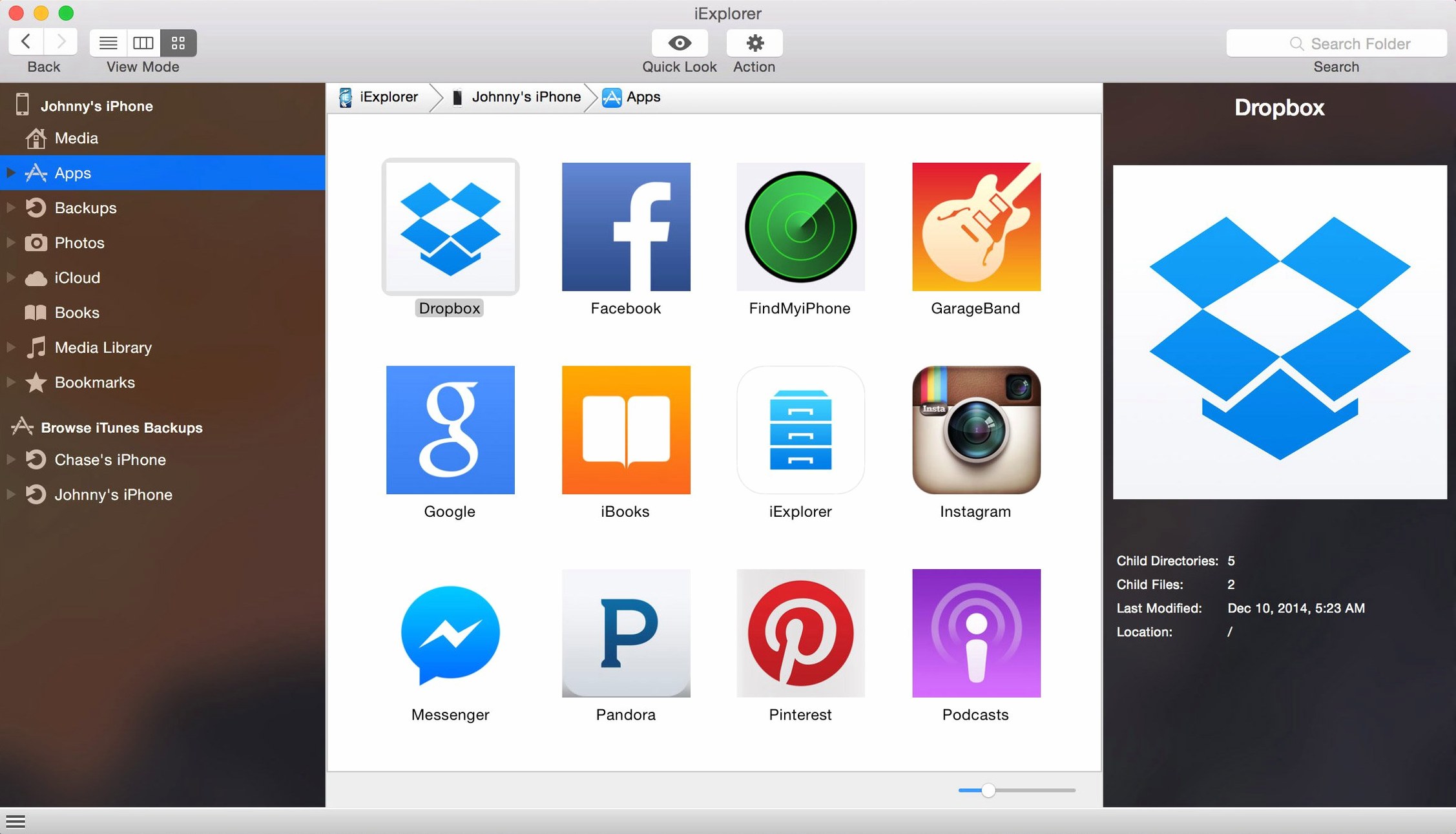
Here is one useful start-to-finish workflow. Connect an iPod that still has music on it but is no longer synced. Launch iExplorer. The device appears in the left panel. Navigate to the music folder, select the tracks or playlists you want, and export them directly to iTunes using the built-in transfer option. The songs land in your iTunes library without additional import steps. From there they sync to a current phone or tablet. The entire operation takes about as long as the file transfer itself.
Set the default export folder before plugging in a device
After installation, before plugging in a device, open iExplorer and look at the preferences panel. Set the default export folder to a location you remember, not the desktop. If you plan to mount the device as a disk, enable that option now so it works the first time you connect. Disable any auto-sync behavior if you prefer manual control. The options are straightforward and labeled clearly.
First days with iExplorer
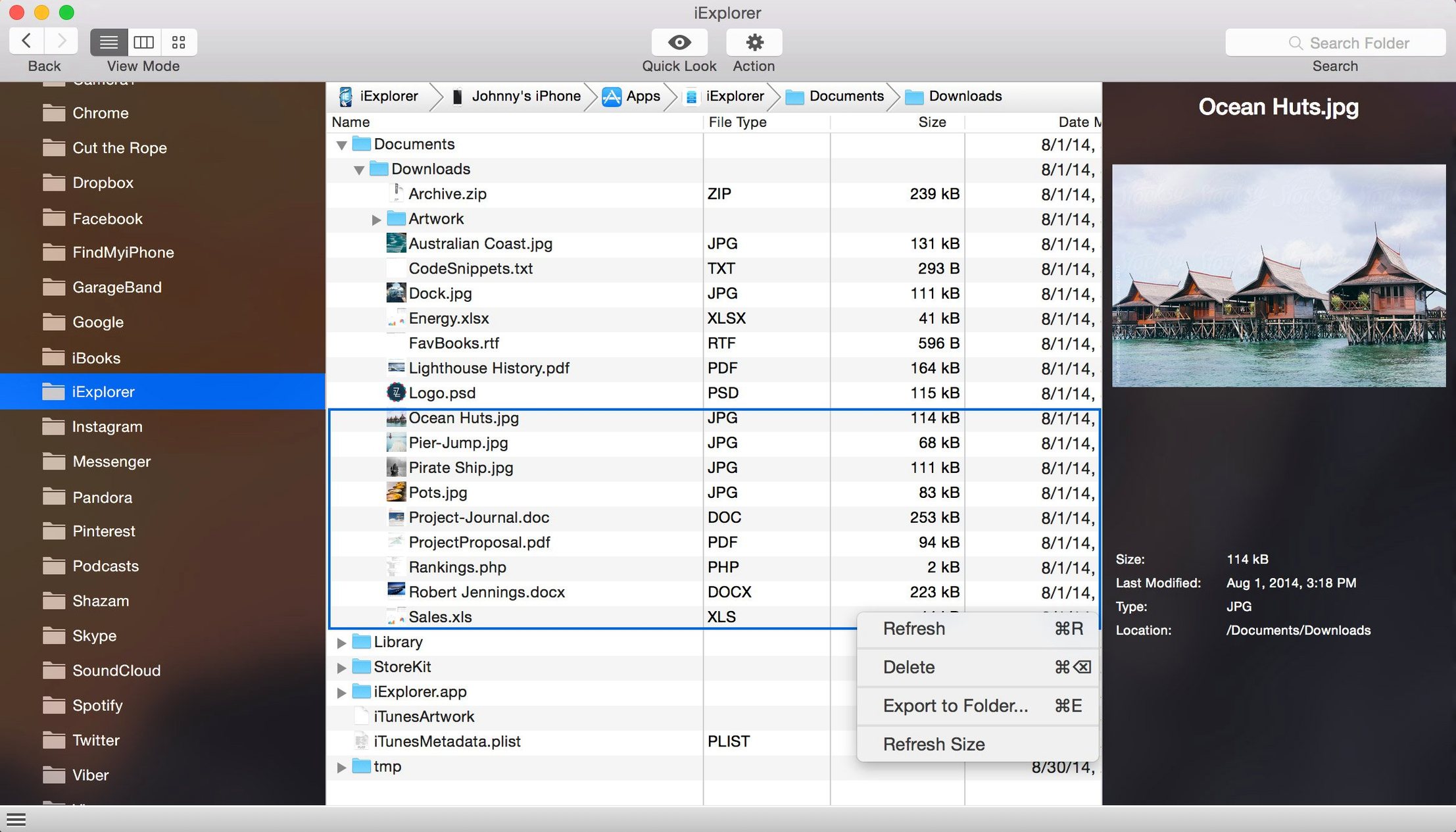
Start with a small test. Connect a device, browse to a folder with a few photos or a document, and copy one file to the desktop. Confirm the copy reads correctly. Next, try a backup of the same device to your default export folder. Open the backup from within iExplorer to verify it loads. Once those two steps work, you know the connection, file transfer, and backup functions are all functional on your machine. After that, use the app for its main task: pulling data off a device without iTunes interference.
Scenario for a user whose primary device is an iPad
An iPad user keeps notes and project files in app-specific folders that iTunes does not expose. With iExplorer, they connect the iPad, browse to the app data section, and locate the files they need. They drag the files to a folder on the Mac, edit them, and drag the updated versions back into the same app data directory. The workflow replaces clunky email-or-cloud roundtrips. iExplorer makes the device behave more like an external drive for content that normally stays hidden.
Practical tip for finding old text messages
If you need to recover a text message from an older backup, load that backup in iExplorer rather than restoring it to the device. The app lets you browse the backup contents and export individual messages, notes, or call history entries without touching your current phone data. This saves time and avoids overwriting anything on the active device.
Search queries for this version often include iexplorer full or iexplorer torrent when people look for the latest build with iOS 16 support. The 4.6.0 release is the one to get for that compatibility.
- Improved compatibility with iOS 16.
- macOS 10.10 or later
- Intel 64-bit
- iTunes
Questions from the notes
Does iExplorer work with iOS 16?
Yes, version 4.6.0 includes compatibility improvements for iOS 16.
Can I use iExplorer without iTunes?
You can add files to a device without using iTunes, but iTunes is required for the app to run.
Install procedure
- Mount the disk image and launch Open Gatekeeper friendly.
- Press Enter in Terminal to bypass Gatekeeper.
- Drag the app to the Applications folder.
- Launch the app when installation is complete.
Reports from players
Sign in or create a tester account to file a report.
No reports filed yet.