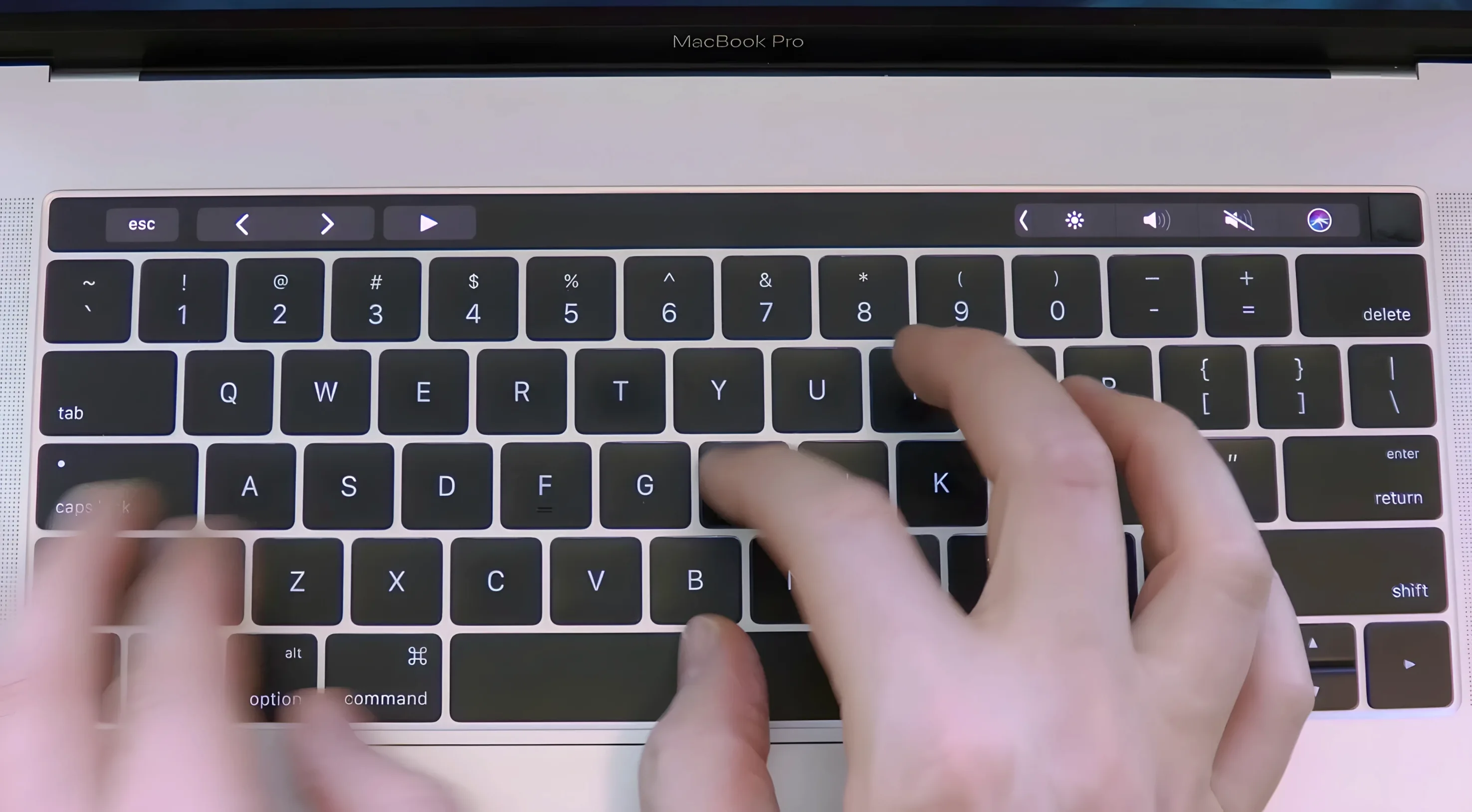
You press a key on your MacBook keyboard, and instead of the usual muted click, you hear a distinct mechanical-style sound. The harder you press, the louder it gets. That's what Haptyk does — it uses the built-in accelerometer in Apple Silicon MacBooks to detect typing force and turn the built-in keyboard into a sound-generating device.
Only M2 Pro or later MacBooks have the needed sensor
Which Macs work? — Apple Silicon MacBooks with M2 Pro or later.
Does it need extra hardware? — No. The app reads the accelerometer that's already in the machine.
How does the sound behave? — Sound intensity follows your keypress force: light taps produce soft clicks, heavier presses produce louder ones.
How do you install it? — Drag it from the disk image into Applications, then launch from Launchpad.
Adjust sensitivity slider to make feedback feel mechanical
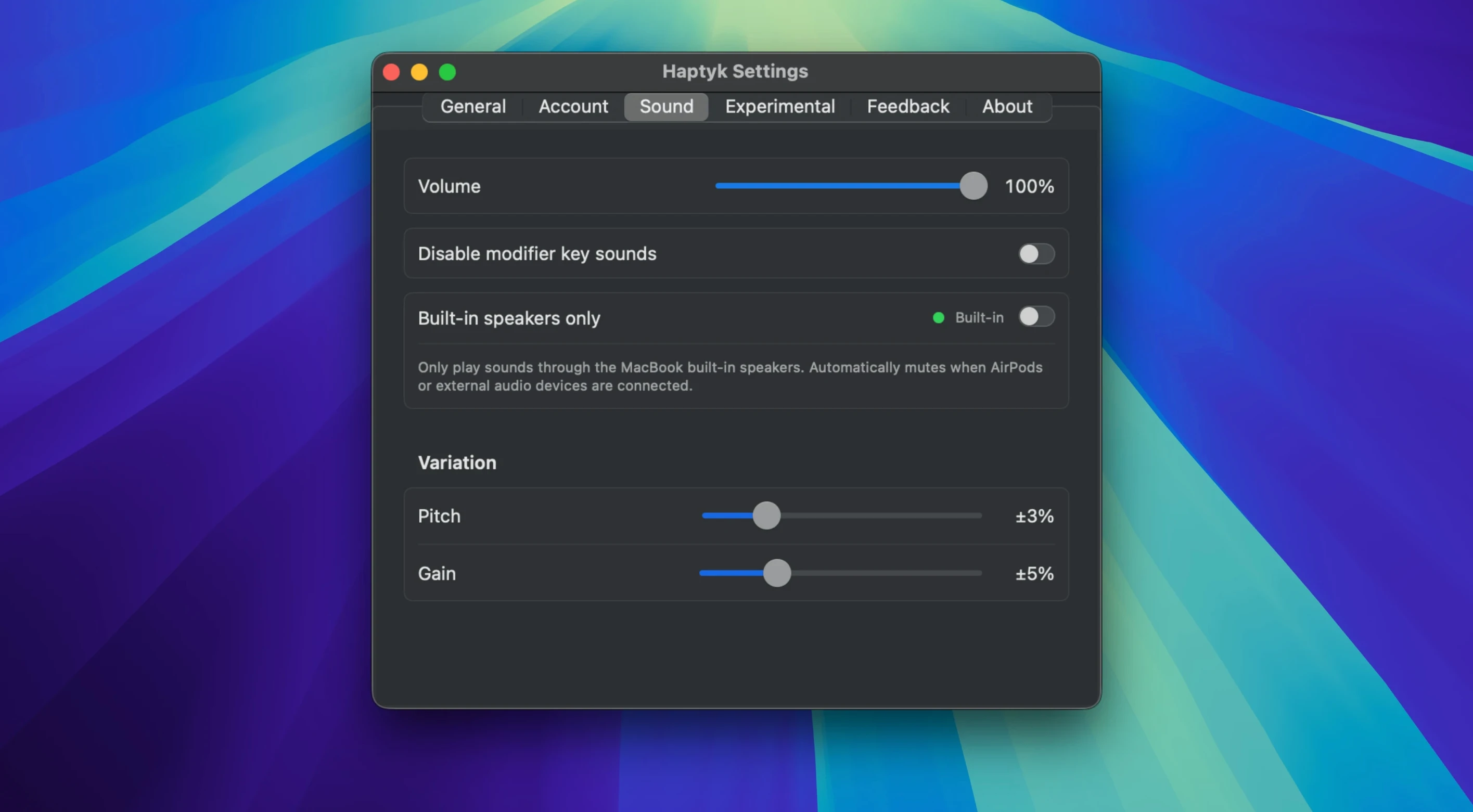
When you launch Haptyk for the first time, it starts with defaults that work for most people, but a few adjustments make the difference between a subtle effect and one that actually feels mechanical. The main thing to check is the sensitivity threshold. If your everyday typing is light, lower it so the app registers force without you having to pound the keys. If you type heavy, raise it to avoid every key sounding like a hammer strike. There is also a volume slider — set it to a level that doesn't drown out your music or notifications. The last adjustment is the sound profile. Haptyk ships with a few built-in click sounds; try a couple and pick one that matches the keyboard feel you want. Clicky for feedback, thocky for something quieter.
M1 MacBooks lack the accelerometer so Haptyk is silent
The most common mistake is expecting it to work on an M1 MacBook Air or 13-inch M1 MacBook Pro. Those models lack the accelerometer sensor Haptyk needs, so it simply won't produce any sound. Another error is leaving the app running during a call or a recording session — the clicking feeds into the microphone and annoys everyone on the other end. Some people also crank the volume to max and then complain that it's too loud; it's better to start low and nudge it up until it feels right. Lastly, beginners sometimes forget that the app needs to stay open in the background. Closing the window doesn't stop the sound — quitting the app entirely does. If you hear nothing after closing it, you have to relaunch from Launchpad or your dock.
Drag Haptyk into menu bar then set typing mode before writing
Say you want to write a report or a long email and you want the keyboard feedback to help you stay in the zone. Here is a simple sequence from start to finish:
- Open the disk image, drag Haptyk into Applications, and launch it from Launchpad. The app appears in the menu bar.
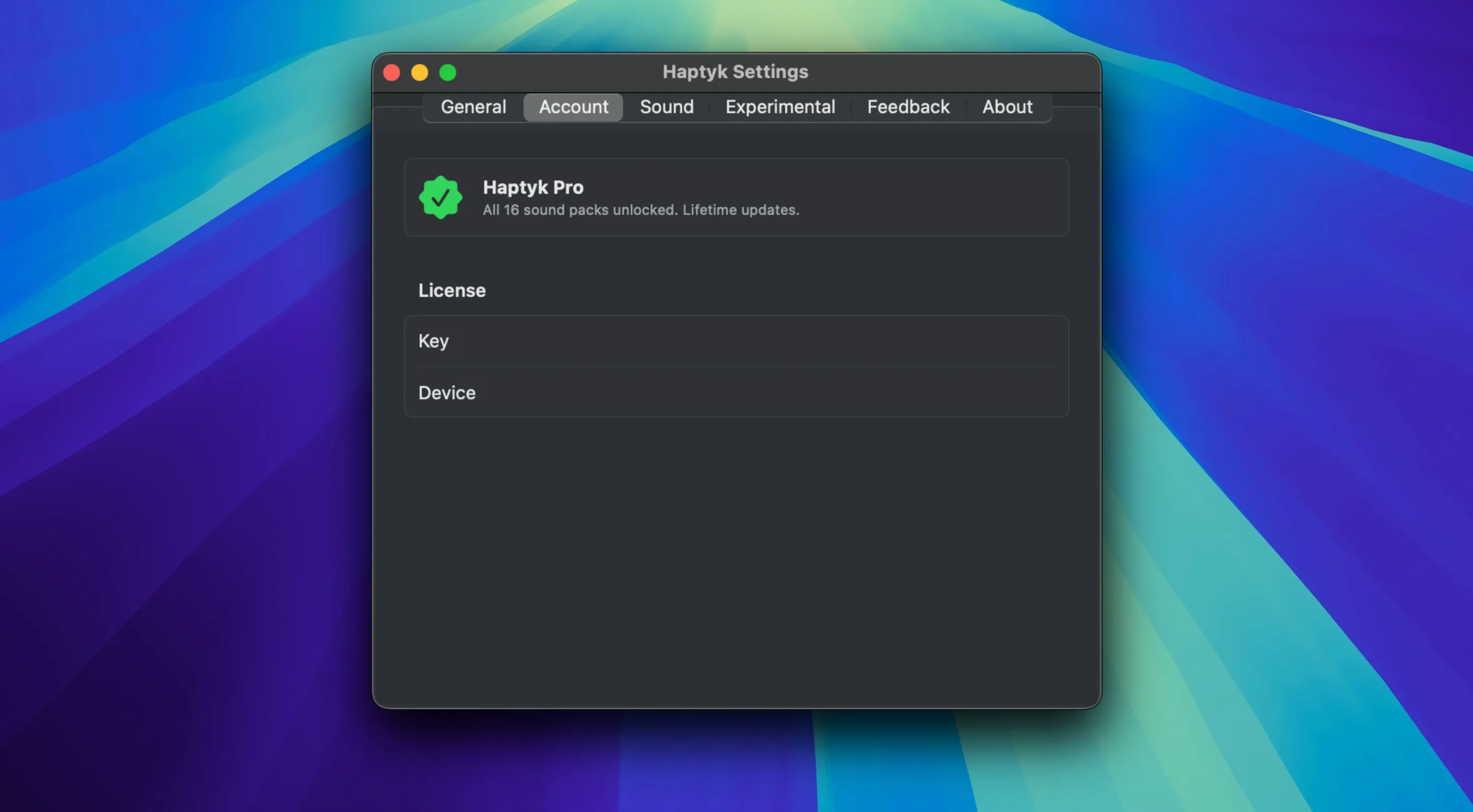
- Open the settings panel. Set the sensitivity to medium-low so light typing produces a soft click and harder presses create a louder sound.
- Choose a sound profile. A crisp click works best for writing — it gives clear feedback without being distracting.
- Open your writing app — Pages, Notes, or any text editor. Start typing at your normal pace. The sound should match your key force naturally.
- When you finish, quit Haptyk from the menu bar icon to stop the sounds. The app does not save any state, so next time you launch it, check the settings again.
Confirm your MacBook is M2 Pro or later if you hear nothing
No sound at all. — First, confirm your MacBook model is on the supported list: M2 Pro or later, MacBook Pro 13-inch M2, MacBook Air M2 and later. If your machine is M1, it cannot use Haptyk. If it is supported, check that the app is running and the volume is not muted in both Haptyk and your system sound output. Restart the app if necessary.
Sound is too quiet or too loud. — Adjust the volume slider inside Haptyk, not just the system volume. The app has its own gain stage separate from macOS's main volume. Also tweak the sensitivity: too low and heavy presses barely register; too high and light touches produce a full click.
Sound stops after a few minutes. — This can happen if the app loses focus or if macOS's power management puts the accelerometer to sleep. Quit Haptyk completely and relaunch it. If it happens repeatedly, check that you are not running other apps that access the accelerometer (like screen rotation utilities).
Keyboard clicks are audible during screen recording. — Mute the system output or pause Haptyk before recording. The app has no built-in recording bypass, so you have to manage it manually. Alternatively, lower the volume to near-zero during the recording.
The app does not open at all. — Make sure you dragged it into Applications and launched it from Launchpad, not from the disk image. If you try to run it directly from the disk image, macOS may block it. Also verify that your system runs macOS 13 Ventura or newer — older versions will not work.
Haptyk is a utility with a single purpose: give the built-in MacBook keyboard a mechanical feel, without plugging in anything.
- macOS 13 or later
- Apple Silicon MacBook with M2 Pro or later
- Both Intel and Apple Silicon supported (architecture: both)
Questions from the notes
Does Haptyk work on Intel Macs?
No. Haptyk requires an Apple Silicon MacBook with M2 Pro or later.
How does Haptyk detect typing force?
It uses the built-in accelerometer in Apple Silicon MacBooks to measure how hard you press each key.
Can I adjust the sound intensity?
The sound intensity changes automatically with keypress force — harder presses produce louder sounds.
Install procedure
- Open the downloaded disk image.
- Drag the app to the Applications folder alias.
- After copying finishes, launch it from Launchpad.
Reports from players
Sign in or create a tester account to file a report.
No reports filed yet.