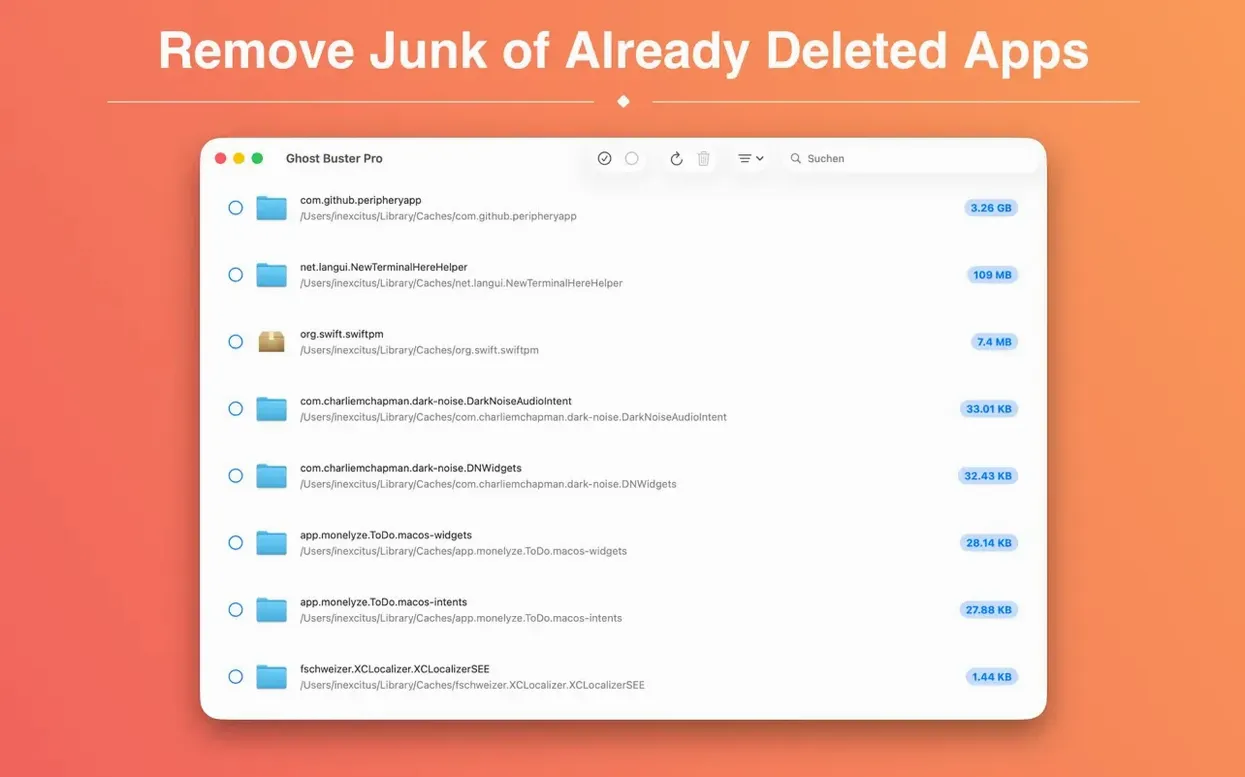
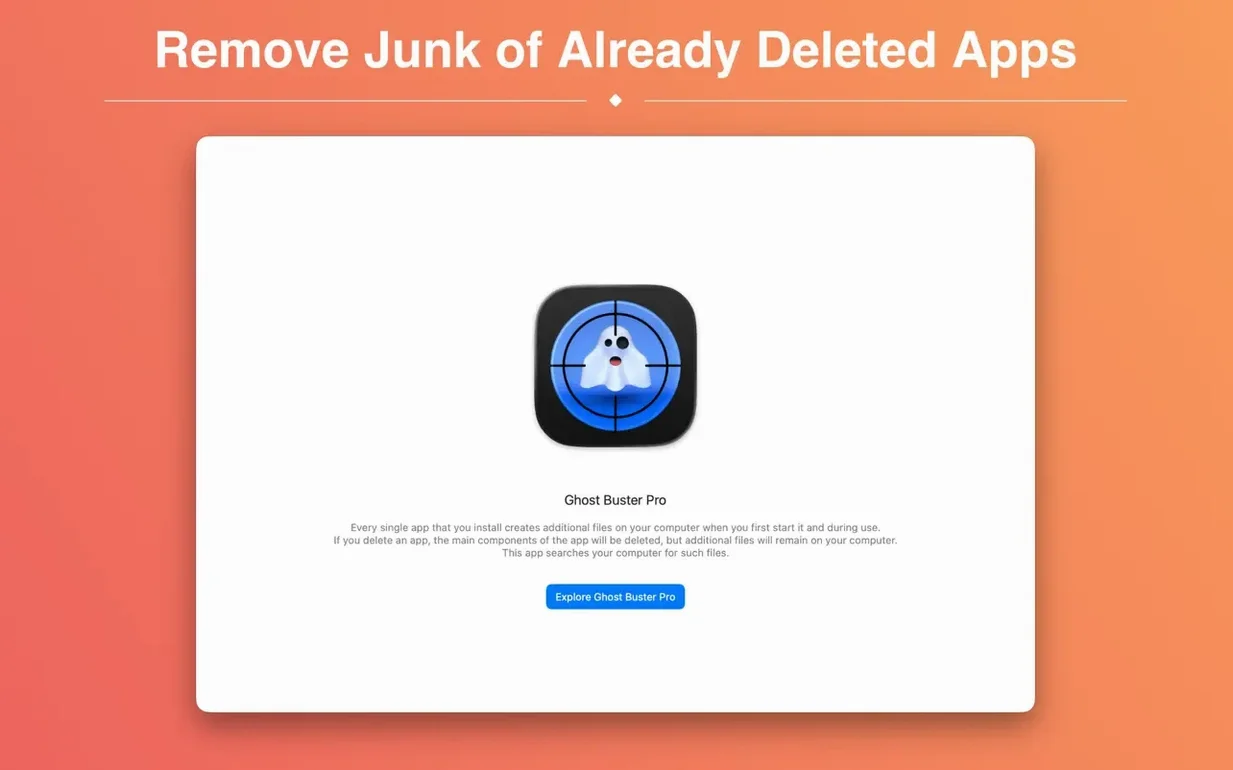
Ghost buster pro runs on both Intel and Apple Silicon Macs — any machine with macOS 15.0 or later is supported. It scans your system for leftover files from apps you’ve already uninstalled: support files, preferences, caches, and other bits that stick around after the main app is gone. The search starts as soon as you open it, and you can delete everything in one click.
Clears leftovers that disk utilities miss
- Clearing out app leftovers that disk utilities miss.
- Freeing up space taken by orphaned caches and preferences.
- A quick post-uninstall pass without digging through Library folders manually.
Requires macOS 15.0 or later
- Requires macOS 15.0 or later — no support for older systems.
- Interface languages: English, German, Spanish, French, Italian, Russian, Polish, Korean, Simplified Chinese.
- Supports Family Sharing if you need to share the license.
Adjust scan scope before the first deep pass
Ghost buster pro starts scanning immediately after launch, which is fine for a one-off cleanup. If you run it regularly, you may want to adjust a few things before the first deep pass.
- Set your scan scope — The default search covers common locations like
~/Library,/Library, and system caches. If you tend to install apps in non-standard spots, check whether the scan path list includes those directories. Adding them saves doing separate manual scans later. - Review the deletion preference — The app deletes files with one click, but it does not move anything to Trash first. If you prefer a safety net before permanent removal, see if the app offers a pre-delete review or a quarantine option. The version I use asks for confirmation, so a quick glance at that setting keeps you from accidentally wiping something you meant to keep.
- Language display — If the interface shows up in a language you do not want, switch it in the app's preferences. The available set includes English, German, Spanish, French, Italian, Russian, Polish, Korean, and Simplified Chinese.
A cleanup workflow from start to finish
Here is a typical sequence for clearing leftovers after uninstalling a few apps. The whole process takes a couple of minutes.
- Uninstall the apps the normal way — Drag them to Trash or use the vendor's own uninstaller. Do not bother manually deleting support files yet; that is what Ghost buster pro is for.
- Launch the utility — The scan starts automatically. It checks system and user Library folders for orphaned files. Let it finish before you do anything else.
- Review the results — The app shows a list of found items, usually grouped by the original app name. Look for the apps you just removed. Files from those are safe to delete. If you see leftovers from an app you still use, leave those alone.
- Select and delete — Mark the items you want gone. A single click removes them. The app does not ask twice, so double-check your selection before confirming.
- Empty Trash — Ghost buster pro deletes files directly rather than moving them to Trash, but if you had any other files in the Trash from earlier, empty it now to recover the space.
That routine works for a single app or a batch of them. You can run it weekly or after any uninstall session to keep the system lean.
Complements disk cleaners like DaisyDisk
Ghost buster pro does not replace a full disk cleaner. It focuses on one thing: leftovers from uninstalled apps. That makes it a complement to tools like DaisyDisk or OmniDiskSweeper, which find large files and general clutter. Use those for big-picture disk analysis, then Ghost buster pro for the narrow post-uninstall cleanup.
On the macOS side, the utility works alongside the built-in Storage Management panel. System Settings > General > Storage shows you a breakdown of what is taking space, but it does not dig into orphaned app files. Ghost buster pro catches what Apple's interface skips. Similarly, if you use Time Machine, deleting leftover files before a backup means they never get archived, keeping your backup set smaller.
That makes it practical to run the same cleanup routine on each machine without buying separate copies.
Frequent installers and testers benefit most
Three types of Mac users benefit the most from Ghost buster pro.
QA testers, beta testers, and users who try many utilities will find the scan-and-delete cycle saves time versus manual Library browsing.
Removing leftover caches and support files from long-gone apps can free a noticeable amount of space without affecting current software. A useful ghost torrent of app installers can fill a drive fast, but keeping the cleanup routine makes it easier to swap apps in and out.
Users who want a post-uninstall ritual — If you already have a habit of uninstalling apps cleanly, adding one more step that automates the file hunt makes sense. Ghost buster pro is lightweight, runs on any Mac running macOS 15.6 or later, and handles both Intel and Apple Silicon architectures. It does not require configuration every time. Open it, let it scan, delete, and move on.
- New app icon for macOS 27.
- macOS 15.6 or later
- Intel or Apple Silicon
Questions from the notes
Does ghost buster pro scan for leftover files automatically?
Yes. It starts searching immediately after launch, so you don’t need to configure a scan.
What kind of leftover files does it find?
It finds support files, preferences, caches, and other small leftovers that uninstalled apps leave behind.
Install procedure
- Mount the disk image and launch the app. Gatekeeper friendly will open.
- Press Enter in the Terminal window to bypass Gatekeeper.
- Drag the app to the Applications folder.
- Open the app to start using it.
Reports from players
Sign in or create a tester account to file a report.
No reports filed yet.