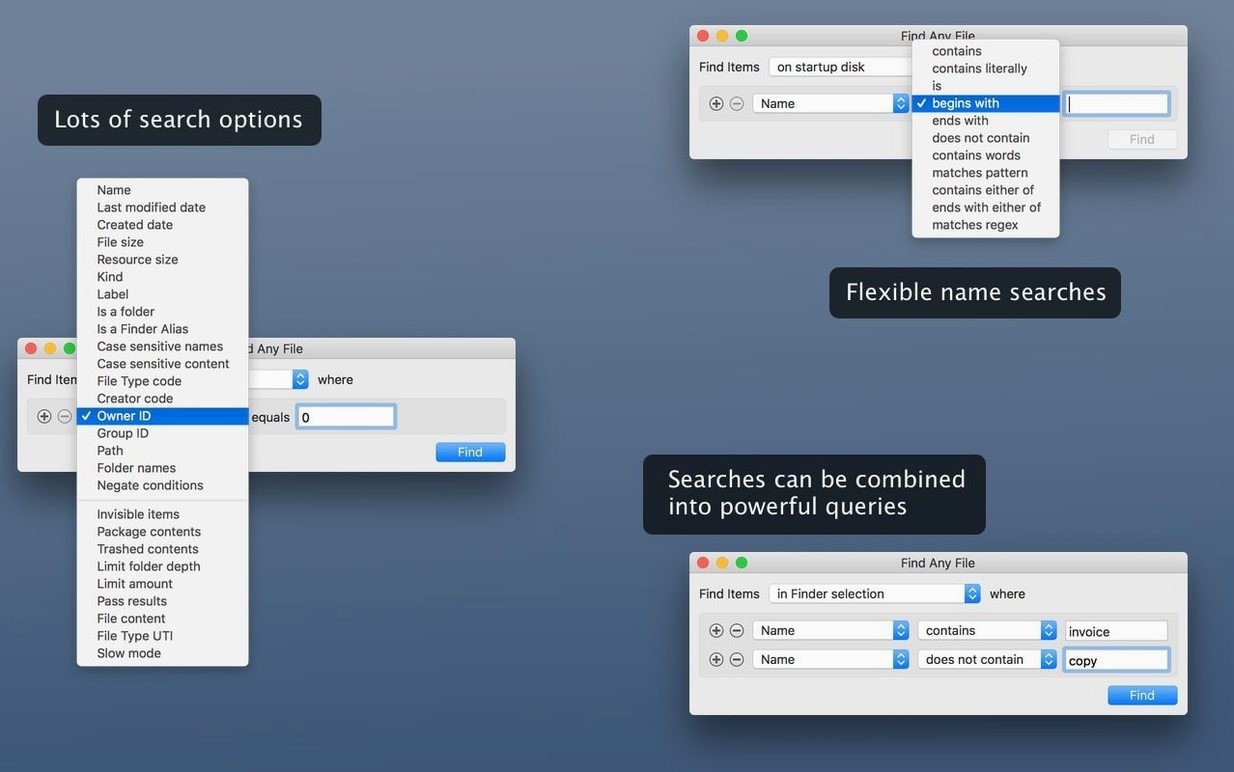
Spotlight skips a lot—system folders, bundles, packages, hidden files. Find Any File goes directly to the disk and finds what Spotlight leaves out. Version 2.6.1 is the current release, and it brings a few concrete additions on top of the same direct-search approach.
- AppleScript support added in 2.6 lets you control searches from scripts or other apps.
- New columns for Comments, Trashed, and Hidden make it easier to sort results without digging into Get Info.
- Finding file comments is now more reliable — the app reads them directly from the file system metadata.
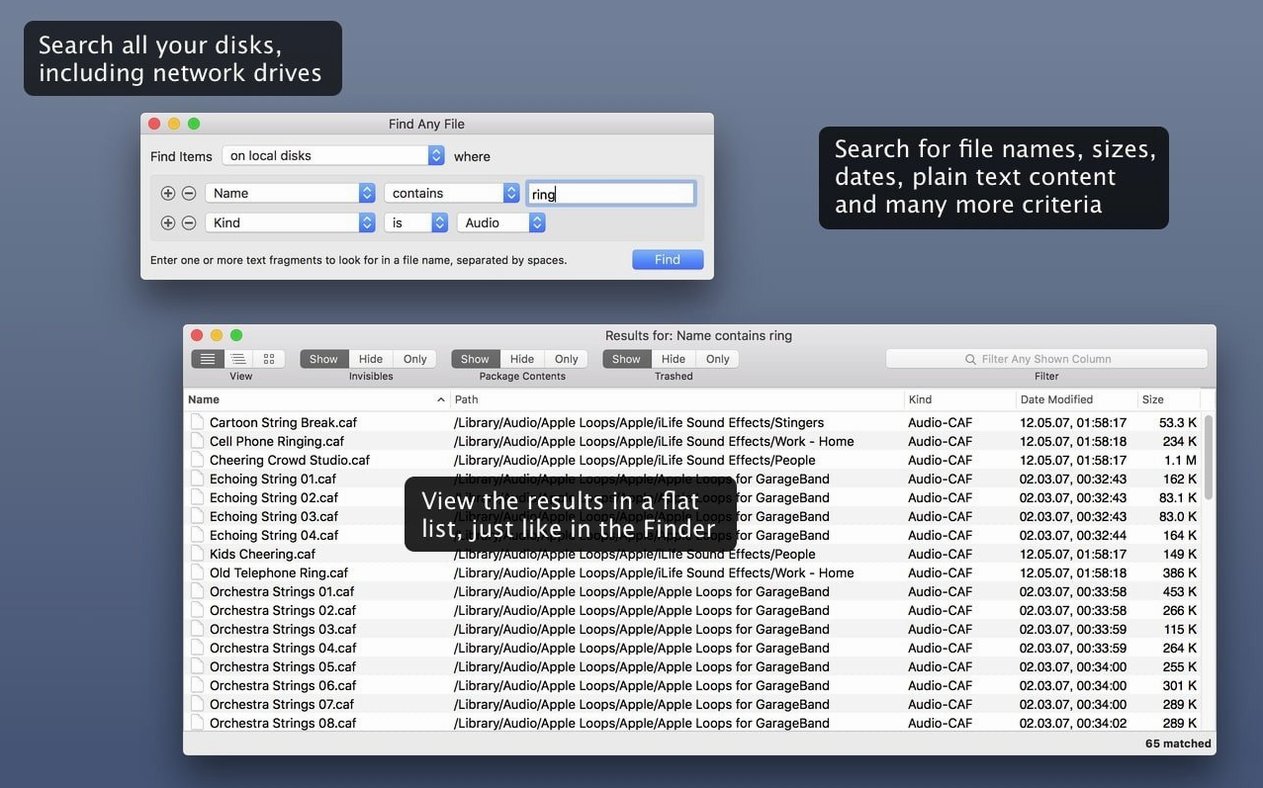
- Still searches plain, unformatted text inside files, useful for logs or config files.
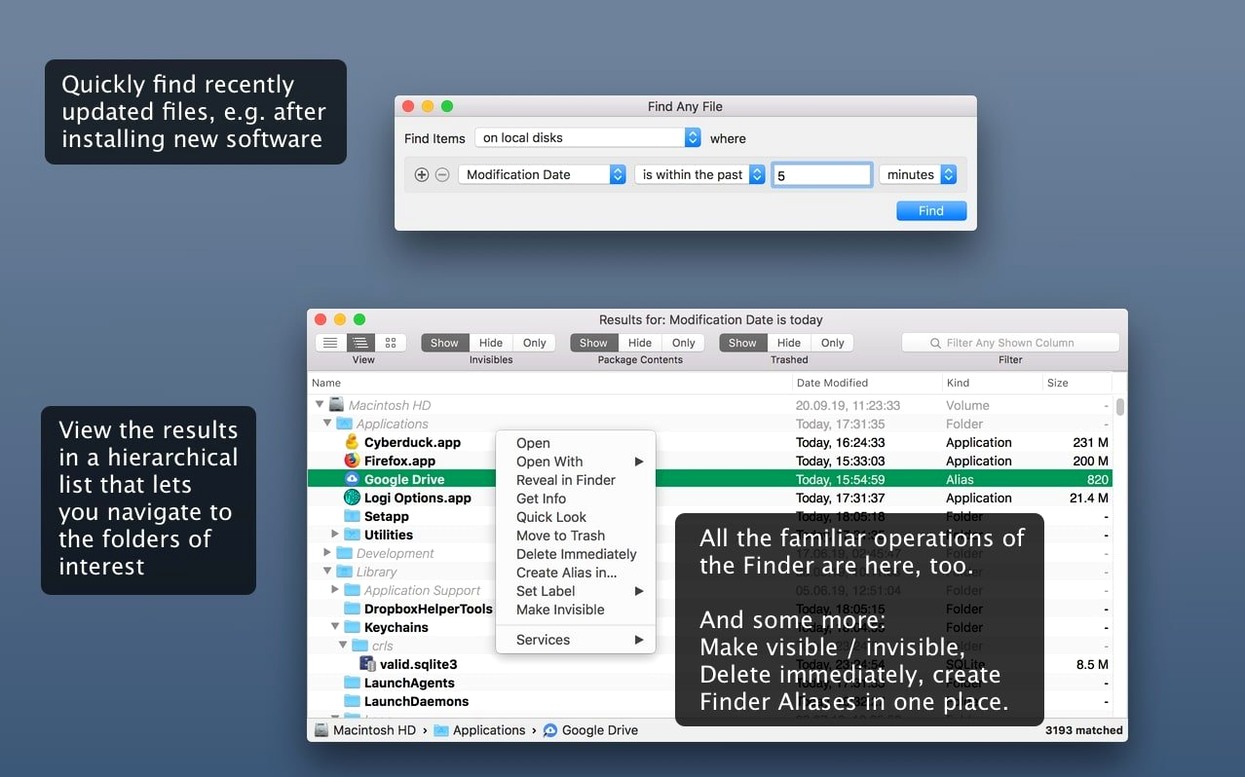
- Results display in a hierarchical folder view, so you see where files live, not just a flat list.
- Runs on anything from macOS 10.11 up to 27, Intel and Apple Silicon.
If you need to find files inside packages or system folders, or you want a search that does not rely on a database, this is the tool.
Searching inside .app bundles and .pkg installers
A few things in Find Any File are not obvious from the feature list but save time once you know them.
- Searching inside packages and bundles. Most file browsers treat .app bundles or .pkg installers as single items. Find Any File sees inside them, so you can locate a misplaced framework or a stray resource file without unpacking anything manually.
- Using the hierarchical folder view to navigate. Results appear in a tree that mirrors the actual folder structure. Clicking a folder in the results shows you its contents without running a new search. This is useful when you find a config file and want to check nearby files in the same directory.
- Searching server volumes and disks Spotlight ignores. If you mount a network volume or connect an external drive formatted in a way Spotlight does not index, Find Any File can still search it by name, date, or size. It reads the disk directly, so no database rebuild is required.
- Finding files in system locations Spotlight excludes. System Integrity Protection keeps Spotlight out of certain folders. Find Any File does not have that restriction, so you can locate files in
/System,/Library, and similar protected areas. - The new Comments column. Added in version 2.6, it reads Finder comments directly from file system metadata. This is the same data you see in the Spotlight comment field, but Find Any File displays it as a sortable column in the results list.
How Find Any File differs from Spotlight and other Mac search tools
Spotlight
Spotlight is fast because it uses a pre-built index. It handles email, PDF text, Word documents, and media metadata. But it skips system files, bundles, and some network volumes. Find Any File does not index anything, so it is slower for broad searches, but it works where Spotlight does not. The developer describes it as a companion to Spotlight, and that is accurate — you use one or the other depending on what you need to find.
Tembo
Tembo is another shareware tool that improves Spotlight results. It gives you more control over file types, search folders, and boolean operators, but it still relies on the Spotlight index underneath. If your files are not indexed, Tembo cannot find them. Find Any File searches the disk directly, so it can find files Tembo misses. The developer mentions Tembo on the site as a complementary tool for users who want better Spotlight queries.
EasyFind
EasyFind is a free app from DEVONtechnologies that also searches without a database. It finds files by name and content, and it handles plain text, RTF, and some other formats. Its interface is simpler, but it does not support AppleScript, and it does not show results in a hierarchical folder view. Find Any File gives you the hidden file columns and the bundle inspection that EasyFind leaves out.
Why system administrators and IT users need Find Any File
Find Any File is not a replacement for everyday searches. If you mostly look up documents by name or content and Spotlight finds them, you do not need it. It becomes useful when Spotlight fails.
- System administrators and IT support. Locating config files, log files, and preferences inside
/Libraryor system bundles is routine. Find Any File lets you search these locations without enabling hidden files in the Finder or using Terminal commands. - Developers and QA testers. Finding resource files inside .app bundles, locating cached data, and searching inside .frameworks is easier than navigating package contents manually. The AppleScript support in version 2.6 also means you can automate searches as part of a testing script or build process.
- Users who maintain large local or networked archives. If you store files on external drives or network volumes that Spotlight does not index, Find Any File can still find files by name or date. The hierarchical view helps you understand folder organization without browsing each volume separately.
- Anyone migrating data or cleaning up old drives. Searching by date and size across multiple disks can help you find duplicates or old versions before you copy everything to a new machine.
What happens when Find Any File lacks full disk access permission
How does Find Any File handle searches if I do not have full disk access permission?
On recent macOS versions, the app prompts you to grant Full Disk Access in System Preferences the first time it needs to read protected folders. Without that permission, it can still search your user folder and other accessible locations. Granting it lets the app search system folders and other users' files.
Can it search file content inside PDFs or Word documents?
No. It searches plain, unformatted text inside files — logs, source code, configuration files, and similar formats. For rich document content, you still need Spotlight or another tool. Find Any File is designed to find files by name, date, size, and plain text, not to replace document search.
Does it work on Apple Silicon Macs?
Yes. The current version runs natively on both Intel and Apple Silicon, and the developer lists compatibility from macOS 10.11 up to 27. No Rosetta translation is required on M-series Macs.
Why would I use Find Any File when I can use find or mdfind in Terminal?
The command-line tools are powerful but require knowing the right syntax and flags. Find Any File gives you a graphical interface with sortable columns, a hierarchical folder view, and the ability to save or script searches. For users who are comfortable in Terminal, the command line is already there. For everyone else, Find Any File provides the same direct-disk access in a visual interface.
- Added AppleScript support.
- Added columns for Comments, Trashed, and Hidden.
- Improved reliability of finding file comments.
- macOS OS X 10.11 or later
- Intel or Apple Silicon
Install procedure
- Mount the disk image and run the Open Gatekeeper friendly command.
- Press Enter to bypass Gatekeeper in the Terminal window.
- Drag the app to the Applications folder.
- Start the app when copying is complete.
Reports from players
Sign in or create a tester account to file a report.
No reports filed yet.