
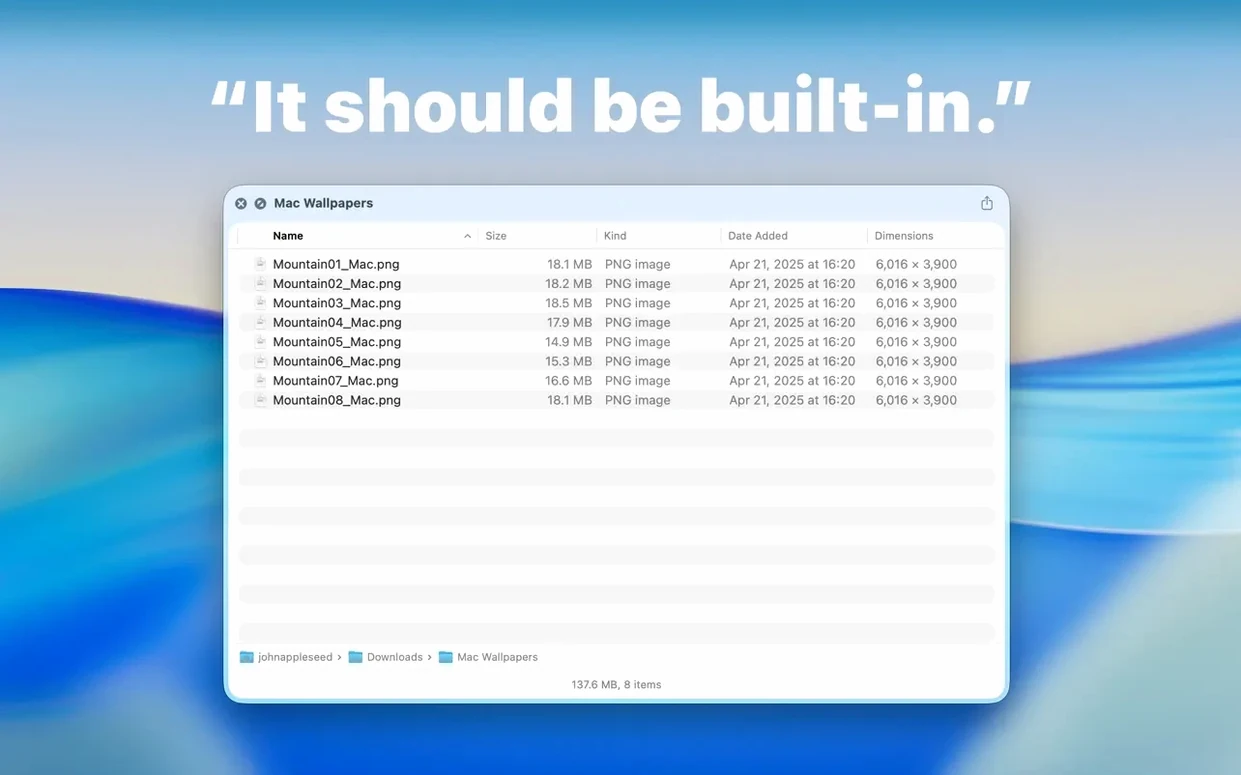
The Dual Columns view in Folder Preview Pro 3.1 is the first thing you notice. Instead of one flat list, you get two panes: the left shows the current folder, the right shows the selected subfolder's contents. That alone cuts down a lot of back-and-forth when you're checking nested project directories.
- Press Space or Command-Y on a folder in Finder. The Quick Look panel opens with the folder's contents.
- If you need to see one level deeper, use the new Contents item in the context menu. It walks you through the hierarchy step by step.
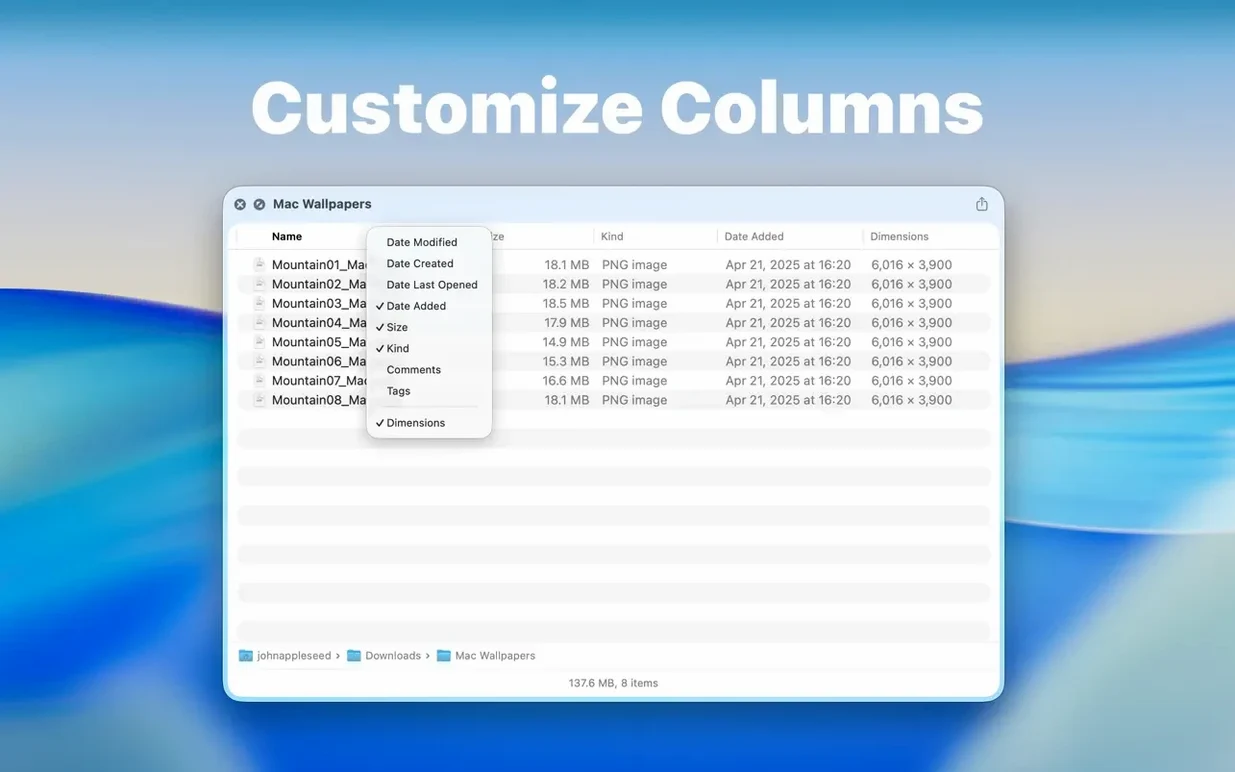
- Right-click any column header to toggle columns on or off. Folder size now sits in the toolbar under the folder name, not in the status bar.
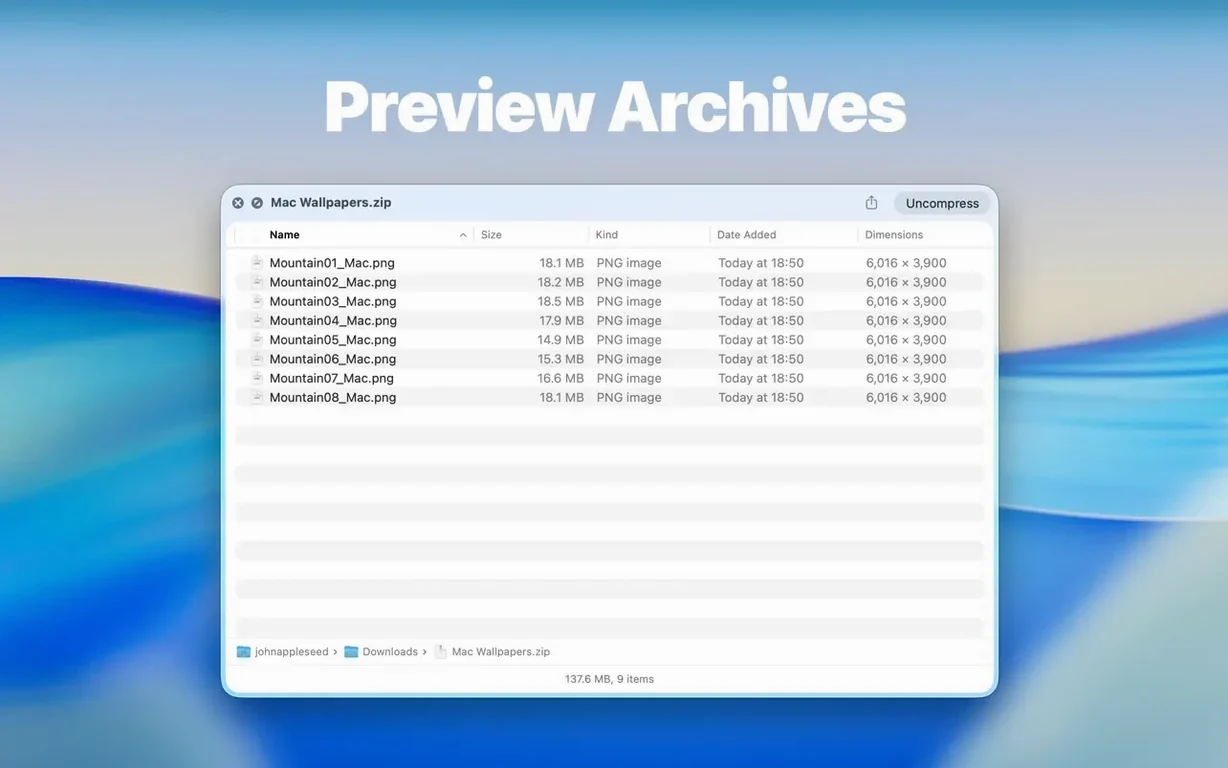
- Drag files straight out of the preview in list or icon view to copy them elsewhere. For archives, the preview reads ZIP, TAR, GZ, 7Z, and RAR formats directly.
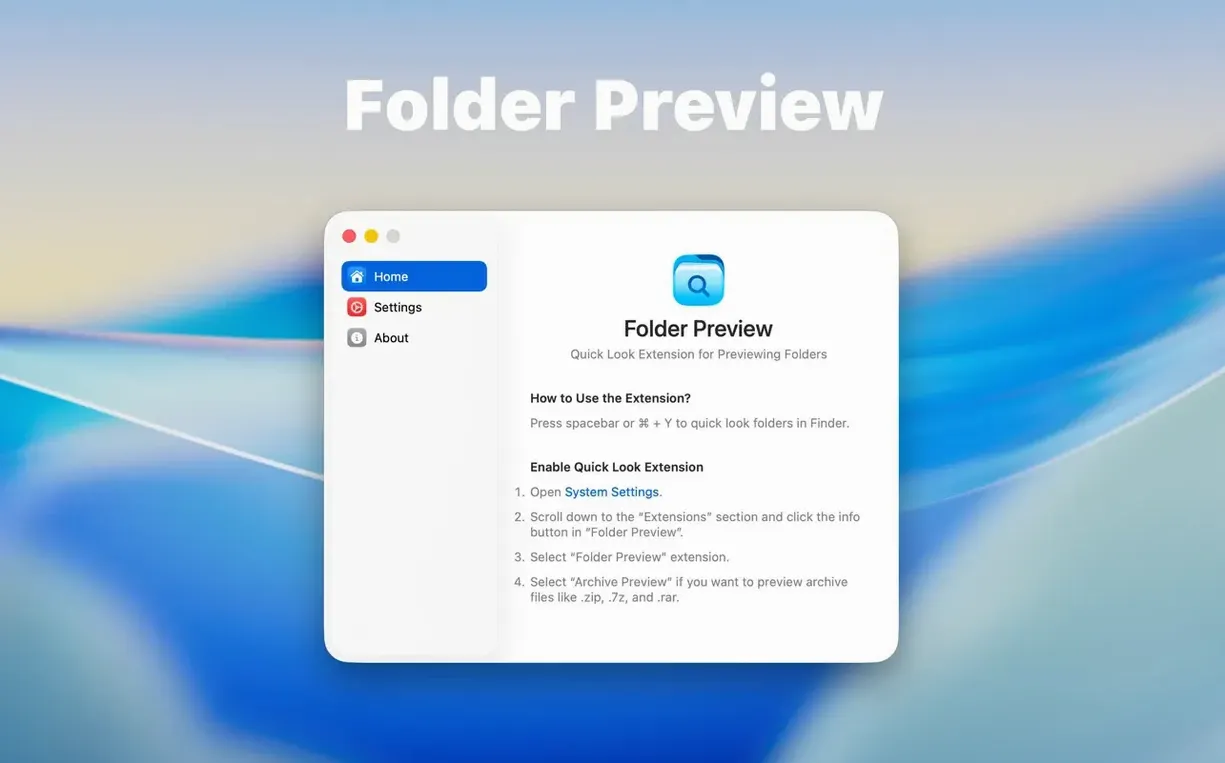
First, enable Quick Look in System Settings. Then install 3.1 from the disk image, drag the app to Applications, and launch it from Launchpad once. The extension works in both list and icon views, and it handles the usual archive types without a separate utility.
I have a project folder called Assets_2025 that usually lives on my desktop. It has fifteen subfolders — sprites, audio, builds, reference — and each subfolder has its own nested structure. Before version 3.1, I would expand Finder windows or open separate tabs to see what was where. Now I press Space on Assets_2025, get the Dual Columns view, and click through subfolders in the right pane without leaving the preview. When I need a sprite from sprites/characters/player, I right-click the column header to show only the file name and date modified, find the file, and drag it to the desktop. Whole sequence takes about ten seconds.
Tuesday morning unpacking ZIP archives with Space
Tuesday morning, I am going through the week's delivery of ZIP archives from a freelancer. Each archive contains a mix of source files, layered Psds, and a readme. I highlight the first archive in Finder, hit Space, and Folder Preview Pro 3.1 opens it. The Dual Columns view shows the archive's root on the left and whatever I select on the right. I see the readme first. I drag the Psd files out of the preview straight into a working folder. No need to unzip, no waiting for another application to open. I do this for five or six archives in a row. When one archive exceeds 5 GB — the freelancer sent a huge texture pack — I get no lag because I already set the archive size limit to 10 GB in the preferences the day before. The preview handles it fine.
Later that afternoon, I am cleaning up a project folder with dozens of subdirectories. Instead of drilling in and out of each one with Command-O, I click Assets_2025, press Space, and toggle the Contents item from the context menu. It lists the immediate subfolders. I click one, and it shows me the files inside. I spot a duplicate icon.psd in two different subfolders. Without the preview, I might have missed it. I right-click the column header, add the date modified column, and confirm the newer one. I drag the older one to the trash from the preview. Done.
Real-world scenario: a graphic designer handing off assets
A designer named Mei sends me a weekly archive of final exports. It is a RAR file with a folder hierarchy — finals, drafts, fonts, and a master PSD. Before Folder Preview Pro, she would extract everything, check sizes, and rezip it. Now she uses the preview to verify the contents before sending it my way. She presses Space on the RAR, uses the Dual Columns view to confirm the folder structure matches her spec, and drags a sample file out to check the dimensions. If something is off, she fixes it before the archive leaves her machine. She has not had to re-upload in two weeks.
Fixing Quick Look and dual columns when they stop working
- Quick Look does not respond to Space or Command-Y. Open System Settings, search for "Quick Look," and verify it is toggled on. Folder Preview Pro cannot work without that system toggle.
- Dual Columns view does not appear. The feature is available only in version 3.1. Check that you installed the disk image correctly and launched the app from Launchpad at least once after copying it to Applications.
- Archive preview is empty or shows garbled file names. The preview supports ZIP, TAR, GZ, 7Z, and RAR. If the archive uses an unsupported compression method or is password-protected, the preview will not display contents. Try extracting it manually.
- Folder size shows up in the wrong place. Version 3.1 moved folder size from the status bar to the toolbar under the folder name. If you still see it in the status bar, you are probably running an older version — re-download 3.1.
- Cannot drag files out of the preview. The drag-and-drop feature works in list and icon views, not in column or cover flow views. Switch the preview to list or icon view and try again.
- The archive size limit is too low for your files. Open the preferences and choose between the default and the new 5 GB and 10 GB options. The limit applies per archive.
- Adds Dual Columns view.
- Adds a Contents item for level-by-level folder browsing.
- Lets files be dragged out of the preview from list and icon views.
- Moves folder size information to the toolbar under the folder name.
- macOS 13 or later
- Intel or Apple Silicon
Questions from the notes
How do I open Folder Preview Pro?
After installing, press Space or Command-Y on any folder in Finder. Quick Look must be enabled in System Settings first.
What archive formats does it support?
The preview reads ZIP, TAR, GZ, 7Z, and RAR files.
Install procedure
- Open the downloaded disk image.
- Drag the app to the Applications folder.
- Launch it from Launchpad after copying finishes.
Reports from players
Sign in or create a tester account to file a report.
No reports filed yet.