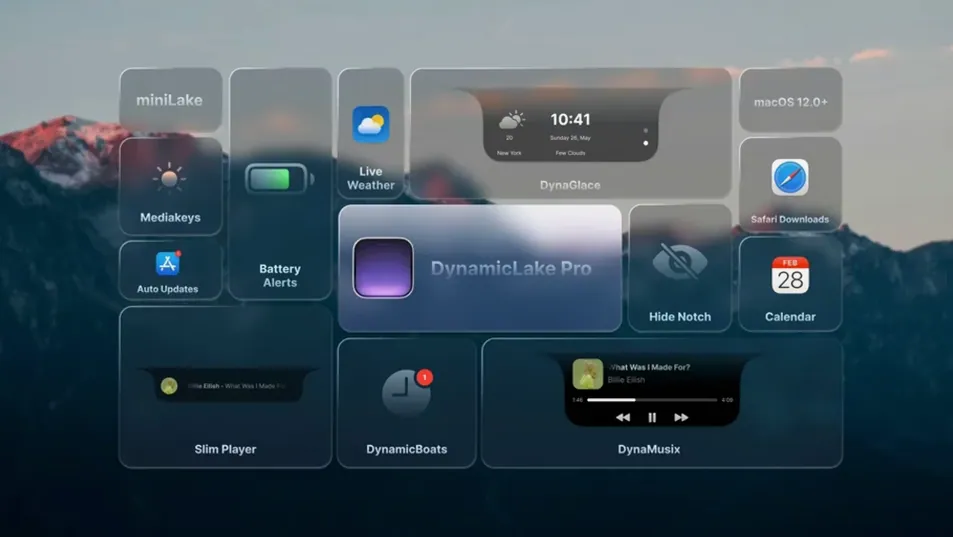
macOS doesn't have a Dynamic Island, but your Mac doesn't have to miss out. DynamicLake Pro brings that interface style to the desktop, adding widgets and notifications that sit neatly around the menu bar or screen edges. Version 1.8 is the current release.
Good for:
- Music, weather, and calendar widgets that stay out of the way until you need them.
- DynaGlance for real-time schedule and weather updates at a glance.
- DynaKeys for controlling volume, brightness, and keyboard backlight from the island.
- Timers created in the macOS Clock app appearing automatically in DynamicLake.
Keep in mind:
- Works on both Apple Silicon and 64-bit Intel Macs.
- Requires macOS 11 or later.
- Interface available in 13 languages, including English, Russian, and Japanese.
- Later releases add support for macOS 27.
Widgets missing after launch? Check privacy permissions
A few things trip people up in the first week. None of them are deal-breakers, but knowing them saves time.
- Widgets don't appear after launch. The app needs permission to draw over other windows. Check your Privacy & Security settings under Accessibility — DynamicLake Pro should be listed and enabled. If it isn't, grant the permission and restart the app.
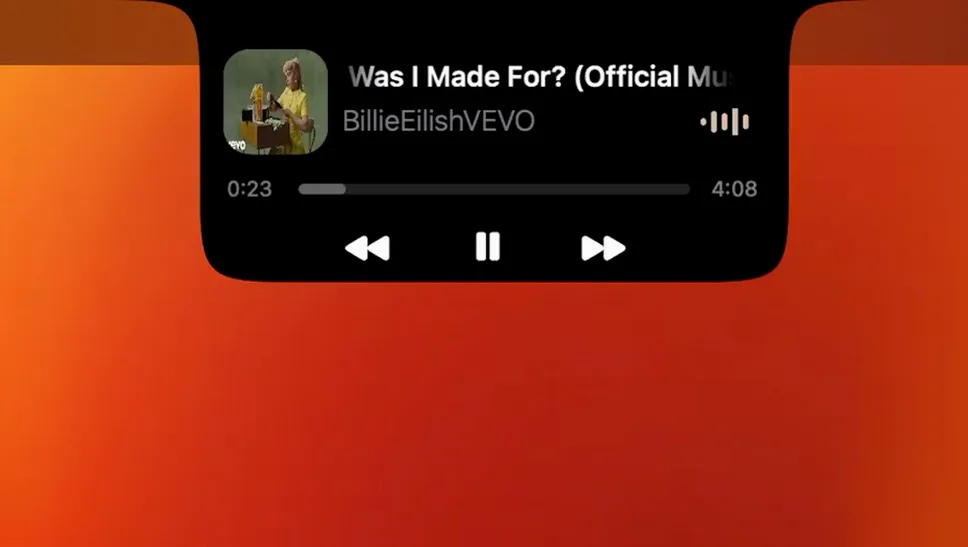
- DynaMusic shows "No player found." The music widget talks to the default media player macOS reports. If you use a third-party player that doesn't register itself as a media source, DynaMusic won't see it. Try the built-in Apple Music app or a player that exposes its controls to the OS.
- Option+Tab (DynaSwitcher) doesn't respond. Another app may have grabbed that shortcut. Go to System Settings > Keyboard > Keyboard Shortcuts and look for conflicts. Disable the conflicting shortcut, then restart DynamicLake Pro.
- Weather widget shows the wrong location. DynaGlance uses the system region settings. Open System Settings > Time & Language > Region and set your city. The widget updates on the next refresh cycle.
- Bluetooth alerts (DynaConnect) fire for devices you don't care about. The app shows alerts for every connect and disconnect by default. There's no per-device filter in version 1.8, so you either accept all alerts or disable the module entirely from the app's settings.
Scenario: A designer who works through notifications
Imagine someone who spends the day between Figma, Slack, and Apple Music, with calendar events scattered across the afternoon. They don't want a second screen or a phone buzzing.
After installing DynamicLake Pro, they set up DynaGlance as the main widget. The current meeting and the next rain shower both live in the same small panel. When Slack sends a message, the push notification includes a reply field — no need to switch windows for a quick "yes" or "running late."
DynaMusic sits to the right of the calendar. They control playlists with the on-screen buttons instead of digging out the ⌘+Space search every time. DynaKeys handles brightness because the room lighting changes in the afternoon.
The app switcher (DynaSwitcher) replaces ⌘+Tab with Option+Tab. The list shows open apps but not every Finder window, so switching feels faster once the muscle memory adjusts.
The designer never opens the full DynamicLake settings panel after the first day. The widgets do their job, and the Bluetooth connect alerts for the mouse and keyboard are the only interruptions — which is exactly what they want.
Add one widget per day for the first three days
- Set up widgets one at a time. Enabling everything at once makes it hard to tell which module does what. Start with DynaGlance. Use it for a day. Add DynaMusic the next day. Add DynaSwitcher on day three.
- Adjust the widget position early. The island can sit on the left, center, or right of the screen. Pick a spot that doesn't overlap with your menu bar icons. If you have many system tray items, the right edge tends to be more predictable.
- Test DynaConnect with a known device. Pair a Bluetooth speaker or headphones, then disconnect and reconnect it. You'll see the alert style and duration. If it's too long or too short, look for the notification timeout in settings.
- Try miniLake. The smaller format strips out some widgets but keeps the core functions — music, weather, and the timer from the Clock app. Some users prefer it for a less crowded display.
- Check the language setting. If the interface shows text in a language you don't read, the app picks up the system locale. You can switch to one of the 13 supported languages from the preferences panel.
Drag the app into the Applications alias, not the disk image
- Dragging the app out of the disk image instead of using the alias. The install step says to drag DynamicLake Pro into the Applications folder alias. Dragging it elsewhere means macOS may not keep the permissions right. Re-do the install if the widgets act flaky.
- Assuming DynamicLake works like a native Apple feature. It's an overlay. It won't integrate into the menu bar like a system icon. If you hide it, it's truly hidden — no ⌘+click to peek at widgets.
- Expecting all notifications to support quick replies. The feature works only for messaging apps that expose inline reply actions to the OS. Standard email alerts, system prompts, and most third-party notifications show without a reply button.
- Leaving multiple modules enabled when you only need one. DynaGlance, DynaMusic, DynaSwitcher, DynaConnect, and DynaKeys each consume a small amount of screen space. Running all five at once on a 13-inch display feels cramped. Disable what you don't use from the settings.
- Forgetting that timers from the Clock app appear automatically. You don't need to set a timer inside DynamicLake. Start one in the macOS Clock app, and it shows up in the island. Beginners often look for a timer button inside the app and miss it.
- Ignoring the Option+Tab vs. ⌘+Tab difference. Option+Tab switches apps through DynaSwitcher. ⌘+Tab still uses the standard macOS app switcher. If you keep hitting the wrong key, train yourself to use Option+Tab only while DynamicLake Pro is running.
DynaKeys works with external keyboard brightness and volume keys
- DynaKeys works with external keyboards that have brightness and volume keys. If your keyboard lacks those keys, the on-screen controls in DynamicLake still adjust them. The app reads the same system brightness and volume macOS exposes.
- DynaGlance updates weather and calendar data at set intervals. You don't need to click anything. The widget refreshes on its own. If you changed your location or added a meeting, wait a minute for the widget to catch up.
- Bluetooth connect and disconnect alerts show the device name, not just "connected." DynaConnect reads the Bluetooth device label, so you see "MX Keys Mini connected" rather than a generic message.
- miniLake preserves the most-used widgets. If you only need music and the next meeting, miniLake is the better layout. It keeps the island shape but reduces the footprint. Switch to it from the main app menu.
- The app remembers which language you chose. Once you pick a language from the 13 available, DynamicLake Pro stores it. Reinstalls or updates don't reset it back to system default — at least not in version 1.8.
- DynamicLake Pro does not require activation. Install, launch, and configure. No account creation, no product key entry. That's one fewer step to forget.
- macOS 11 or later
- Architecture: both (ARM and 64-bit Intel)
Questions from the notes
Does DynamicLake Pro work on Intel Macs?
Yes, DynamicLake Pro supports both ARM and 64-bit Intel Macs, so it runs on Apple Silicon and older Intel models.
Install procedure
- Open the downloaded disk image.
- Drag the app into the Applications folder alias.
- After copying finishes, launch the app from Launchpad.
Reports from players
Sign in or create a tester account to file a report.
No reports filed yet.