People who keep their Mac on Do Not Disturb or mute system sounds can still miss time-sensitive messages. Attn LED 1.0 uses the MacBook’s camera LED as a persistent visual alert — no banners, no beeps.
How it works
Camera LED as a notification indicator — The green LED next to the camera blinks when an important message arrives. The light is visible from across a room.
Blinking stops only after you act — The LED keeps blinking until the related app is opened, so you don’t forget a pending alert.
Pauses during video calls — Automatically stops blinking during FaceTime and other video conferences, avoiding distraction on camera.
Respects Focus and Do Not Disturb — Works alongside macOS’s built-in focus modes, so it only lights up for the notifications you choose.
Check which default apps are enabled in preferences
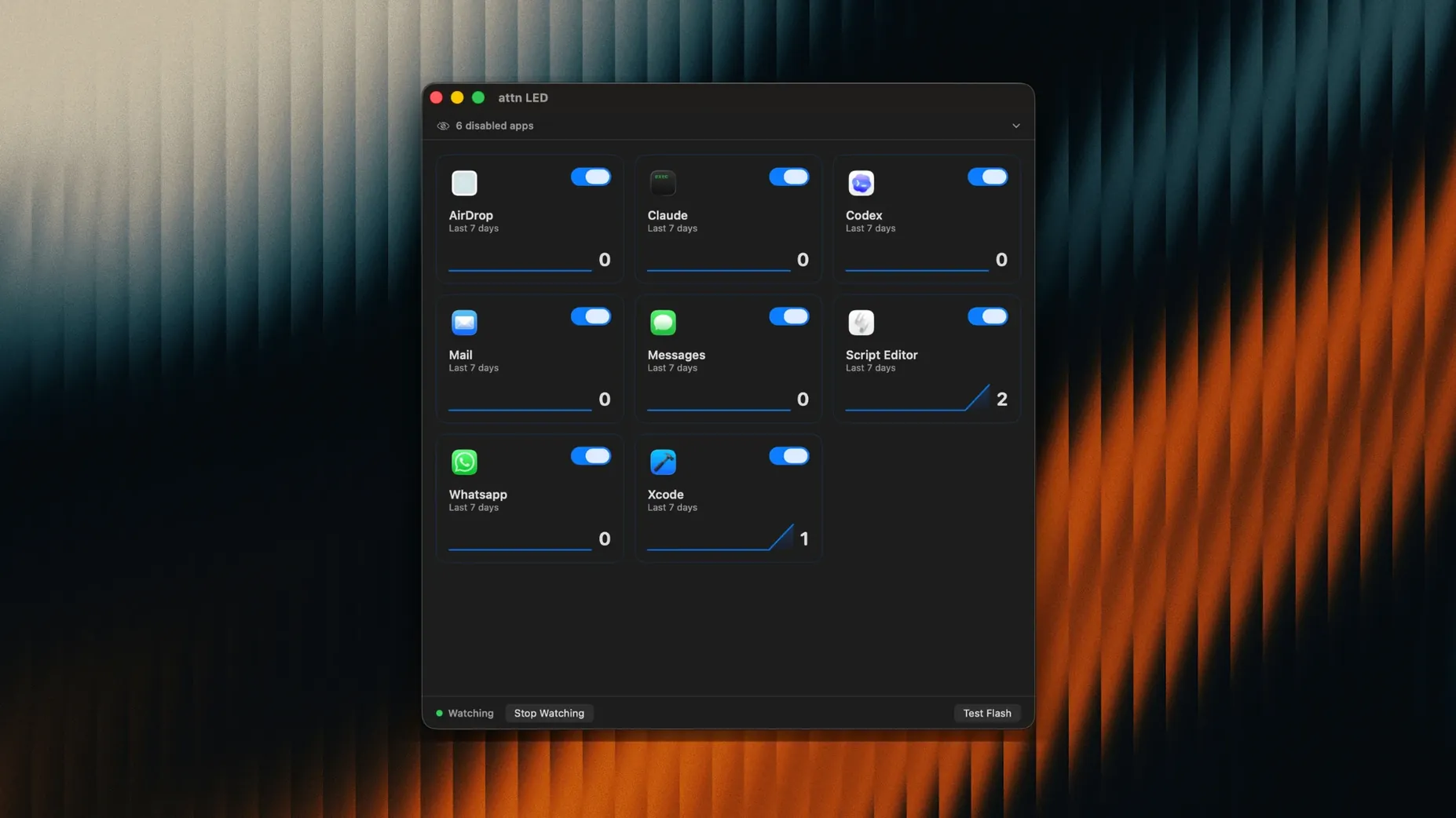
The app comes set to monitor a default set of apps. Before you rely on it, open the preferences and check which ones are enabled. Slack, Mail, Messages, Discord, Teams, and Telegram are all supported out of the box. If you only care about work messages, disable the rest — the camera LED will blink less often, and you’ll know each blink matters.
The app can automatically detect new apps with notifications. Leave this on for the first week. It catches apps you forgot to add manually, such as a lesser-used chat client or a collaboration tool that suddenly starts sending alerts.
If you run video calls regularly, verify that the pause-during-calls setting is active. The app automatically stops blinking during FaceTime and other video conferences, but confirming it saves a moment of embarrassment on camera.
Learn each blink pattern in your first day
After installing, give yourself a day to learn what each blink pattern means. The LED blinks when an important message arrives and keeps blinking until the related app is opened. At first, you might open every app just to clear the light. After a few cycles, you’ll learn which apps matter and which you can ignore.
Keep the MacBook’s lid open at an angle where you can see the camera LED from your normal seated position. On a desk, a slight tilt often improves visibility. In a shared workspace, the blinking light is visible from across the room, so coworkers may notice it before you do — that is expected.
Test the pause behavior during a short video call. Start a FaceTime call, then trigger a notification in Slack or Mail. If the LED stays dark during the call, the feature works. If it blinks, check the pause setting and try again.
Attn LED uses the physical camera LED, not on-screen pop-ups
Attn LED vs. third-party notification overlays — Apps like Snap or Notify show on-screen banners or use system pop-ups. Attn LED instead uses the hardware camera LED, which macOS itself controls. The light is physical, so it works even if you have Do Not Disturb enabled, and it does not interfere with screen-sharing or full-screen work.
Attn LED vs. built-in macOS Focus modes — macOS Focus and Do Not Disturb silence notifications entirely. Attn LED runs alongside them. It monitors the macOS notifications database through FSEvents to work around Focus Mode limits, so you still get a physical cue without breaking the quiet mode. Focus hides the content; Attn LED hides everything except a blink.
Attn LED vs. smart light integrations — Some people use Philips Hue or IFTTT to flash a desk lamp on an alert. Attn LED is self-contained on the MacBook itself — no external hardware, no network dependency, no ongoing cost. The trade-off is that the camera LED is small and only works on MacBooks that have it, whereas a desk lamp can be placed anywhere in a room.
Blinking stops automatically during video conferences
The app automatically stops blinking during FaceTime and other video conferences. This is not just a courtesy — it avoids the distraction of a blinking light on camera while you speak. The detection relies on macOS’s own camera-usage signals, so it activates without any manual switching.
Because attn LED reads the macOS notifications database through FSEvents, it sees alerts that system-level Focus Mode would normally suppress. This means you can keep your Mac in Do Not Disturb mode and still get the LED cue for important messages — no need to toggle focus mode on and off throughout the day.
The camera LED is visible from anywhere in a room. In a home office or an open-plan setup, you can glance at the MacBook from across the room and know whether a message is waiting. No need to walk back to the desk, wake the screen, or check a phone.
The app can limit LED notifications to selected apps, and it can automatically detect new apps with notifications. The automatic detection saves you from manually adding every new chat tool or collaboration app that appears on your system. If you later decide an app is too noisy, you disable it in the preferences and the LED stops responding to it.
- macOS 12 or later
- Apple Silicon or Intel (64-bit)
Questions from the notes
Does Attn LED work during FaceTime calls?
Yes, it automatically pauses blinking during FaceTime calls and other video conferences, so the LED doesn't distract others on camera.
Install procedure
- Open the downloaded disk image.
- Drag the app to the Applications folder.
- After copying finishes, launch the app from Launchpad.
Reports from players
Sign in or create a tester account to file a report.
No reports filed yet.