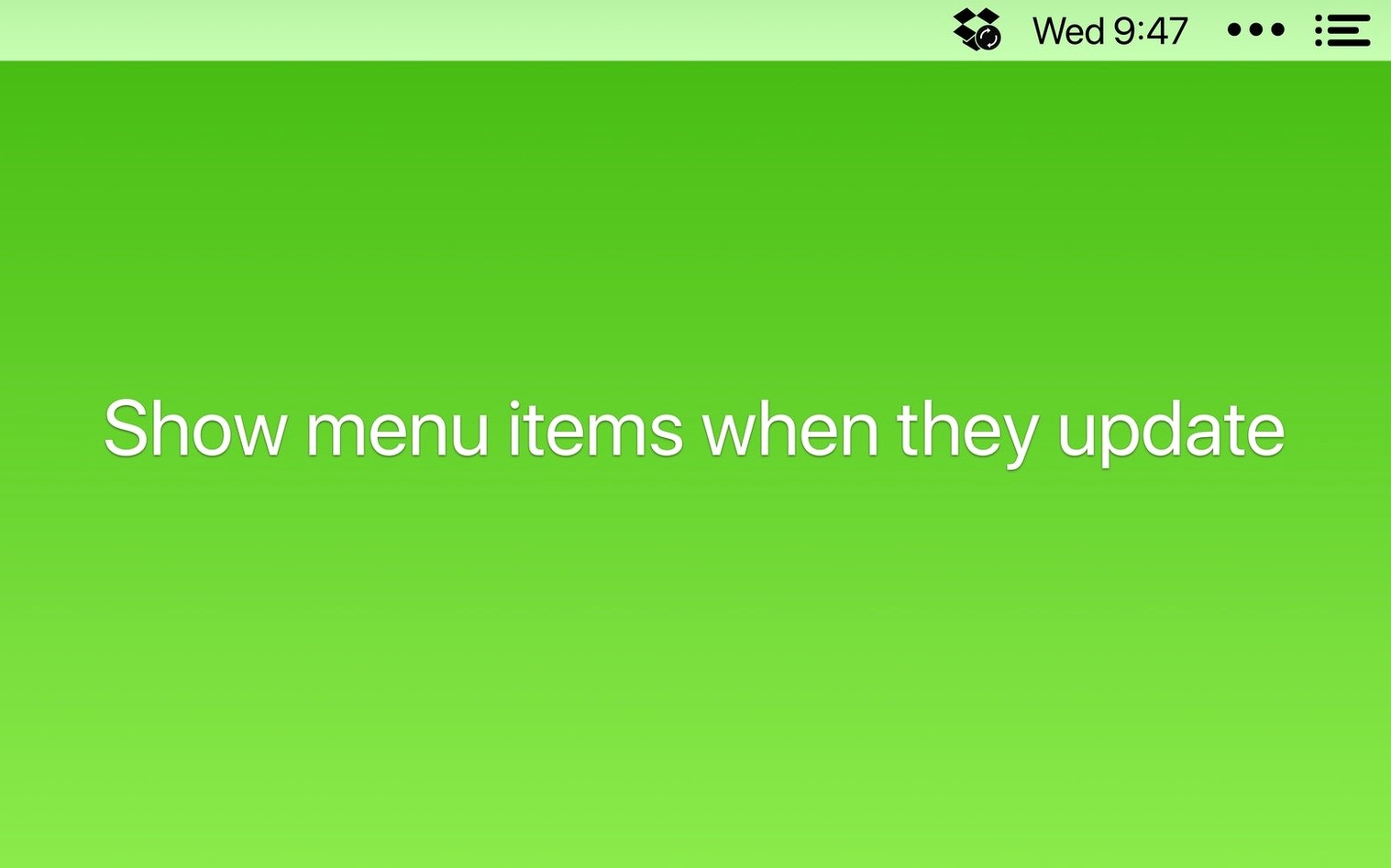
The latest update to Bartender, version 7.0.4, focuses on stability. It fixes items shifting around after a restart, particularly spacers, and resolves items getting stuck while moving. The clipboard helper in the Command Bar also received an update. These are the kind of fixes that matter when you rely on a clean menu bar every day.
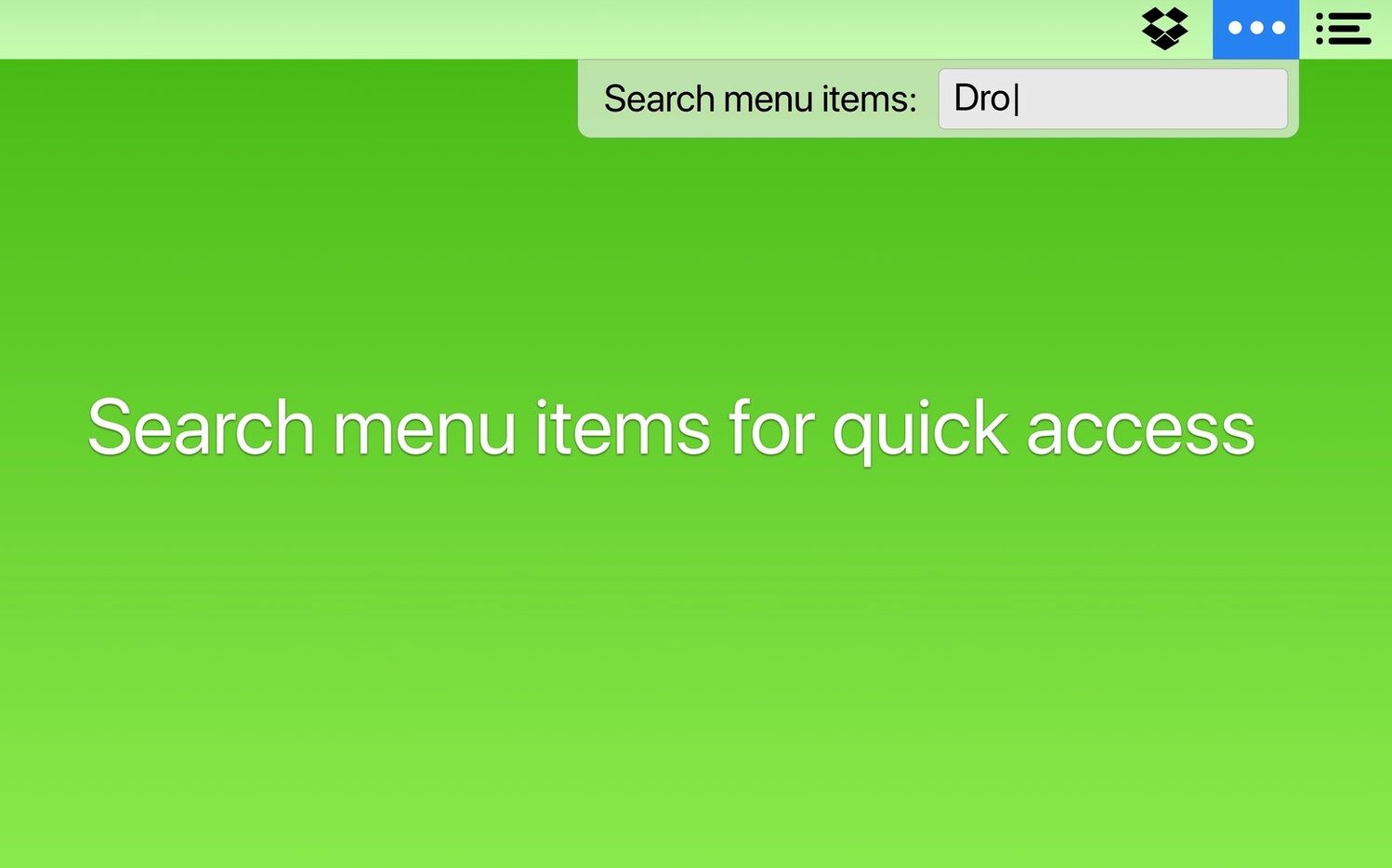
Beyond the fixes, Bartender 7 keeps the core features that make it useful. It organizes menu bar items, hides its own icon, and supports searching for items. The minimal interface means you set it up once and forget about it. It can show app icons during updates, syncing, or errors, so you don't miss important status changes.
Bartender 7 is built for macOS 27 and works without required screen recording. It supports Shortcuts control through app intents, which is handy for automation. The Command Bar adds a quick way to interact with menu bar items.
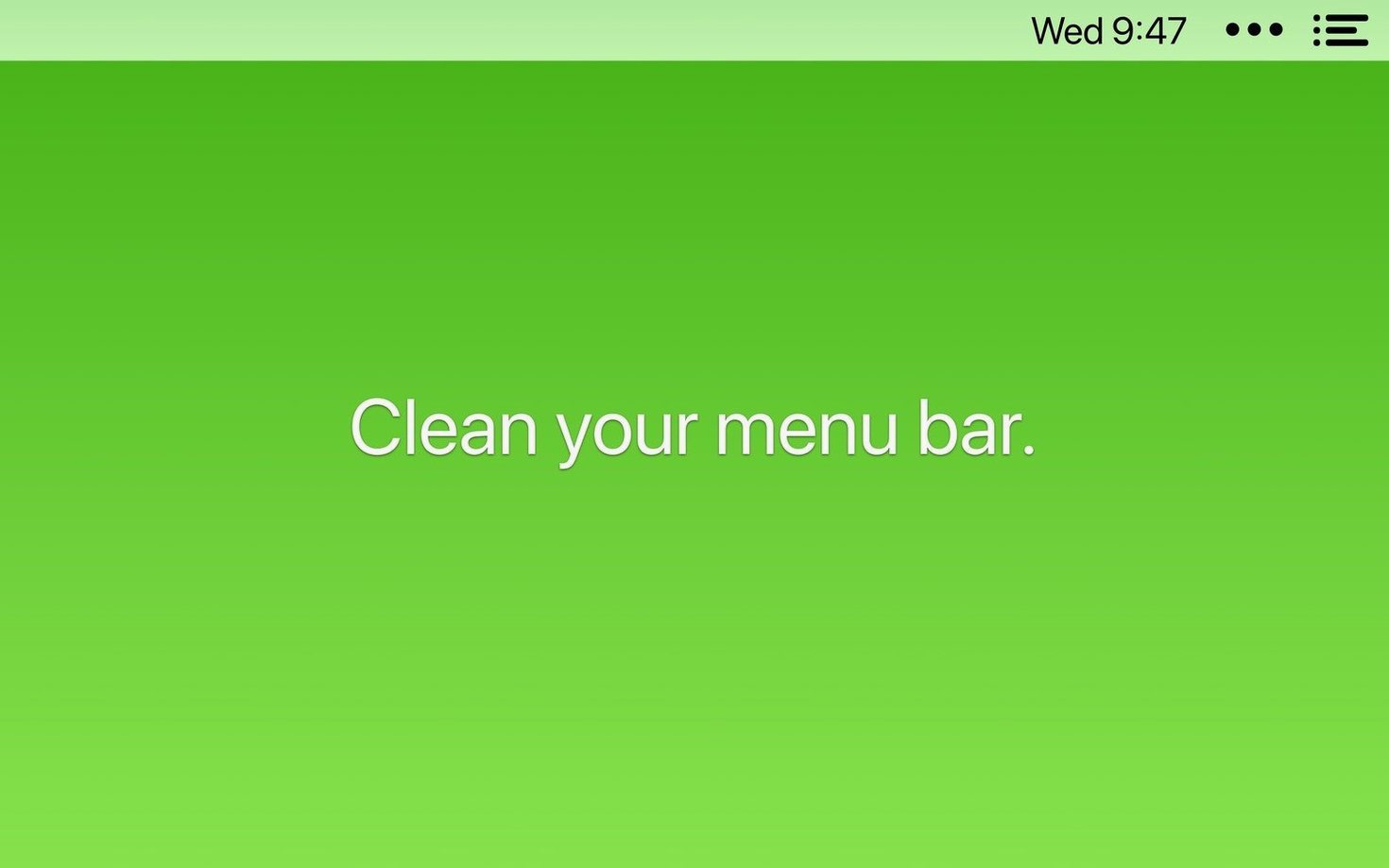
Bartender organizes your Mac menu bar icons, ideal for users with many running apps. The core idea hasn't changed: keep your menu bar tidy. The improvements are under the hood, making the whole experience smoother.
Permissions blocking items from the Bartender Bar
A few things trip people up when they first set up Bartender. None of them are serious, but knowing them saves time.
Items not appearing in the Bartender Bar. This usually happens when macOS permissions block the app from reading menu bar items. Quit Bartender, relaunch it, and grant any permission prompts that appear. If that does not help, drag the item back to the main menu bar from Bartender's settings and then move it again.
Items shifting after a restart. Version 7.0.4 specifically addresses this for spacers. If you updated from an earlier version and still see items out of place, open Bartender's preferences and re-save your layout. That forces a clean refresh of the item positions.
Keyboard shortcuts not responding. Check that no other app has claimed the same shortcut. Bartender uses system-wide hotkeys, so conflicts with apps like Alfred or Raycast are possible. Change the shortcut in Bartender's settings to something unused.
The Command Bar does not find an item. The clipboard helper update in 7.0.4 should have fixed most cases. If an item still does not show, try restarting Bartender. Some third-party menu bar apps need a relaunch before Bartender can index them.
Bartender's own icon stays visible. The hide option is in preferences. Toggle it off, quit Bartender, and relaunch. That usually clears it.
Works with any third-party menu bar icon
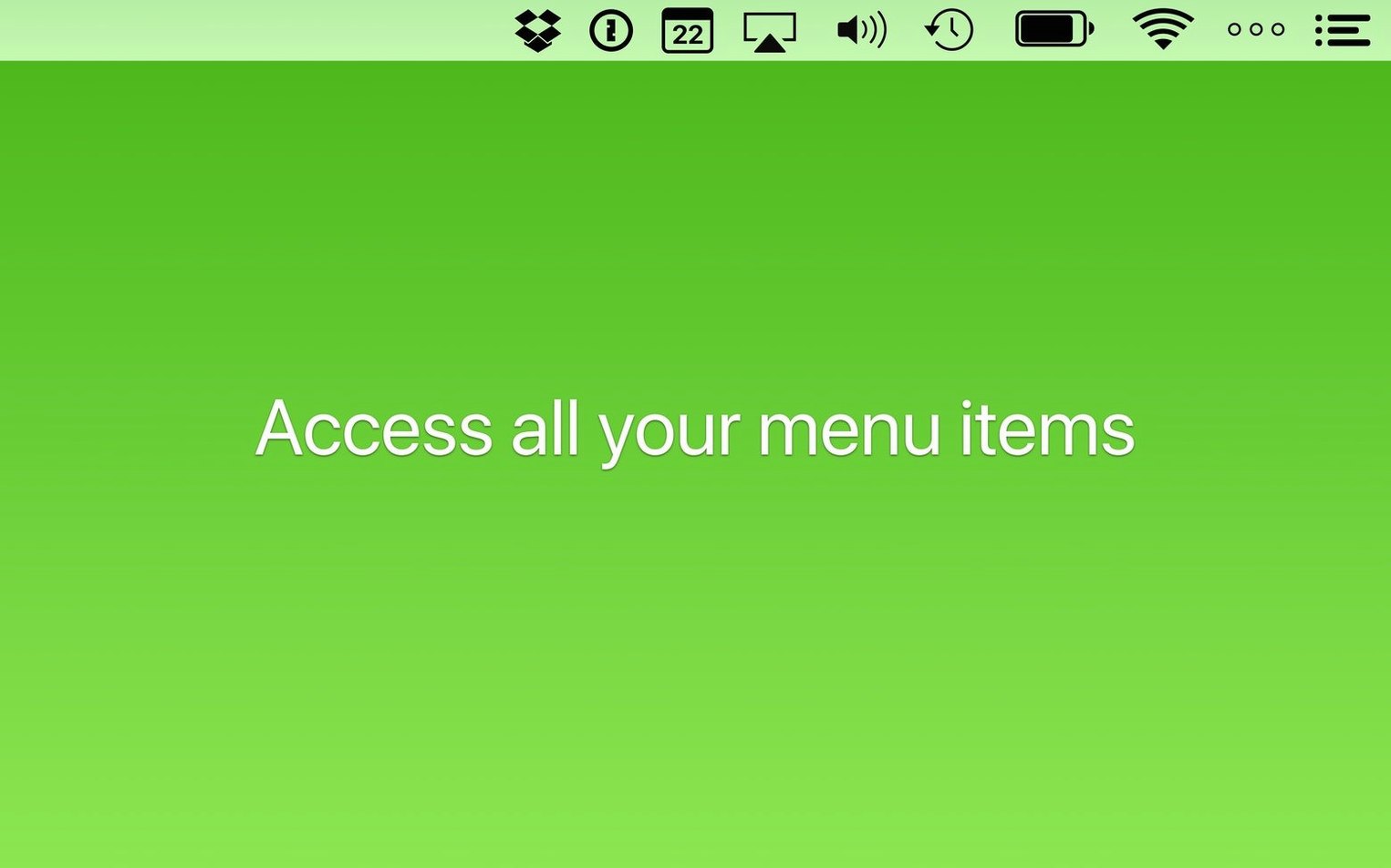
Does Bartender work with any Mac app that puts an icon in the menu bar? Yes, it handles any standard menu bar item. System items like the clock or Wi-Fi stay where they are. Bartender only moves items that third-party apps place there.
Will removing an item from the main menu bar uninstall the app? No. Moving an item to the Bartender Bar only hides it from the menu bar. The app continues running and its icon still shows updates or status changes if you enable that option.
Is there a risk of losing items during an update? Not with 7.0.4. The update fixes items failing to appear and items shifting around after a restart. Your layout carries over normally.
Can I use mouse-free menu bar management without learning complex shortcuts? Yes. The default controls are simple: a single key to open the Bartender menu, arrow keys to navigate, Enter to select. You can remap them if you prefer something else.
Do I need macOS 27? Bartender 7 requires macOS 27 or newer. It runs on both Intel and Apple Silicon Macs.
Lets you reorder items while HiddenBar does not
Bartender vs. HiddenBar. HiddenBar hides menu bar items but does not let you reorder them. Bartender lets you change the order and search for items. HiddenBar is lighter but offers less control. If you only want to hide a few items, HiddenBar works. If you manage many items and want keyboard navigation, Bartender is the better fit.
Bartender vs. DoNotDisturb. DoNotDisturb focuses on blocking notifications and hiding the menu bar temporarily. It does not organize items permanently. Bartender keeps your layout persistent across restarts. For a permanent cleanup, Bartender does more.
Bartender vs. MenuBarCleanup. MenuBarCleanup is a simple script that removes items on demand. It does not offer a GUI, triggers, or Shortcuts integration. Bartender gives you a visual interface and automation through app intents. If you want a one-time script, MenuBarCleanup is fine. For ongoing management without touching the terminal, Bartender is more practical.
Workflow: clean up a cluttered menu bar from scratch
- Open the downloaded disk image and drag Bartender into your Applications folder. Launch it from Launchpad after copying finishes.
- Grant any permission prompts that appear. Bartender needs access to read and manage menu bar items.
- Open Bartender's preferences. Decide which items stay in the main menu bar and which go to the Bartender Bar. Drag items between the two lists.
- Reorder the items in the Bartender Bar. Drag them into the order you want. This is where 7.0.4's fix for stuck items matters.
- Set a keyboard shortcut for opening the Bartender menu. Pick something that does not conflict with other apps.
- Hide Bartender's own icon in preferences if you want a truly clean menu bar.
- Enable triggers if you want items to show or hide based on conditions. For example, show your screenshot tool only when you press its hotkey.
- Test the setup. Open the Bartender menu with your shortcut, navigate with arrow keys, press Enter to select an item. Make sure everything responds.
- Restart your Mac once to confirm the layout stays. Version 7.0.4 fixes the shifting issue, but a quick check saves time later.
- macOS 27
- Apple Silicon or Intel
- English
Questions from the notes
Does Bartender 7.0.4 fix the menu bar items shifting after restart?
Yes, version 7.0.4 fixes items shifting around after a restart, especially spacers.
Does Bartender 7 require screen recording permission?
No, Bartender 7 works without required screen recording.
Install procedure
- Open the downloaded disk image.
- Drag the app into the Applications folder.
- Launch the app from Launchpad after copying finishes.
Reports from players
Sign in or create a tester account to file a report.
No reports filed yet.