
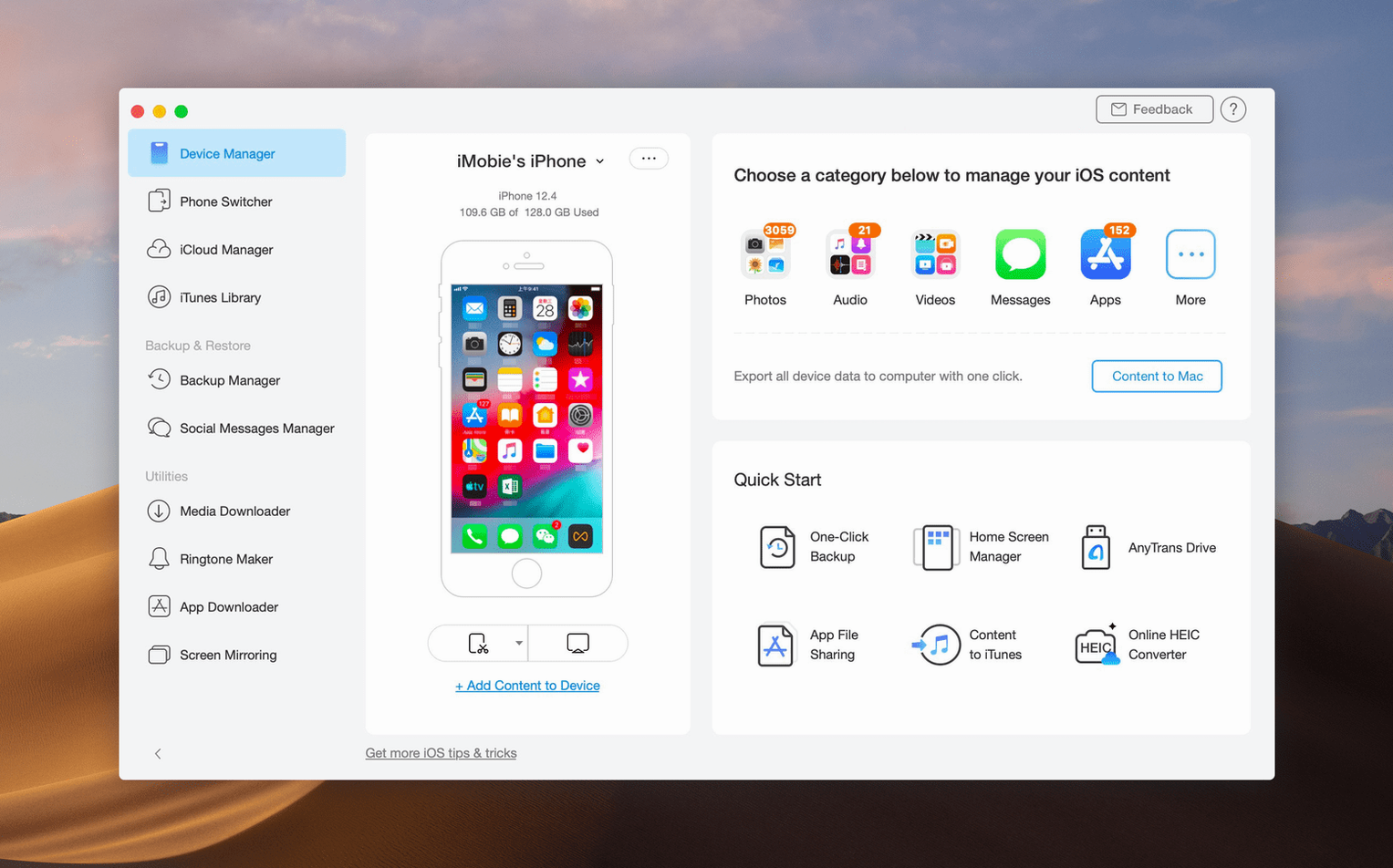
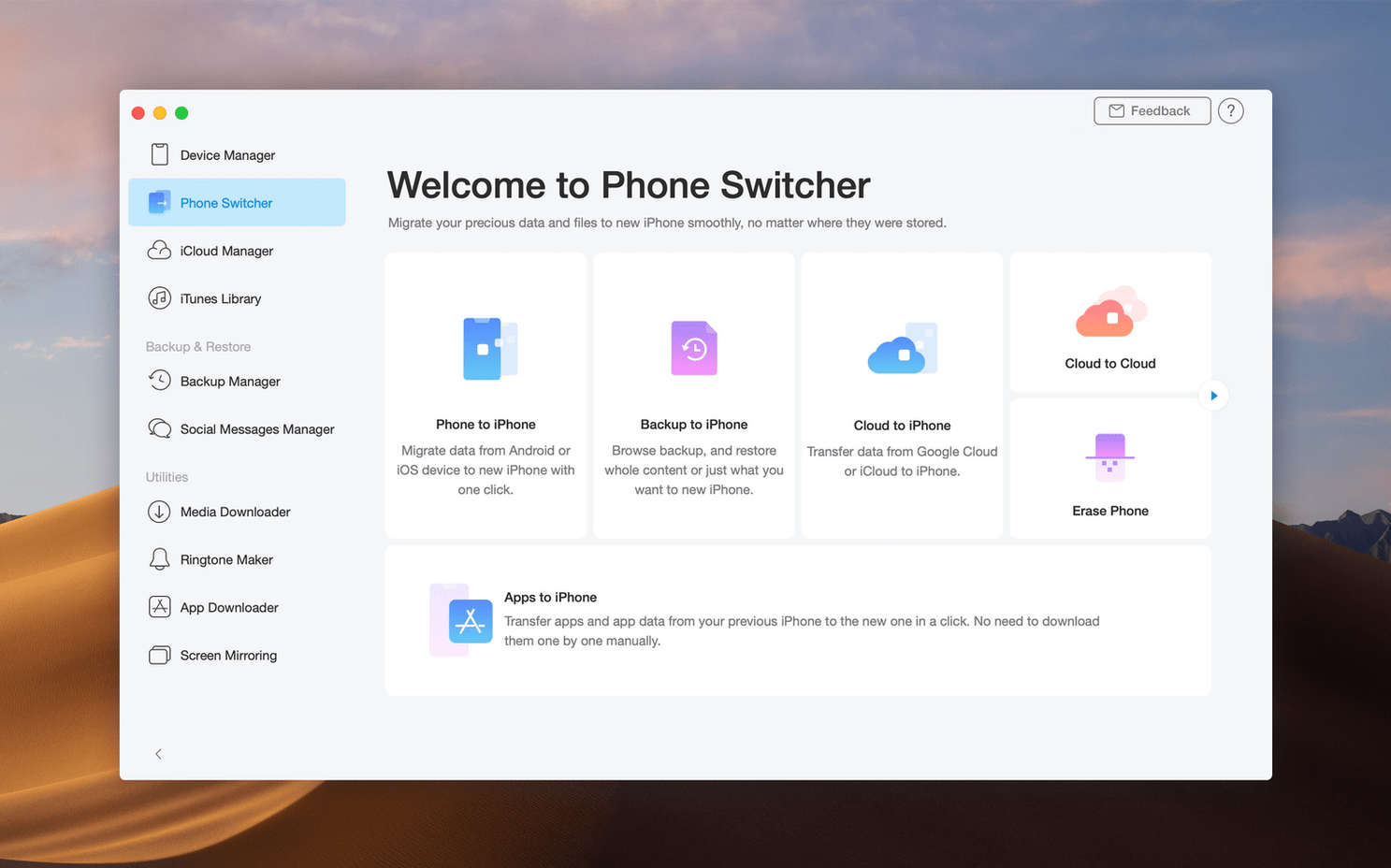
iTunes does the basics, but moving content between an iPhone, iPad, Mac, and iCloud often takes more than one tool. AnyTrans for macOS handles transfers, backups, and device management in a single app — no extra steps or workarounds.
Transfers data between iPhone, iPad, iPod, iTunes, iCloud, and a Mac
- Transfers data between iPhone, iPad, iPod, iTunes, iCloud, and a Mac
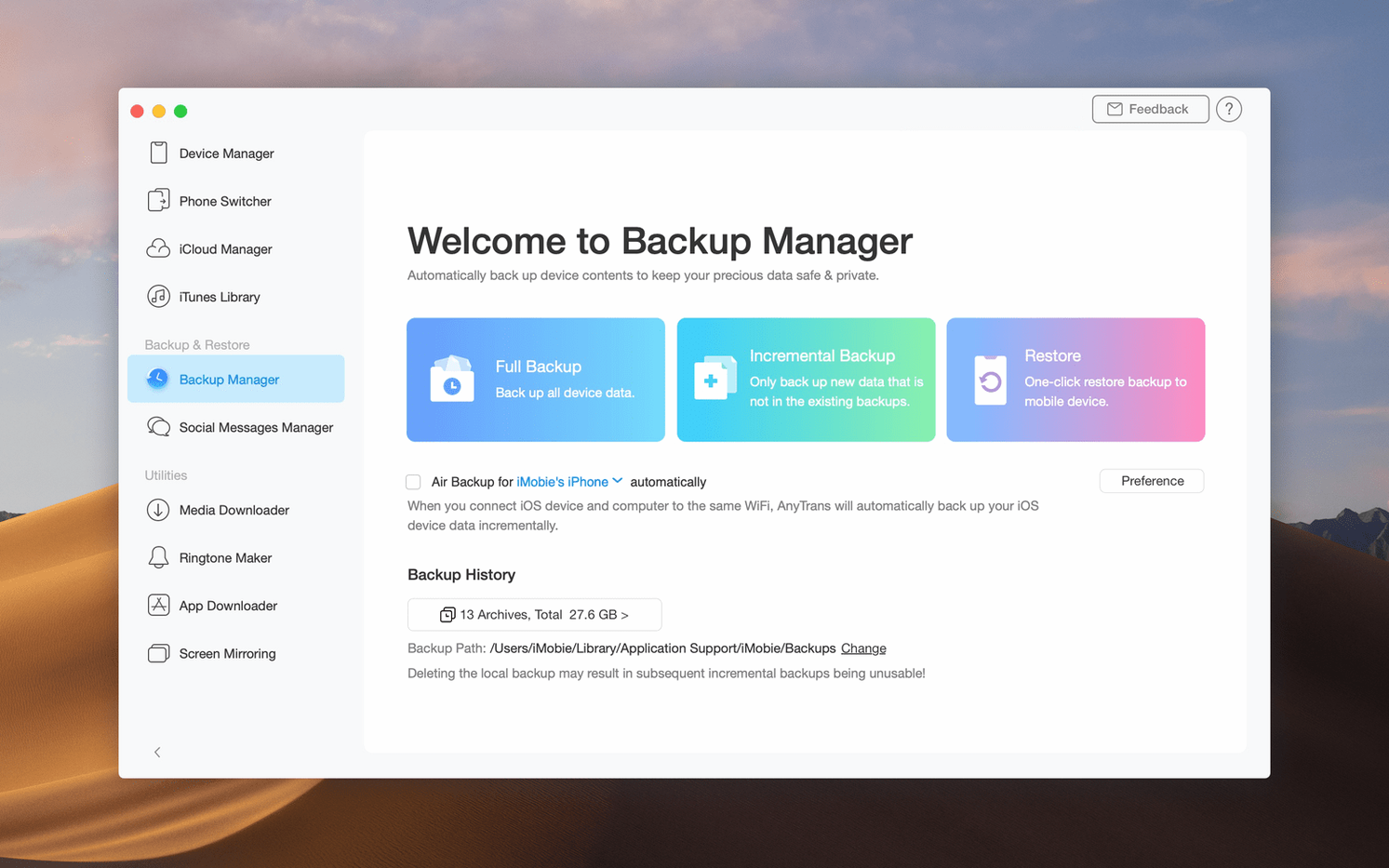
- Backs up iOS data directly to a Mac without iTunes
- Copies content from an iPad to a Mac in one click
- Manages device storage and picks where transferred files go
- Moves files over USB for a faster, wired connection
- Replaces or extends iTunes for day-to-day iOS content management
Runs on Intel Macs with macOS 10.13 High Sierra or later
AnyTrans for Mac runs on Intel Macs with macOS 10.13 High Sierra or later. It works in English, German, Arabic, Spanish, Simplified Chinese, French, and Japanese. The app is 64-bit and Intel-native — no Apple Silicon version is listed. If you are on an M-series Mac, it will launch under Rosetta 2, but there is no native build confirmed.
Plug in an iOS device and pick a category to transfer
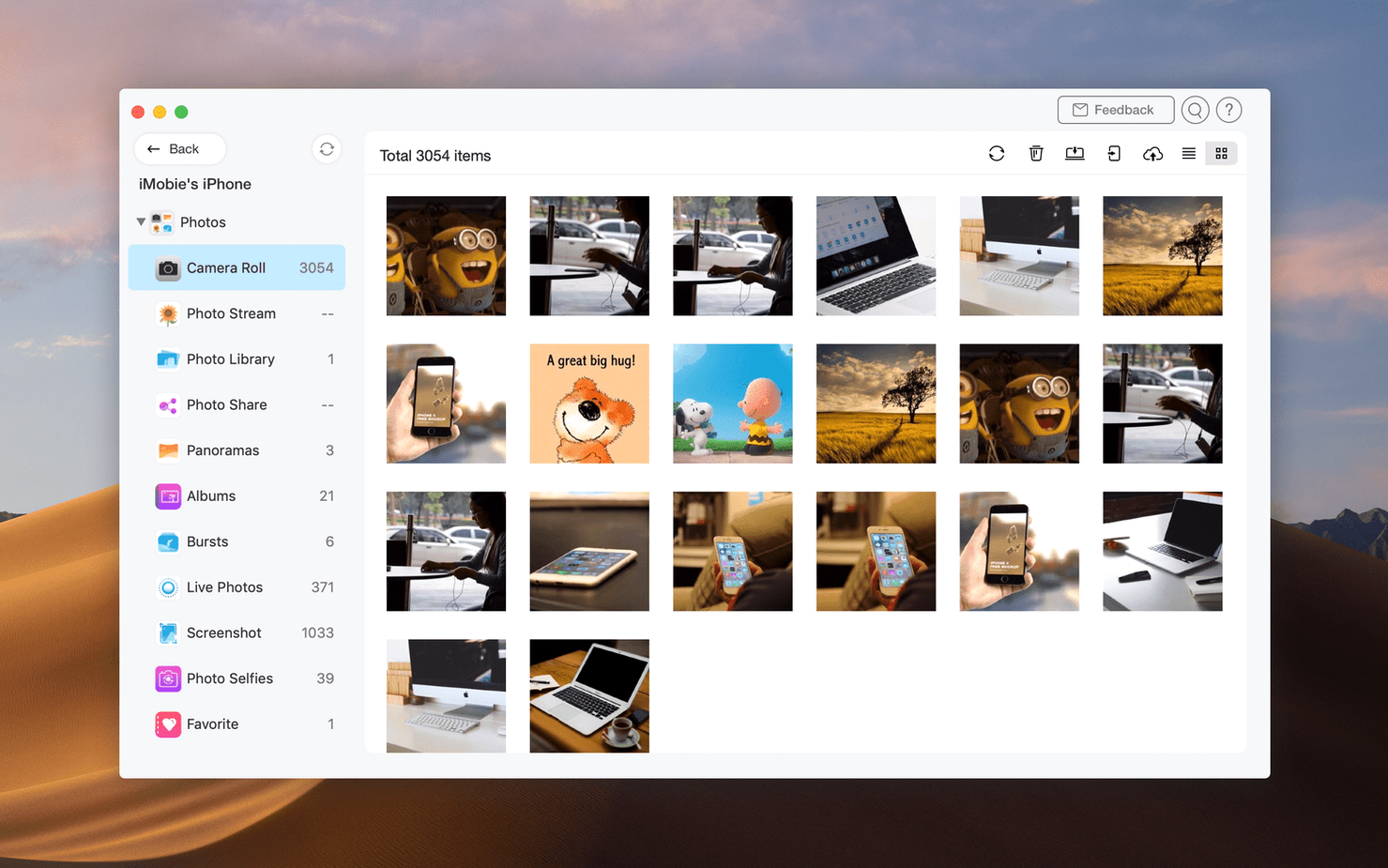
You plug in an iPhone or iPad via USB. AnyTrans detects it and shows the device in the left panel. You pick a category — photos, music, contacts, messages — and the app lists what is on the device. From there you select items, choose a destination on the Mac, and start the transfer. No third-party cloud service or extra cable needed.
The same flow works in reverse: drag files from a Finder window onto the device panel, and they copy over. If you manage multiple iPhones or iPads, the device picker at the top switches between them without unplugging and reconnecting.
For a full backup, you click the backup button on the device panel. The app creates a dated folder on the Mac with everything — contacts, messages, call logs, photos, videos, documents, and app data. Restoring that backup onto the same device or a different one takes a few clicks: select the backup file and pick the target device. The process runs over USB, so it is not dependent on Wi-Fi speed or cloud storage limits.
Move only photos, music, or contacts to keep your Mac organized
- Category-based transfers. Instead of dumping everything at once, you can move only photos, only music, or only contacts. This keeps the Mac organized and avoids copying files you do not need.
- One-click iPad copy. If you want a quick snapshot of everything on an iPad, the one-click copy function saves it to the Mac. It is not a full backup — it copies visible content — but it is faster than selecting categories individually.
- iCloud account switching. You can log out of one iCloud account and into another within AnyTrans. This lets you copy files from one iCloud drive to another without downloading and re-uploading through a browser.
- It does not replace iTunes — it works alongside it.
- Media downloader. The built-in downloader pulls audio and video from over 900 websites. You paste a link, pick a format, and the file saves to the Mac or directly to a connected device.
Plug in and unlock your device first or the panel stays empty
The most common mistake is trying to transfer without plugging in the device first. AnyTrans shows an empty panel until it detects a connected iPhone, iPad, or iPod. Plug it in, unlock the screen, and tap "Trust" if the device asks. The app then recognizes it.
Another error is starting a large transfer over USB when the cable is a charge-only cable. Charge-only cables do not carry data. The app shows no device until you swap to a cable that supports data sync. Use the cable that came with the phone, or a branded replacement rated for data transfer.
Some users try to restore a backup onto a device that has less free space than the backup size. AnyTrans warns about this, but the error message can be confusing if you are not watching the storage bar. Check the device free space before starting a restore.
Beginners also assume AnyTrans can transfer all app data from an old iPhone to a new one. It moves contacts, messages, photos, videos, music, documents, and call logs — but not every third-party app's internal data. For those, use the app's own backup or sync feature.
Finally, people sometimes close AnyTrans mid-transfer because they think the progress bar is stuck. Large photo or video collections take time over USB 2.0. Let the transfer finish; canceling it can leave partial files on the Mac or the device.
Supports newer iOS device firmware that older versions missed
AnyTrans version 8.9.14, dated 20260323, is the current build. The most noticeable change is support for newer iOS device firmware. Older versions would sometimes fail to detect iPhones or iPads running a recent iOS update. This version handles detection and data parsing for the latest models.
The media downloader also got updated site compatibility. The list of supported websites now covers more than 900 sources, up from earlier counts. If a download failed on a previous version, it may work now.
One fix affects the iCloud account panel. Earlier releases had a bug where switching between iCloud accounts would not refresh the file list until you restarted the app. Version 8.9.14 refreshes the list immediately after you log into a different account.
The backup and restore process also received stability improvements. Backups that previously stopped mid-way due to a device disconnect now resume from the last checkpoint when you reconnect the same device. This applies only to wired transfers, not wireless ones.
If you are coming from an older release — say, from 2024 or early 2025 — the interface layout has not changed. The same panels, buttons, and categories are in the same places. The updates are under the hood: better detection, broader site support, and fewer interruptions during large transfers.
- macOS 10.13 High Sierra or later
- Intel processor
Questions from the notes
Can AnyTrans transfer data between two iOS devices?
Yes. The app supports moving content between iPhone, iPad, and iPod directly.
Does AnyTrans work with iTunes and iCloud?
Yes. It manages content stored in iTunes and iCloud, and can transfer data between those services and a Mac.
What macOS versions does AnyTrans support?
AnyTrans requires macOS 10.13 High Sierra or newer on Intel-based Macs.
Install procedure
- Mount the disk image and run Open Gatekeeper friendly.
- Press Enter in Terminal to bypass Gatekeeper.
- Drag the app to the Applications folder.
- Open the app after installation.
Reports from players
Sign in or create a tester account to file a report.
No reports filed yet.