Version 5.0.6 of BetterDisplay Pro tightens up two areas that matter for daily use: multi-display DDC control is faster, and the sharpening effects are stronger. The release also adds stream video filter automation and simplifies device control configuration. If you already rely on this app to manage brightness, color, and display overrides on your Mac, the update is worth grabbing.
| Detail | Spec |
|---|---|
| Version | 5.0.6 |
| Developer | waydabber |
| Category | Utilities |
| Architecture | ARM + 64-bit Intel |
| macOS | macOS 26 |
| Languages | 18 (incl. English, German, French, Spanish) |
BetterDisplay Pro fits alongside the tools you already have—it handles XDR/HDR brightness upscaling on Apple Silicon, creates virtual displays, and can set up picture-in-picture windows. DDC and HDMI-CEC control means it works with external monitors without extra hardware. For anyone juggling multiple screens or tweaking display configs, it fills a gap that macOS doesn't cover on its own.
Runs on any Mac with macOS 26 or later
BetterDisplay Pro runs on any Mac that meets the requirements: macOS 26 or later, and either an ARM or 64-bit Intel processor. The app does not require activation, so you download, drag to Applications, and open it from Launchpad.
On first launch, it asks for accessibility permissions—this is standard for any app that controls system-level display functions. It also requests screen recording permission if you plan to use the picture-in-picture or virtual display features. Both are macOS privacy controls, not something BetterDisplay adds.
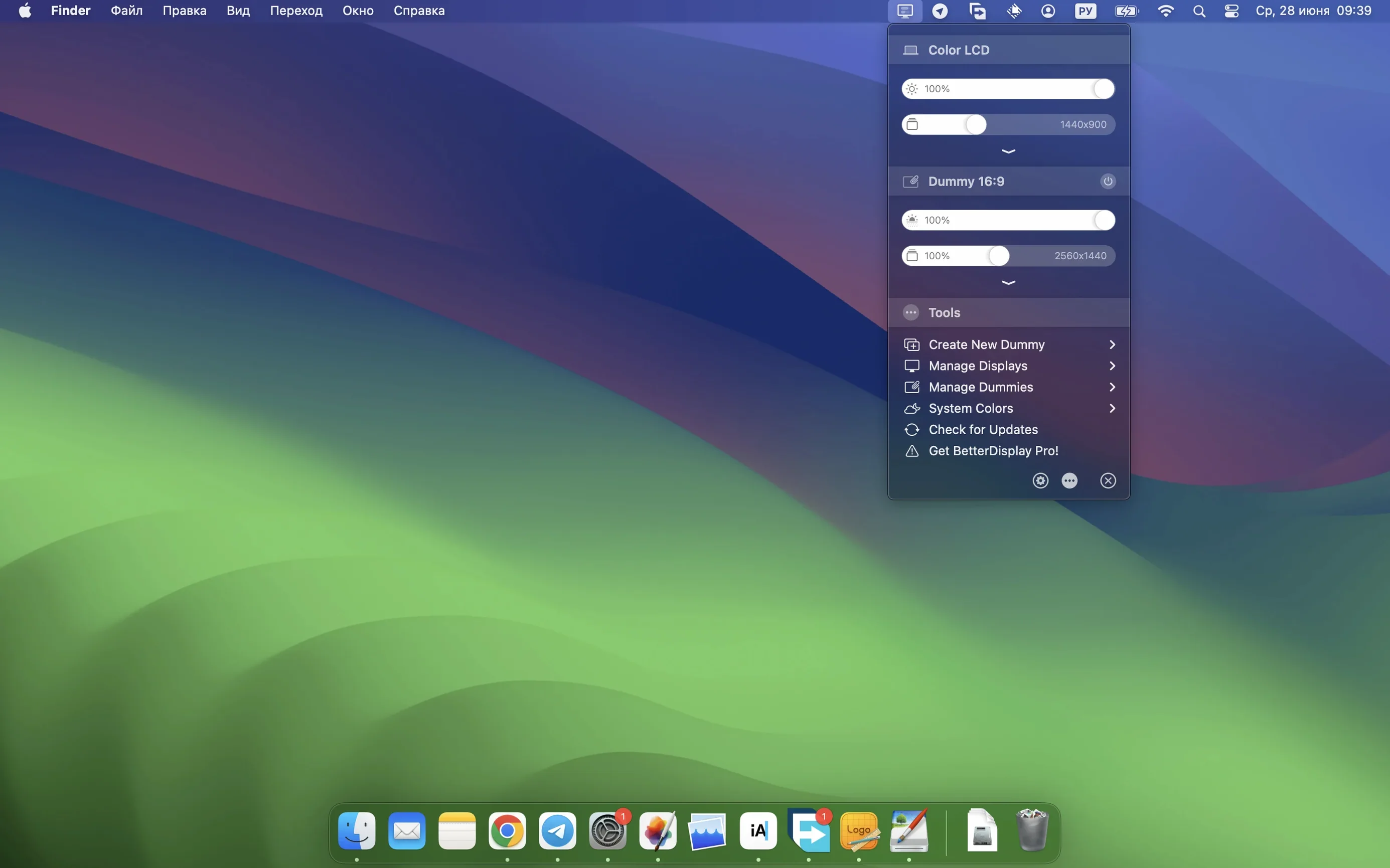
The app lives in the menu bar. That is its primary control point. Clicking the icon shows a list of connected displays, brightness sliders, and quick toggles for virtual screens. You can adjust settings without opening a full preferences window, which matters when you are in the middle of work and need a fast brightness change or a display override.
External monitors that support DDC or HDMI-CEC are controllable without extra cables or adapters. The app sends commands over the existing connection. If your display supports DDC, you get brightness, contrast, and volume control. HDMI-CEC adds basic power and input switching for some TVs and monitors. The 5.0.6 update made multi-display DDC faster—useful if you have three or four monitors and change settings often.
Virtual displays work on both Intel and Apple Silicon Macs, but XDR/HDR brightness upscaling is Apple Silicon only. That feature pushes brightness beyond the native limit on compatible displays. It is not a universal fix—your monitor must support the range—but it is one of the few ways to get high brightness on a non-Apple display.
Permission grants make or break the app
The most common slip is skipping the permission grants. BetterDisplay requests accessibility and screen recording access immediately. If you deny them, brightness sliders do nothing, virtual displays fail to appear, and you will wonder why the app seems broken. Go to System Settings > Privacy & Security and add BetterDisplay to both lists.
Another frequent error is assuming every monitor supports DDC. Many USB-C or HDMI adapters strip DDC communication. If your external monitor shows in BetterDisplay but brightness control does not respond, the adapter is the likely culprit. Try a direct connection or a different cable to confirm.
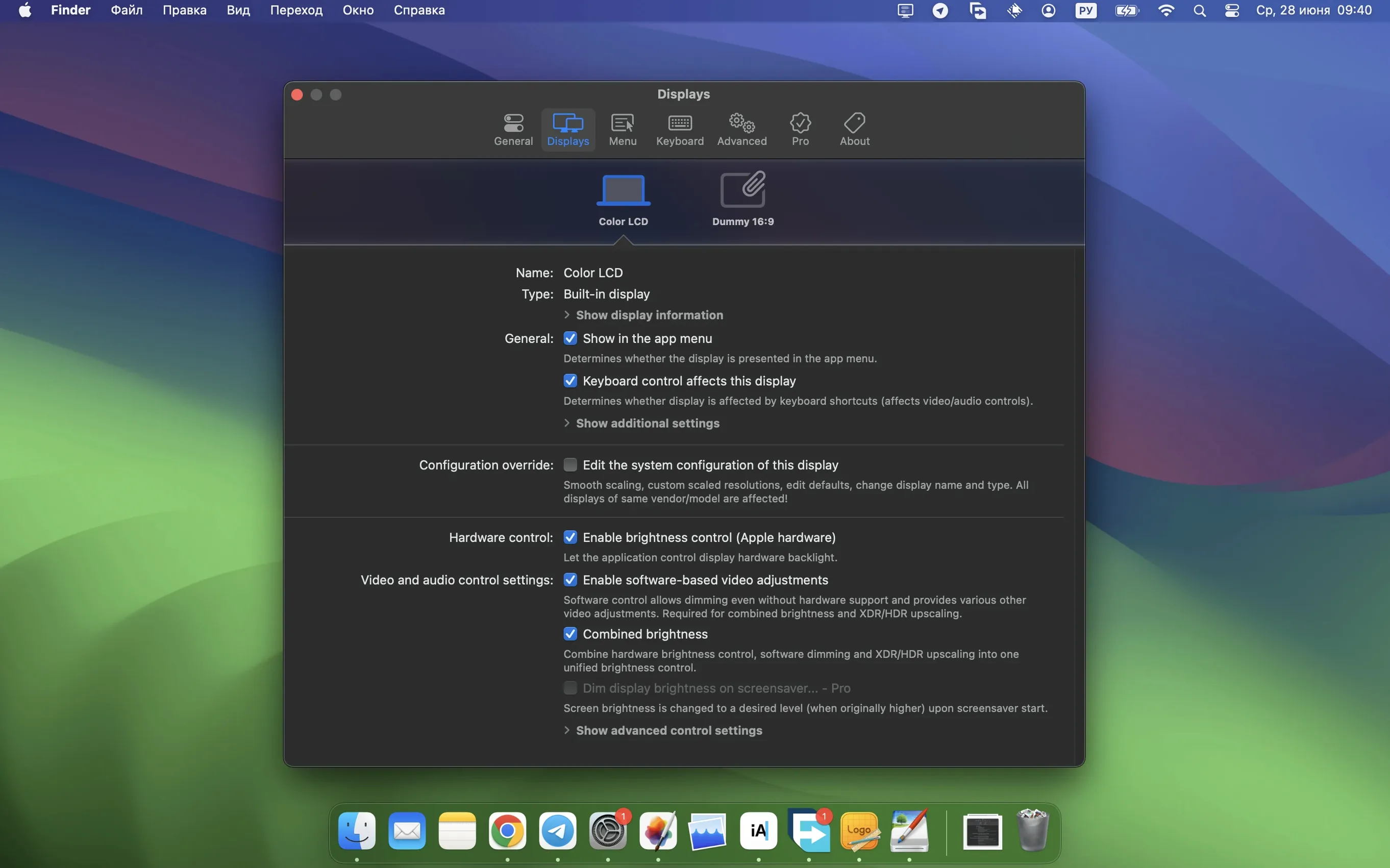
New users also try to use the app as a one-click HiDPI enabler without reading the display override section. Scalable display mode works, but it depends on your monitor and connection. If the scaling looks wrong or the resolution list is short, check the display override settings in BetterDisplay's preferences. The app cannot override every monitor's EDID limitations.
Virtual display creation can confuse people at first. The app lets you add a virtual screen alongside your physical ones. It appears in macOS as a real display. You can move windows to it, use it for screen sharing, or mirror content. But it is not a hardware display—you cannot see its output on a separate physical monitor without a capture card or software streaming. Users sometimes create a virtual display expecting it to output to a second monitor that is already connected. That is not how it works. The virtual display is a software screen, useful for headless Macs or remote desktop scenarios.
Lastly, beginners sometimes crank the XDR brightness upscaling to maximum immediately. That can cause banding or color shifts on monitors that lack the proper panel. Start at a moderate level and adjust up until the image looks right. The app's custom 3D LUT support can fix color issues, but that requires importing a LUT file—most people do not have one ready.
Managing a 4K monitor and a 1080p side display
You sit down at your desk with a MacBook Pro connected to a 4K monitor and a second 1080p side display in portrait orientation. The MacBook's lid is closed. macOS identifies both external displays, but the 4K monitor shows text slightly fuzzy at the default scaling, and the side monitor is too bright out of the box.
You click the BetterDisplay icon in the menu bar. The dropdown shows both monitors by name. You click the 4K display entry and switch it to scalable mode. A list of HiDPI resolutions appears. You pick 2560x1440—sharp, readable, and not too small. The desktop redraws instantly.
Next, the side monitor. The monitor dims immediately. The DDC command goes over the same DisplayPort cable—no separate control needed.
You open your video editing software. The app's timeline needs more screen space. You create a virtual display from BetterDisplay's preferences: 1920x1080 at 60 Hz, named "Preview." It appears as a third monitor in macOS. You drag the video preview window there. It is a software-only screen, so it shares the MacBook's internal GPU and does not need a physical output port.
While rendering, you open a terminal window and run a command that streams log output. You use BetterDisplay's picture-in-picture feature to create a small floating window showing a terminal session. That window sits over the video preview, transparent enough to see both. It is a quick way to monitor progress without switching desktops.
You finish editing and export the video. The export takes longer than expected, so you use BetterDisplay's virtual display to set up a mirrored screen for a remote desktop session. You connect from an iPad via a third-party VNC app. The virtual display appears on the iPad as a full desktop mirror. You approve the export and disconnect.
Throughout the session, you did not open BetterDisplay's preference window once. The menu bar controls handled brightness, scaling, virtual display toggling, and PIP. That is the workflow the app is built for: minimal interruption, direct control.
A utility for multi-monitor workers with mixed resolutions
BetterDisplay Pro is not a utility every Mac owner needs. It targets users who push their display setup beyond what macOS exposes.
Multi-monitor workers benefit most. If you run two or three external monitors of different brands and resolutions, the app gives you a single interface for brightness, contrast, and scaling. No reaching for physical buttons on each monitor. The faster multi-display DDC in 5.0.6 makes that practical for setups with more than two screens.
Video editors and color graders get value from the custom 3D LUT support and XDR/HDR brightness upscaling. If you work with HDR footage on a non-Apple monitor, the upscaling helps you see more of the dynamic range. The LUT import lets you apply a standardized color transform at the system level, which is harder to do with macOS's limited color management.
Developers and IT admins who manage headless Macs or remote servers use the virtual display feature frequently. A Mac mini without a monitor connected shows no desktop over screen sharing. BetterDisplay's virtual display creates a headless screen so you can log in via VNC or remote desktop and see a full desktop. That alone justifies the app for server rooms and home labs.
Mac users with odd monitor combinations also find it useful. If you mix a 1440p display with a 4K one and need consistent scaling across both, BetterDisplay lets you override each monitor's scaling independently. macOS does not allow that natively. The app's display override settings let you set any resolution that your monitor's EDID allows, and sometimes resolutions it does not advertise.
Integrates through the menu bar without kernel extensions
BetterDisplay integrates with macOS through the menu bar and standard permissions. It does not install a kernel extension or a background daemon. It appears in the menu bar alongside other utilities like Bartender, iStat Menus, or Magnet. You can hide the icon if you prefer, but most users leave it visible for quick access.
The app works with macOS's built-in display settings. Changes you make in BetterDisplay—brightness, scaling, rotation—are reflected in System Settings > Displays and vice versa. The two do not conflict. If you adjust the brightness in System Settings, BetterDisplay's slider updates. That matters if you switch between the app and the native settings panel.
Picture-in-picture windows created by BetterDisplay behave like standard macOS windows. They can be resized, moved, and set to stay on top. They work with Stage Manager and Mission Control. You can assign a PIP window to a specific desktop in Mission Control, which is not something macOS's own PIP mode allows.
Virtual displays are recognized by other apps as real displays. Screen sharing software like TeamViewer, Splashtop, and Apple's own Screen Sharing see them. That makes remote work setups straightforward: create a virtual display, connect remotely, and you have a full desktop environment without plugging in a physical monitor.
For users who automate their setup, BetterDisplay supports AppleScript and Shortcuts integration. This is not advertised heavily, but it is documented in the app's help menu.
The app also plays well with color calibration tools. If you use a hardware calibrator like a Spyder or i1 Display Pro to generate an ICC profile, BetterDisplay's custom 3D LUT option can apply additional corrections on top. That is useful if your monitor's internal LUT is inaccurate but you do not want to override the ICC profile macOS loads.
Overall, BetterDisplay fills the gaps macOS leaves open for display management. It does not replace system settings—it extends them. For users with non-standard setups, it becomes a daily driver that sits in the background and only appears when you need it.
- Simplified device control configuration.
- Faster multi-display DDC control.
- Stronger sharpening effects.
- Stream video filter automation.
- macOS 26
- ARM or 64-bit Intel processor
- Activation not required
Questions from the notes
Does BetterDisplay Pro work on Intel Macs?
Yes, it supports both ARM and 64-bit Intel Macs running macOS 26.
Can I control brightness and color with this app?
Yes, it uses DDC and HDMI-CEC to control brightness and color on compatible displays.
What does the virtual display feature do?
You can create and manage virtual displays, which is useful for screen sharing, recording, or extending your workspace without a physical monitor.
Install procedure
- Open the downloaded disk image.
- Drag the app into the Applications folder alias.
- After copying finishes, open the app from Launchpad.
Reports from players
Sign in or create a tester account to file a report.
No reports filed yet.