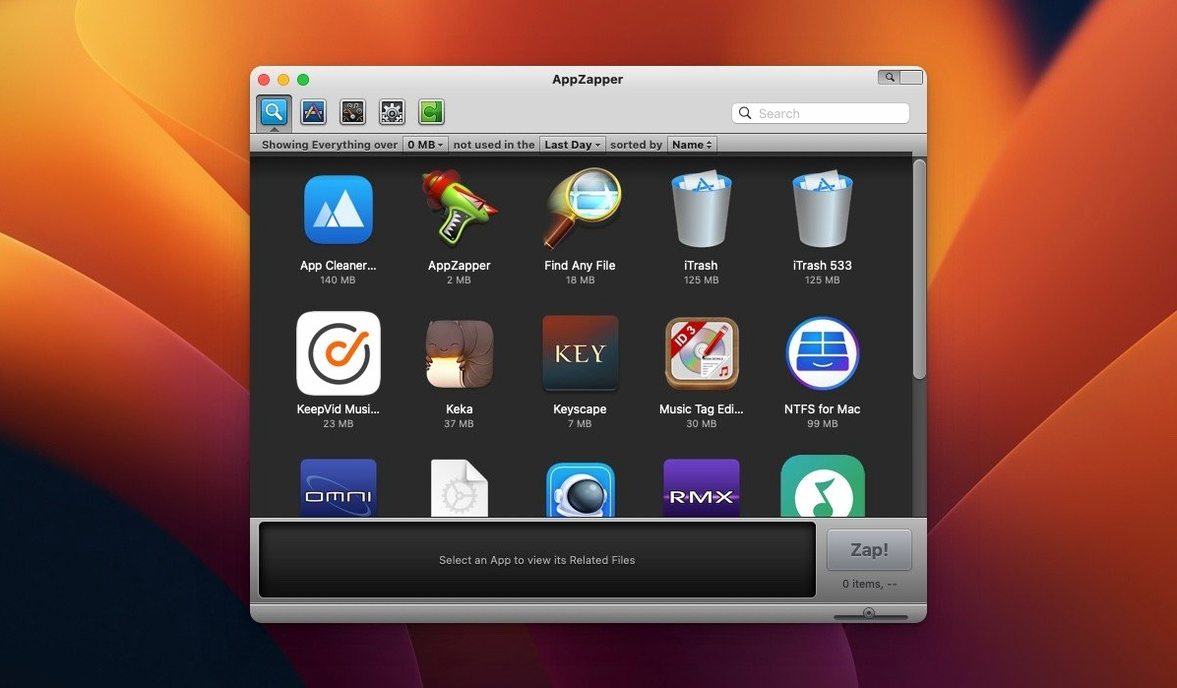
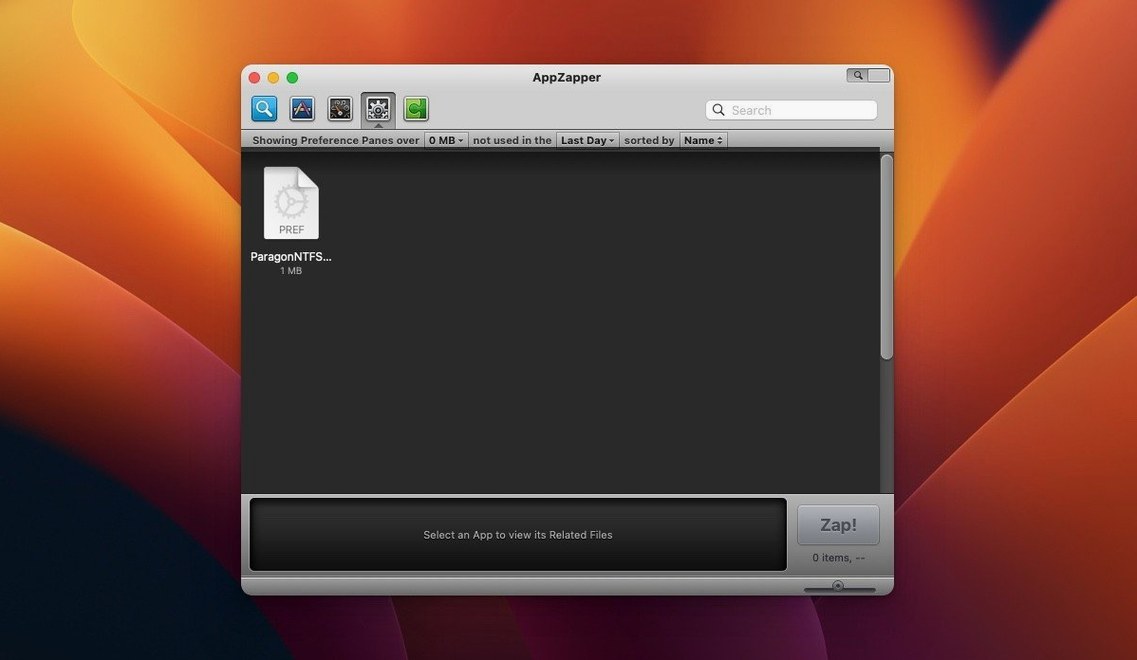
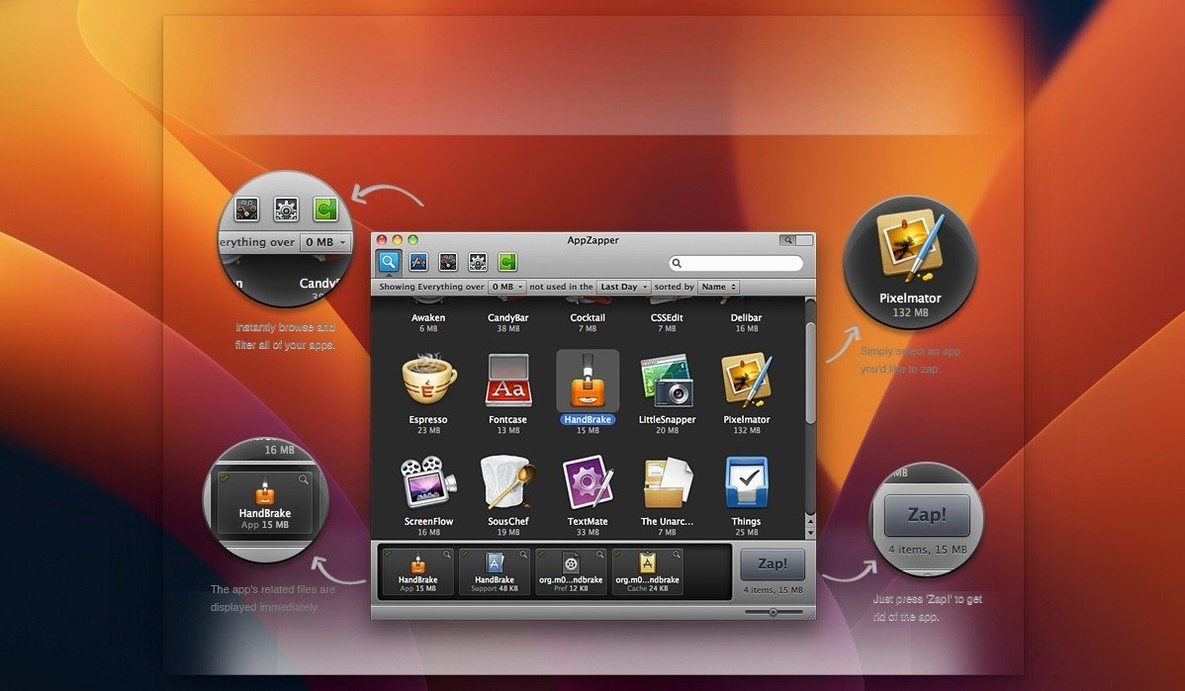
The Zap button is where AppZapper earns its name. You drag an app onto the window, and it scans for related files—preferences, caches, saved states—before deleting anything. That list appears first, so you can see exactly what goes away. It's a straightforward extension of the usual macOS removal workflow, and it saves you from hunting through ~/Library on your own.
- Drag any app onto the window to see its related files.
- Review the file list before confirming deletion.
- Remove the app and its associated files in one step.
- Export an app and its related files (added in version 1.7.0).
- Browse installed apps in a grid view with large icons.
- Built-in update checks through Sparkle.
Version 2.0.3 fix keeps the interface in English and runs on macOS 10.9 or later, Intel 64-bit. It's a tool for when you want to be thorough about what gets left behind.
Switch to grid view for visual browsing
AppZapper works well as-is, but two things are worth adjusting before you start removing apps. The grid view toggle sits in the upper-right corner of the window. Clicking it switches from a plain list to large icons arranged in rows and columns. That view makes browsing installed apps faster if you have many titles and prefer visual scanning over reading names. The other setting is the file-exclusion checkbox. Before you confirm deletion, each related file has a check mark next to it. Uncheck anything you want to keep. Preferences files and user data are the most common ones to exclude, but it depends on what you plan to reinstall later.
Start with an app you know you will not miss
Start with one app you know you will not miss. A demo game, an old utility, or anything that came pre-installed with a printer. Drag it onto AppZapper. Look at the related files it finds. That first run shows you how thorough the scan is and what kind of data it catches. After that, use the export feature from version 1.7.0 before removing anything important. Exporting saves a copy of the app and its related files to a location you choose. It is a safety net if you delete something and need it back later. The restore-from-Trash option works, but exporting ahead of time is cleaner.
Run ZapGenie, the built-in browser, after a few removals. It filters installed apps by name or by the date you last used them. That is useful for spotting apps you installed once and never opened again. Those are the best candidates for removal. The grid view helps here too, since it shows more apps per screen.
Gatekeeper blocks it on first launch
The most frequent problem is Gatekeeper blocking the app on first launch. The installer instructions cover it: mount the disk image, run Open Gatekeeper friendly, and press Enter in the Terminal window that appears. That bypasses the block. If you skip that step, the app may not open at all, or it might close immediately after starting. Run the Gatekeeper step again if you already copied AppZapper to your Applications folder.
Another snag: the related-files list looks empty for some apps. That happens when the app stores everything inside its own folder or uses system-level locations AppZapper does not scan. It is not a bug. Those apps leave little behind anyway, so dragging them to the Trash manually is equally effective. The export feature also skips apps that show no related files, since there is nothing extra to save.
Some users forget to check the file list before clicking Zap. The app sends deleted files to the Trash, so you can recover them. But if you emptied the Trash since then, the files are gone. Get into the habit of reviewing the list every time. It takes five seconds.
AppZapper catches scattered leftovers in one pass
People who install and remove apps often benefit the most. Game testers, developers trying multiple builds, and anyone who downloads one-off utilities for a single task will accumulate scattered files across Library folders. AppZapper catches those leftovers in one pass. The same applies to users who share a Mac and regularly clear out other people's installed apps. The grid view and ZapGenie filters make it easy to find what needs to go without digging through Finder.
Users who keep a clean system for performance or organization reasons will also find it useful. It is not about speed gains—it is about knowing nothing extra is running or taking up space. For people who prefer to see every file before deleting it, AppZapper's review step is the main draw. The app zapper mac approach saves time compared to manually searching ~/Library with each removal.
Anyone on an older Mac running OS X 10.9 or later will appreciate that it does not require a modern macOS version. AppZapper serial activates a thorough uninstaller that deletes apps and their leftover files on older systems. AppZapper works on those machines without extra dependencies.
- Added a grid-style app browser with large icons.
- macOS OS X 10.9 or later
- Intel 64-bit
Install procedure
- Mount the disk image and run Open Gatekeeper friendly.
- Press Enter in Terminal to bypass Gatekeeper.
- Drag the app into the Applications folder.
- Open the app after copying finishes.
Reports from players
Sign in or create a tester account to file a report.
No reports filed yet.