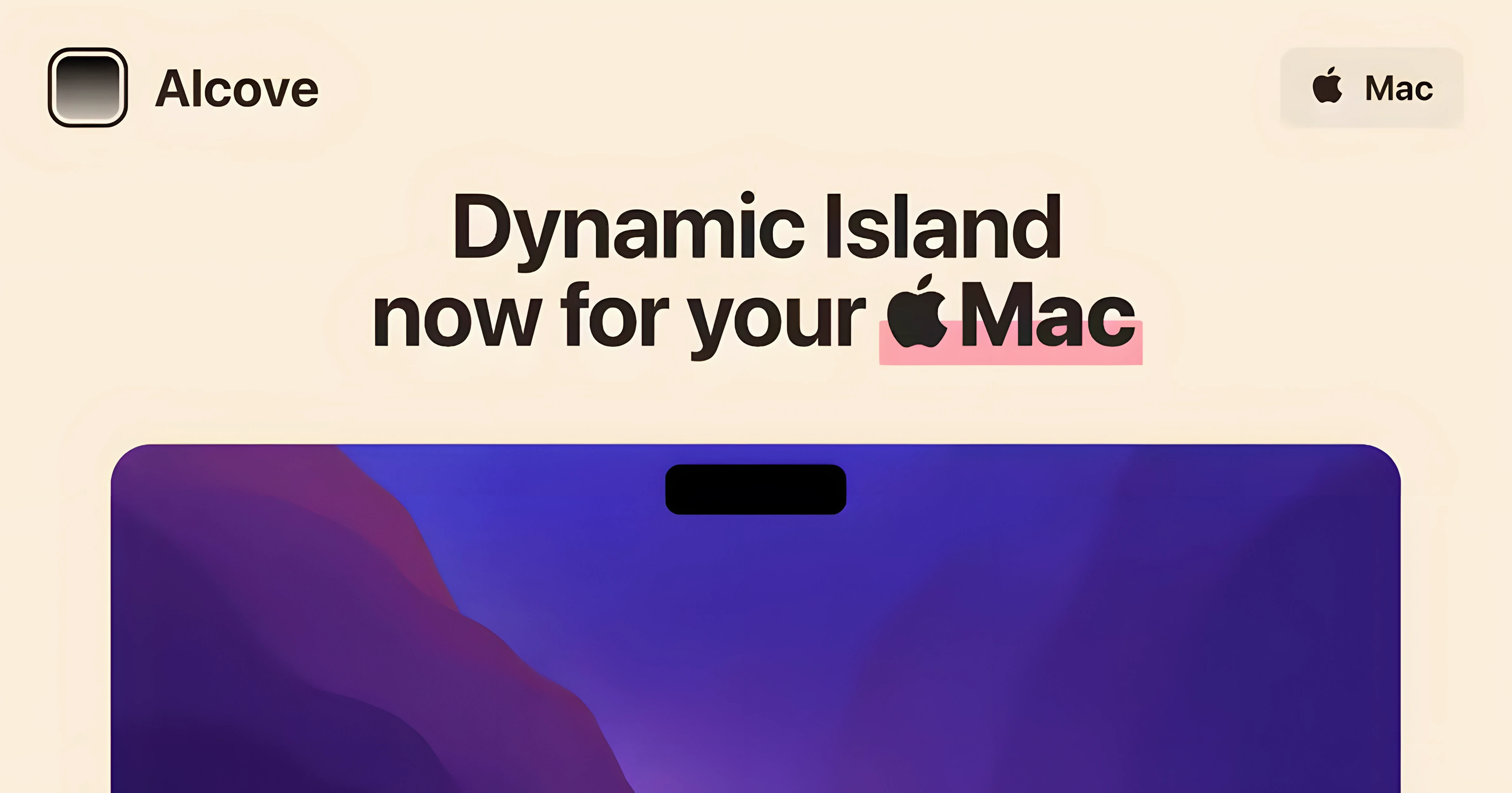
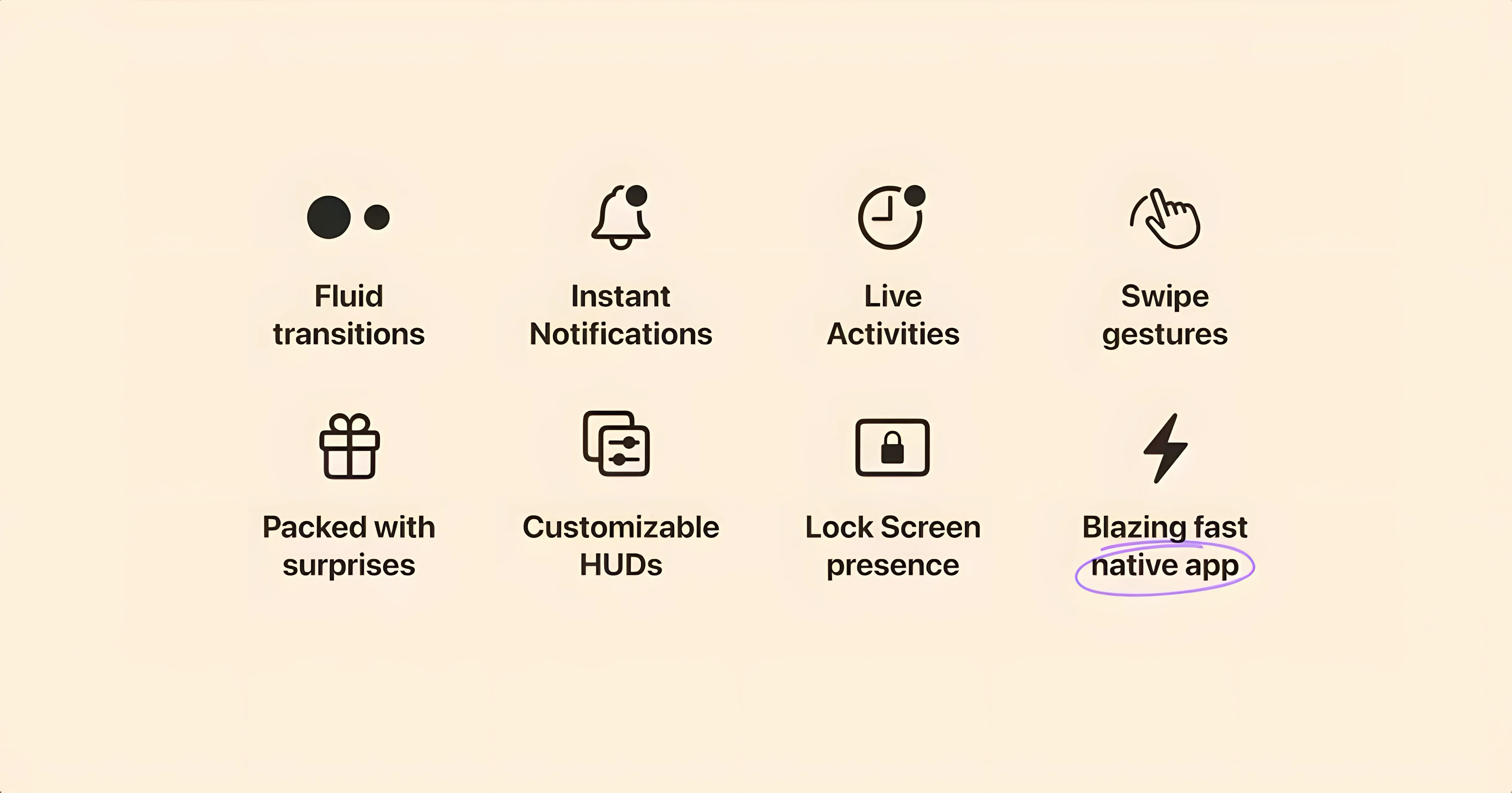
Alcove 1.7.9 is the current build. This version brings no listed changes, so it's a stable point to start with. The app extends the Mac notch area with interactive Dynamic Island-like actions — a small panel that pops up for music controls, timers, clipboard previews, and system status.
Play or pause music from the notch
- Play or pause music from any app — the notch shows a compact control panel.
- Start a timer or stopwatch; Alcove keeps it visible without taking up dock space.
- Copy something and watch the notch briefly display a thumbnail or text preview.
- Click the notch area to open the full panel, then drag it to reposition.
Getting the most from it
Alcove works best when you turn off automatic updates in its preferences — version 1.7.9 is stable and the developer may push changes you don't want yet. The interface is English only. It runs on macOS 14 and up, on both Intel and Apple Silicon Macs. After copying the app to Applications and launching from Launchpad, you can adjust which actions appear in the notch panel. For a first look, let it run in the background for a day — you'll notice it mostly stays out of the way until you need it.
A real-world scenario: keeping an eye on a render while working in other apps
Let's say you're exporting a large video from DaVinci Resolve or rendering a 3D model in Blender on an M-series Mac. You don't want to keep either app in the foreground, but you need to know the moment the job finishes so you can start the next step. Alcove's notification capsule sits in the notch. When the render completes, a small preview or status line appears there — no full-screen pop-up, no need to switch desktops. You see it from the corner of your eye and click the notch to confirm. The same works for download completions in Safari or batch exports from Lightroom. It turns the notch into a single, always-visible status bar for background tasks, which is useful when you're juggling multiple apps.
Relaunch Alcove after waking from sleep
- Alcove doesn't respond after waking the Mac from sleep. The notch may appear empty or unresponsive. Quit the app from the menu bar icon and relaunch it. It resumes normal behavior. This happens occasionally with background utilities that rely on system event hooks.
- Media controls don't show for a specific player. Alcove reads media playback data from macOS's media control system. If a player doesn't report its state to the system (some older or niche apps don't), Alcove can't display controls. Try using a player that integrates with the system media keys — most modern apps like Spotify, Apple Music, or VLC with the right settings work.
- The notch panel appears on the wrong display. If you use an external monitor connected to a MacBook, Alcove may show the capsule on the built-in screen when you'd rather see it on the external one. Drag the panel once to the display you prefer; the app remembers the position for that session. A full restart of the app may be needed if the display mapping changes.
- System volume and brightness HUDs show both Alcove's custom ones and the stock macOS ones. Alcove replaces the stock HUDs automatically on macOS 14. If both appear, check that no other system overlay utility is running. Disable any third-party HUD replacement tools and restart Alcove.
The capsule fades to nearly transparent when idle
- Alcove's capsule fades to nearly transparent when idle. You don't see a bright bar at the top of the screen; it's only there when something happens.
- The clipboard preview shows a small text snippet or image thumbnail. It's not a full clipboard manager, but it's enough to confirm you copied the right thing before pasting.
- Timers and stopwatches persist in the notch even if you switch to full-screen apps or presentations. They stay visible on top of everything, which helps if you're timing a speaking slot or a workout.
- You can click the notch capsule to open the full panel and then drag it to any edge of the screen. It doesn't have to stay centered; move it to a corner if that works better for your layout.
Alcove adds interactive controls, Notch Plus focuses on system stats
Alcove sits in a small niche — apps that add interactive controls to the Mac notch. The best-known alternative is probably Notch Plus (a separate utility, not affiliated), which focuses on system stats like CPU and network usage in the notch. Notch Plus gives you graphs and numbers, but it doesn't handle media playback, timers, or clipboard previews. Alcove is more about actions and events than monitoring.
Another option is Mactop, a system monitor that can overlay a bar at the top of the screen. Mactop shows real-time performance data and is highly customizable, but it's a traditional floating window, not a Dynamic Island-style capsule that responds to context. Alcove's strength is that it appears only when needed and disappears when not, whereas Mactop stays visible by design.
A third category is media key remappers like Media Keys, which let you assign shortcuts to control playback. Those don't add a visual panel — they only map keyboard keys. Alcove gives you the visual feedback and the clickable controls, which is more useful if you want to see what's playing without opening the app.
None of these replace Alcove entirely. If you want the Dynamic Island-style behavior — a contextual capsule that handles media, timers, clipboard, and notifications — Alcove is the only app that bundles all of that into one notch-based interface. The others each cover one piece, but they don't combine them in the same way.
- macOS 14 or later
- Intel or Apple Silicon
Questions from the notes
What macOS does Alcove require?
Alcove requires macOS 14 or later. It works on both Intel and Apple Silicon Macs.
Can I turn off automatic updates?
Yes. Open Alcove's preferences and disable automatic updates to stay on the current stable build.
What language is the interface in?
The interface language is English.
Install procedure
- Open the downloaded disk image.
- Drag the app to the Applications folder alias.
- Launch the app from Launchpad.
- Turn off automatic updates in the app's preferences.
Reports from players
Sign in or create a tester account to file a report.
No reports filed yet.