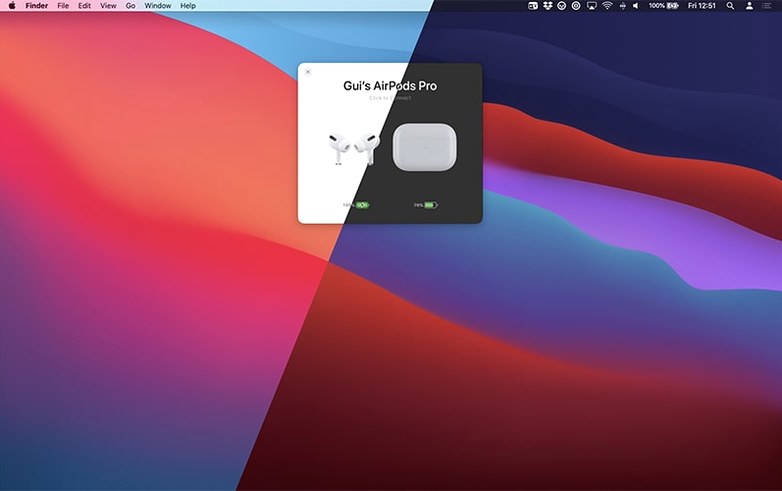
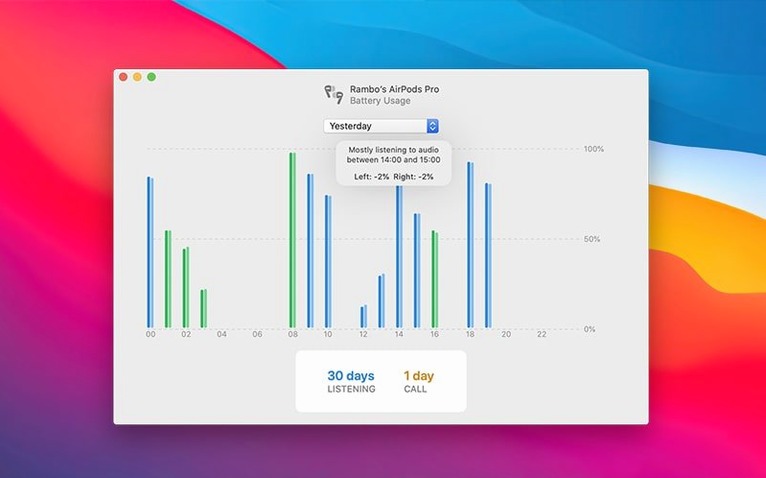
It shows total listening and talk time, and indicates if one AirPod drains faster than the other. The app supports custom connection modes for automatic device setup and extends AirPods and Beats support on Mac. AirBuddy 3 requires macOS 14 or later and runs on both Apple Silicon and Intel Macs.
Scenario: a designer switching between two Macs
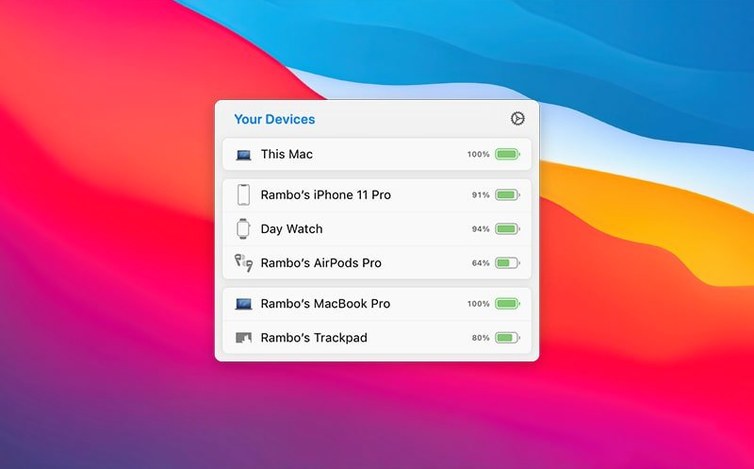
You work in a shared studio with an iMac for design work and a MacBook for client meetings. AirBuddy 3 handles that loop. The grouped device view also shows your iPad or iPhone if they are nearby, so you can see whether your Beats are paired to the phone or the iMac before you start a call.
Common Bluetooth sync oversights new users face
Skipping the menu bar icon options
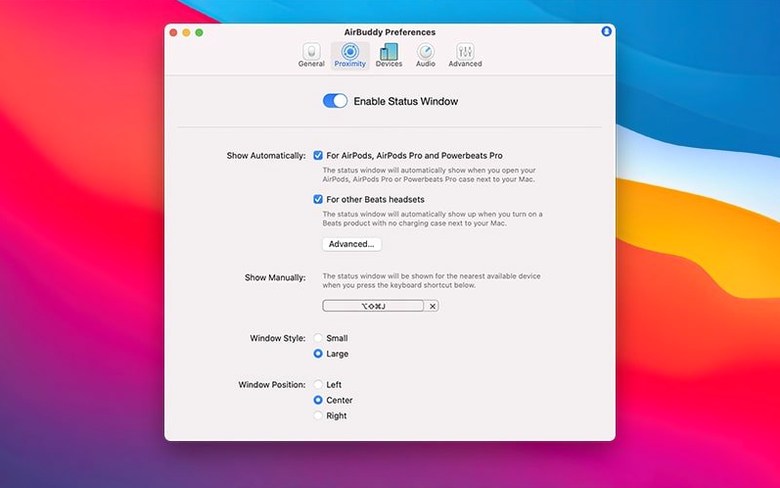
New users often leave the menu bar icon set to the default and never change it. If you prefer a clean menu bar, hiding the icon entirely keeps it out of the way.
Ignoring custom connection modes
AirBuddy can automatically change listening mode, volume, and microphone state when a device connects. Beginners tend to connect their AirPods manually each time, missing the convenience of having the app switch to noise cancellation or lower volume automatically depending on which Mac you sit down at. The connection modes are set up once and then run in the background.
Overlooking the usage history
The headset usage history covers the previous 12 hours, 24 hours, or the previous day, and shows total listening time and total talk time along with which earbud is draining faster. Beginners who do not check this miss a useful data point for deciding when to charge or replace a bud. It is one less guess about why one side dies before the other.
Requires macOS 14 or later on ARM and Intel Macs
AirBuddy 3.0-890 requires macOS 14 or later and runs on both ARM and x86 64-bit Macs. That means it works on any modern Mac — Apple Silicon MacBook Air, M2 iMac, or an Intel MacBook Pro from the last supported macOS version. The app is lightweight; you install it, follow the included setup instructions, and use the activation method provided with the package. The interface is in English, with no other language options. You will see device status for nearby Apple and Beats headphones, plus iPhones, iPads, and other Macs in the group view.
Magic Handoff ties Apple peripherals to macOS Bluetooth
AirBuddy works alongside the standard macOS Bluetooth stack. It does not replace it. The Magic Handoff feature works with a Magic Mouse, trackpad, or keyboard, so if you already use Apple’s multi-device peripherals, AirBuddy ties them together without extra software.
The app’s device group view mirrors how you already think about your devices — it groups the AirPods Pro with your iPhone, or your Beats with your iPad, based on their relationships. If you use Affinity beta or Adobe beta generative fill on the same Mac, those apps run independently; AirBuddy sits in the menu bar and does not interfere with them. The one-click connection and trackpad gesture for AirPods Pro are convenience layers on top of the existing Bluetooth pairing, so your workflow stays the same, just faster.
Scenario: a commuter editing podcasts on a MacBook
You edit audio on a MacBook during your train commute, using AirPods Pro to monitor recordings. AirBuddy 3 makes the connection routine predictable. The usage history helps you track how long you have been monitoring — useful for knowing when to let your ears rest or when the case needs charging before the return trip.
Mistakes beginners make with AirBuddy
Assuming it works without macOS 14
A common error is trying to run AirBuddy 3 on macOS 13 or earlier. The app requires macOS 14 or later. The developer has noted the beta may require macOS 13, but the current release version 3.0-890 is built for macOS 14. Check your system version before installing to avoid a failed launch.
Not setting up connection modes after pairing
Pairing AirPods or Beats with the Mac does not automatically configure AirBuddy’s connection modes. The connection modes let you set listening mode, volume, and microphone state to trigger automatically when the device connects. Without that step, the app shows information but does not change settings for you.
What to expect on your Mac from the requirements alone
AirBuddy 3.0-890 needs macOS 14 or later and supports both ARM and x86 64-bit architectures. That means it runs on any Mac that meets Apple’s macOS 14 system requirements — from the M3 MacBook Air to a 2019 Intel Mac Pro. The app installs with included instructions and uses the activation method provided with the package. The interface is English only. No other language options are available.
It does not replace macOS Bluetooth — it sits on top of it. You will see device status for nearby Apple and Beats headphones, plus iPhones, iPads, and other Macs in the grouped view.
- Menu bar icon option: choose the app icon, battery indicator, or no icon.
- Devices grouped by relationship to each other.
- Battery and playback controls for nearby devices.
- macOS 14 or later
- Apple Silicon or Intel Mac
Questions from the notes
Does AirBuddy 3 work on Intel Macs?
Yes, AirBuddy 3 supports both ARM (Apple Silicon) and x86 64-bit Intel Macs.
What languages does AirBuddy support?
The interface language is English.
Is AirBuddy 3 compatible with macOS 13?
The current version requires macOS 14 or later. Earlier builds of AirBuddy 3 were noted to require macOS 13, but the release version now requires macOS 14.
Install procedure
- Install the app using the included instructions.
- Follow the included activation instructions.
Reports from players
Sign in or create a tester account to file a report.
No reports filed yet.